Launch your first EC2 instance
What you’ll learn
- Find your way around the EC2 console
- Launch a virtual server with the launch wizard
- Choose a free tier eligible AMI and instance type
- Avoid a common mistake – SSH open to the whole internet
What you need
- An AWS account you can experiment in (use a sandbox account, not production)
- Permission to launch EC2 instances
The EC2 console
We start on the EC2 dashboard. It summarizes the EC2 resources in the current Region.
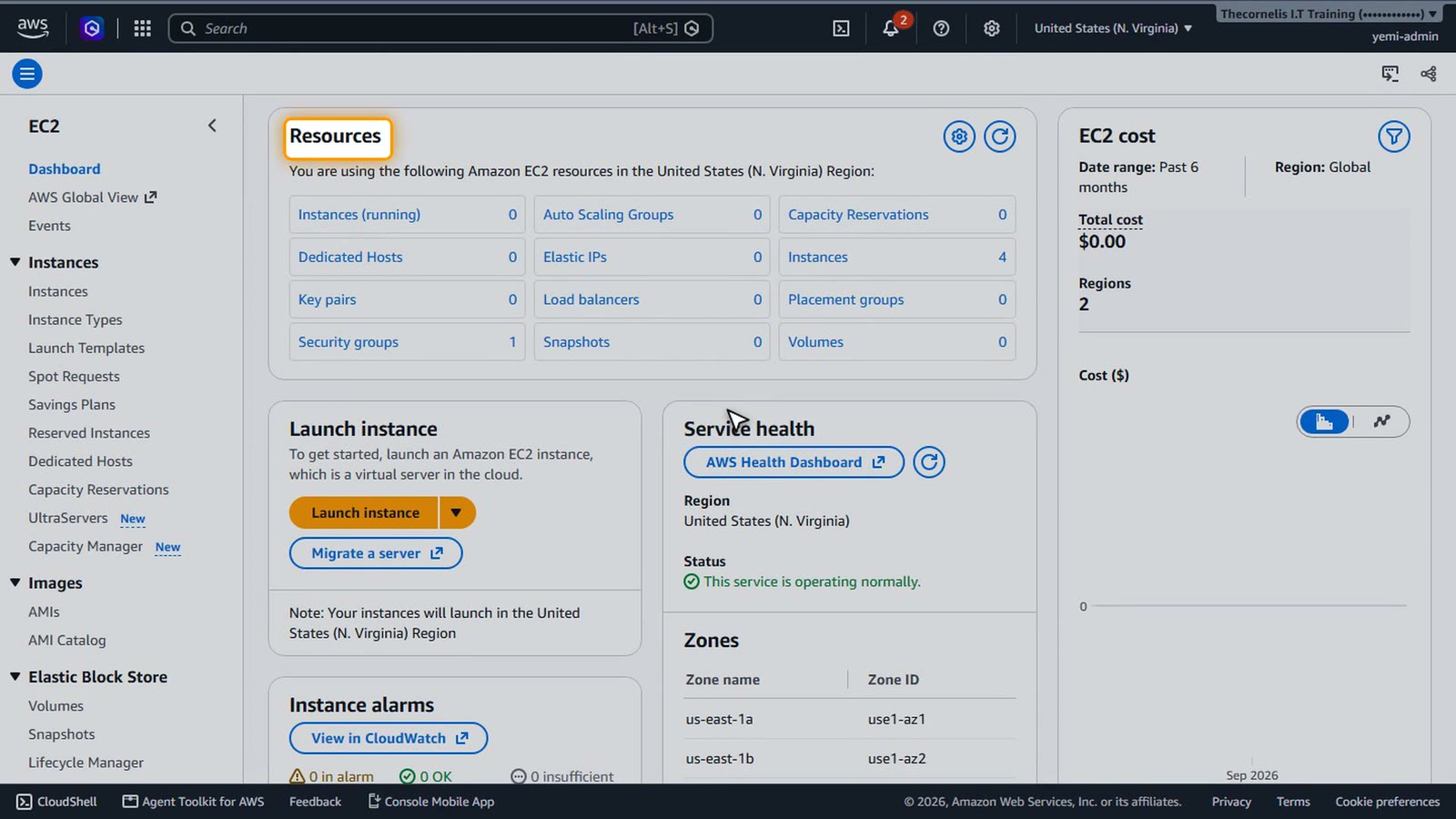
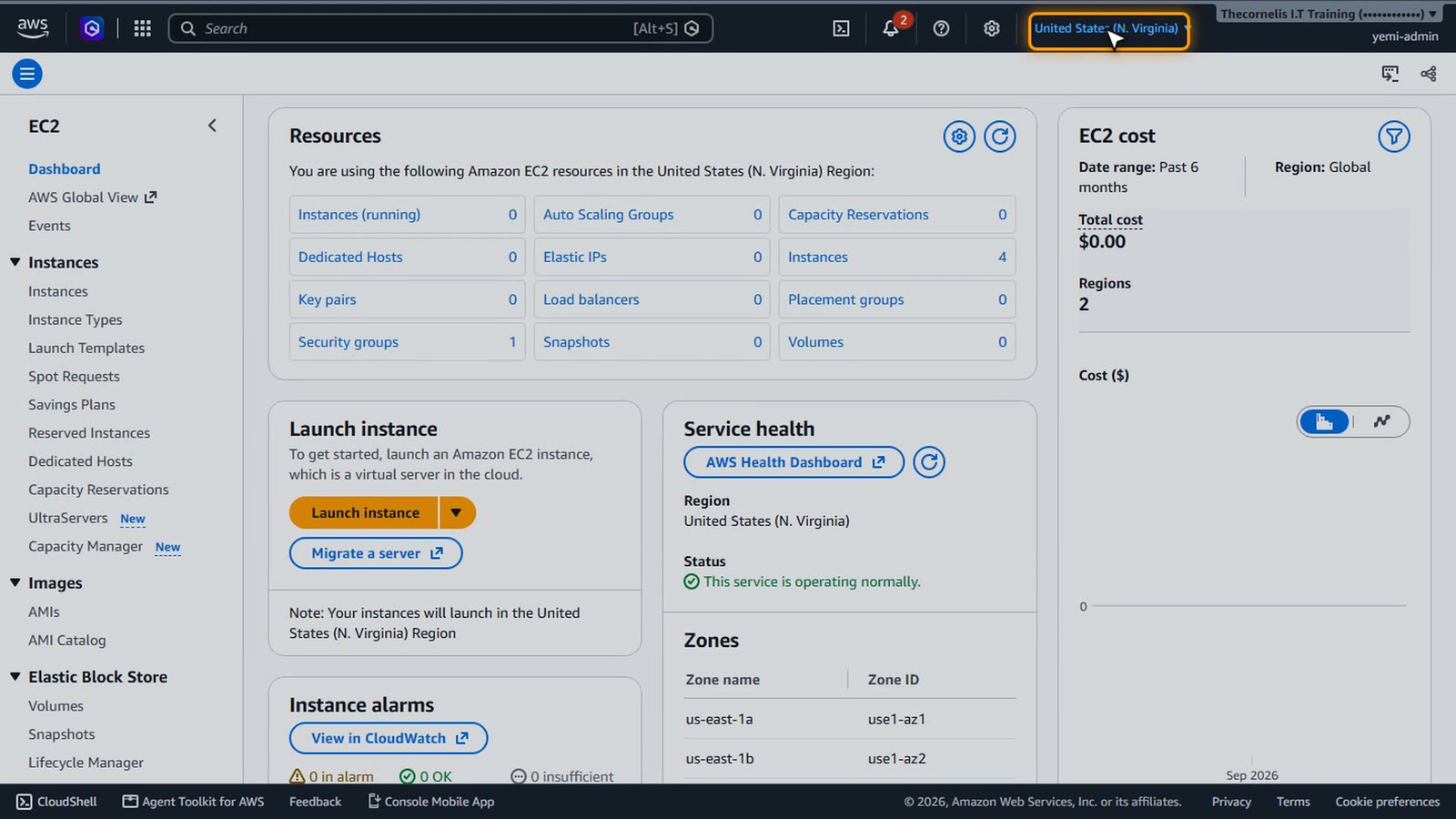
Check the Region selector at the top right. Instances are created in the Region you are viewing, so always confirm it before you launch.
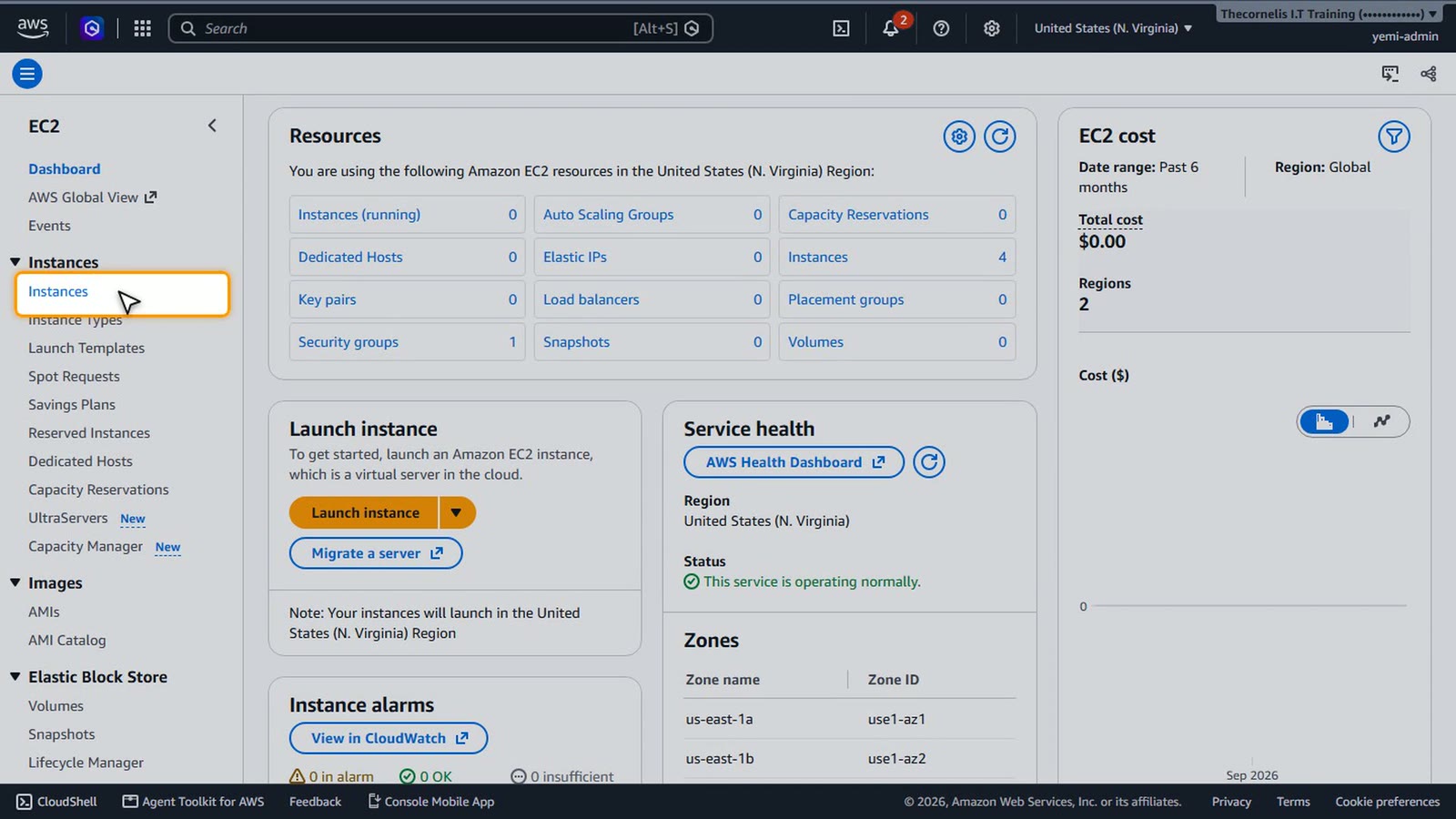
Instances list
In the navigation pane, choose Instances. This page lists every instance in the Region.
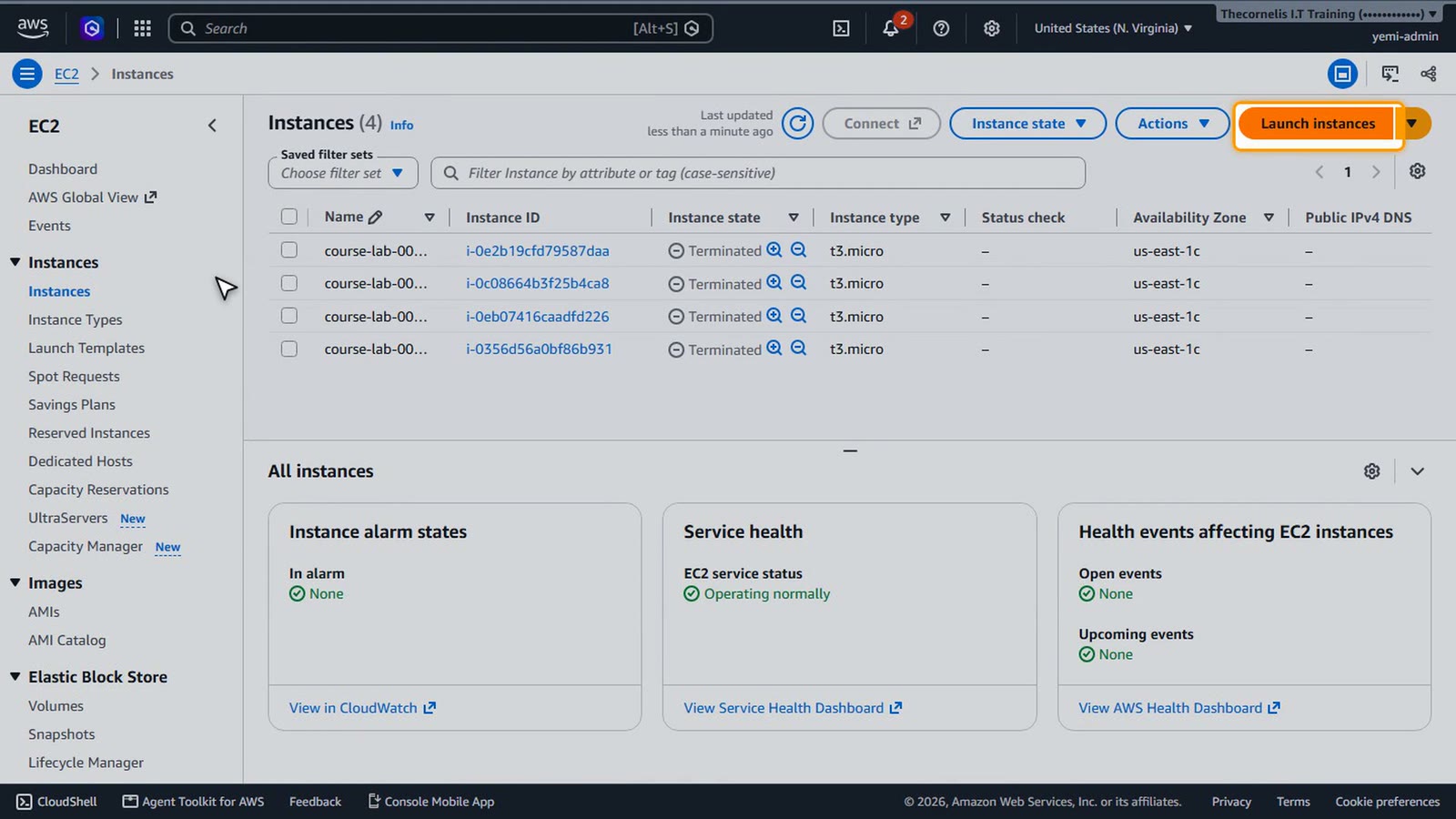
Launch wizard
To create a new server, choose Launch instances.
First, give the instance a name. The wizard saves it as a Name tag, which makes the instance easy to find later.
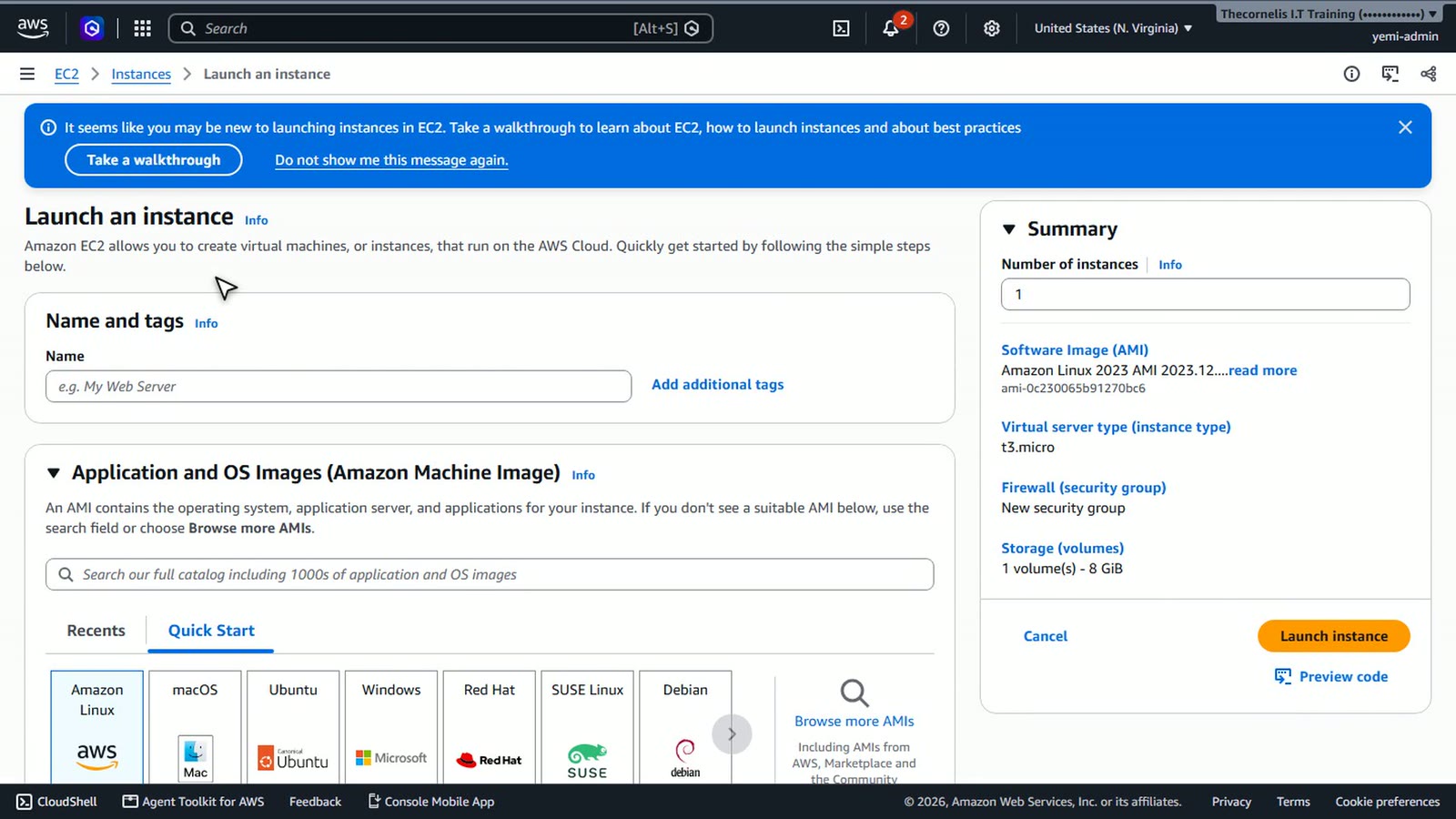
AMI and instance type
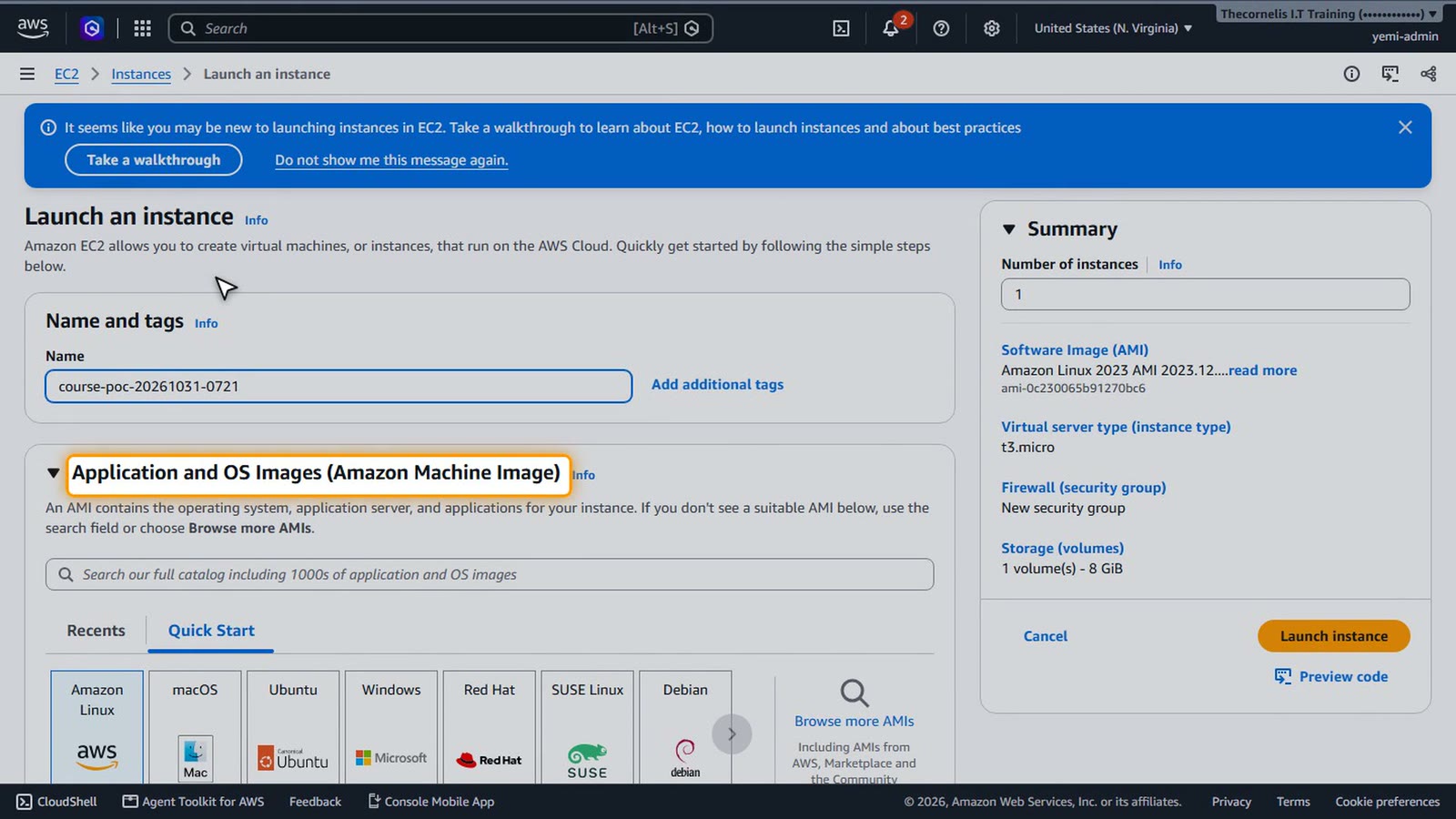
Under Application and OS Images, we keep Amazon Linux. An AMI is the template for the server's operating system, and this one is free tier eligible.
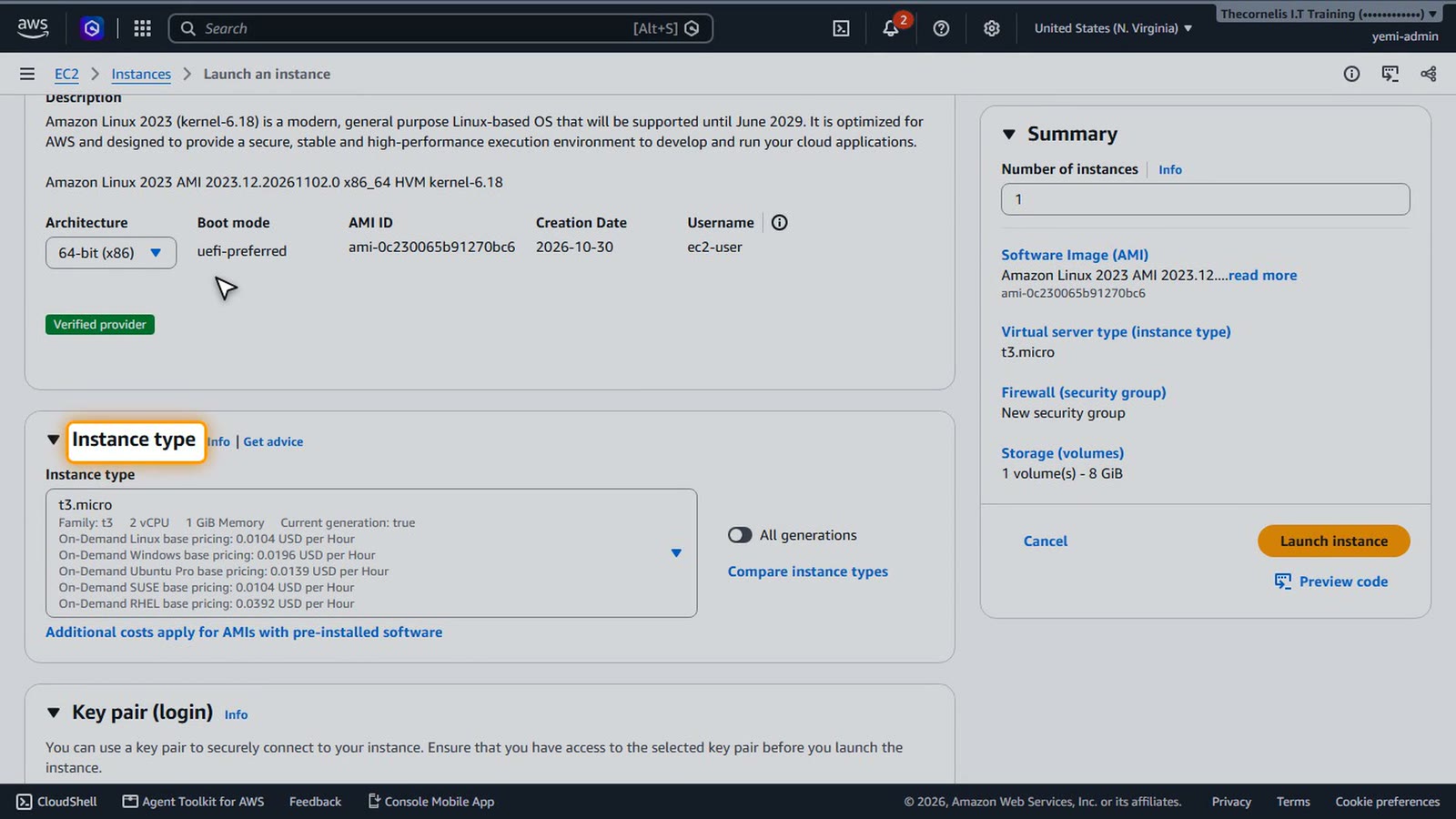
For the instance type, we keep the default, a small free tier eligible size. The type decides how much CPU and memory the server gets.
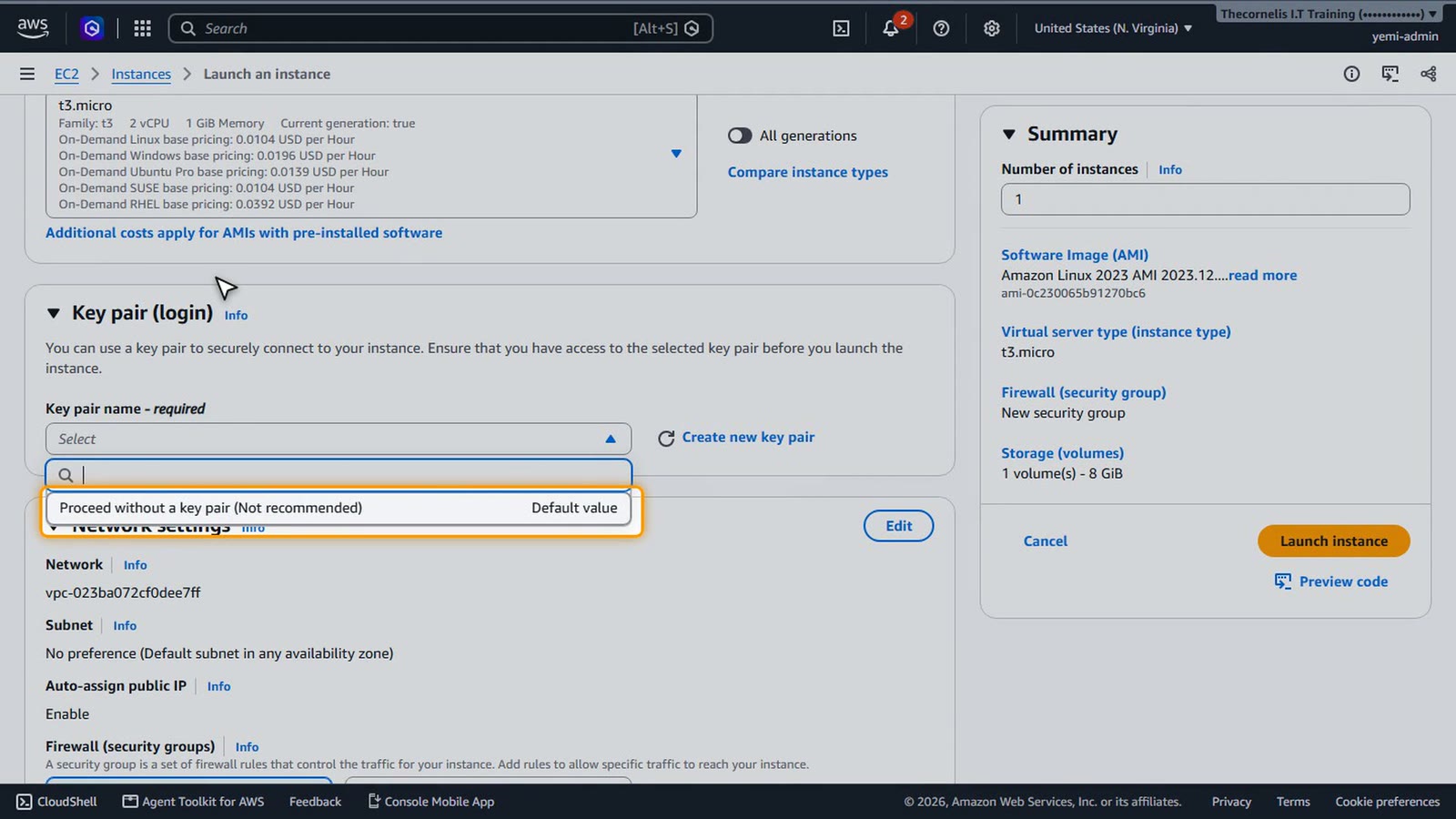
Key pair
A key pair lets you connect with SSH. We won't connect in this lesson, so we choose Proceed without a key pair.
Network settings
In Network settings, the wizard allows SSH from anywhere by default. That exposes the server to the whole internet, so we turn it off.
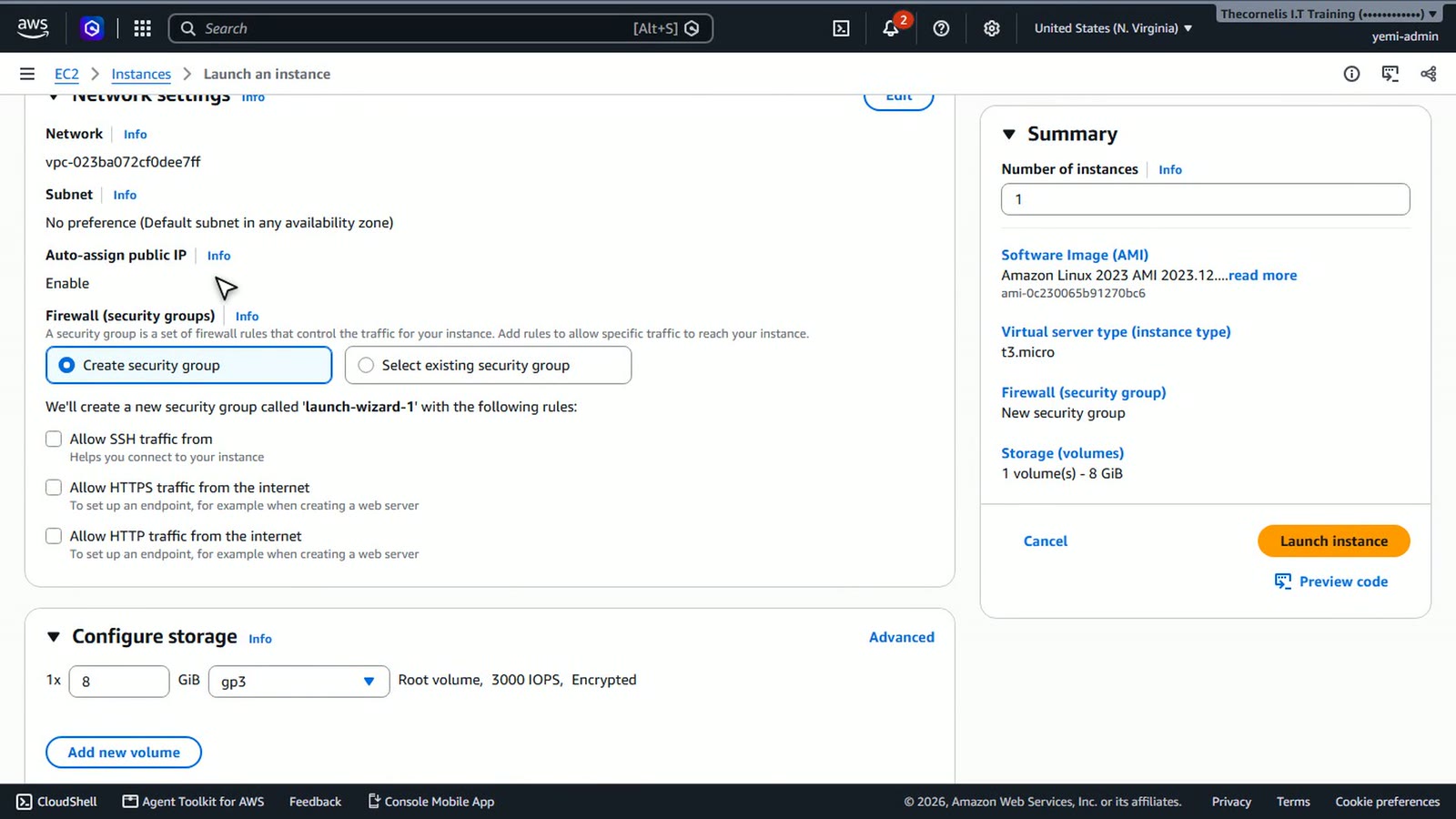
With no inbound rules, nothing on the internet can reach this instance. That's the safest place to start, and we can open specific ports later.
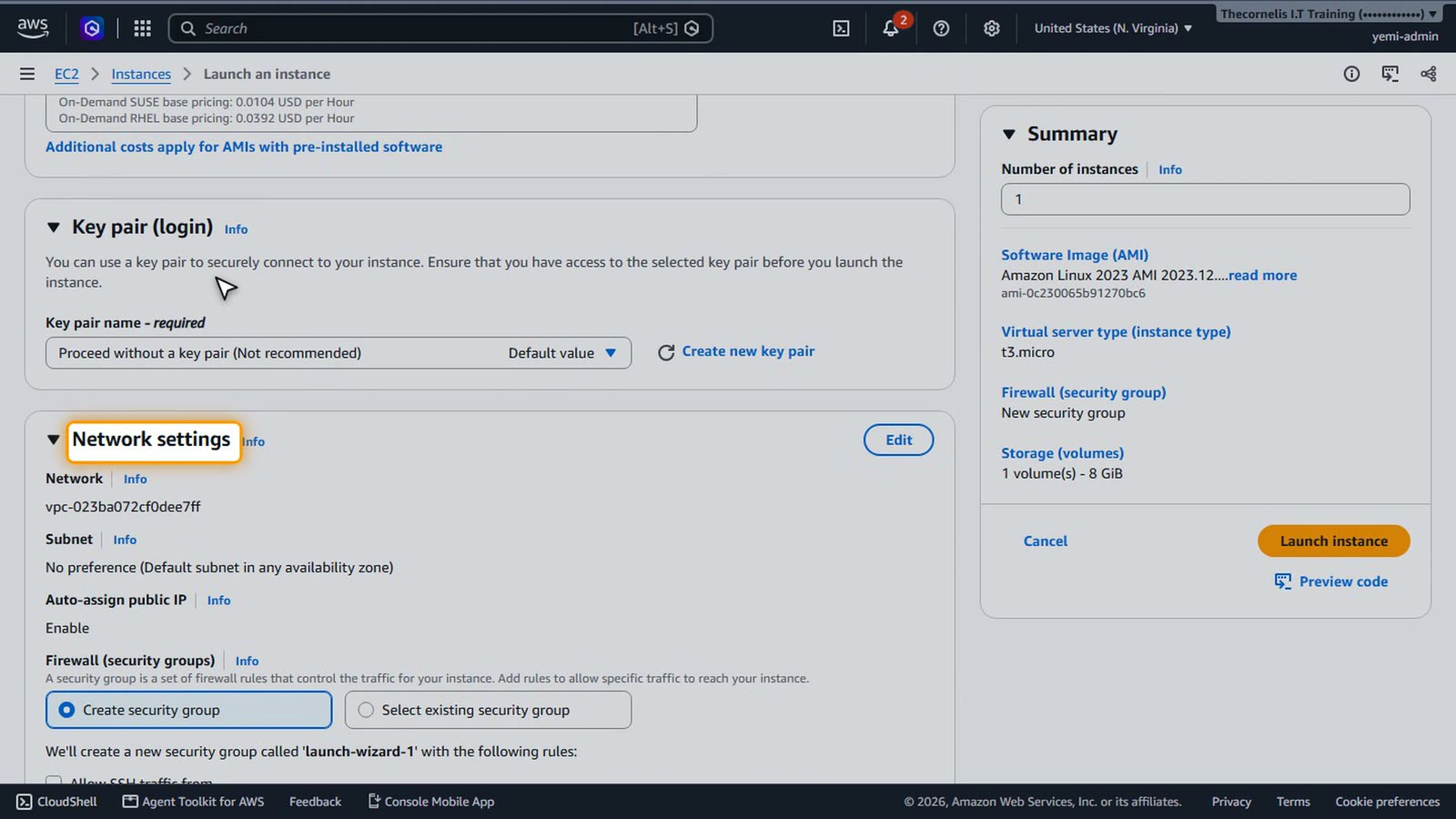
Launch
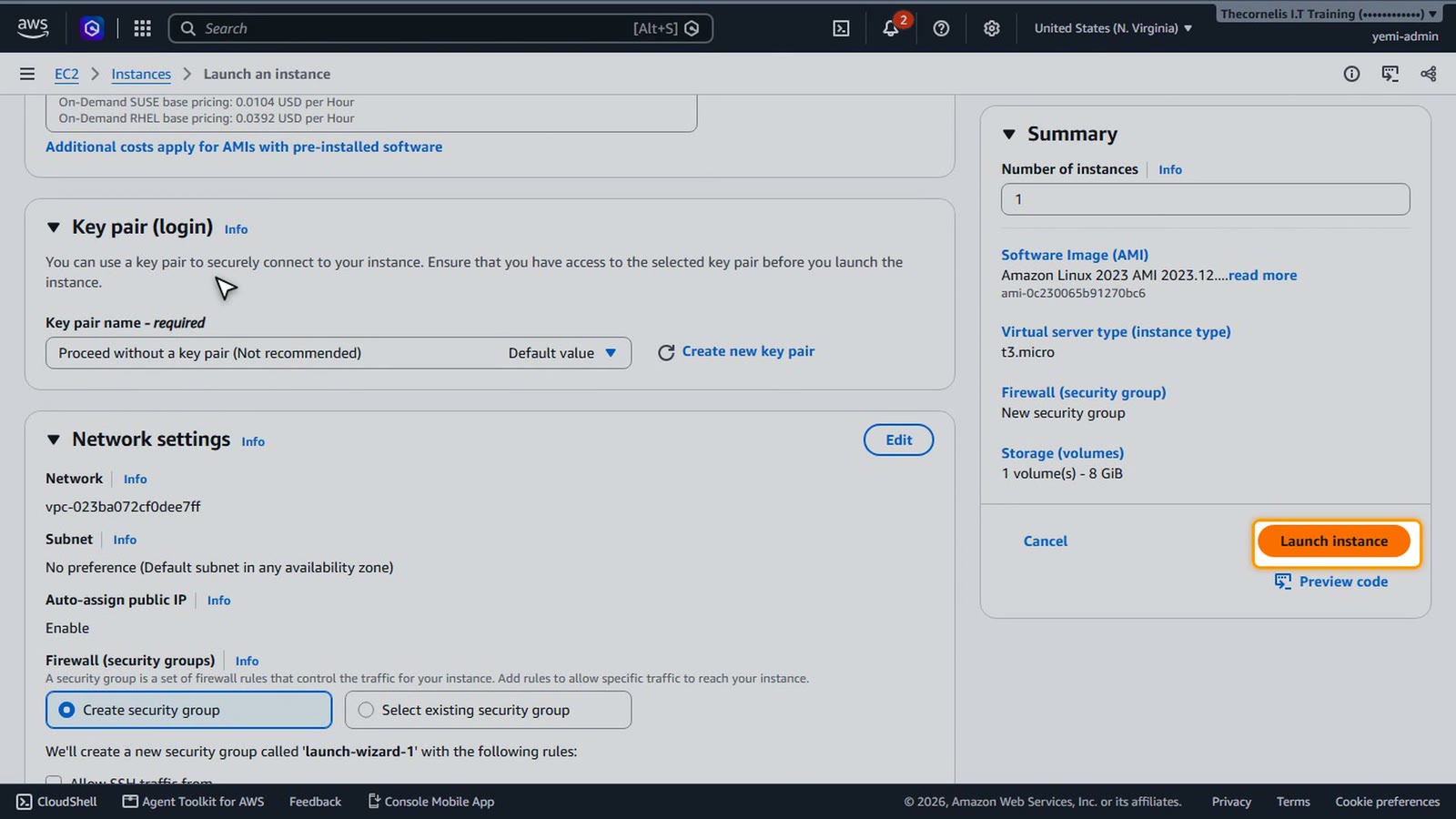
Review the summary panel, then choose Launch instance.
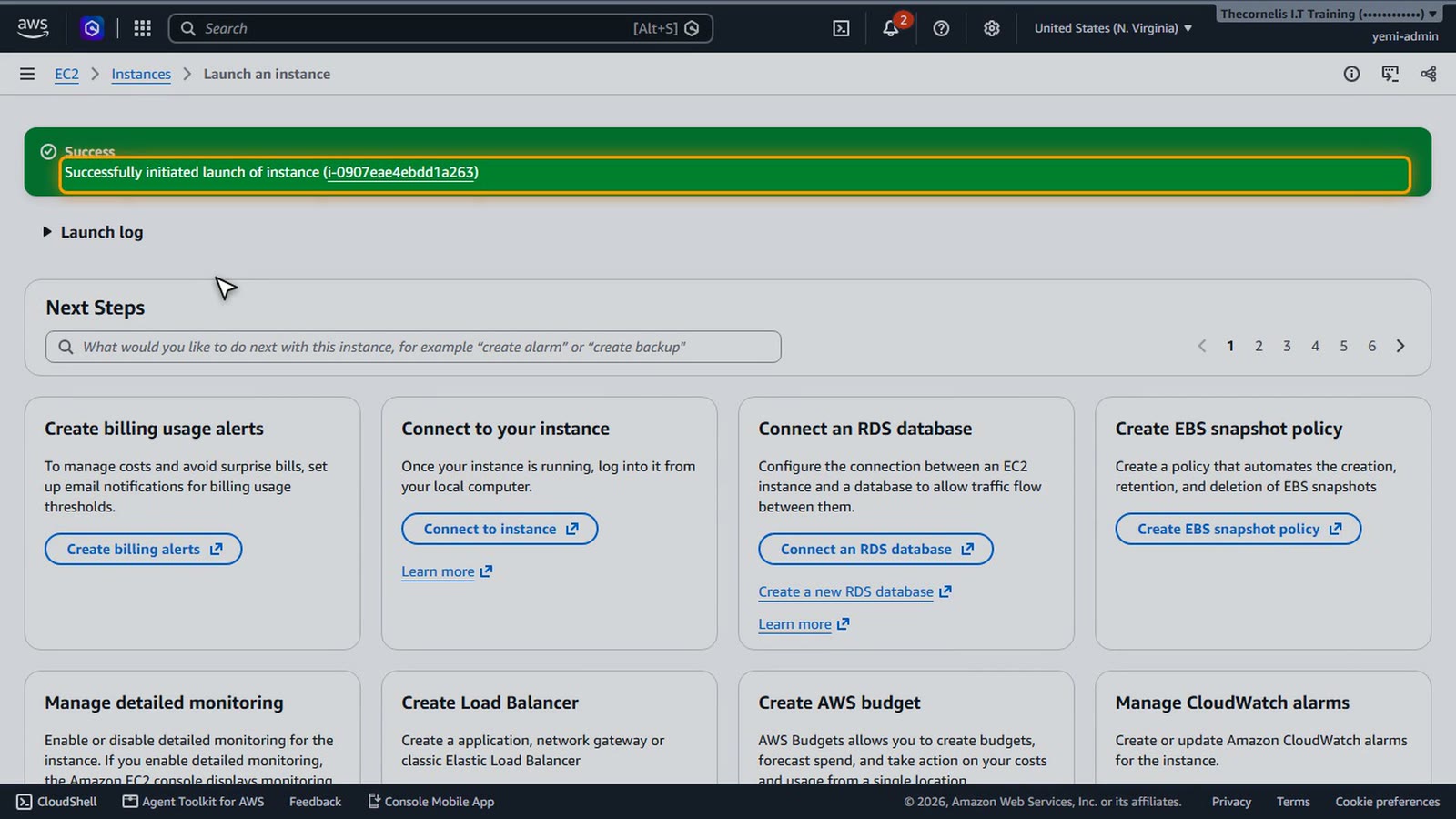
The launch has started. AWS is now provisioning the virtual server for us.
Check the instance
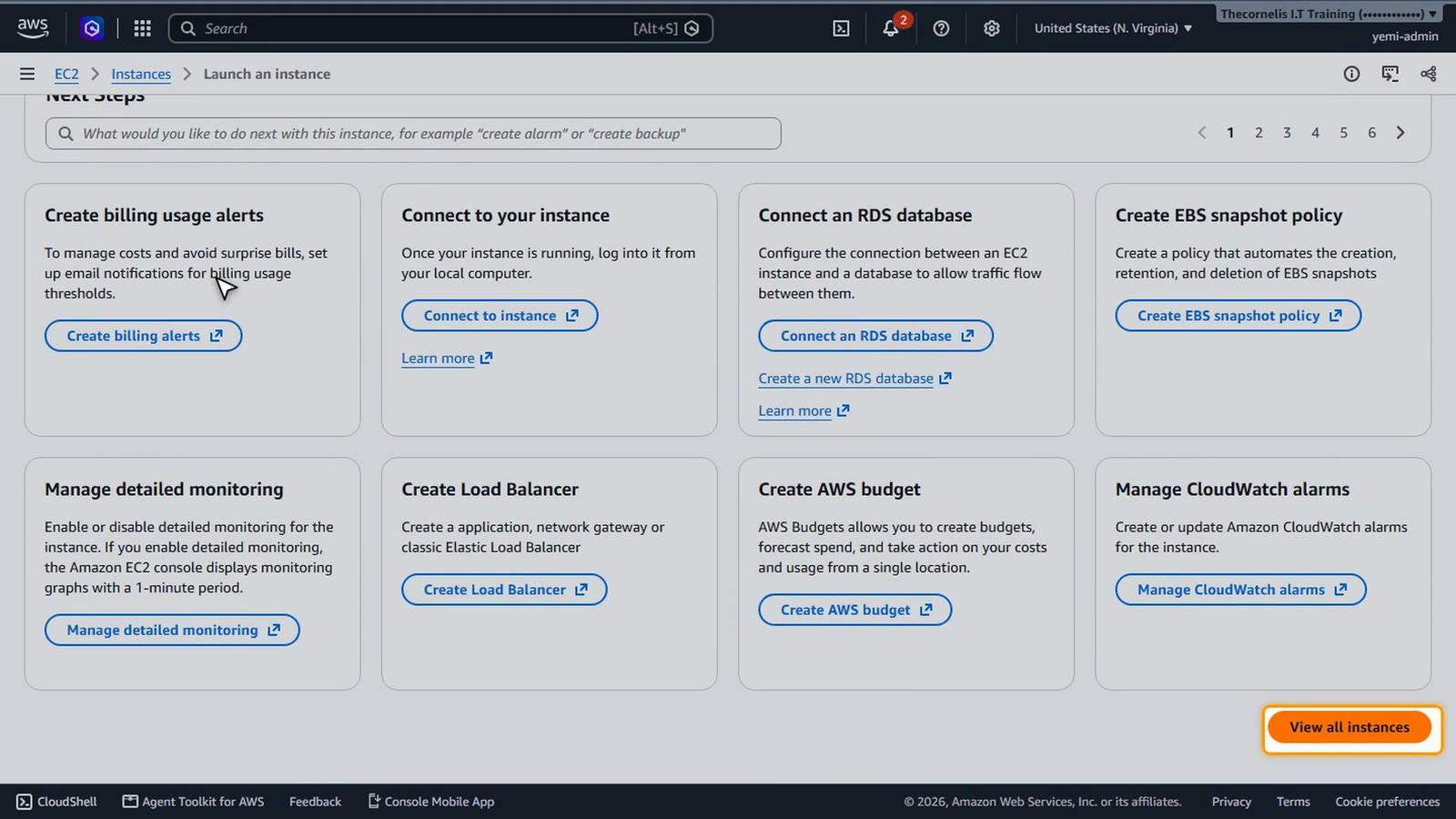
Choose View all instances to return to the list.
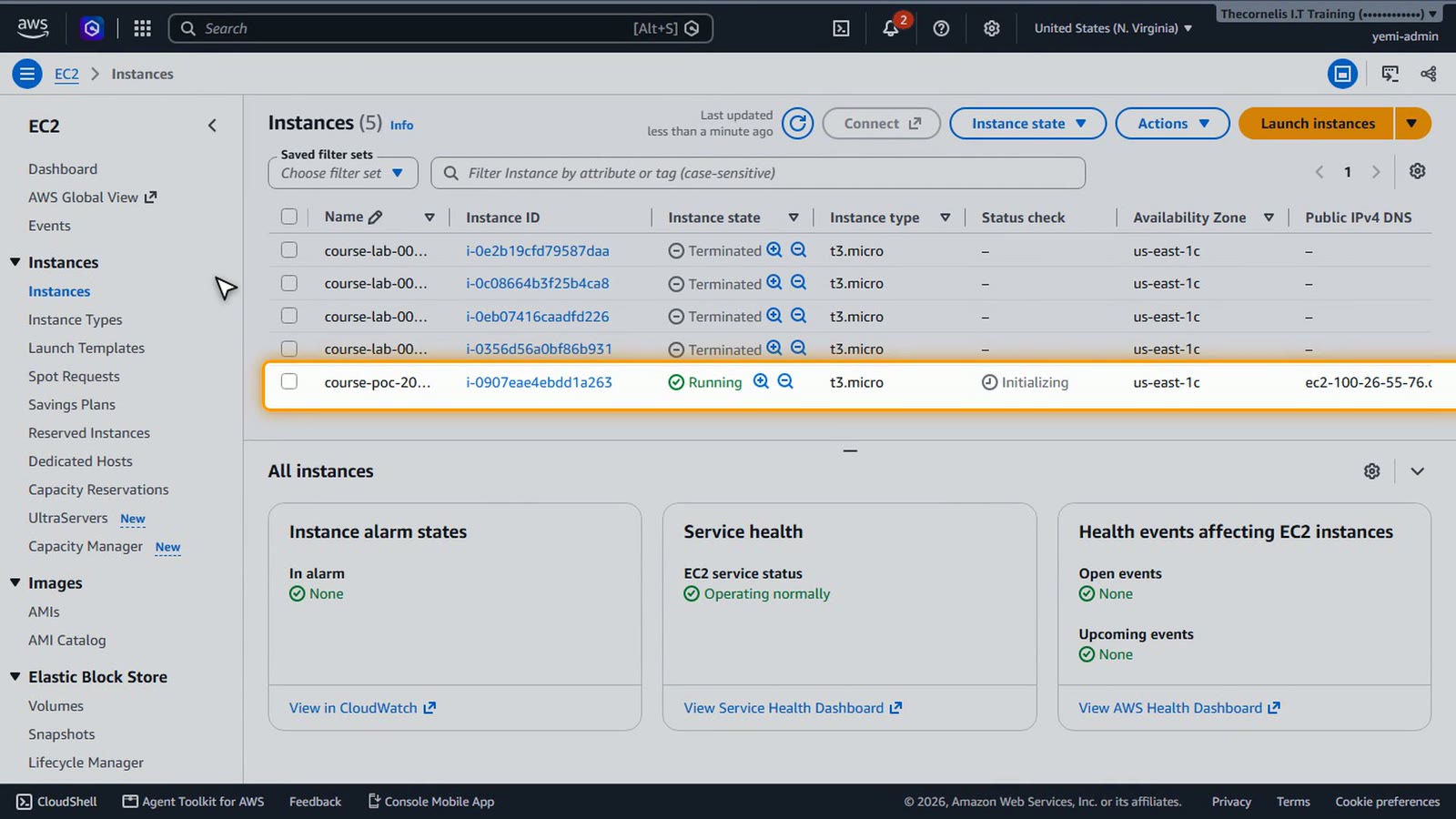
Here is our new instance. It starts in the Pending state while AWS prepares it.
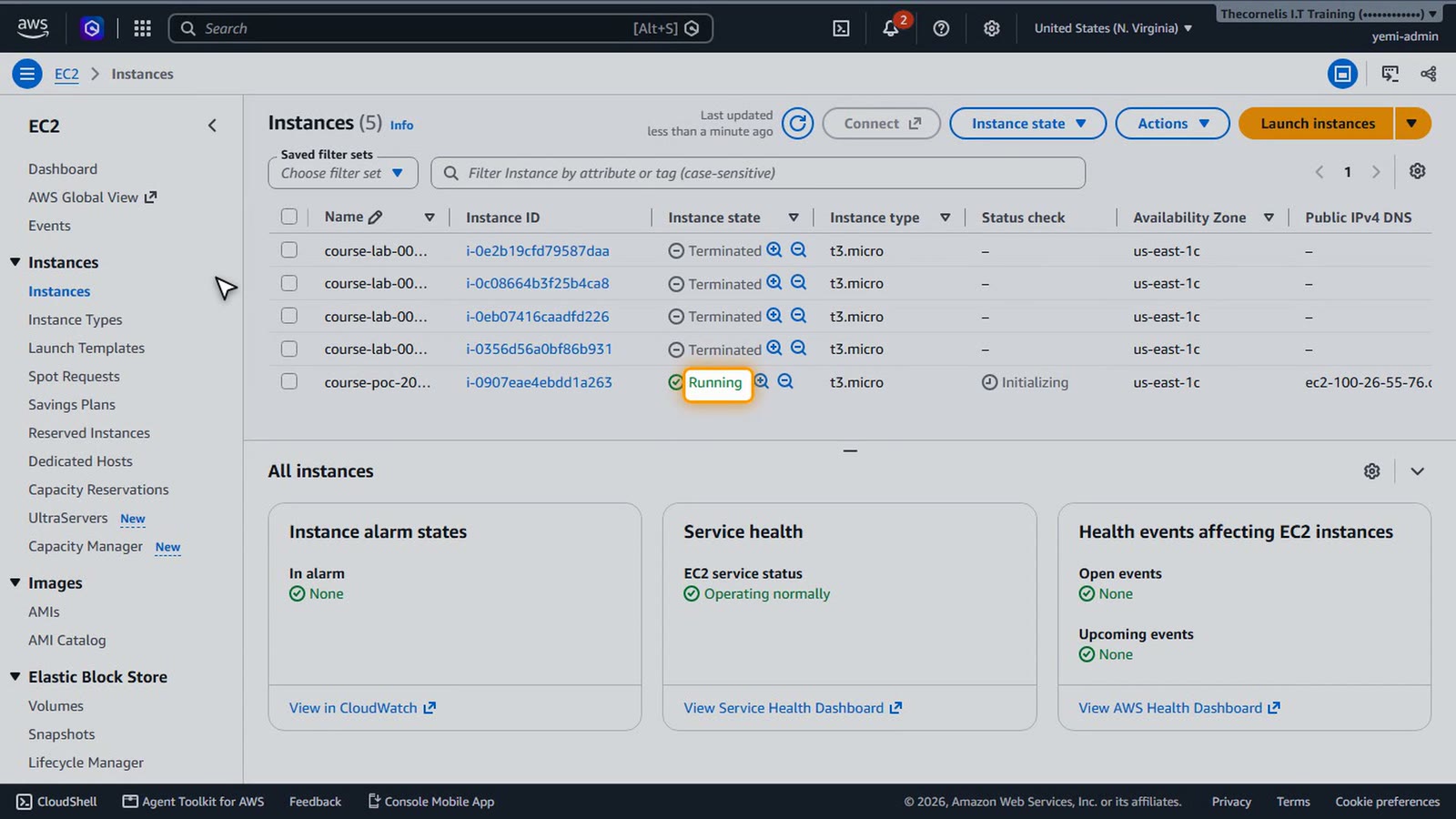
We refresh the list, and after a short wait the state changes to Running. Our server is up.
Summary
- The EC2 dashboard and Instances list
- Launching an instance with the launch wizard
- Choosing an AMI, instance type, and key pair
- Keeping inbound access closed by default
What’s next
You've launched your first EC2 instance with a safe default configuration. A running instance can incur charges, so terminate it when you're done. In the next lesson we'll look inside the instance details.