Set up a safe AWS account
What you’ll learn
- Read the security recommendations on the IAM dashboard
- Understand why you protect, and avoid, the root user
- Check that your root user has MFA – and turn it on if it doesn't
- Create a monthly budget alert
What you need
- The AWS account from lesson 001 (or another account you can experiment in – not production)
- If you sign in as an IAM user instead of root, it needs billing access (set once by the root user in Account settings)
Security recommendations
We start in IAM, the service that controls who can do what in your account. At the top of the dashboard, AWS lists its security recommendations for you.
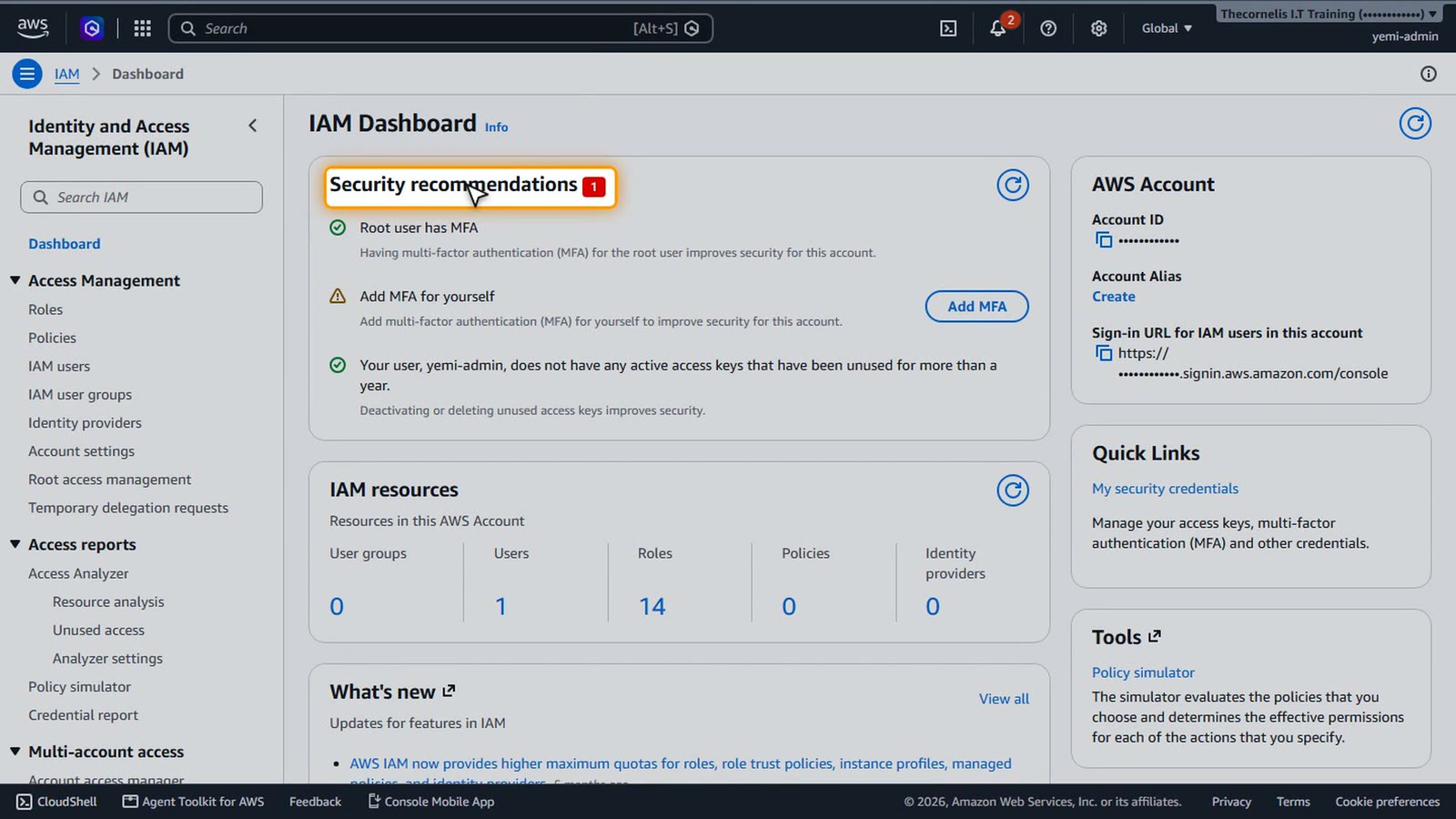
The first one is about the root user. That's the email address you used to create the account, and it can do anything, even close the account. Use it only for a few account tasks, never for daily work.
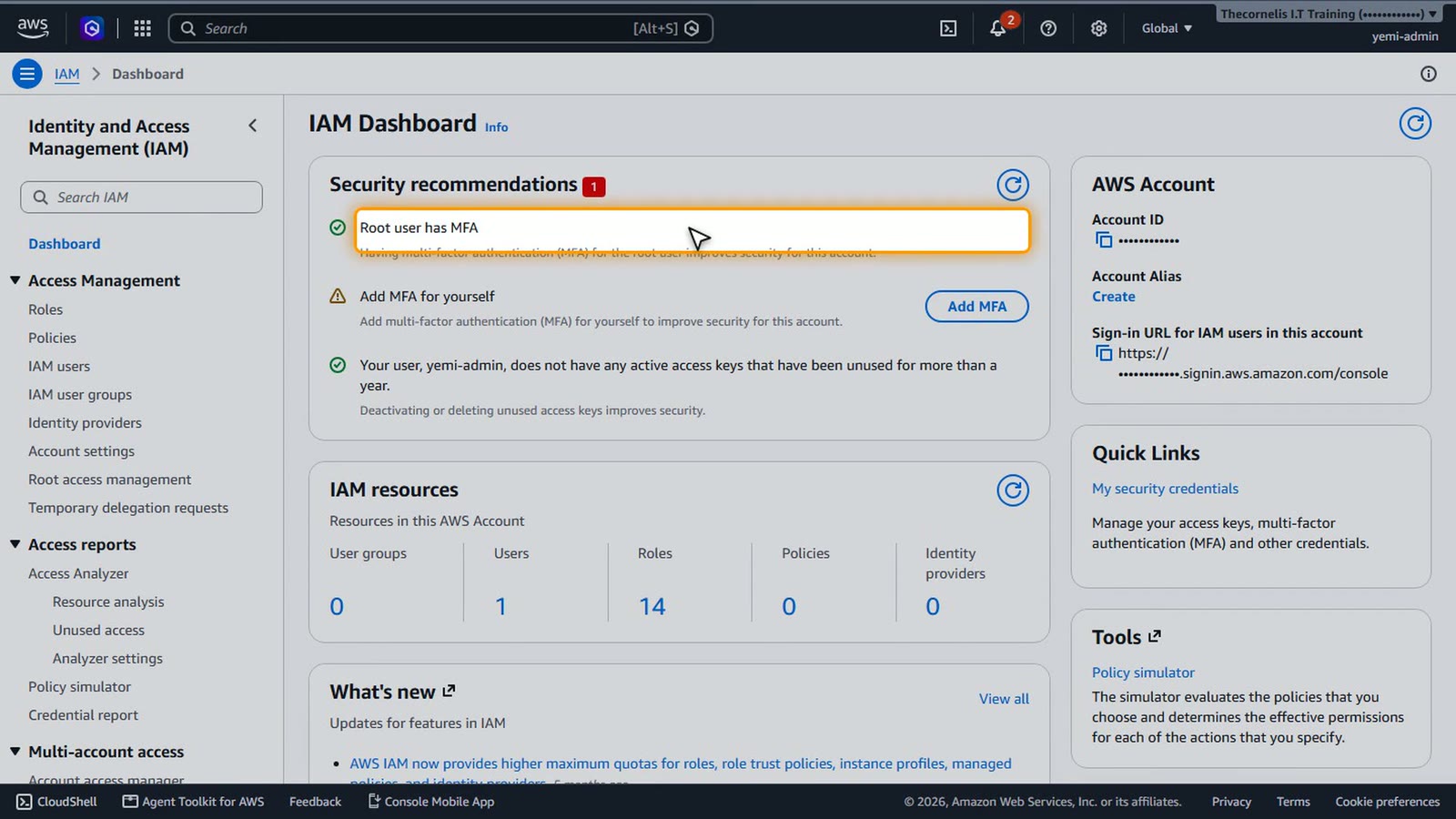
The most important protection is multi-factor authentication (MFA) on the root user. If you followed lesson 001, the dashboard shows "Root user has MFA" with a green check – skip ahead to the budget alert. If you see a warning instead, your root user has no MFA yet, so follow the next section before you do anything else.
Root MFA (only if missing)
This section is only for accounts whose root user doesn't have MFA yet – for example an account created before AWS required it. Sign in as the root user and open Security credentials (account menu, top right). The steps are the same for the root user and for any IAM user.
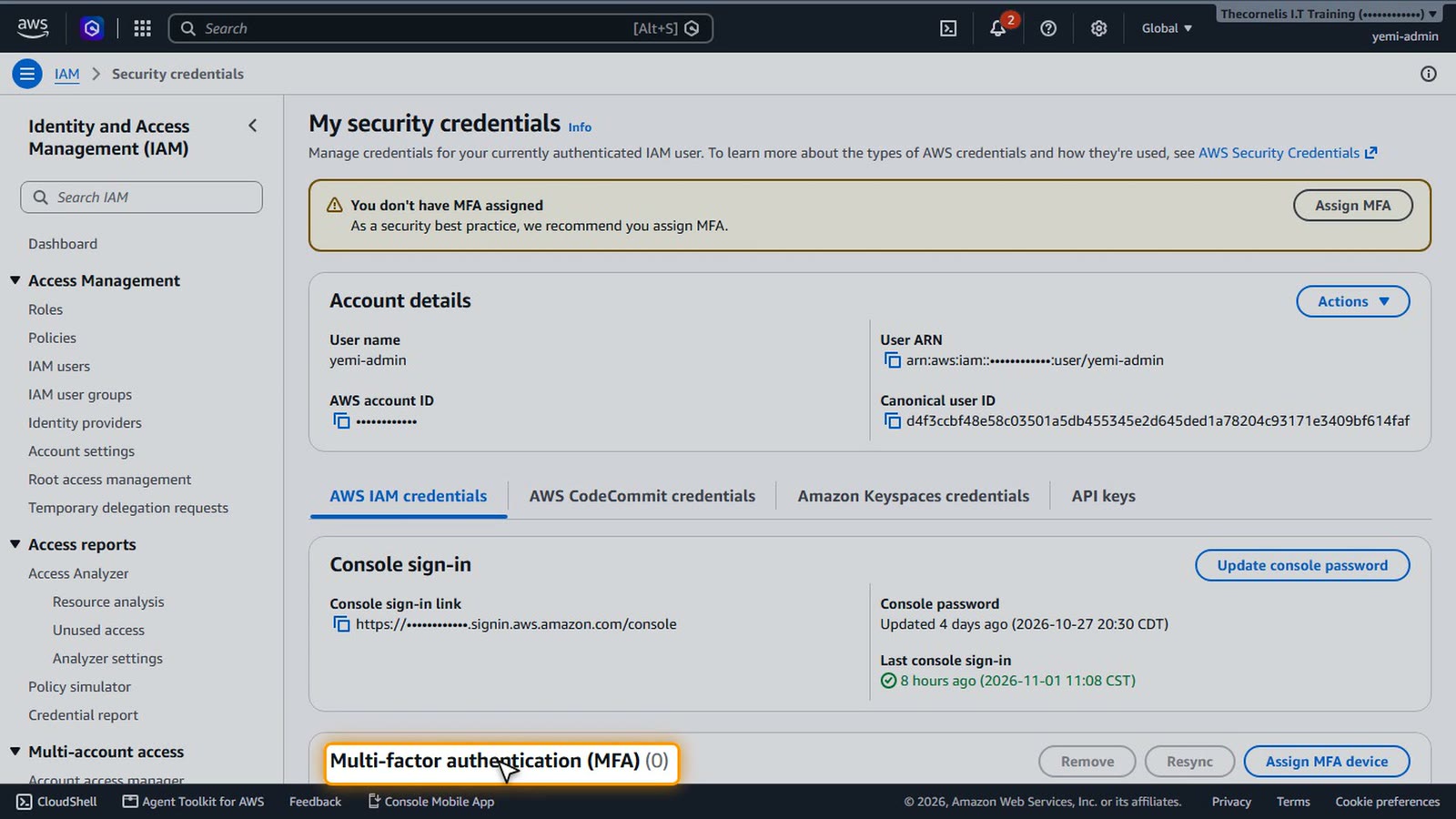
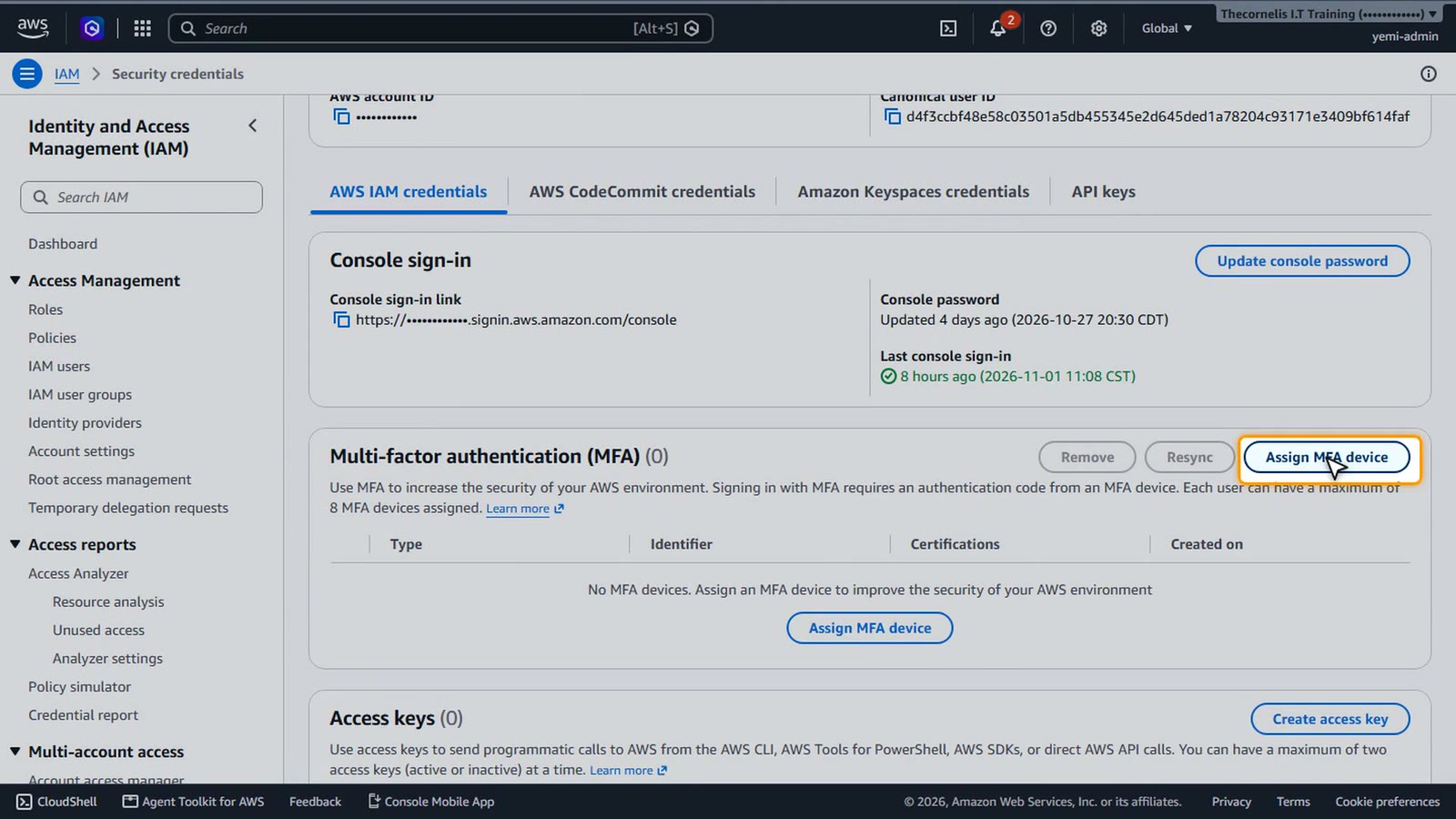
In the multi-factor authentication section, choose Assign MFA device.
Give the device a name you'll recognize, such as the phone you'll use.
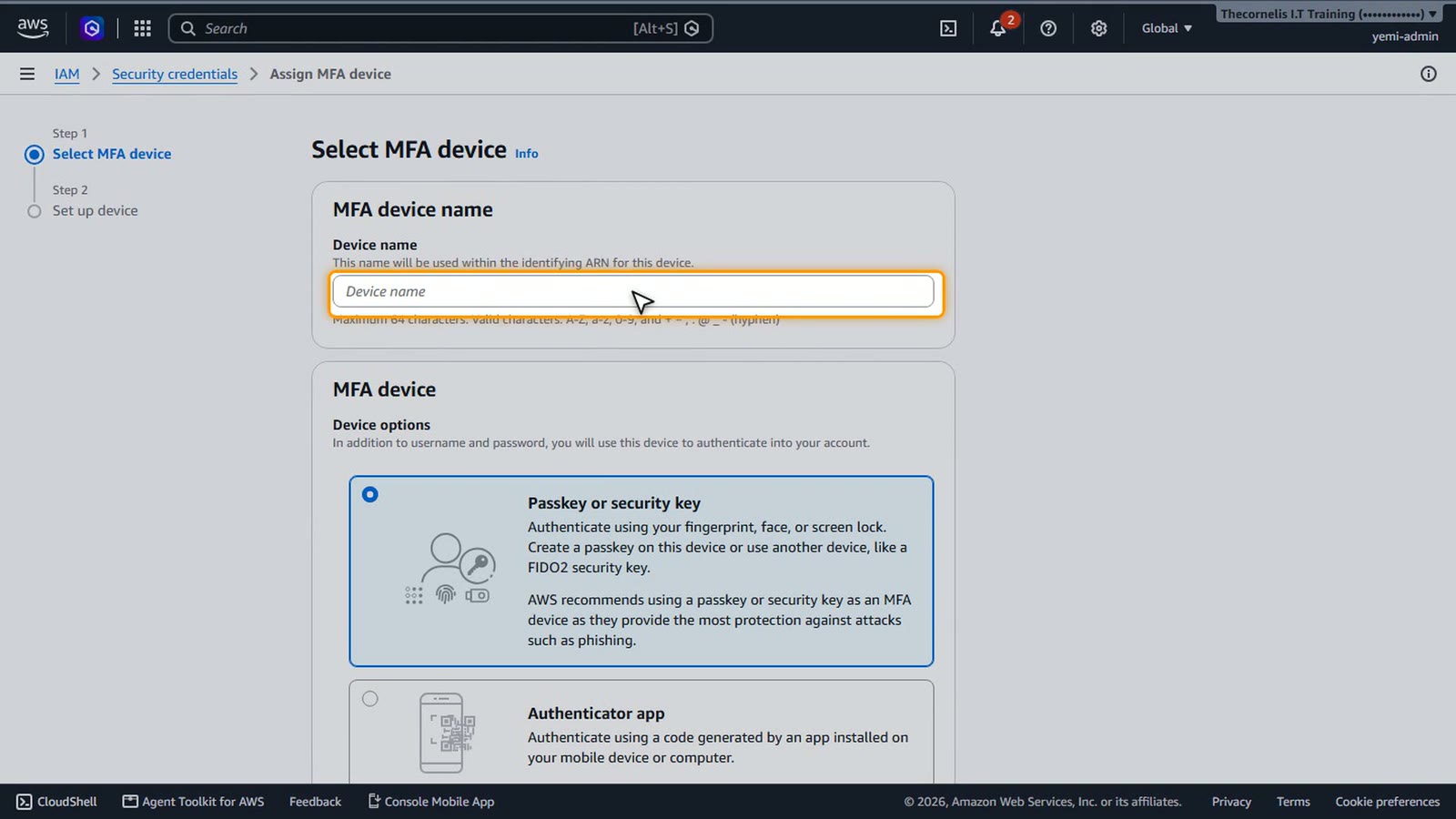
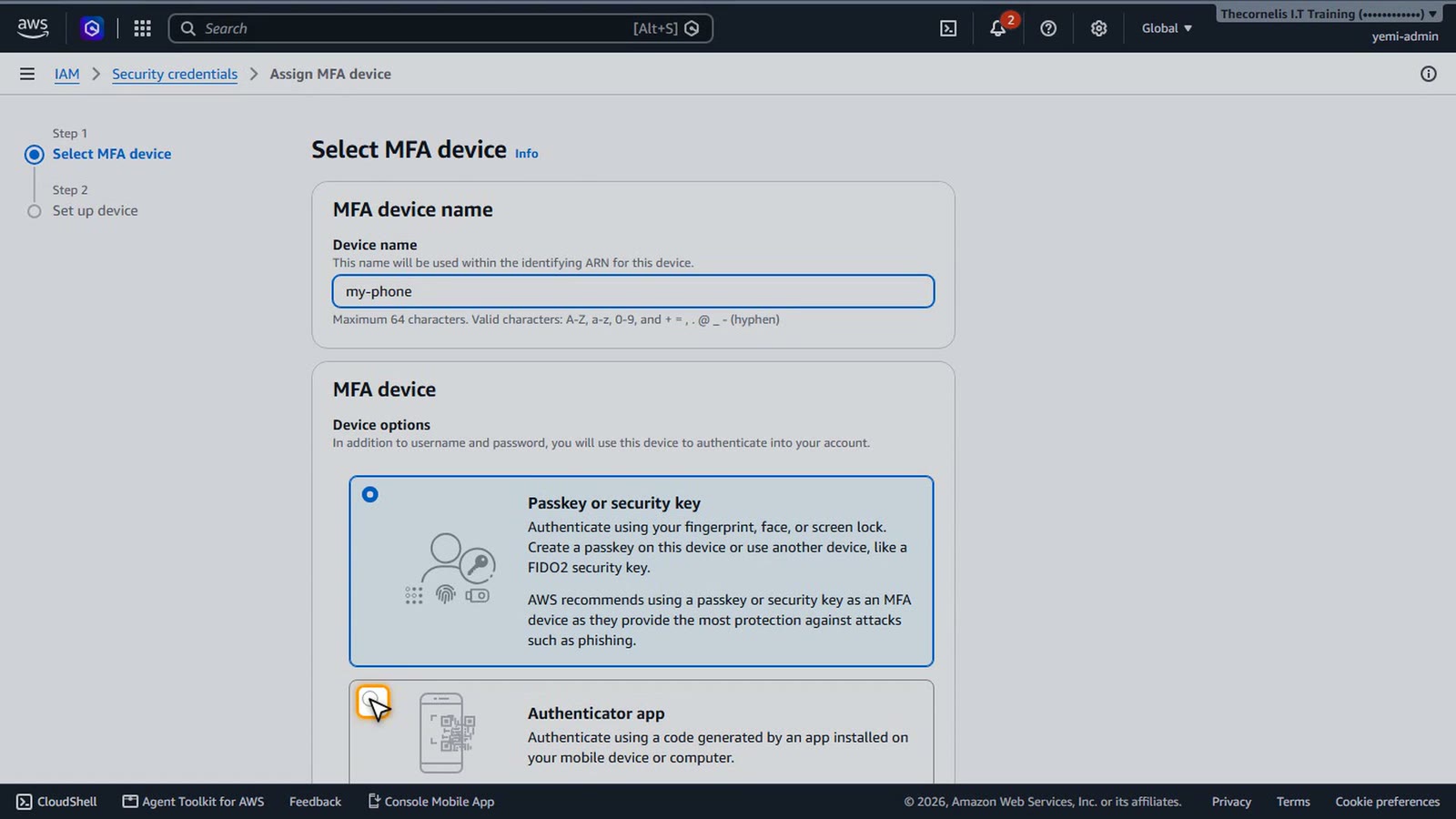
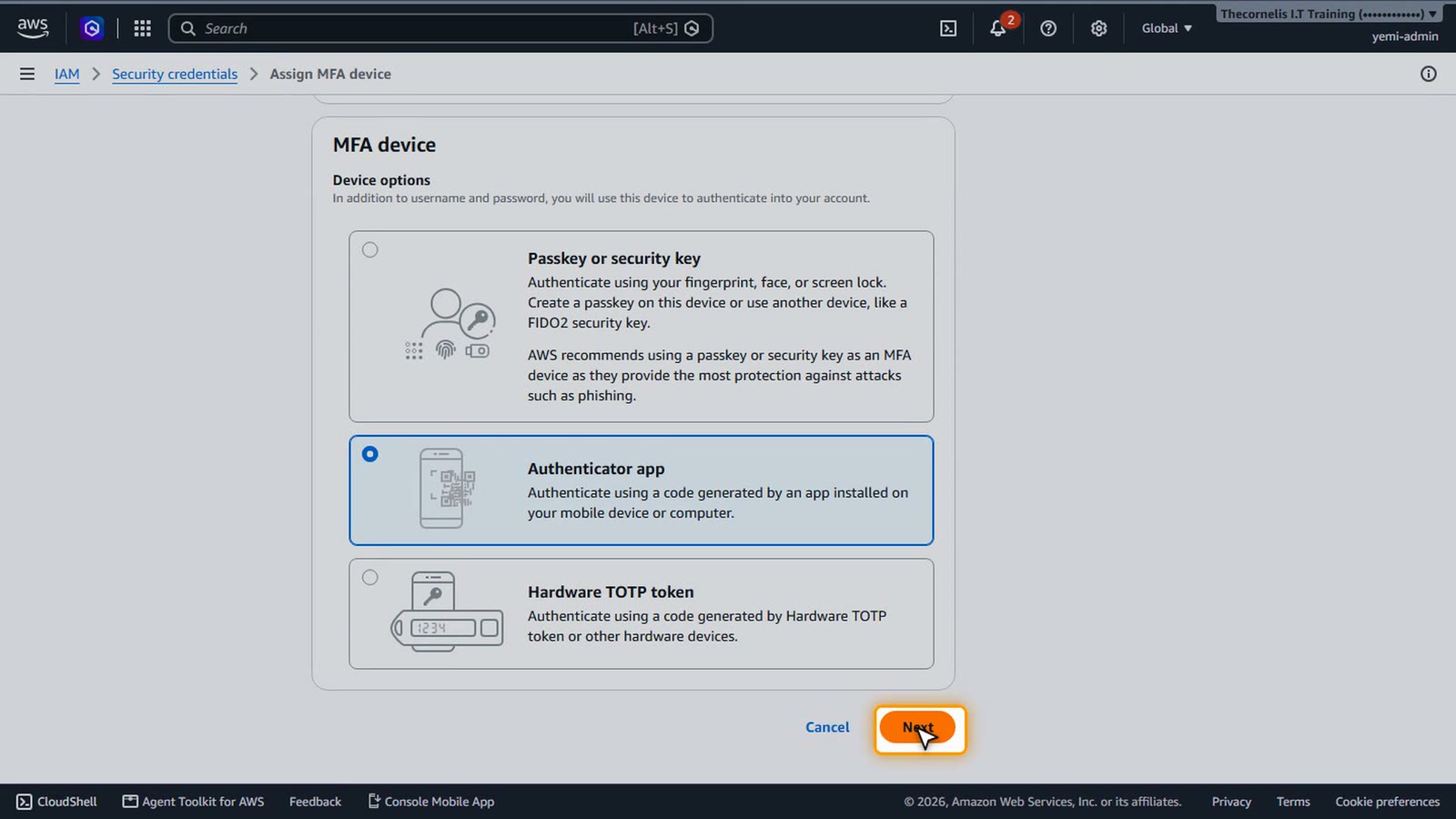
Then choose Authenticator app. Apps like Google Authenticator, Microsoft Authenticator, or Authy all work.
The next screen shows a QR code. Treat it like a password – never share or screenshot it. Choose Next, scan the code with your authenticator app, and type two codes in a row to finish. Lesson 001 shows these screens step by step.
Budget alert
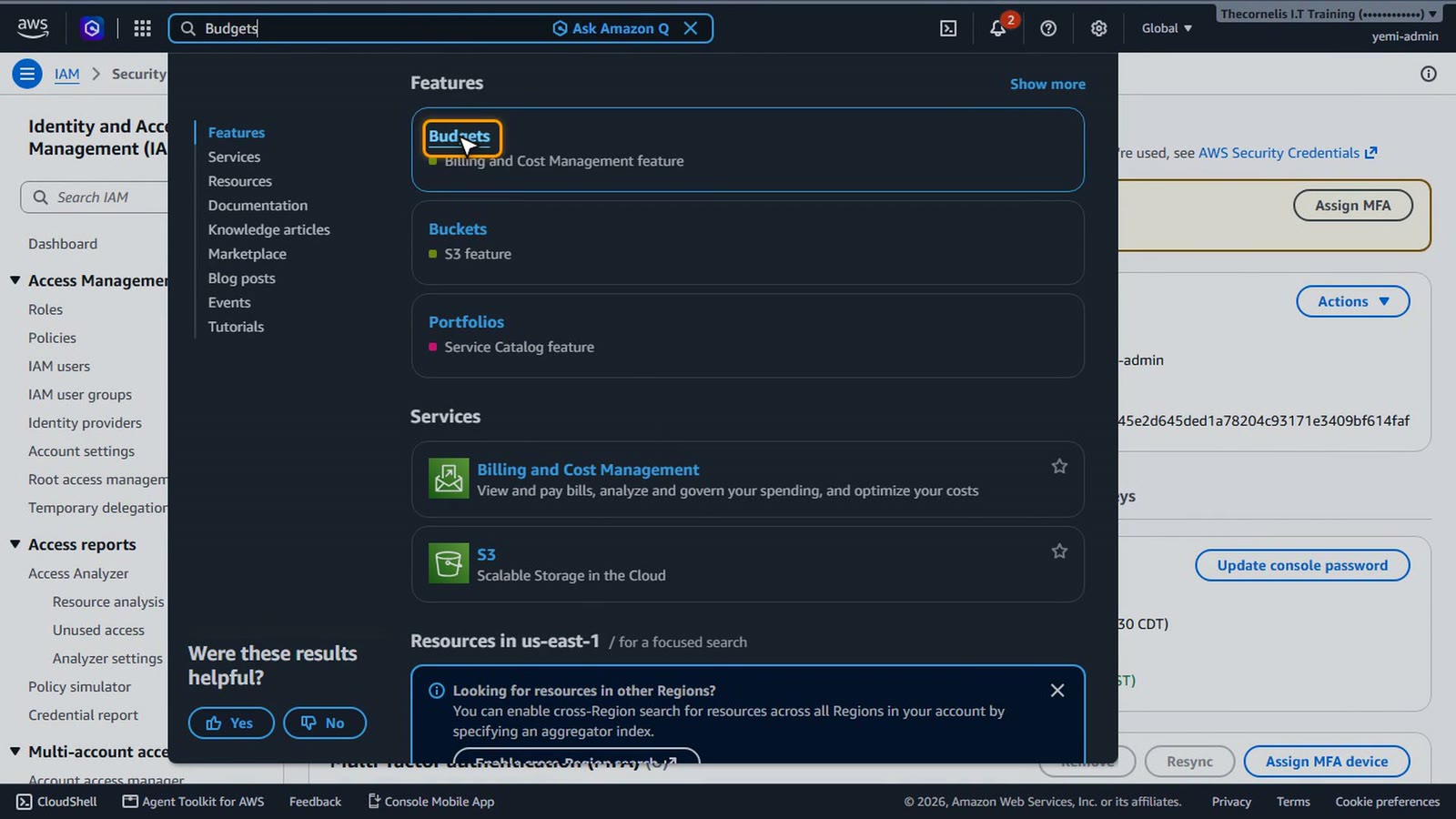
Next, a budget alert. Click the search bar at the top, type Budgets, and open it.
Choose Create budget.
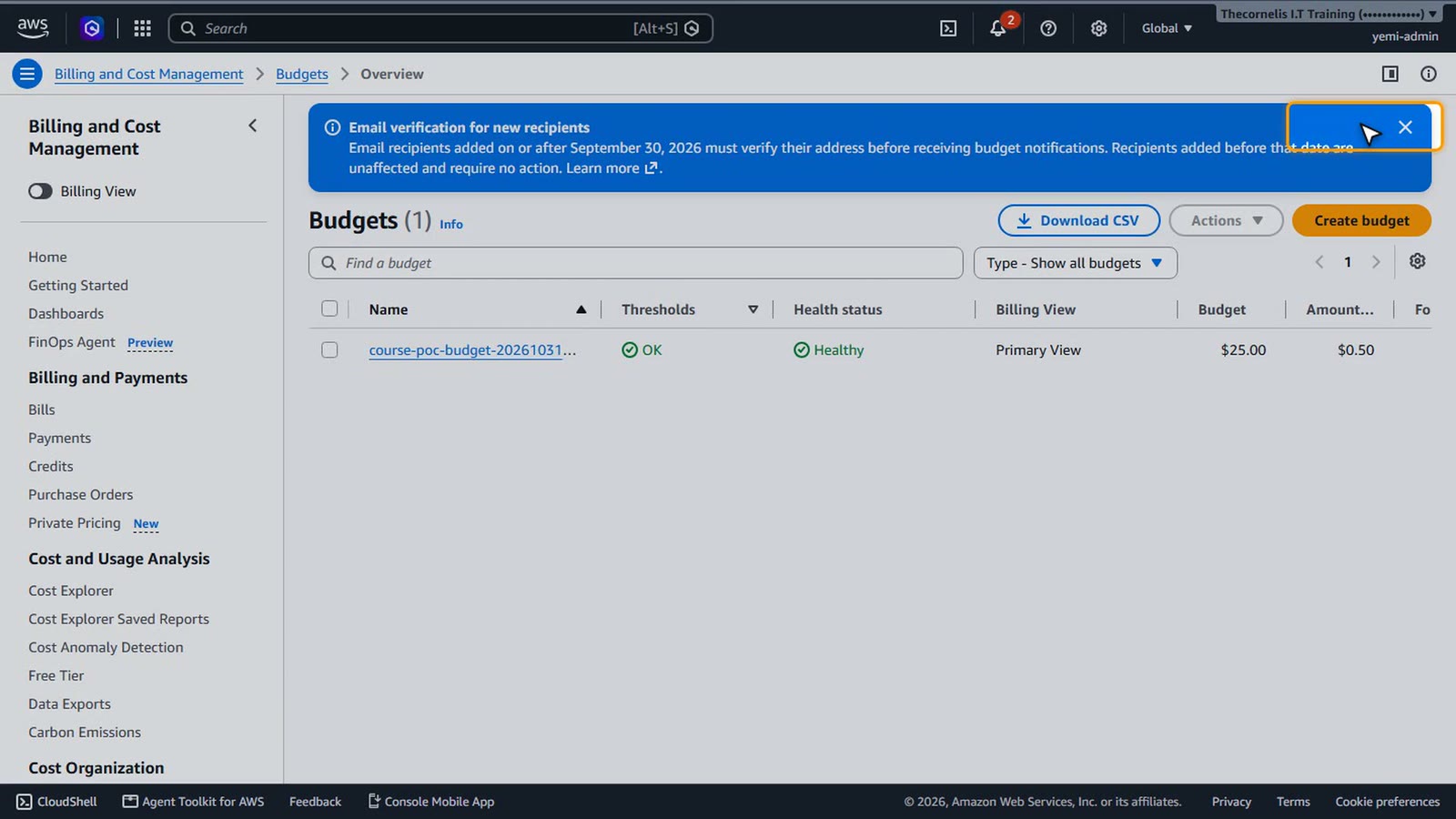
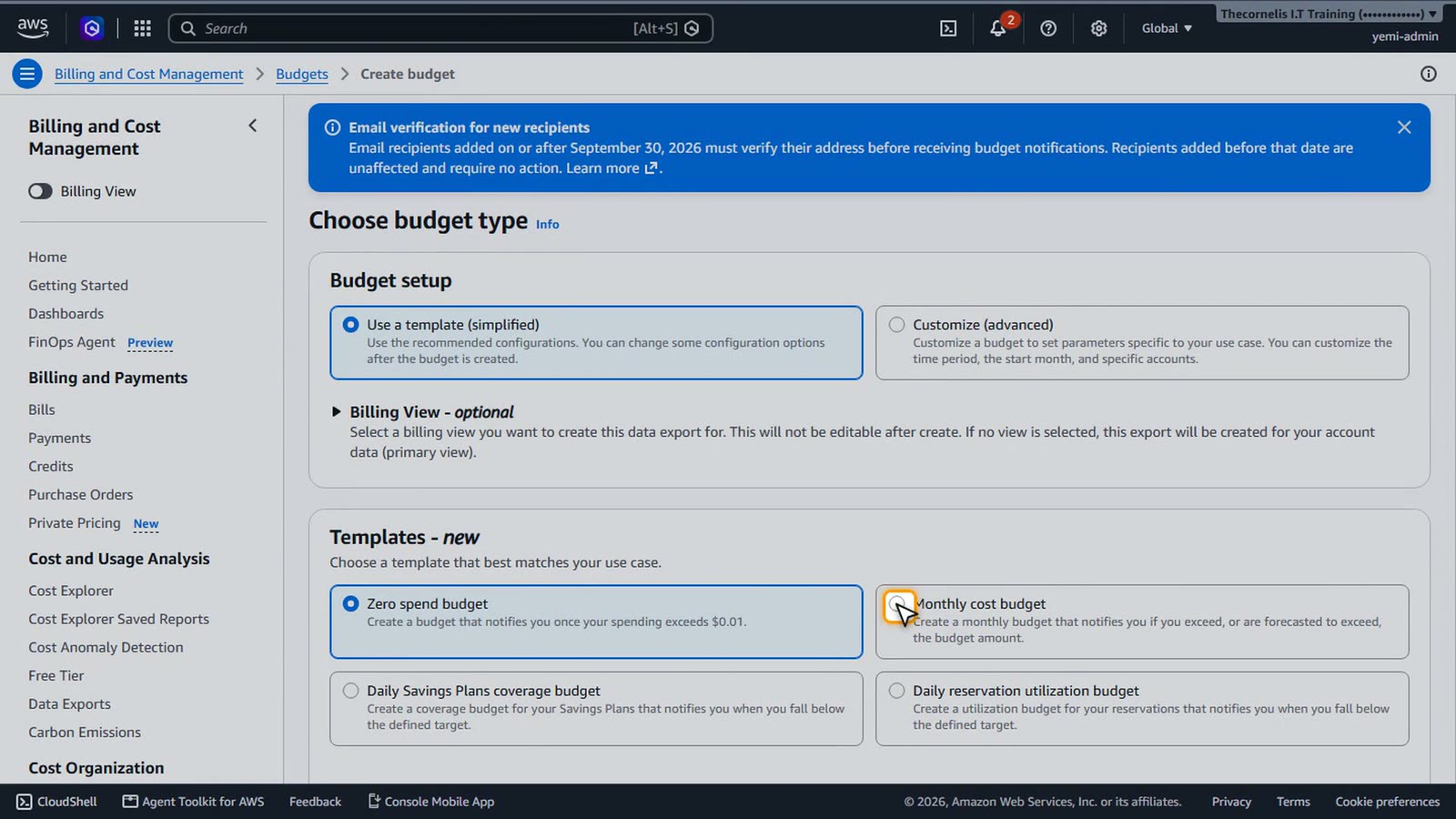
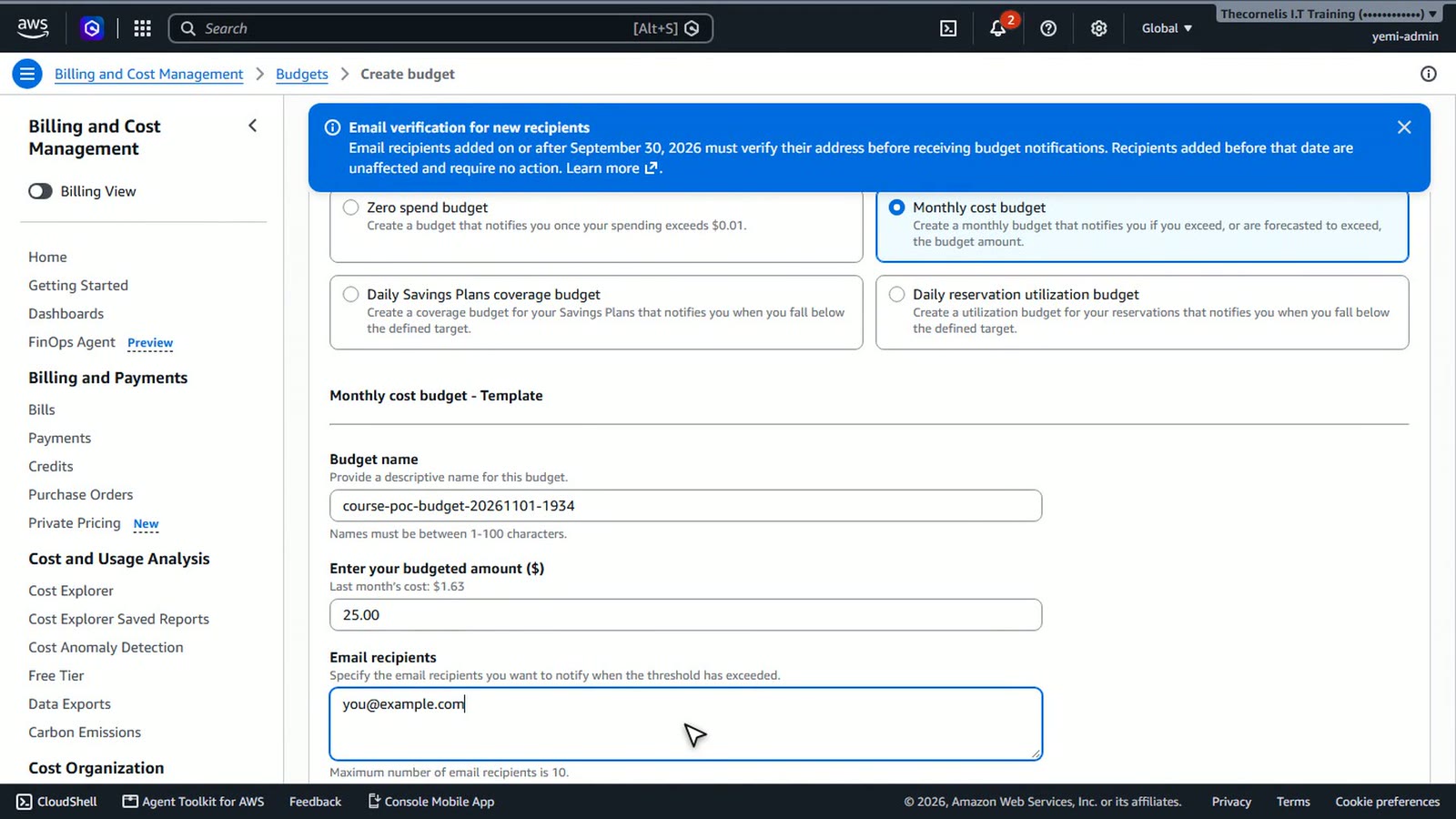
Keep Use a template selected, and choose Monthly cost budget. It emails you when your spending passes the amount you set.
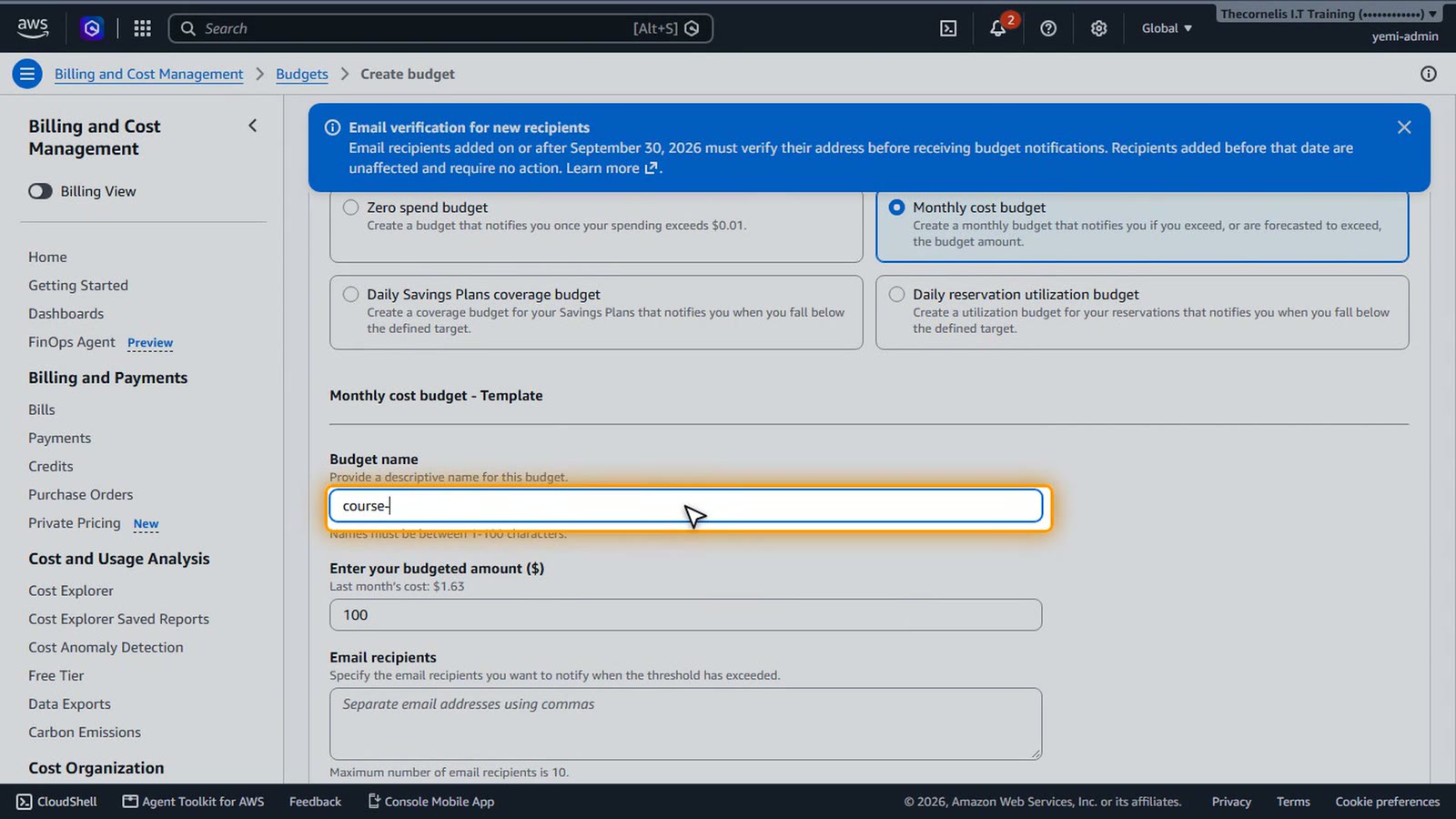
Give the budget a name.
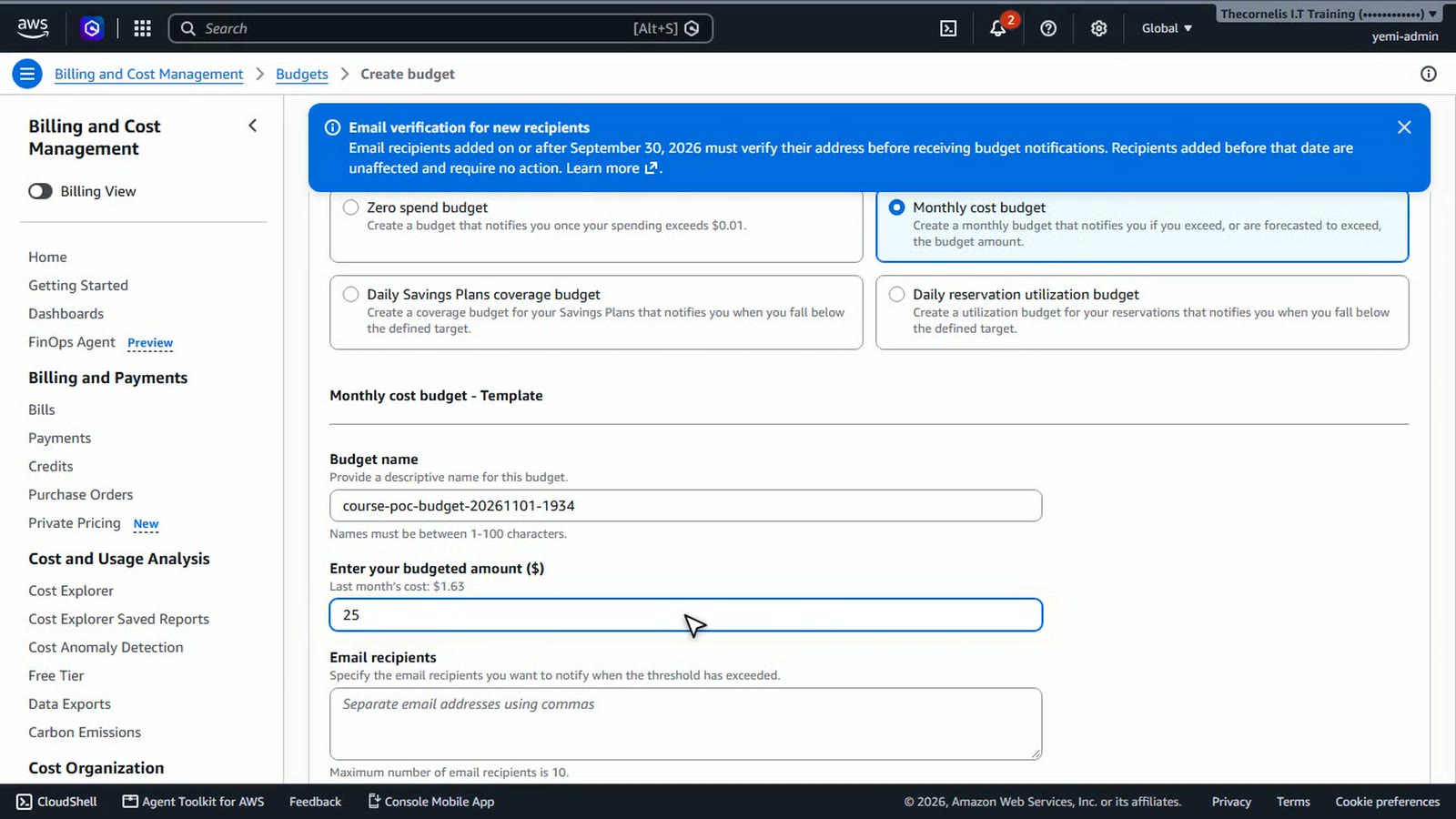
Enter a monthly amount. While you're learning, twenty five dollars is plenty.
Add the email address that should get the alerts.
Create the alert
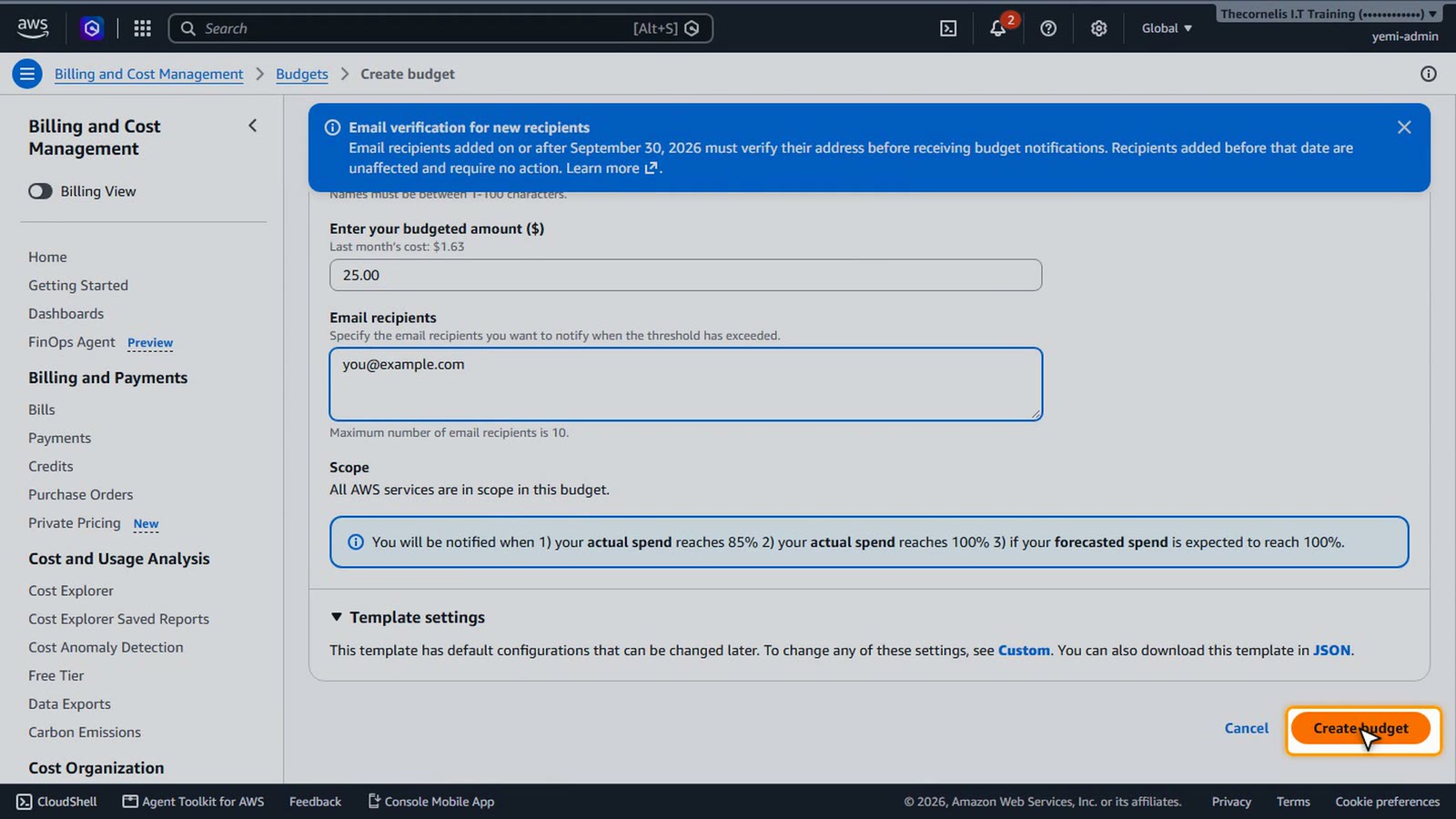
Choose Create budget. AWS will email you as your actual spending approaches and reaches the amount, and when it's forecast to go over.
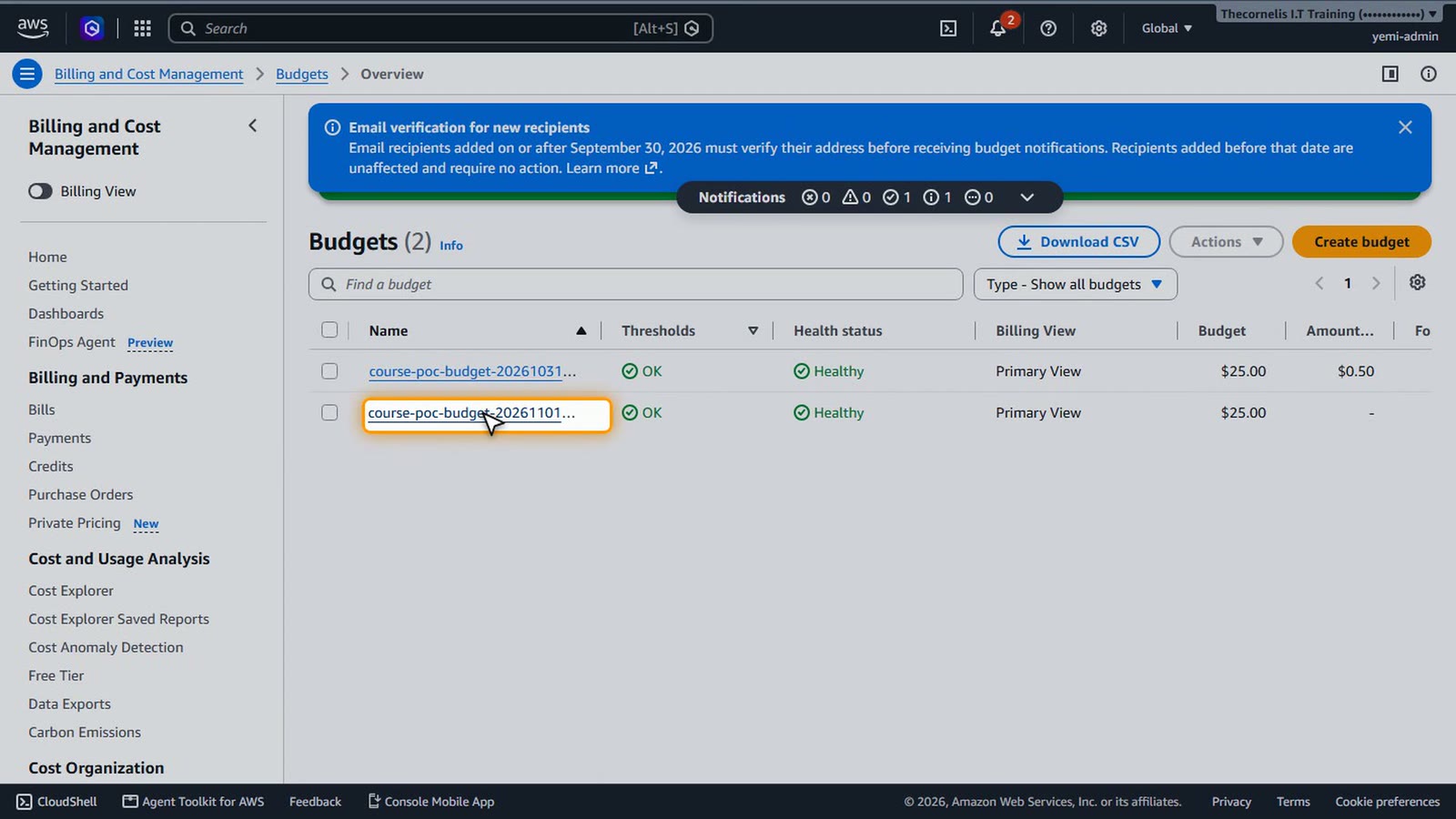
Our budget now appears in the list. Two of the most important safety steps are done.
Summary
- The root user is for rare account tasks only
- The root user must have MFA – check for the green tick in IAM
- The QR code for MFA is a secret – never share it
- A budget alert emails you before costs surprise you
What’s next
Your account now has a budget alert, and your root user is protected with MFA. If it wasn't yet, finish that before the next lesson, where we'll launch your first EC2 instance.