Navigate the Linux Filesystem: pwd, ls, cd and Where Everything Lives
What you’ll learn
- Know where you are with pwd, and look around with ls
- Move around with cd – absolute and relative paths, ~, .., and cd –
- See hidden files
- Know the main folders of a Linux system, and what lives in each
Hook
Connect with ssh shop-server.
ssh shop-server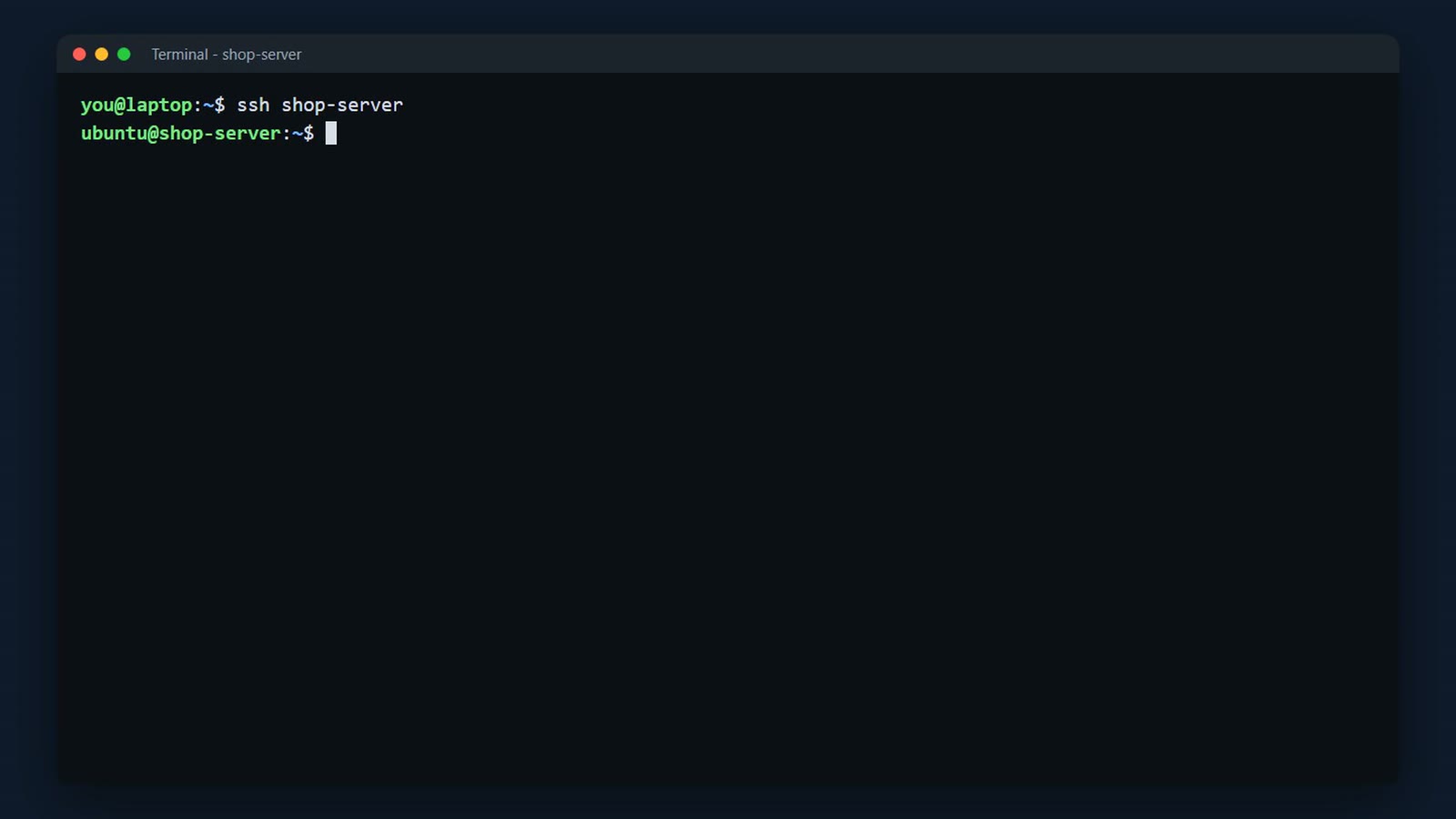
Here's the shop's website. cd slash var slash www slash html, and ls. Here are its logs. And here are its settings. Three folders, three jumps. By the end of this lesson, you'll know where everything lives on a Linux server.
cd /var/www/html && ls
cd /var/log/nginx && ls
cd /etc/nginx && ls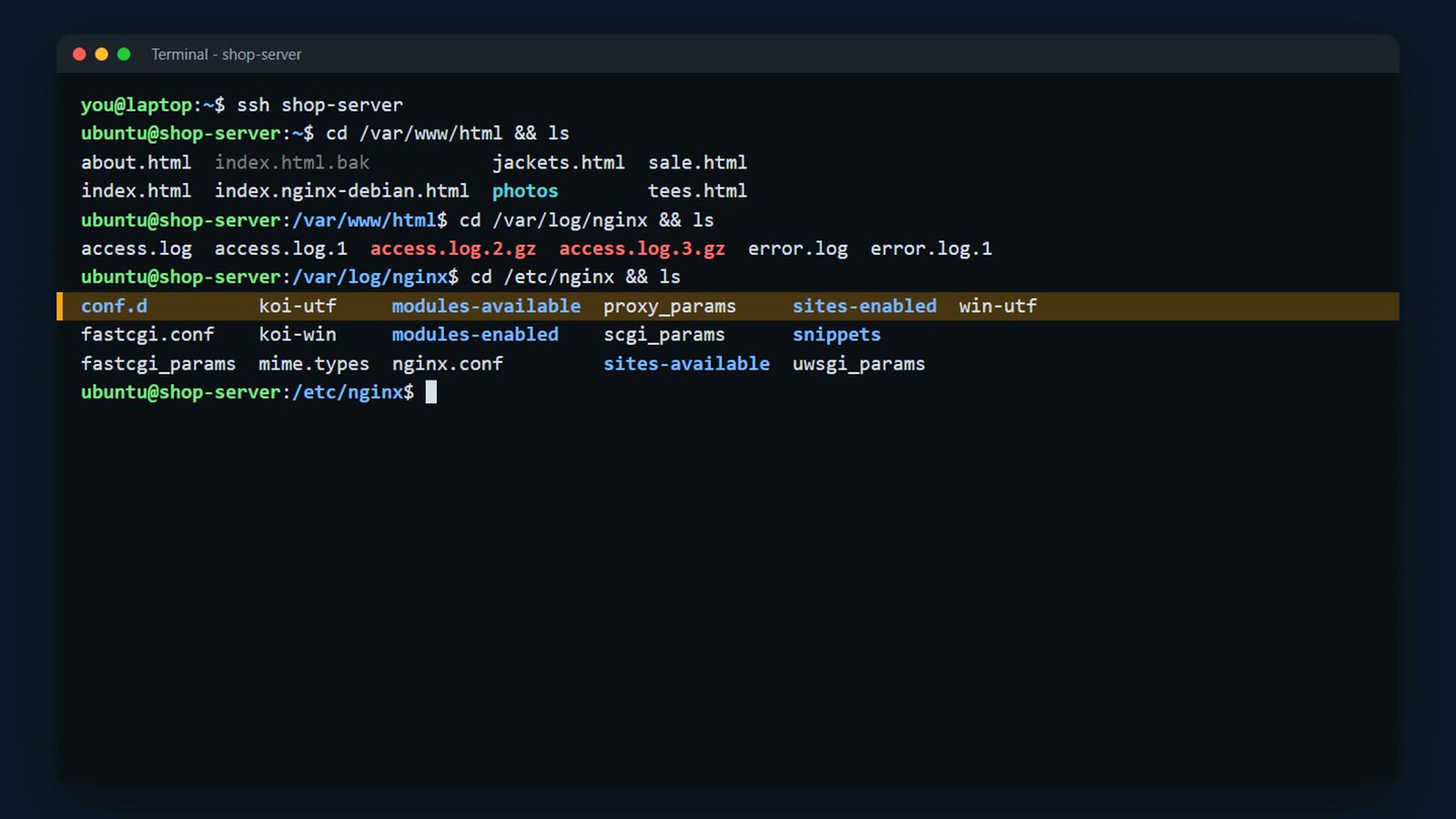
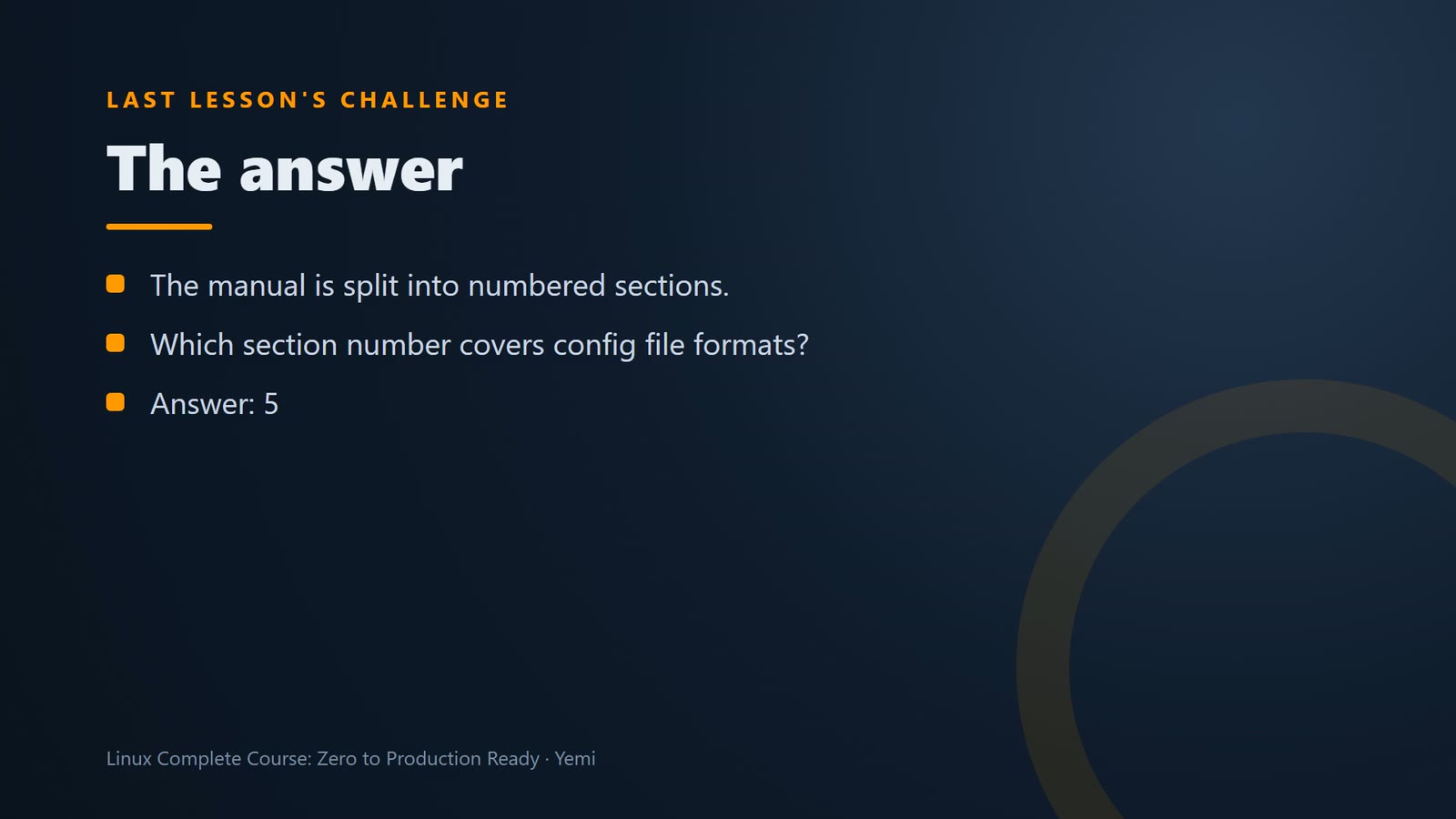
First, last lesson's challenge. The manual is split into numbered sections. Which section number covers config file formats? The answer is: section 5. For example, man 5 passwd explains the format of the passwd file.
Where am I?
First, where are you? pwd, print working directory, shows the folder you're in right now. We're still in slash etc slash nginx.
pwd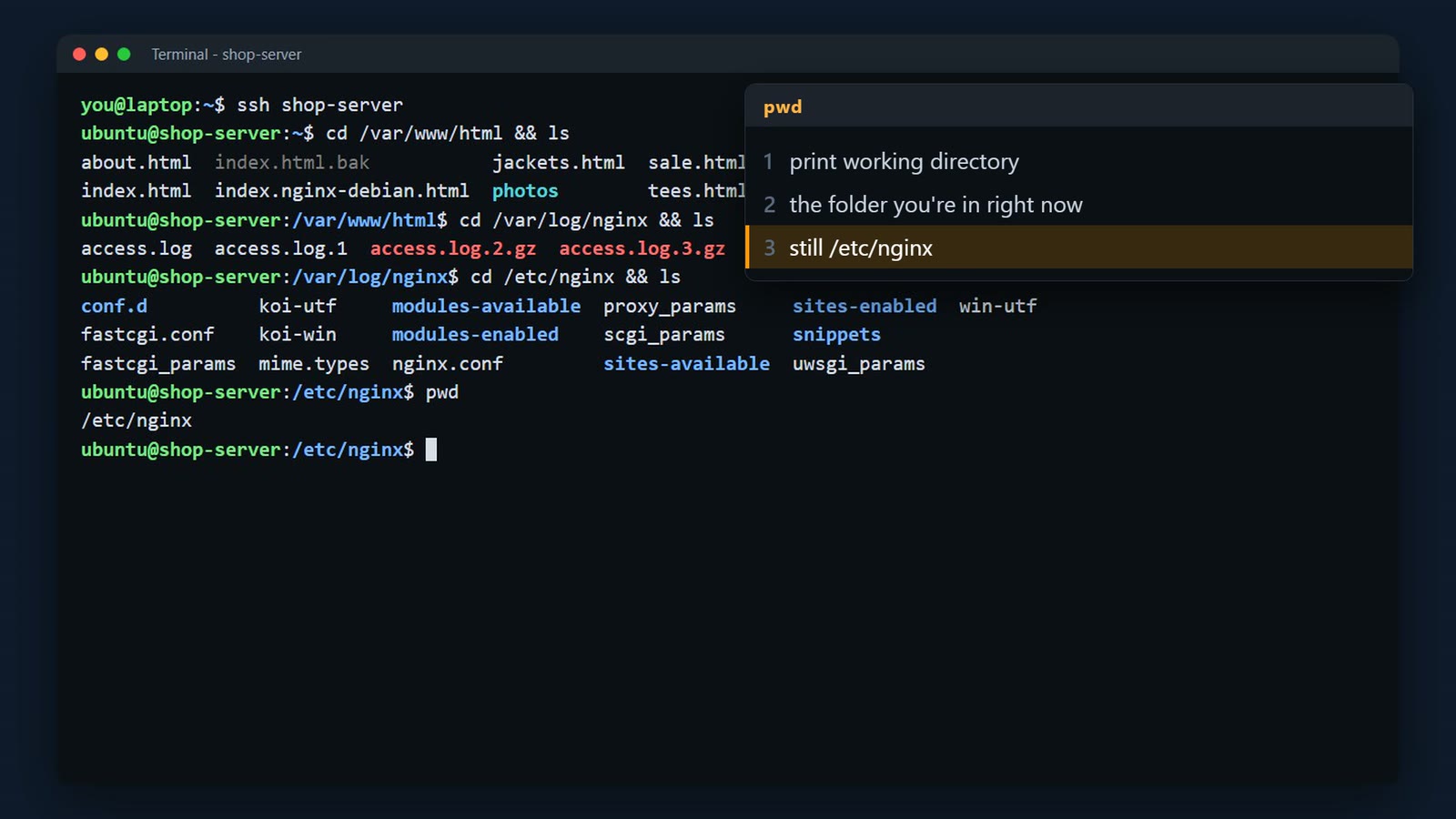
cd on its own takes you home, to your home folder. pwd again. Slash home slash ubuntu. Every user has a home folder like this, for their own files.
cd
pwd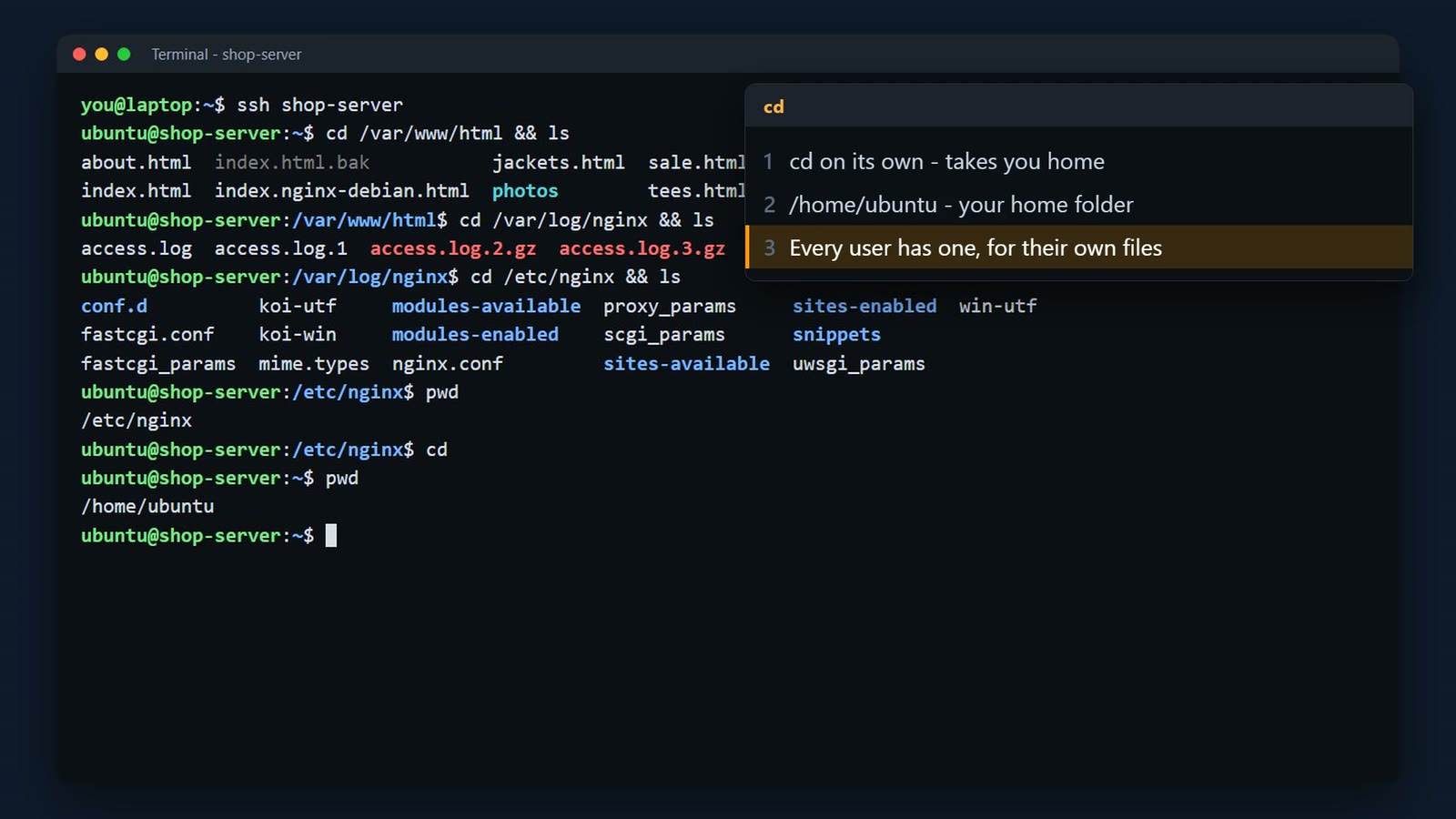
The top of the tree
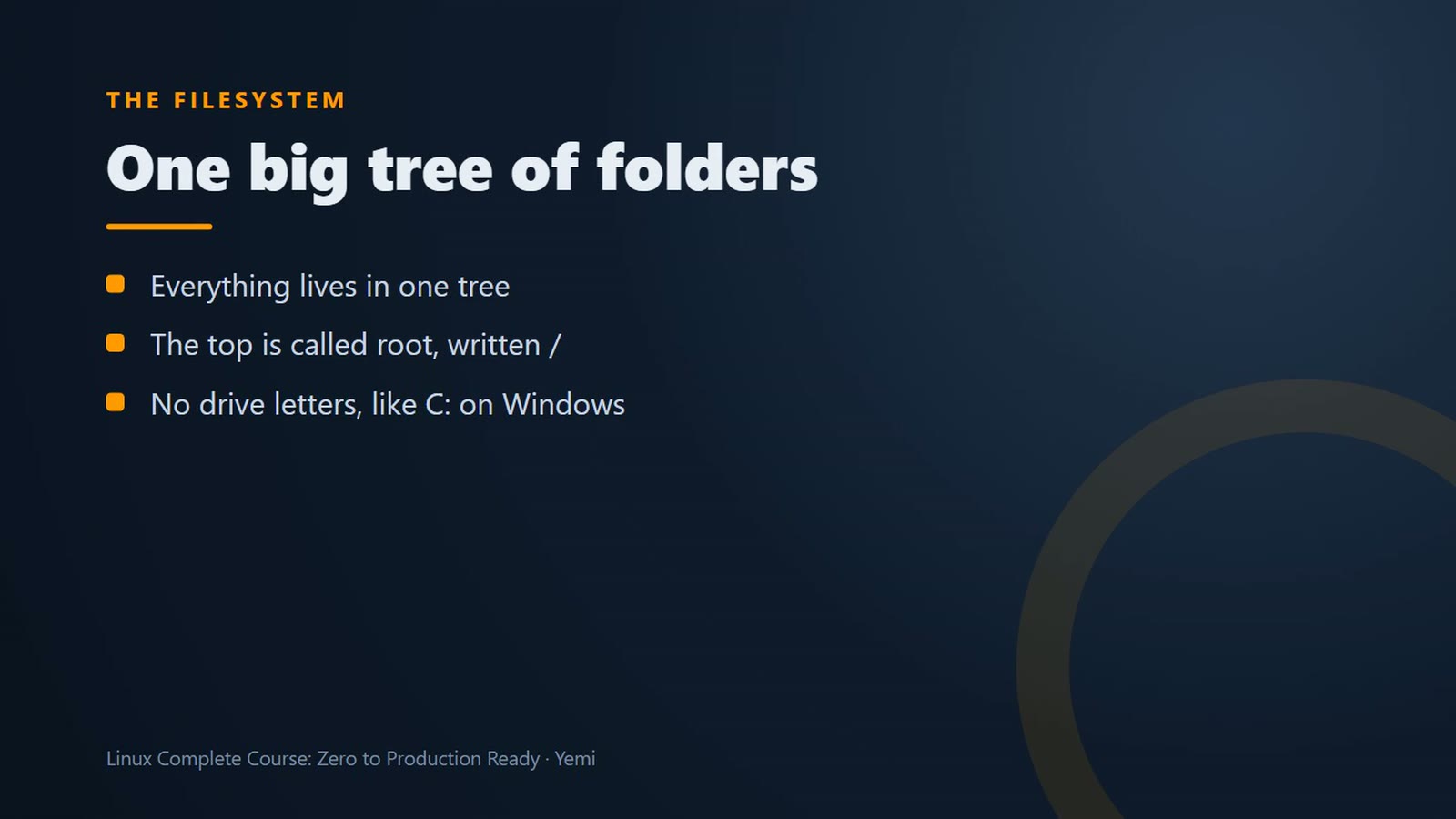
Everything on Linux lives in one big tree of folders. The top of the tree is called root, and it's written as a single slash. There are no drive letters like on Windows.
ls slash shows the top.
ls /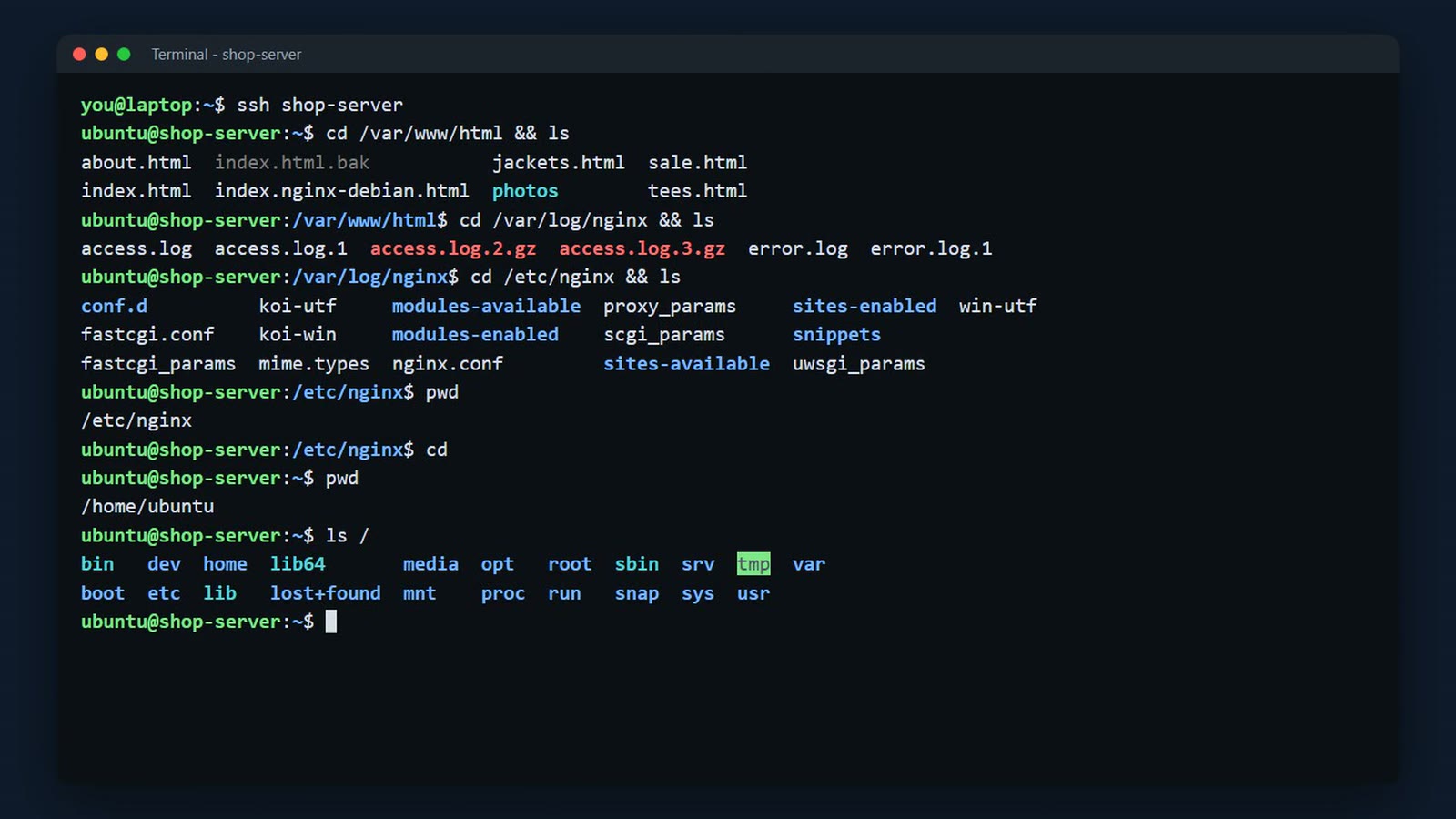
These folders are the same on almost every Linux system, so once you know them, you know your way around any server. Here are the ones you'll use most.
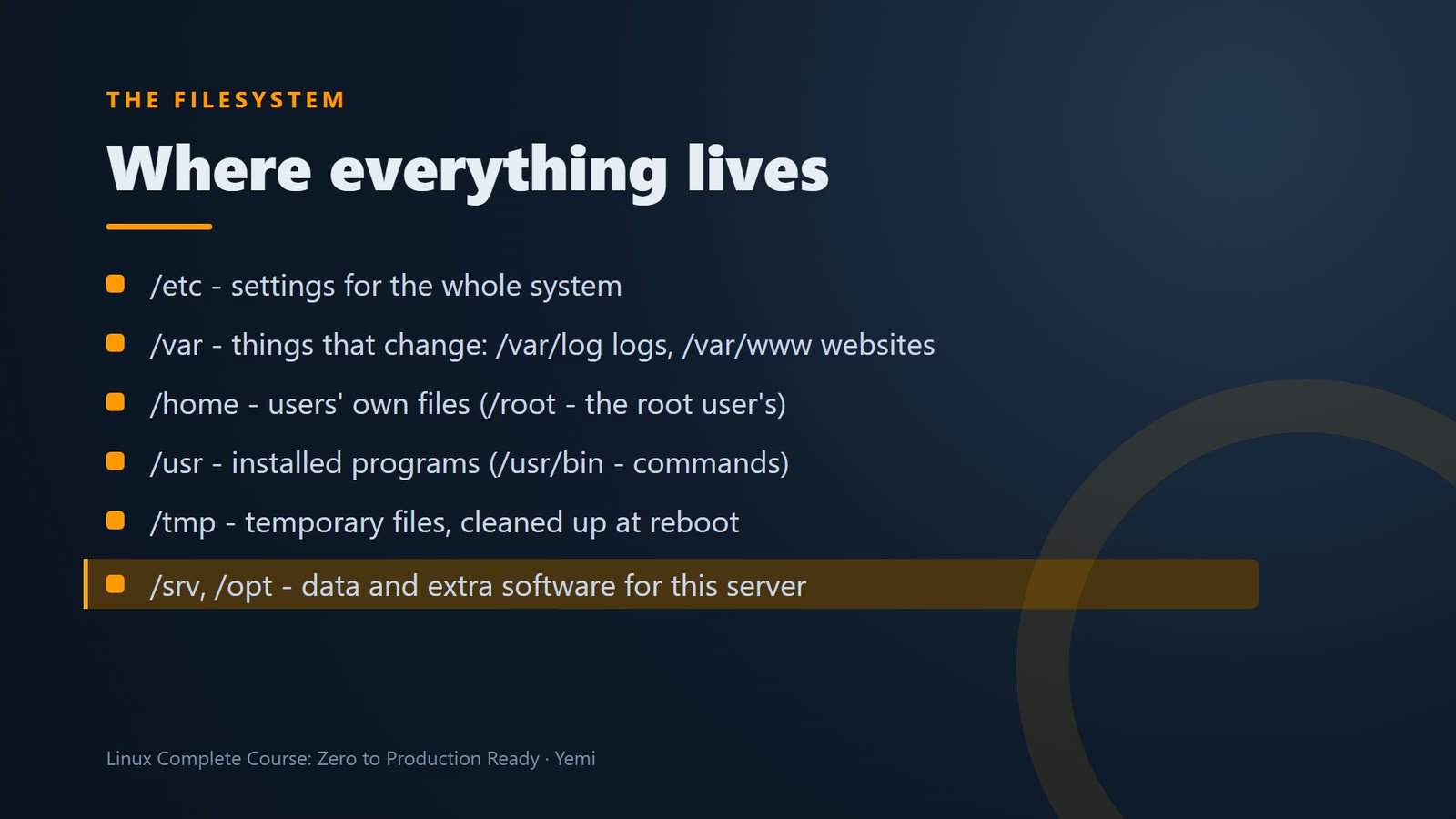
tree draws the tree for you. tree minus L 1, slash var, shows one level below slash var. You can see log, and www.
sudo apt install -y tree
tree -L 1 /var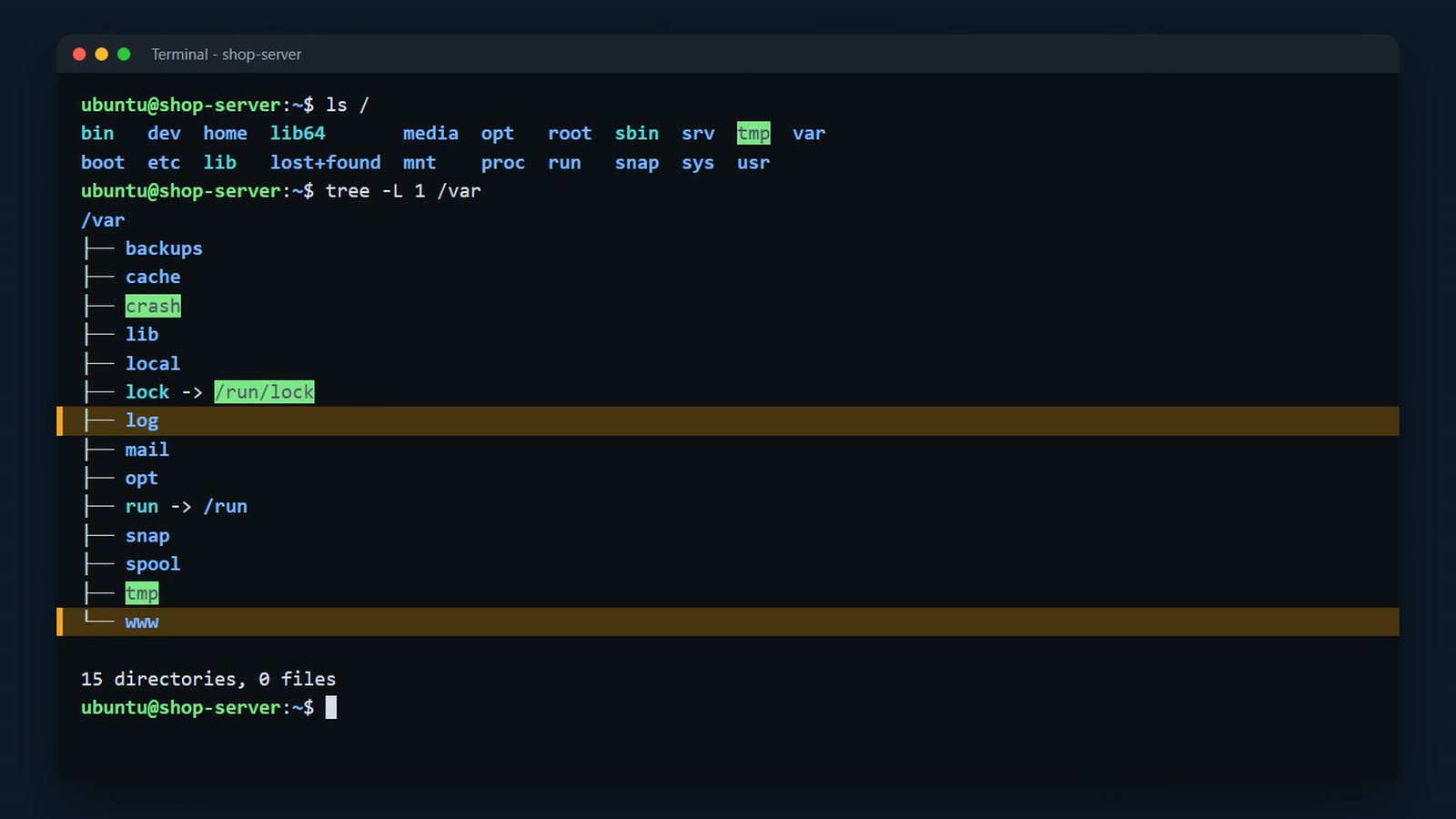
Moving around
cd slash var slash log. That's an absolute path. It starts at the root, with a slash, so it works from anywhere.
cd /var/log
pwd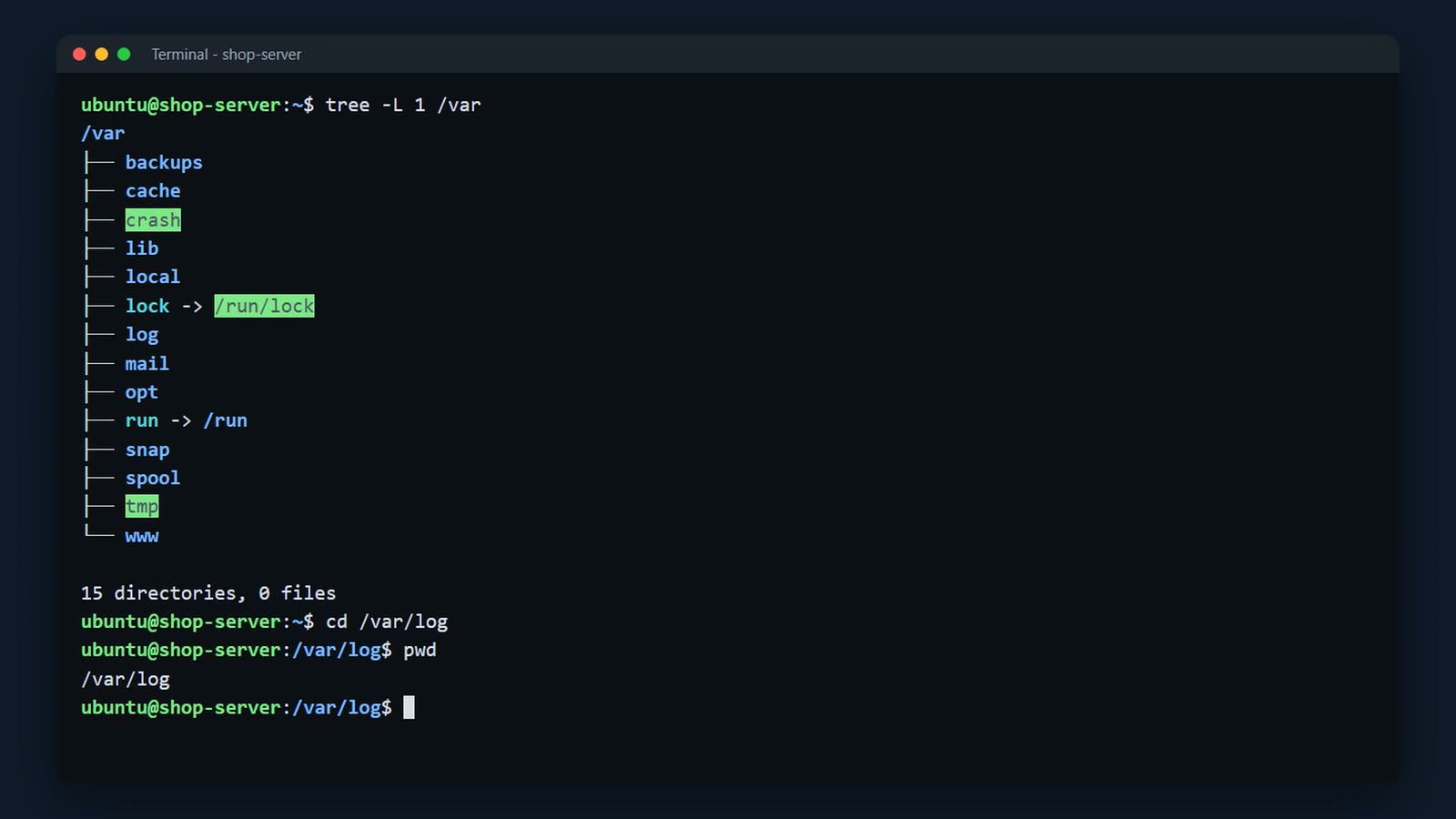
cd nginx takes us into slash var slash log slash nginx. That's a relative path. It starts from where you are, so it has no slash in front.
cd nginx
pwd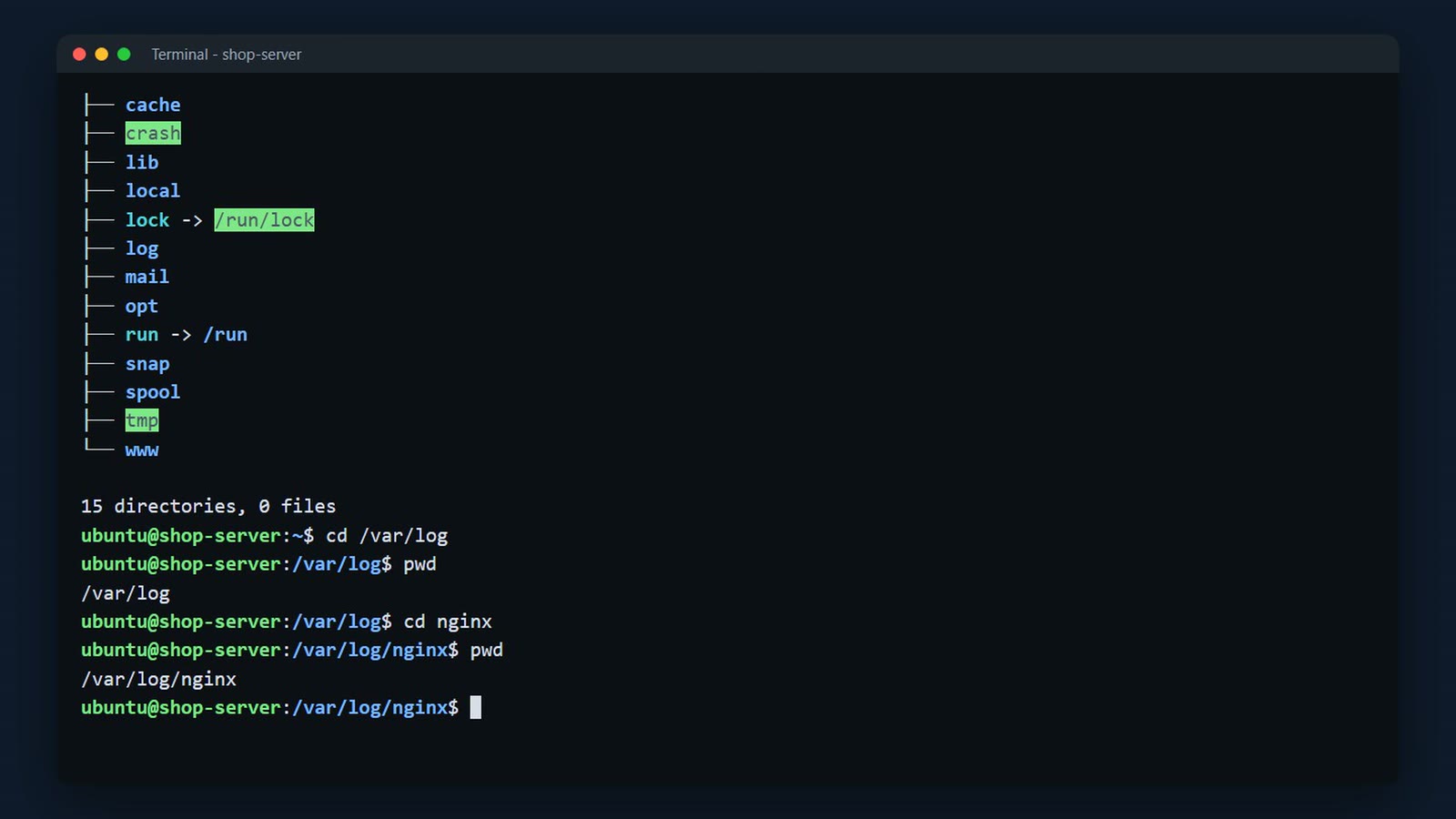
Two dots means one folder up. cd dot dot, and we're back in slash var slash log. cd dot dot slash dot dot goes up two levels.
cd ..
pwd
cd ../..
pwd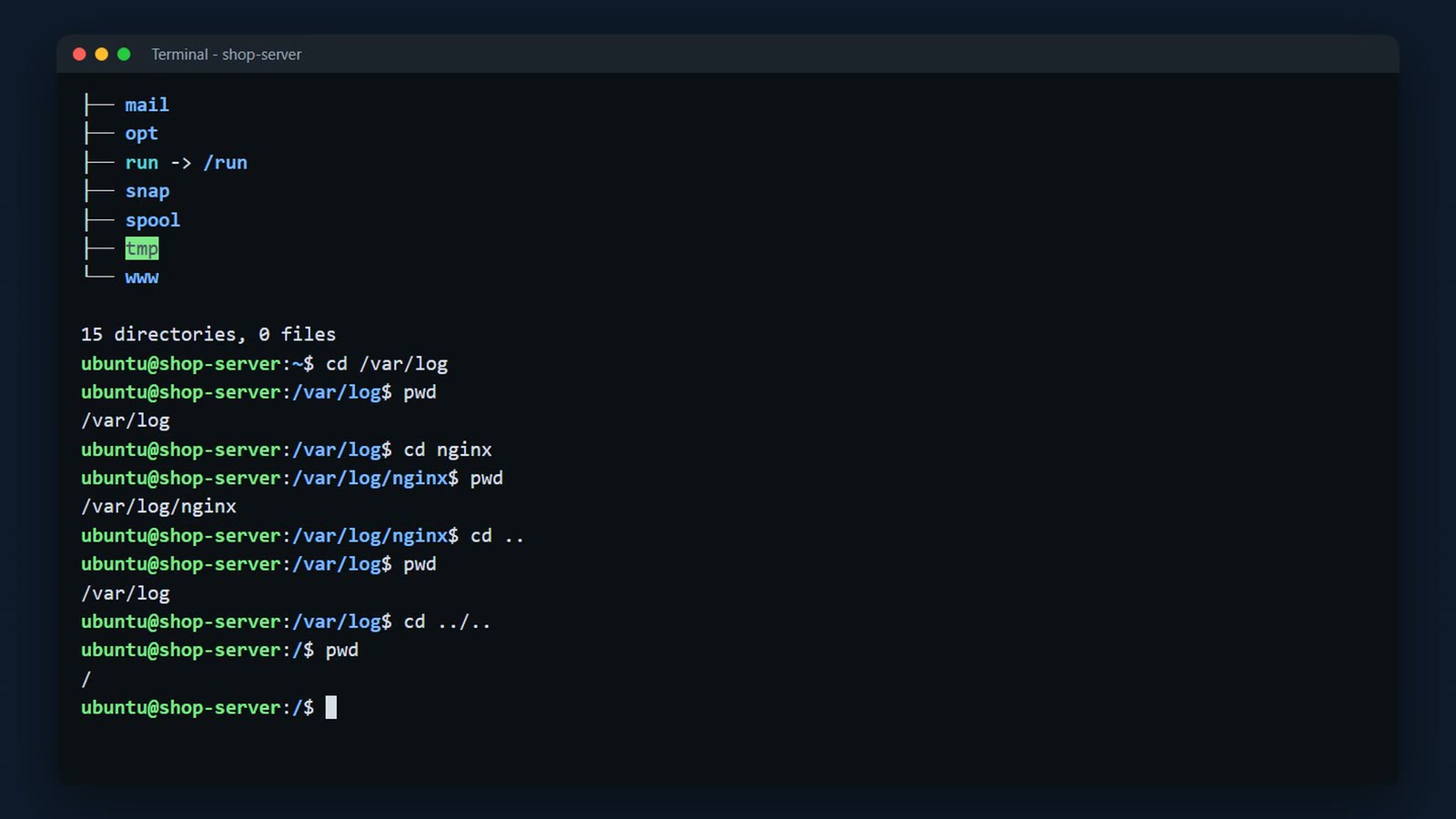
Two more shortcuts. Tilde means your home folder, so cd tilde goes home from anywhere. And cd minus goes back to the folder you were in before. Handy when you jump between two places.
cd ~
cd /etc/nginx
cd -
cd -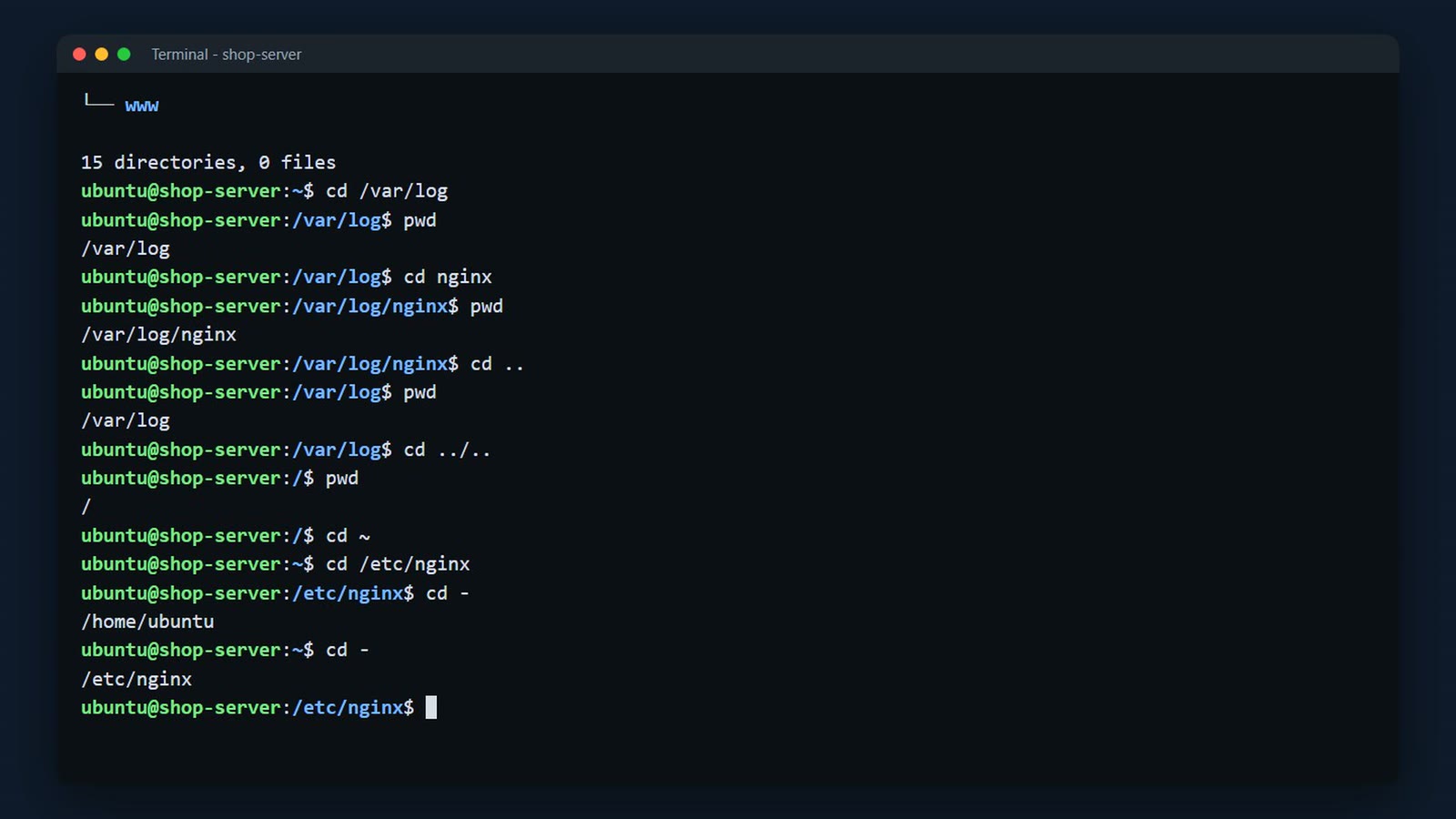
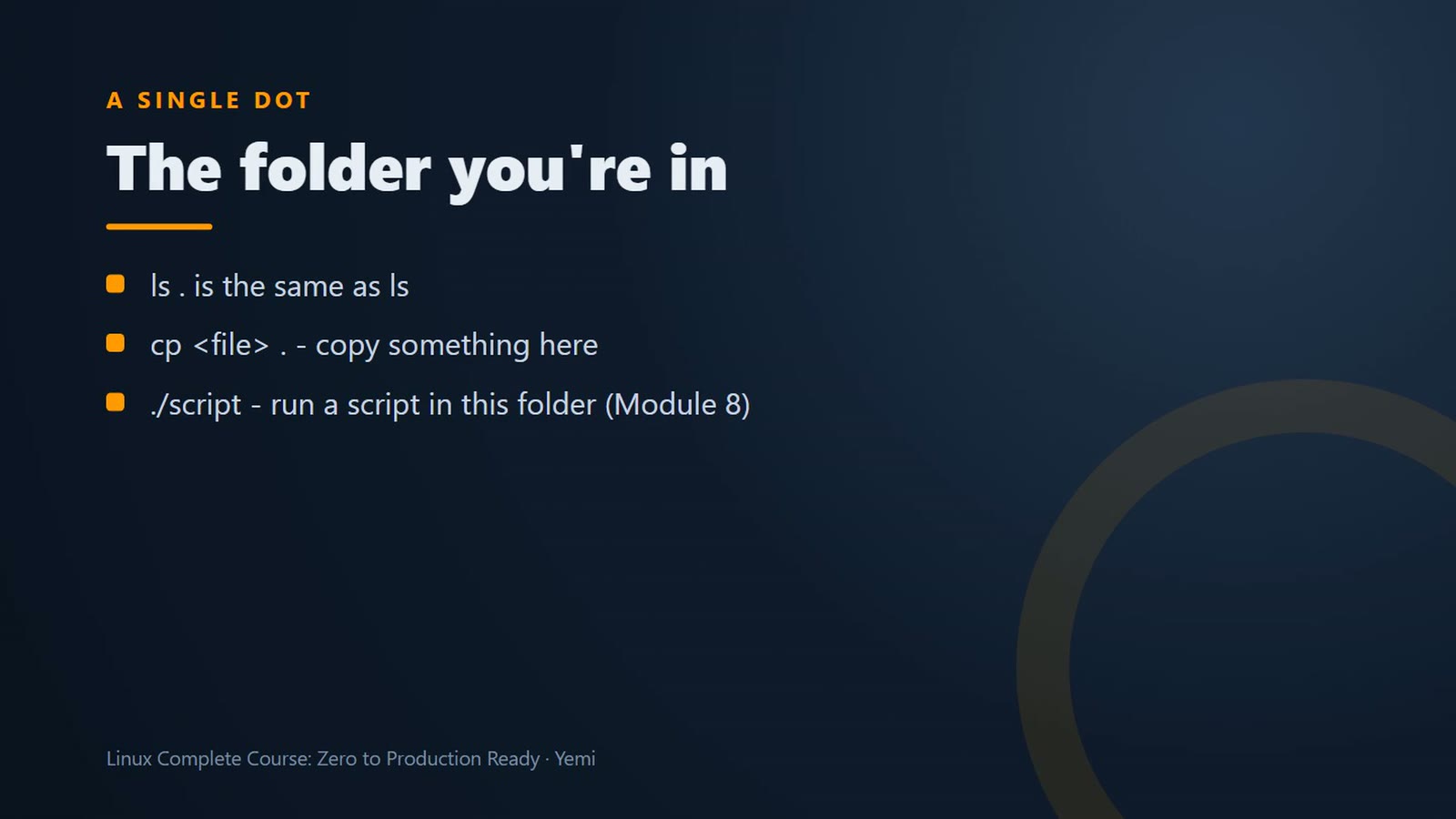
And a single dot means the folder you're in right now. ls dot is the same as ls.
cd /etc/nginx
ls .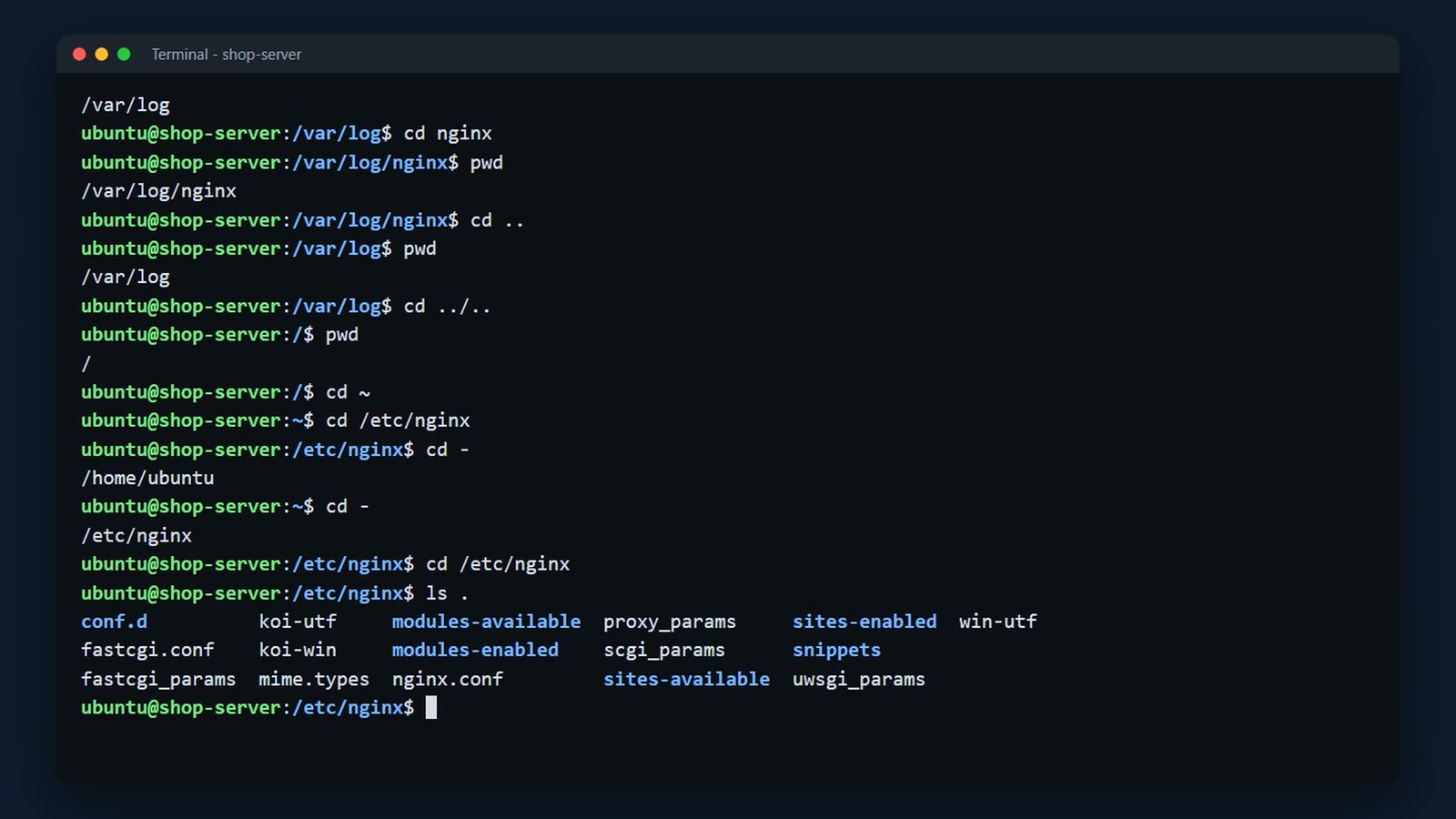
A single dot means "the folder I'm in". cp <file> . copies something here, and ./script runs a script in this folder (Module 8).
Looking around
ls in the home folder seems empty, but files that start with a dot are hidden. ls -la shows them, including .ssh (your authorized keys, from lesson 003) and .bashrc (your shell's settings).
cd
ls
ls -la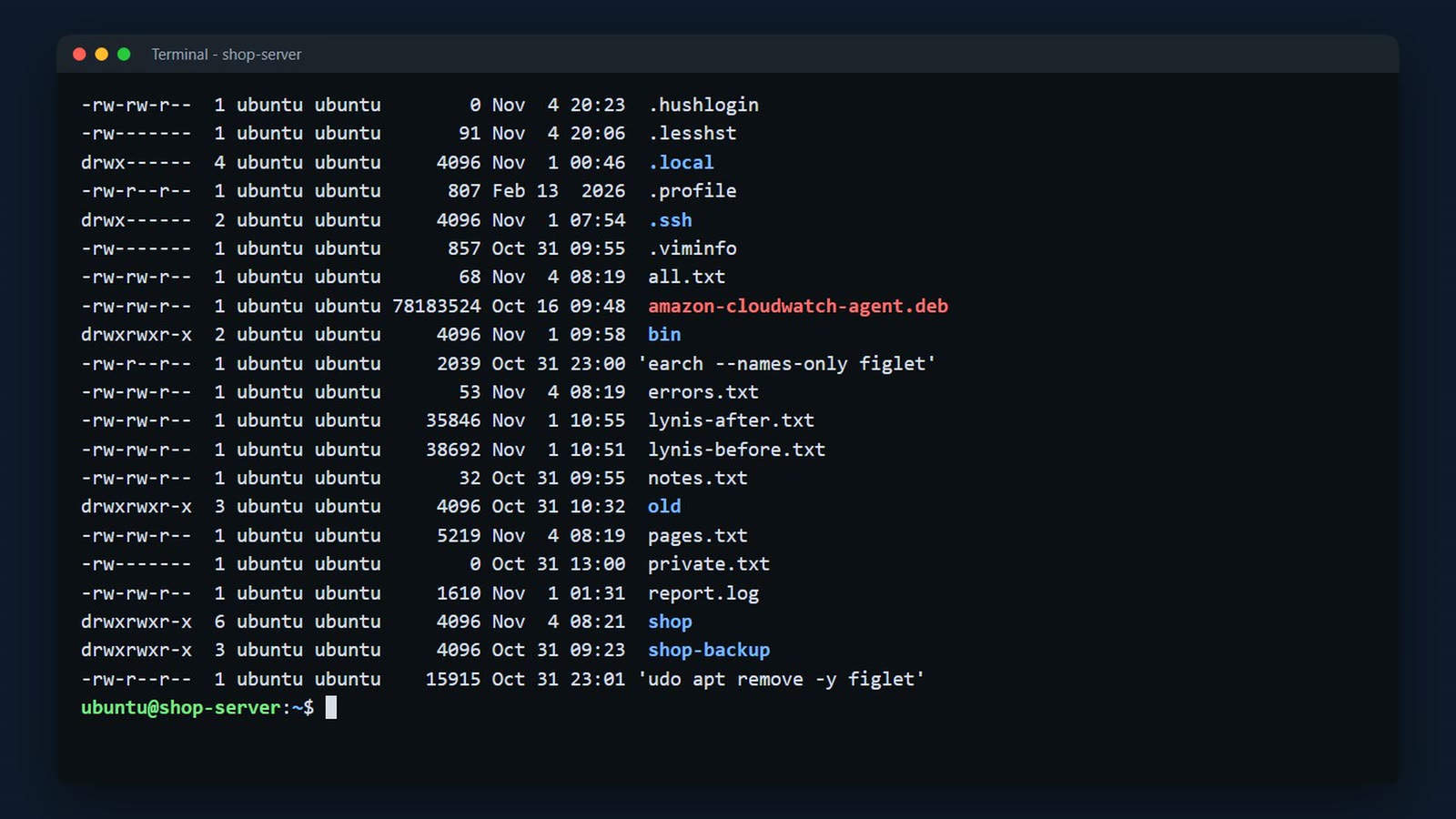
ls minus l h, slash var slash log. In the long listing, each line is one file.
ls -lh /var/log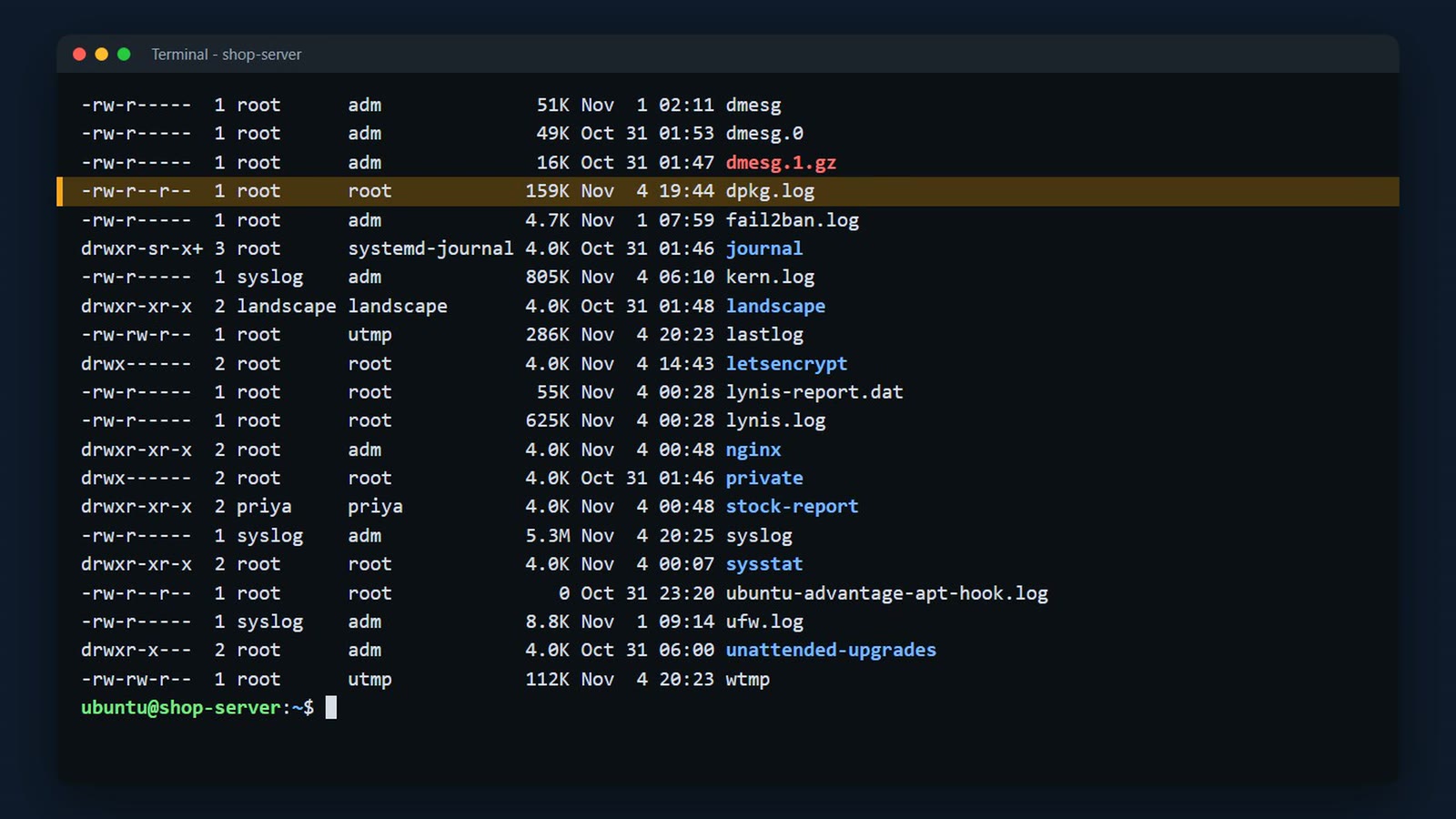
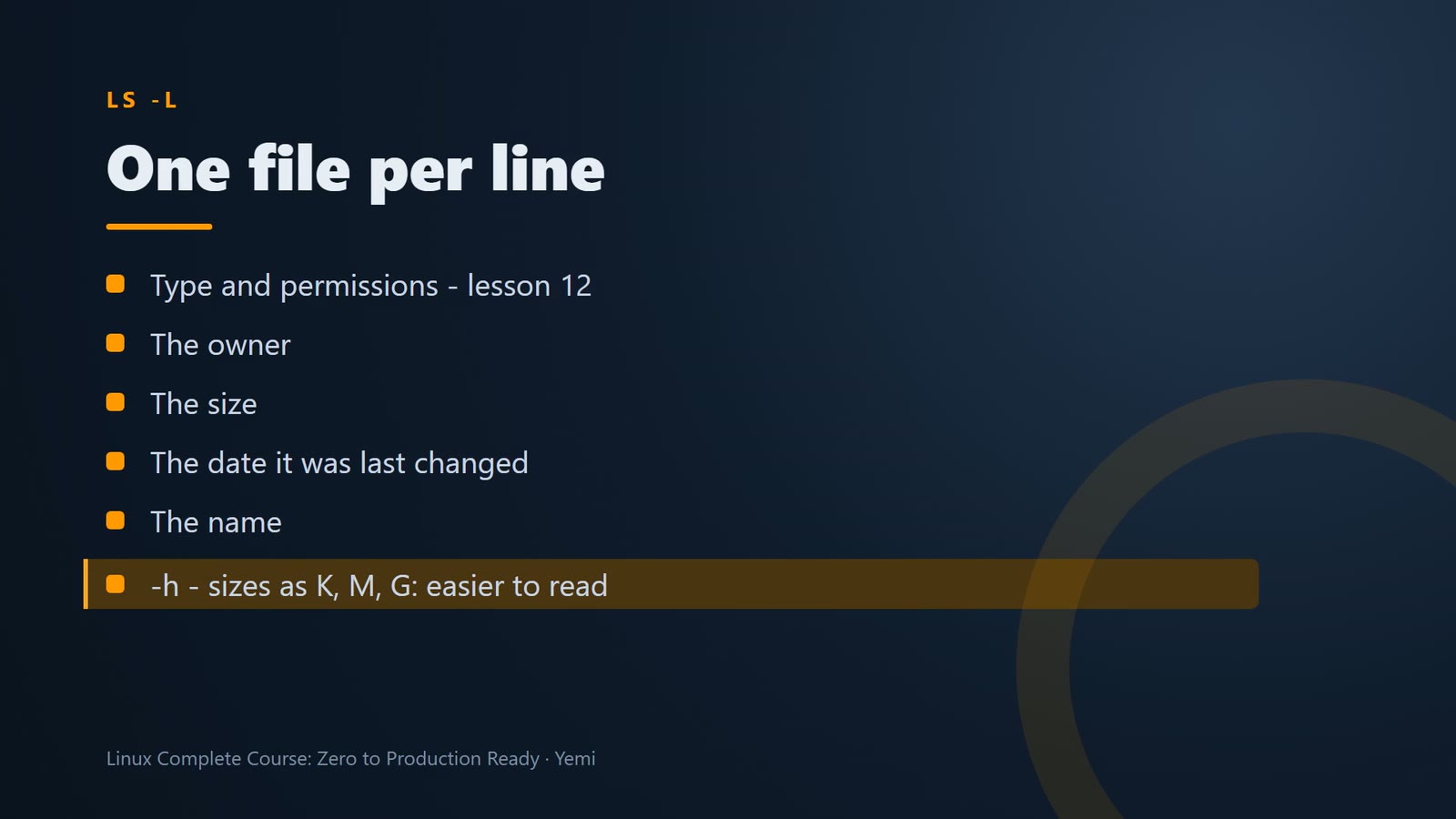
ls -l shows one file per line: type and permissions (lesson 012), owner, size, date changed, name. -h shows sizes as K, M, G.
Everything is a file
/proc isn't on the disk – the kernel makes it up live, describing the running system as files. On Linux almost everything is a file you can read.
head -3 /proc/meminfo
cat /proc/uptime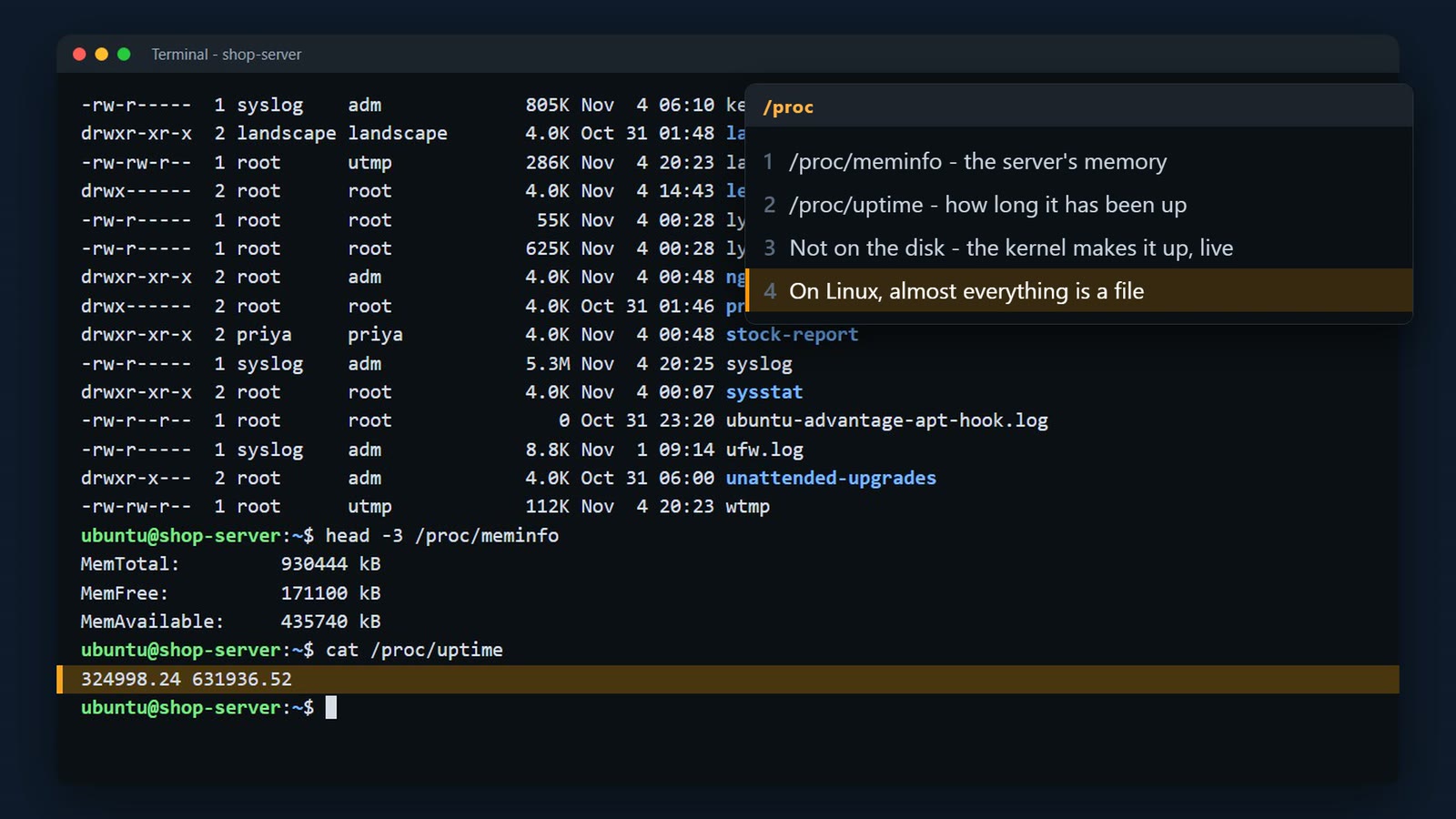
ls -lt sorts by time, newest first – handy in log folders.
ls -lt /var/log | head -5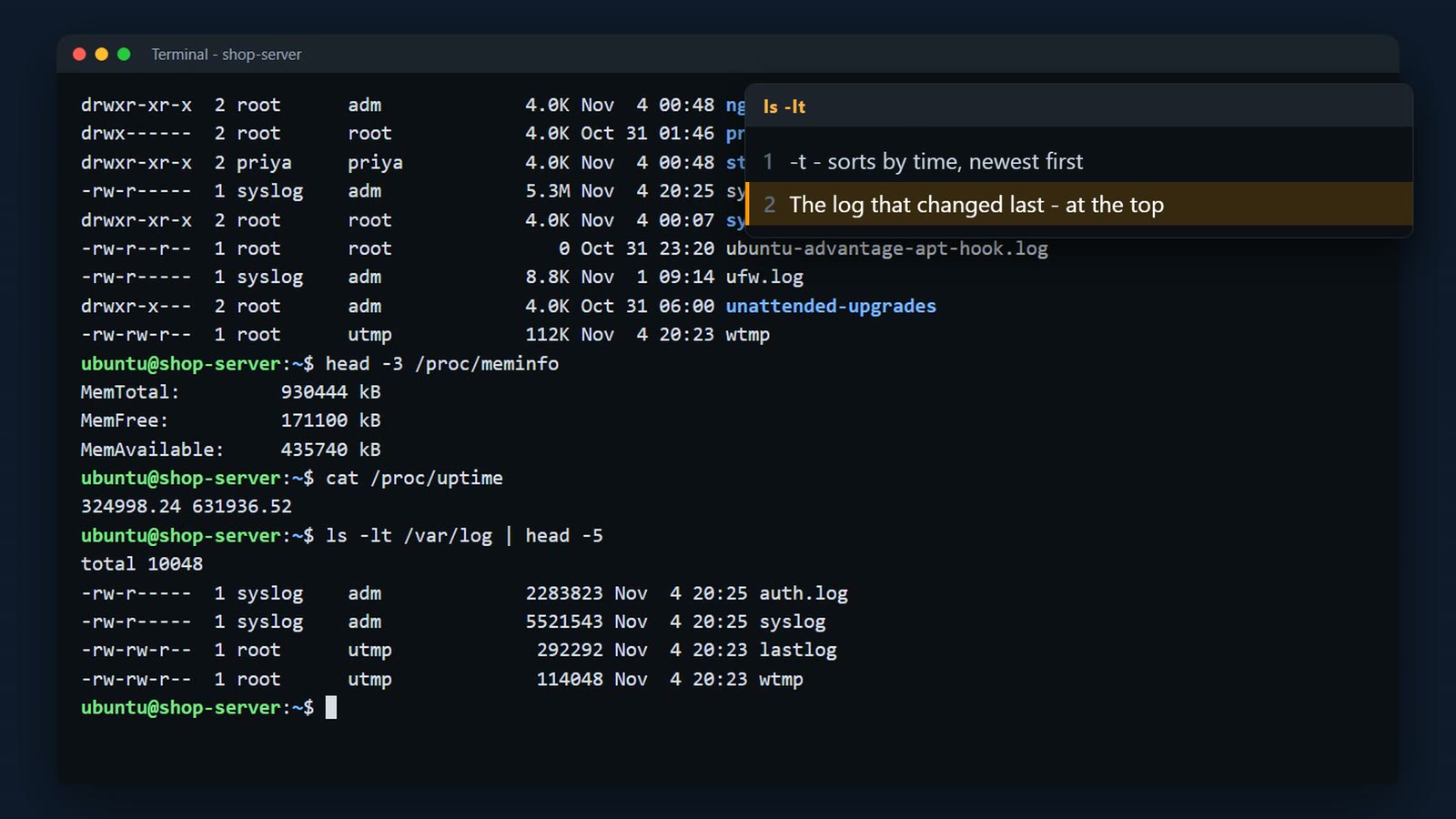
And remember Tab, from the last lesson. You rarely type a whole path. Type the first letters, and press Tab.
cd /etc/nginx/conf.d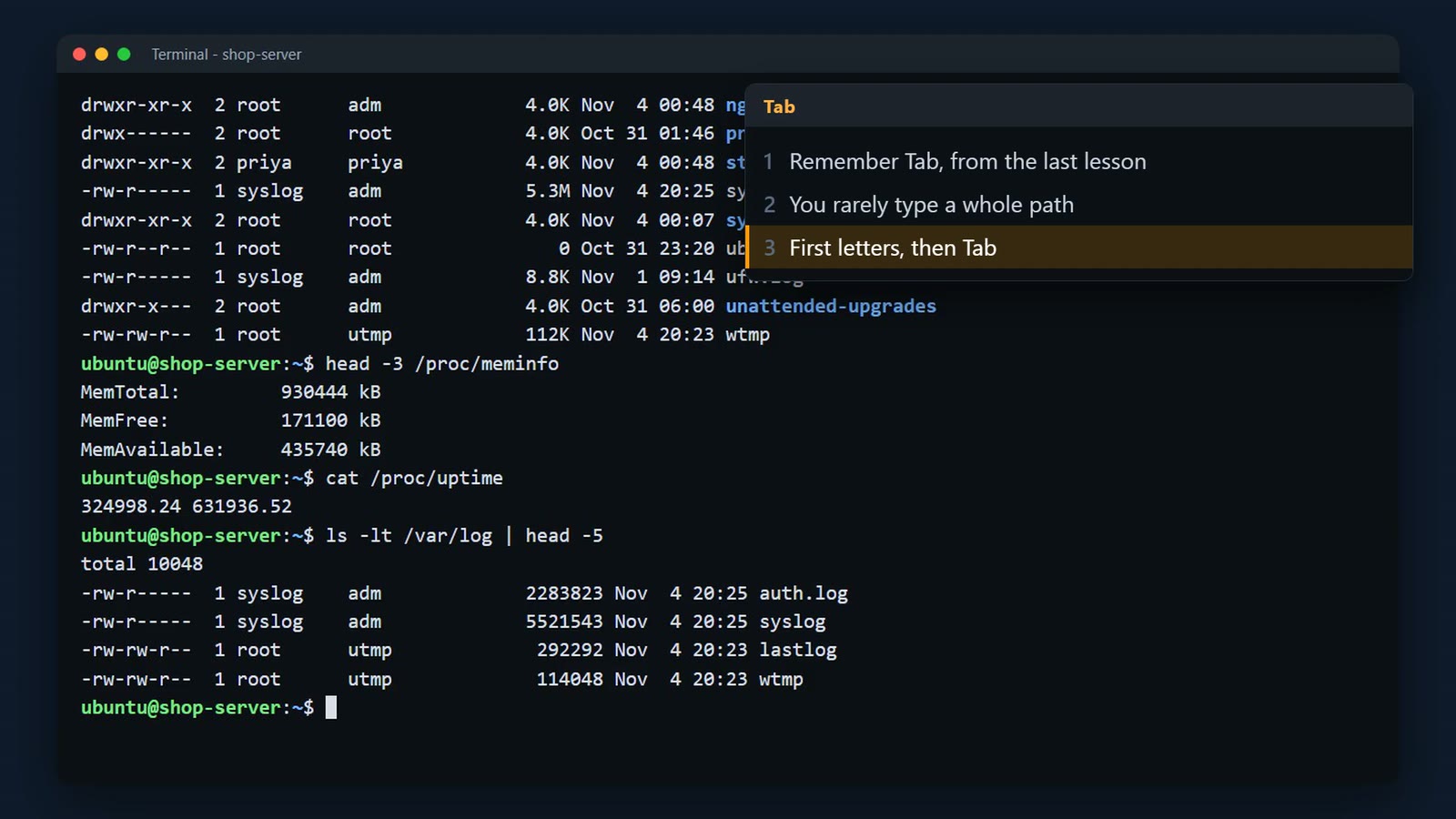
Challenge
Here's your challenge: Which directory holds the system-wide configuration files? If you're watching on YouTube or social media, drop your answer in the comments. If you're in the live class, put it in the chat. I'll show the answer at the start of the next lesson. And only post the command or the answer, never real IP addresses, account IDs, keys, or log output.
What's next
And the shop is ready with the next job.

Summary
- pwd prints where you are; ls lists; cd moves
- An absolute path starts at / ; a relative path starts where you are
- ~ is your home folder, .. is one level up, cd – goes back
- Files starting with a dot are hidden – ls -a shows them
- /etc settings, /var/log logs, /var/www websites, /home users, /usr programs, /tmp temporary
What’s next
Now you know your way around. And the shop just sent 40 product photos, all in one messy folder. Next lesson, we create folders, move and copy files, and delete things safely.