Linux Terminal Basics: the Prompt, Commands, and Getting Help (man, –help, tldr)
What you’ll learn
- Read the prompt – user, server, folder, and $ or #
- Know the parts of a command – name, options, arguments
- Get help with –help, man and tldr
- Save typing with Tab, the arrow keys and history – and stop a command with Ctrl+C
Hook
Connect with ssh shop-server.
ssh shop-server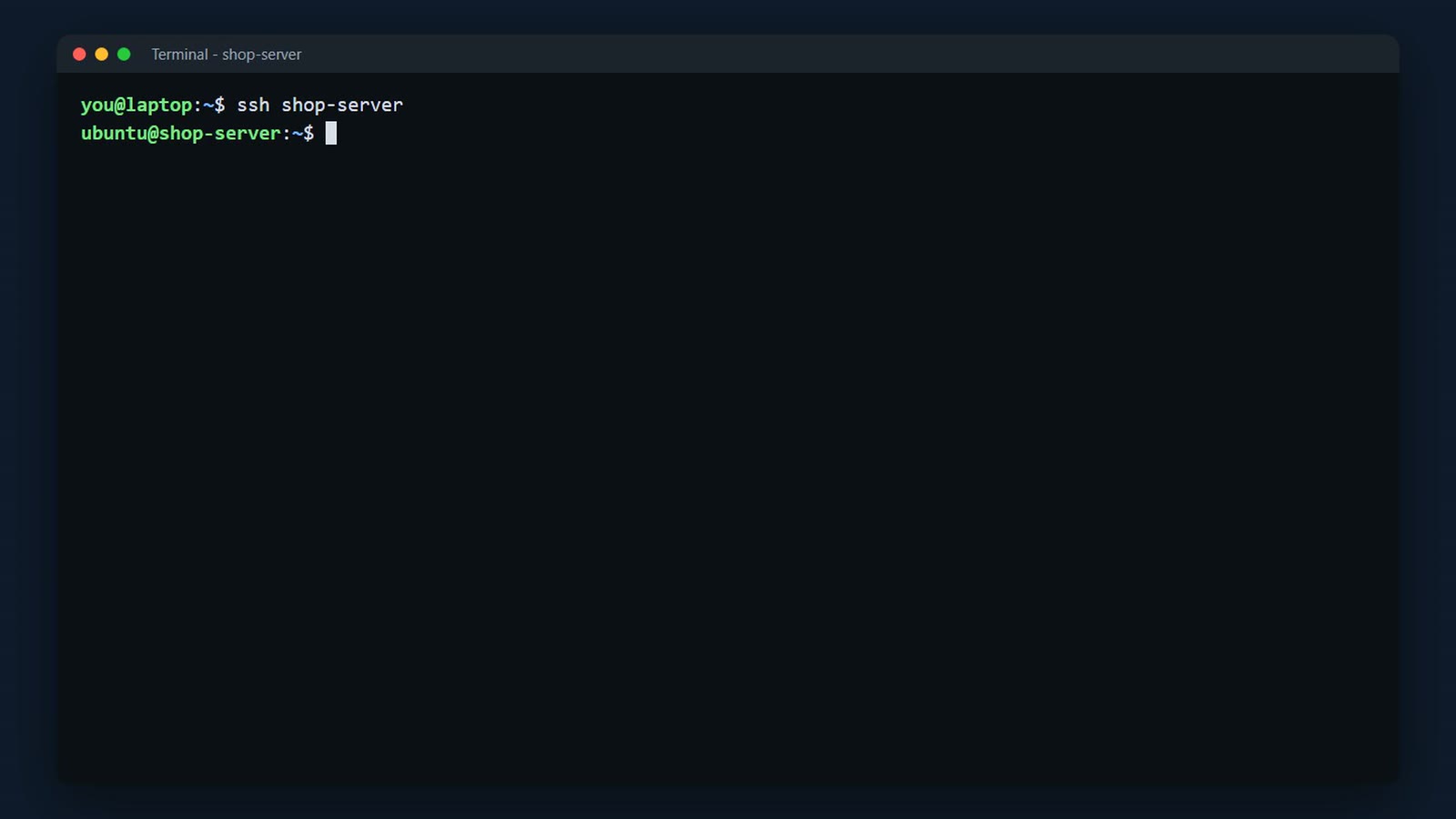
tldr shows short, practical examples for a command. tldr tar answers "how do I make an archive?" in seconds.
tldr tar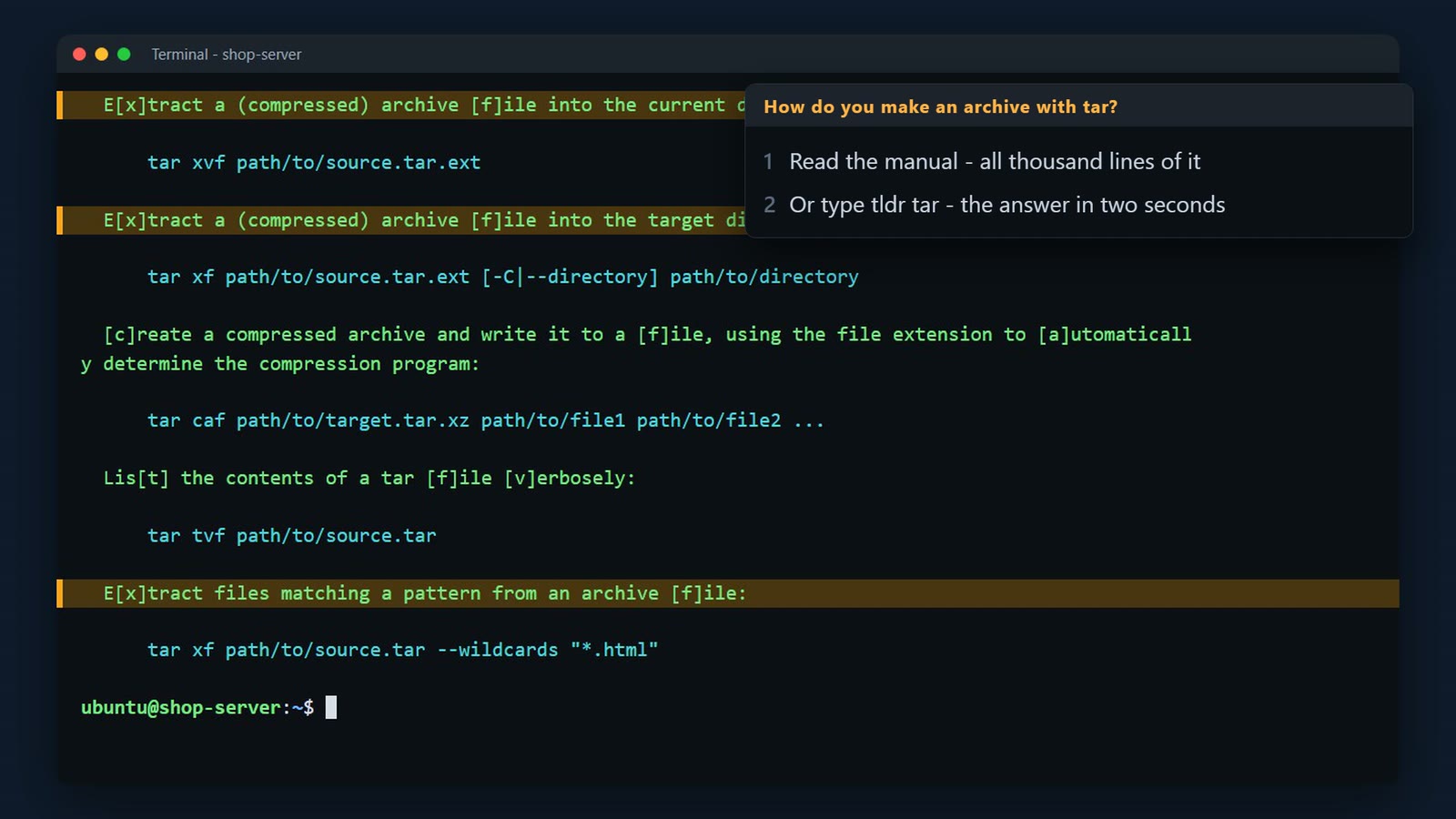
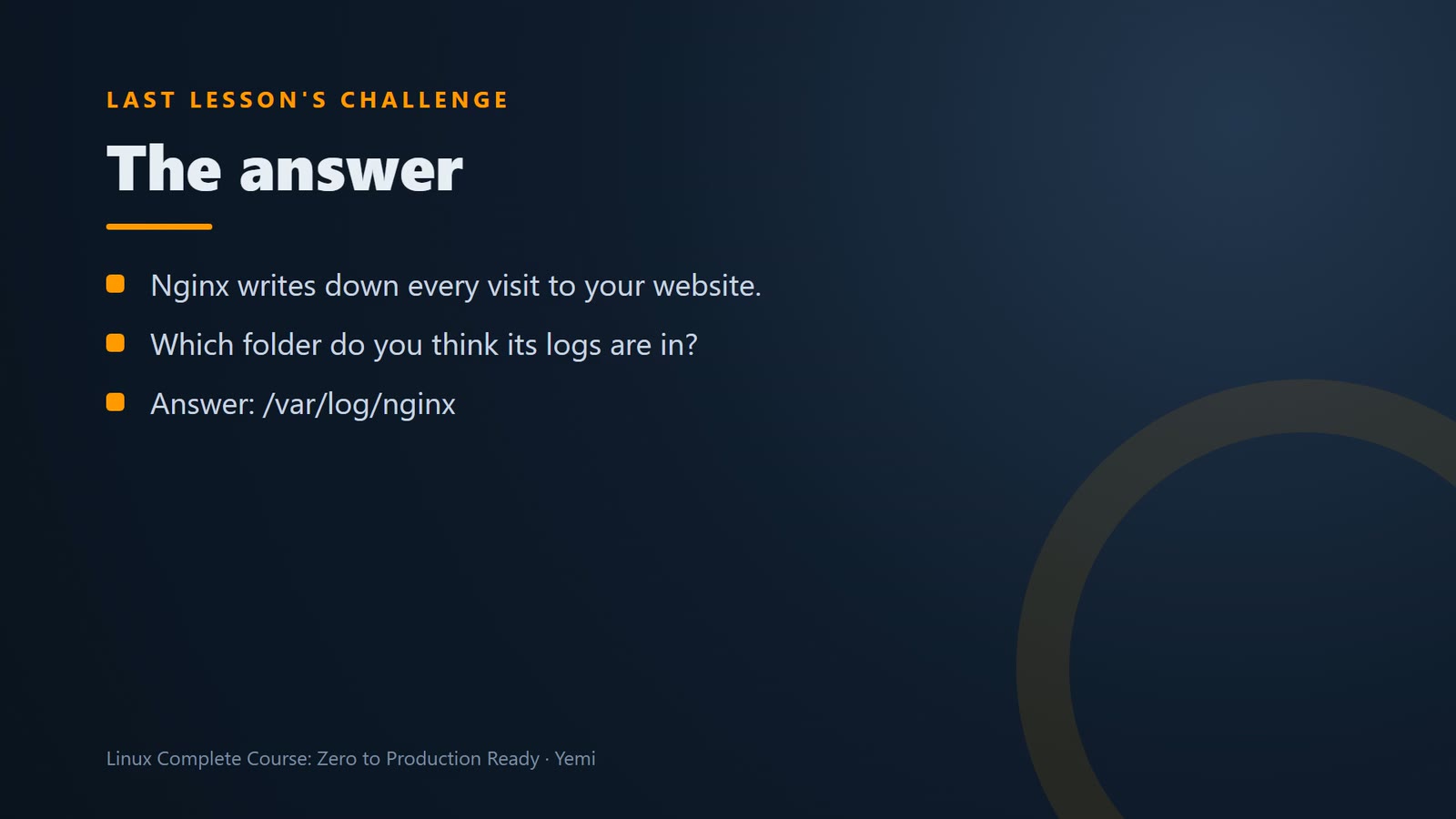
First, last lesson's challenge. Nginx writes down every visit to your website. Which folder do you think its logs are in? The answer is: slash var, slash log, slash nginx. We'll read those logs in lesson 9.
The request
A new module, and a new message from Cornelis Threads. They want changes to the website, and they've got product photos and price lists all over the place. To help, you need to be at home in the shell. So in this module, we learn it properly.

The prompt
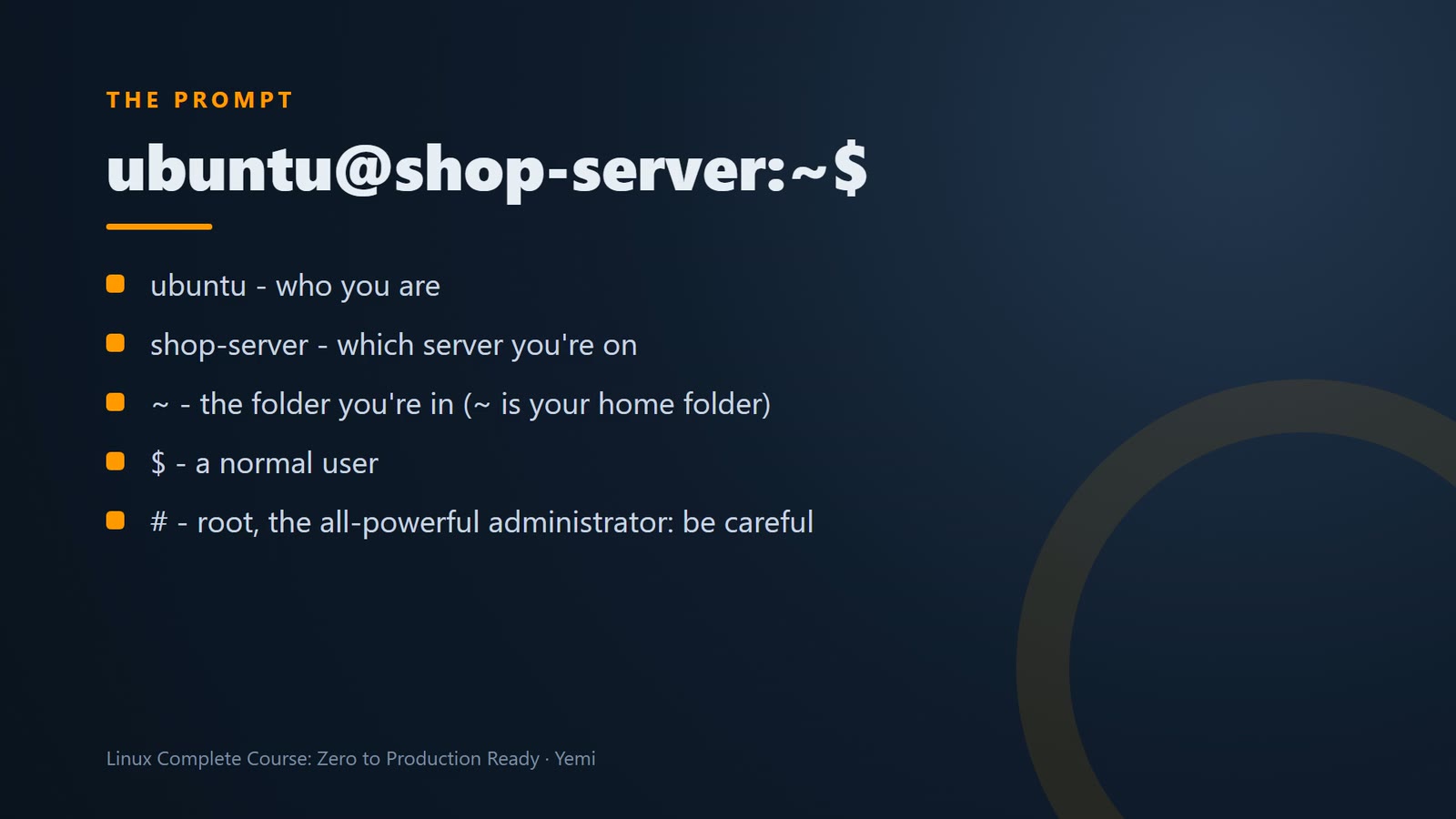
This line is the prompt. It's the shell saying, I'm ready. Read it from the left. ubuntu is the user you're logged in as. shop-server is the server. After the colon is the folder you're in. The tilde means your home folder. And the dollar sign means a normal user. If it's a hash sign, you're root, the all powerful administrator. Be careful then.
Let's run a few commands. whoami, who am I. hostname, the server's name. And date.
whoami
hostname
date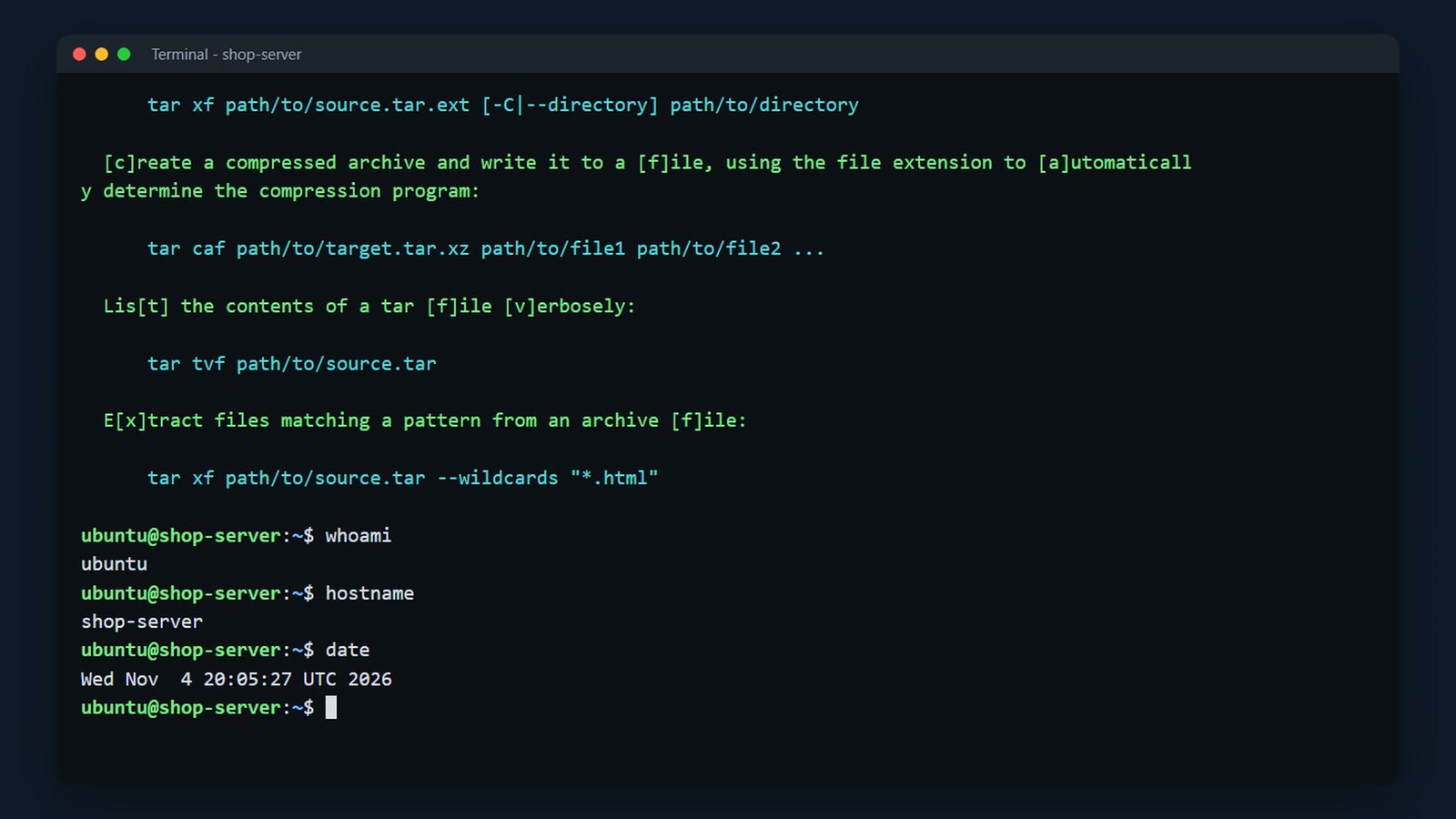
How a command is built
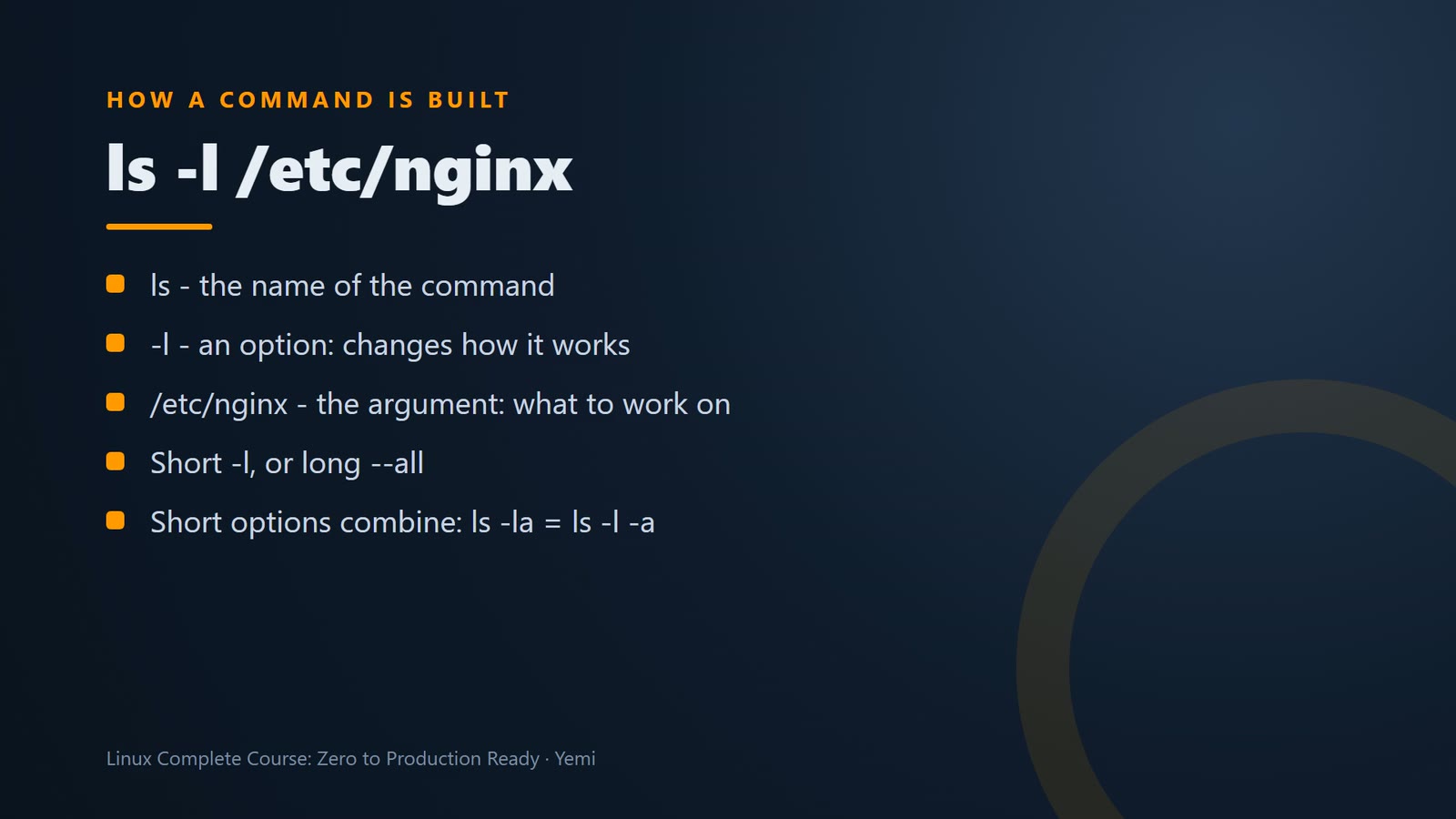
Most commands have three parts: the name (ls), options that change how it works (-l, the long listing), and arguments – what to work on (/etc/nginx, where Nginx keeps its settings since lesson 004).
ls -l /etc/nginx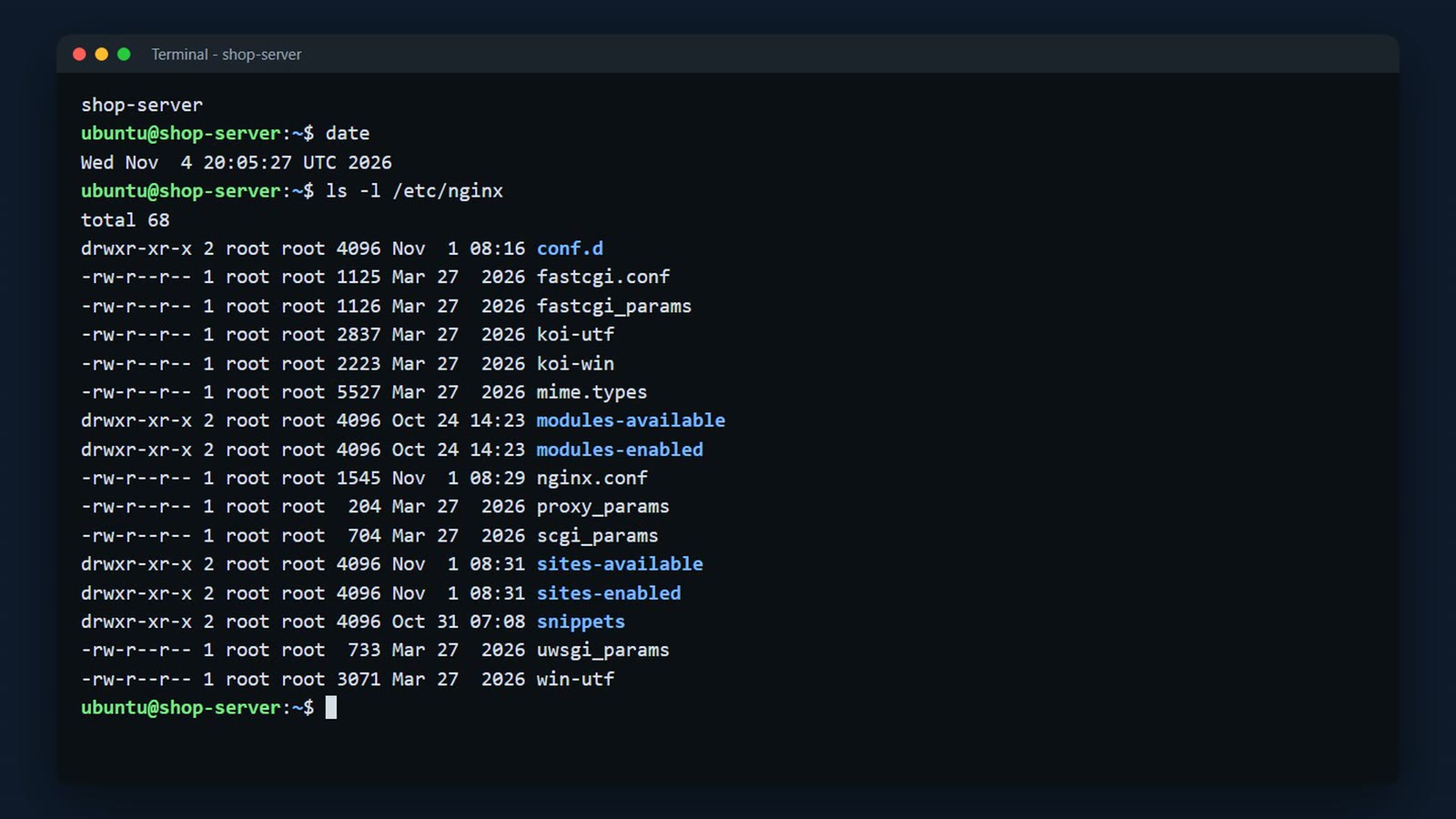
Most commands have three parts. The name of the command. Then options, which change how it works. They start with a dash. And arguments, what it should work on. Options come in two styles. Short ones, like minus l, and long ones, like dash dash all. Short options can be combined. ls minus l a is the same as ls minus l minus a.
Getting help
The quickest help: command –help prints a short summary. (Piped to head -15 here, to show only the first 15 lines.)
ls --help | head -15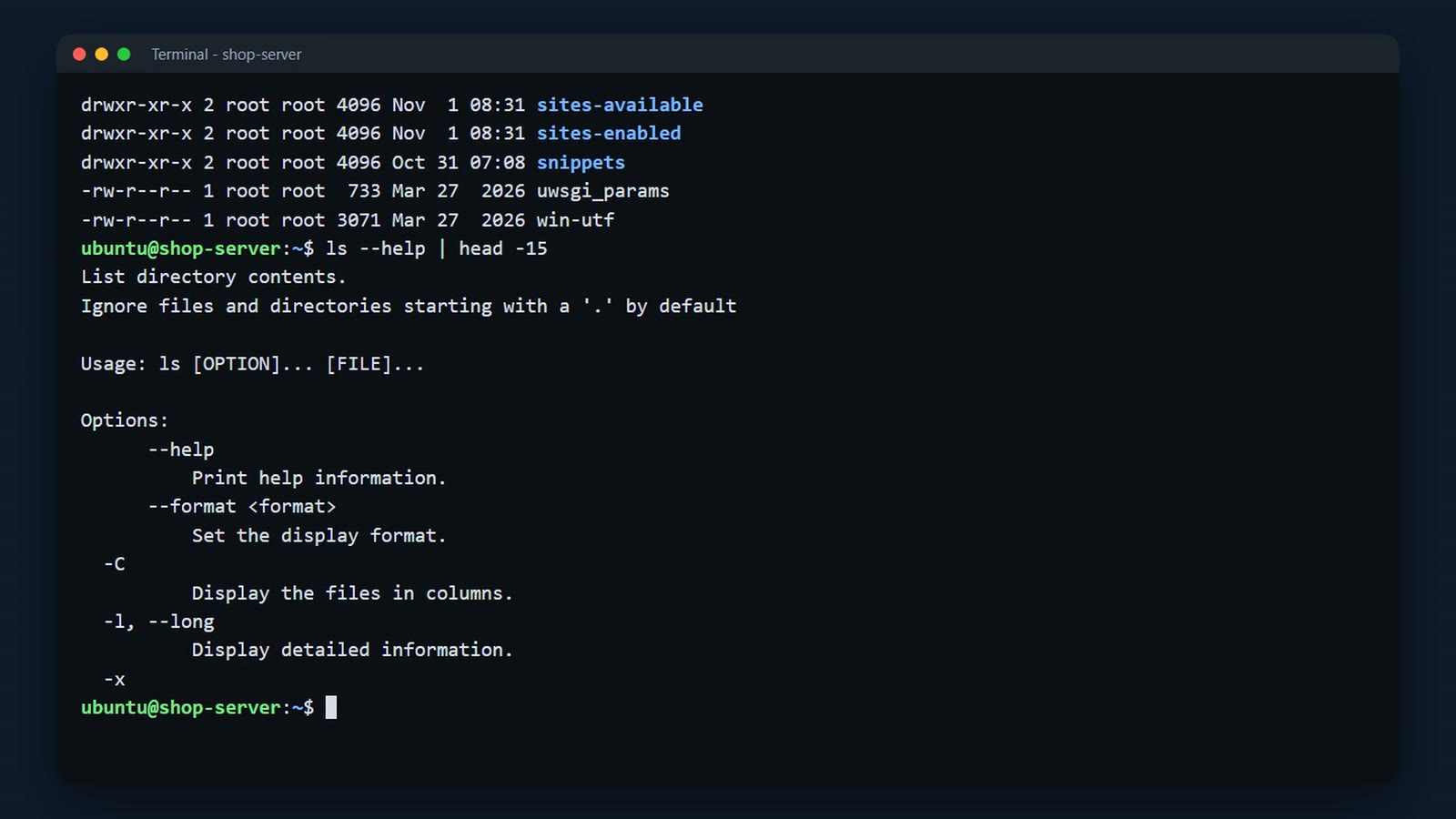
The full manual: man ls. Space goes down a page, /word searches, n jumps to the next match, q quits.
man ls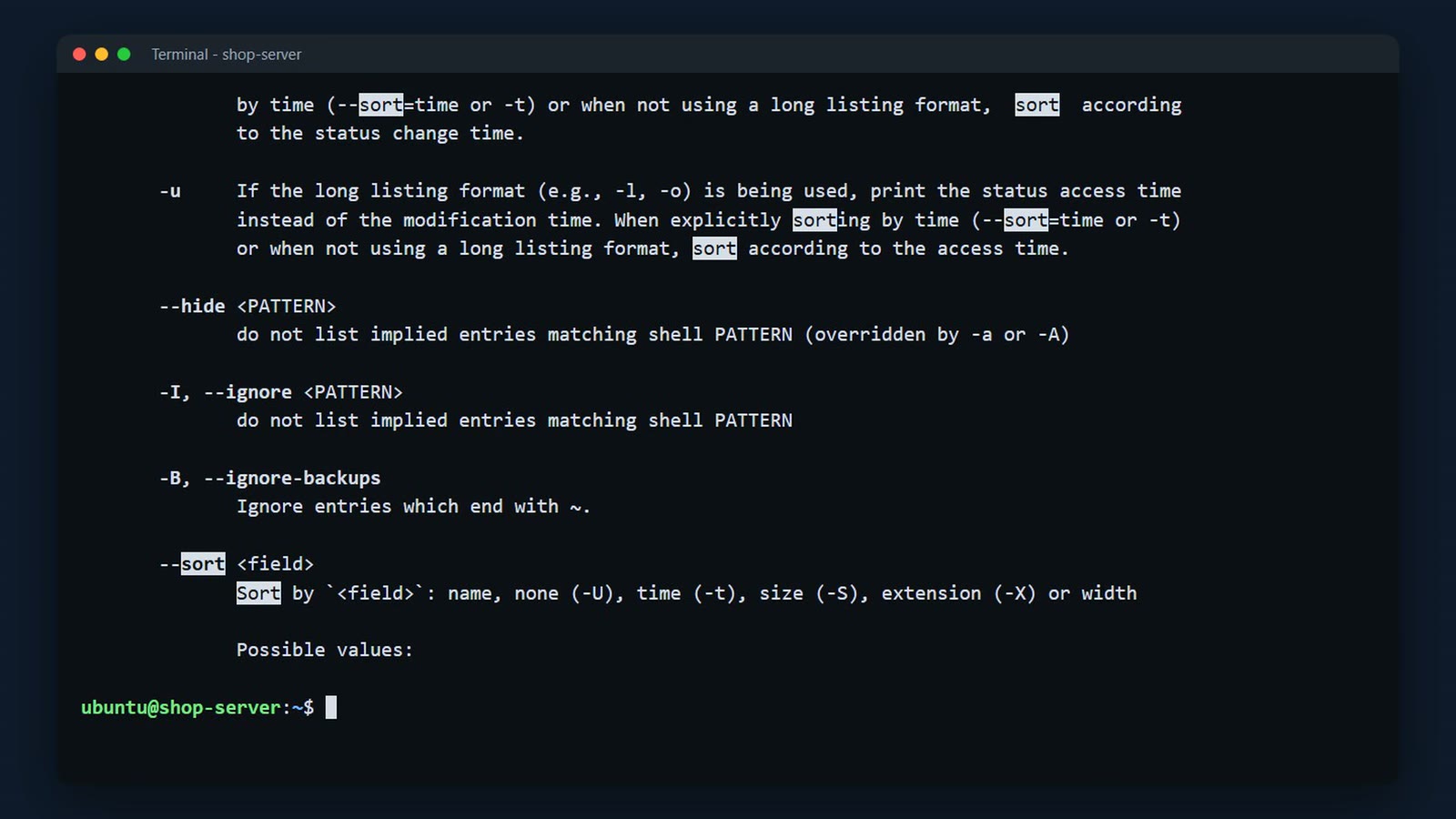
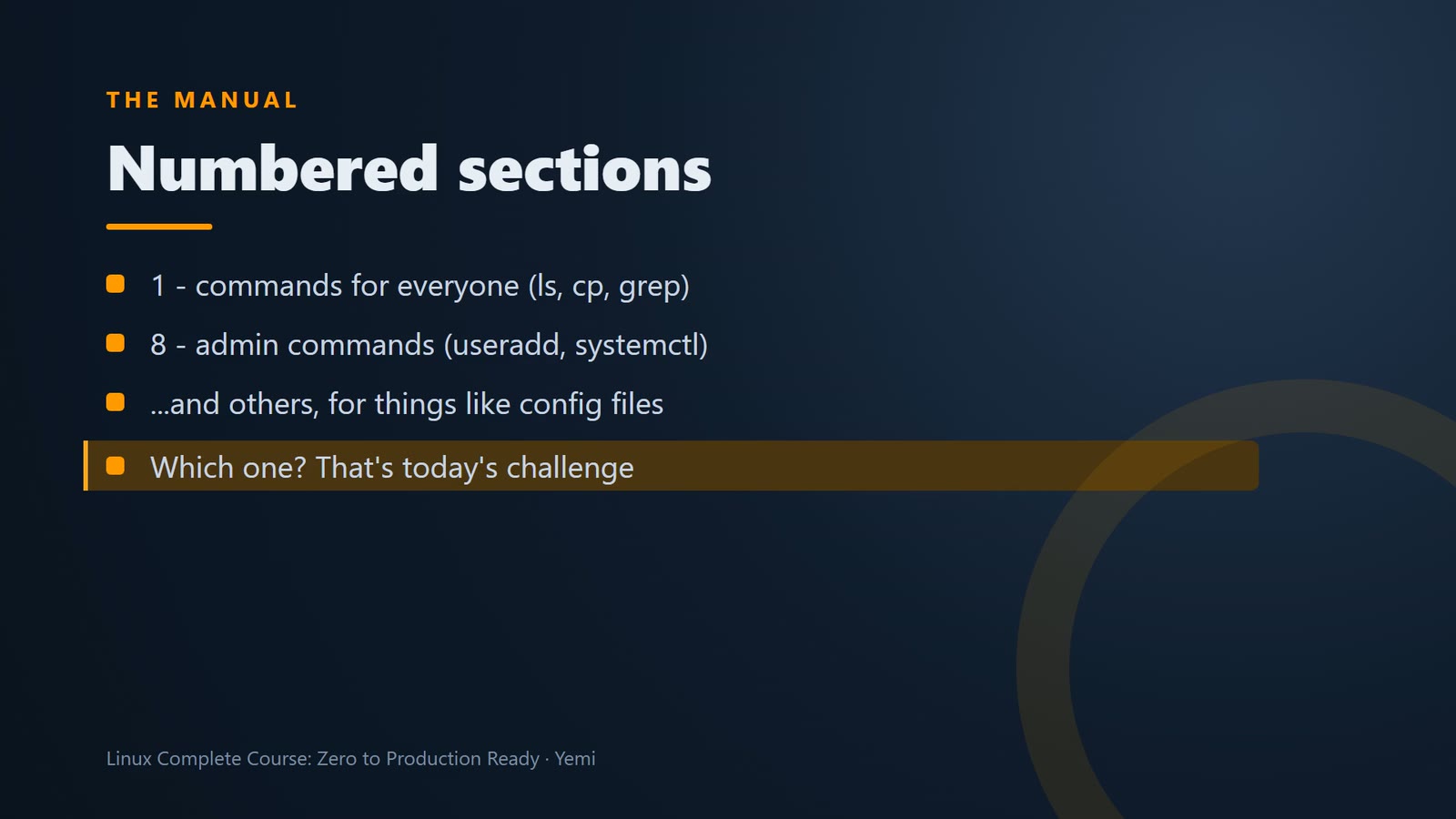
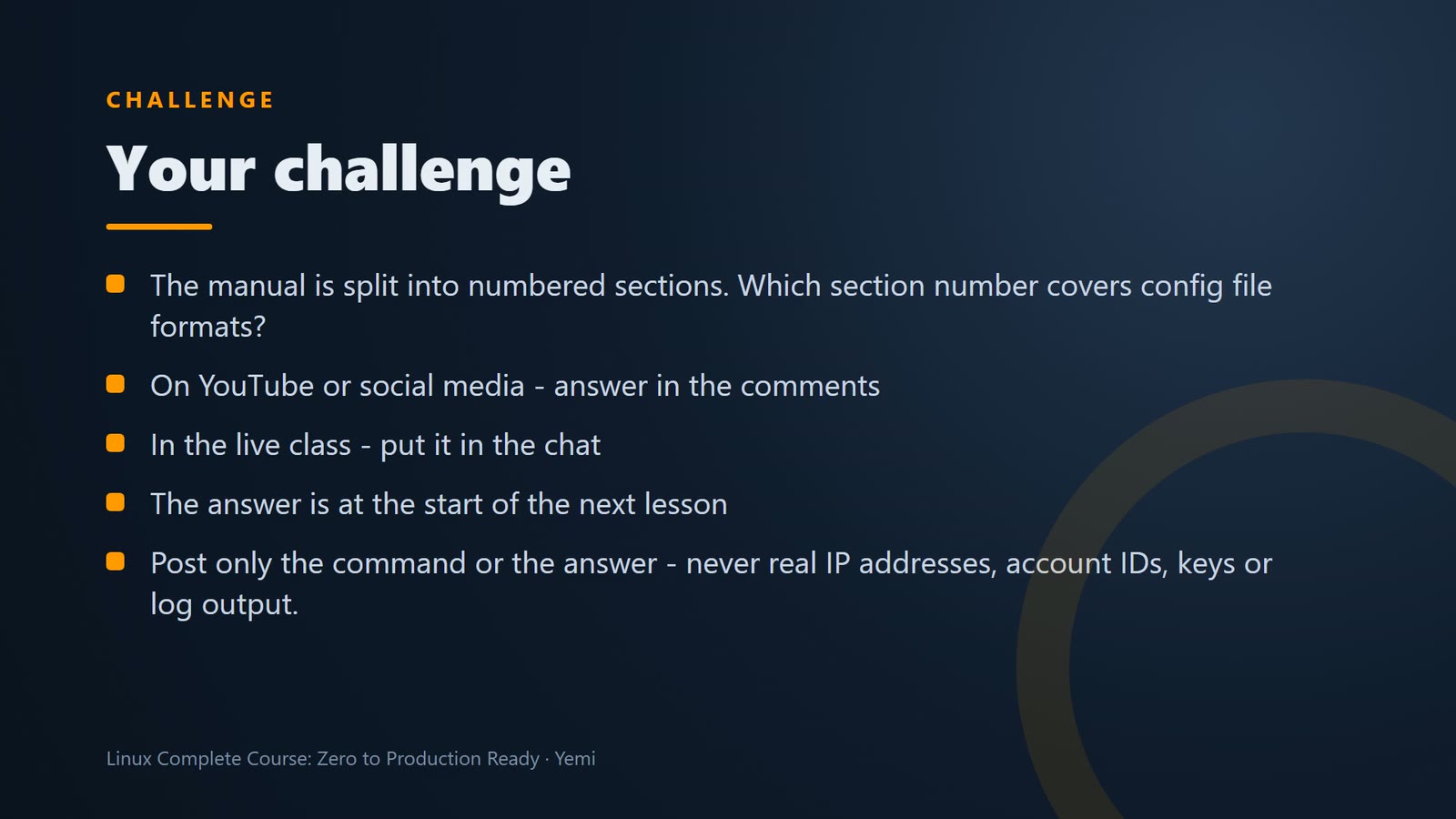
The manual is split into numbered sections. Section 1 is for commands everyone can run. Section 8 is for admin commands. And there are other sections, for things like config files. That's your challenge for today.
And if you don't know the name of the command? man minus k searches the descriptions of every manual page. Here, everything about copying files.
man -k 'copy files'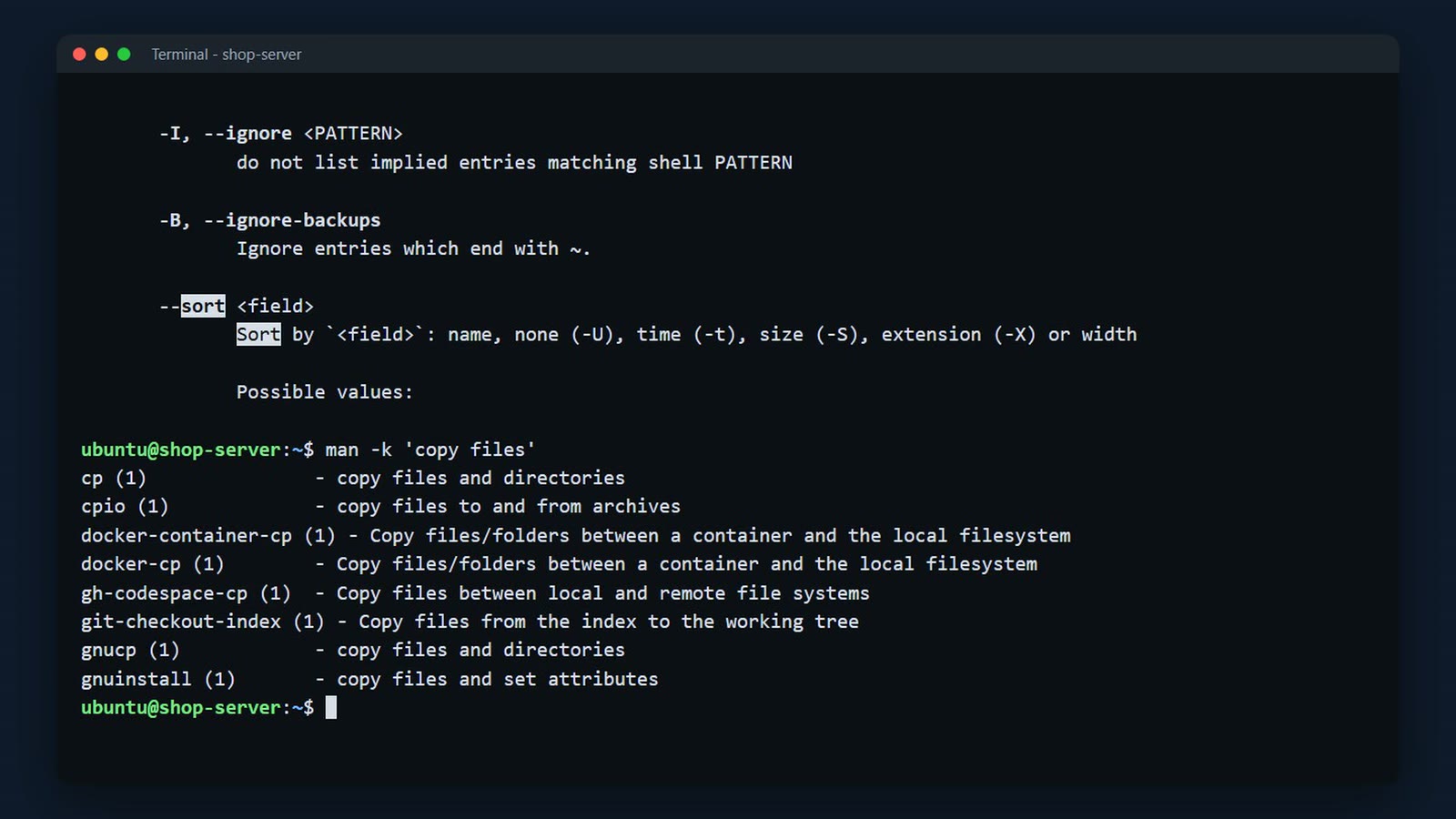
The third way is tldr, too long, didn't read. It isn't installed on servers by default. Install it with sudo apt install tealdeer. That's the package that gives you the tldr command. It shows the five or six examples you actually need.
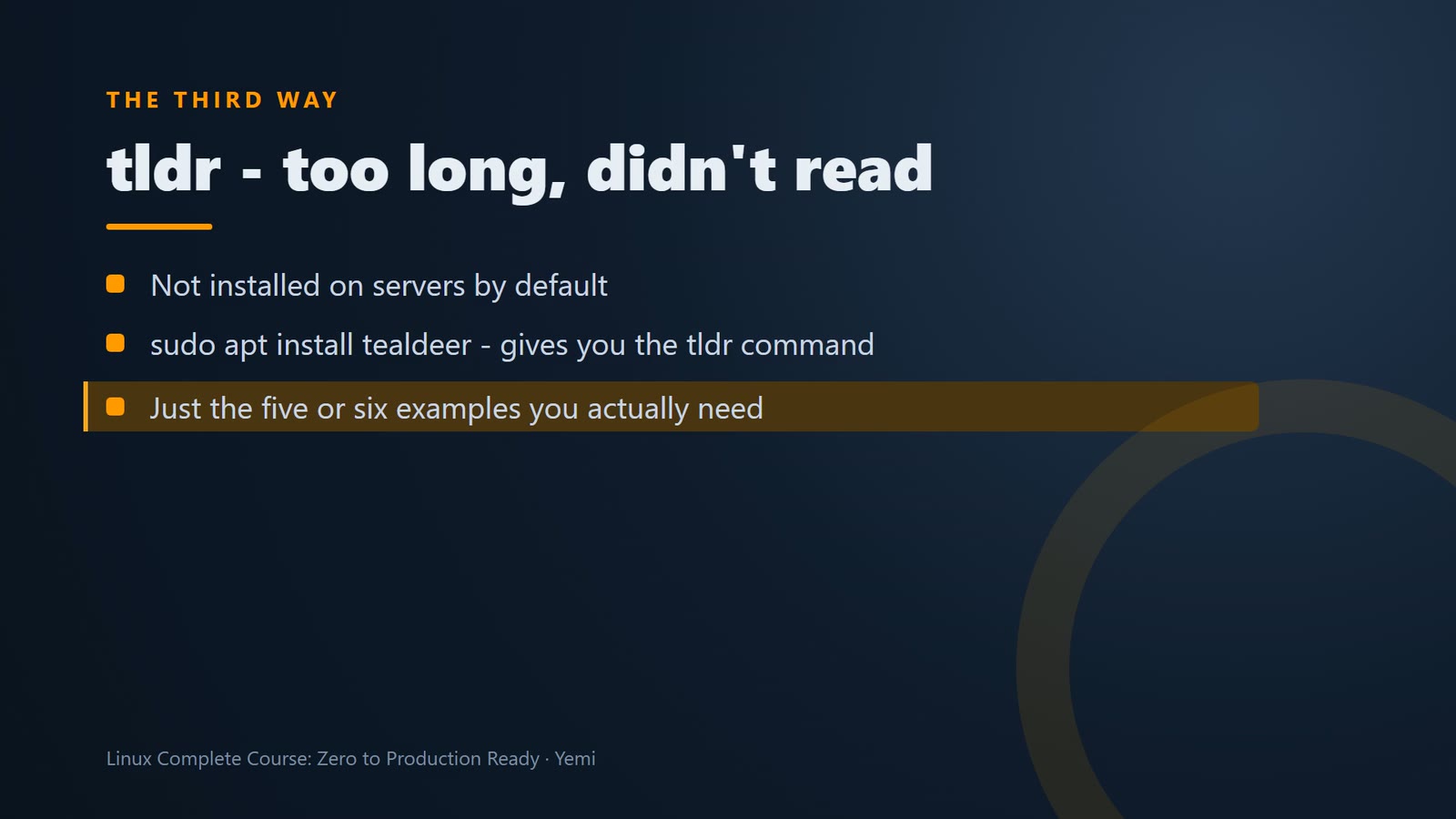
tldr (install it with sudo apt install tealdeer, then tldr –update) shows the handful of examples you actually need.
sudo apt install -y tealdeer
tldr --update
tldr cp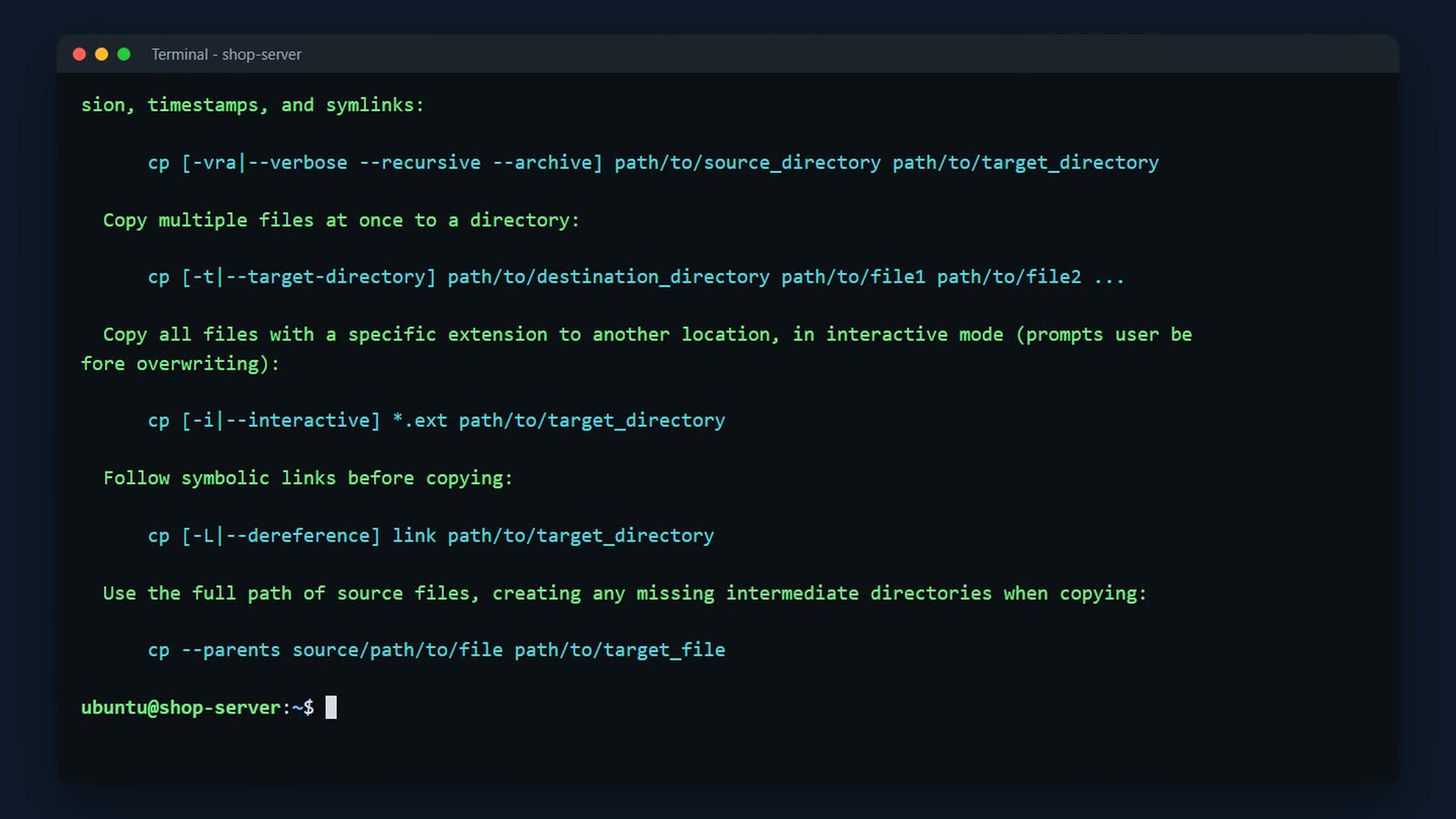
Save your fingers
Tab completes names: type ls /var/w and press Tab, and the shell finishes the word.
ls /var/www/html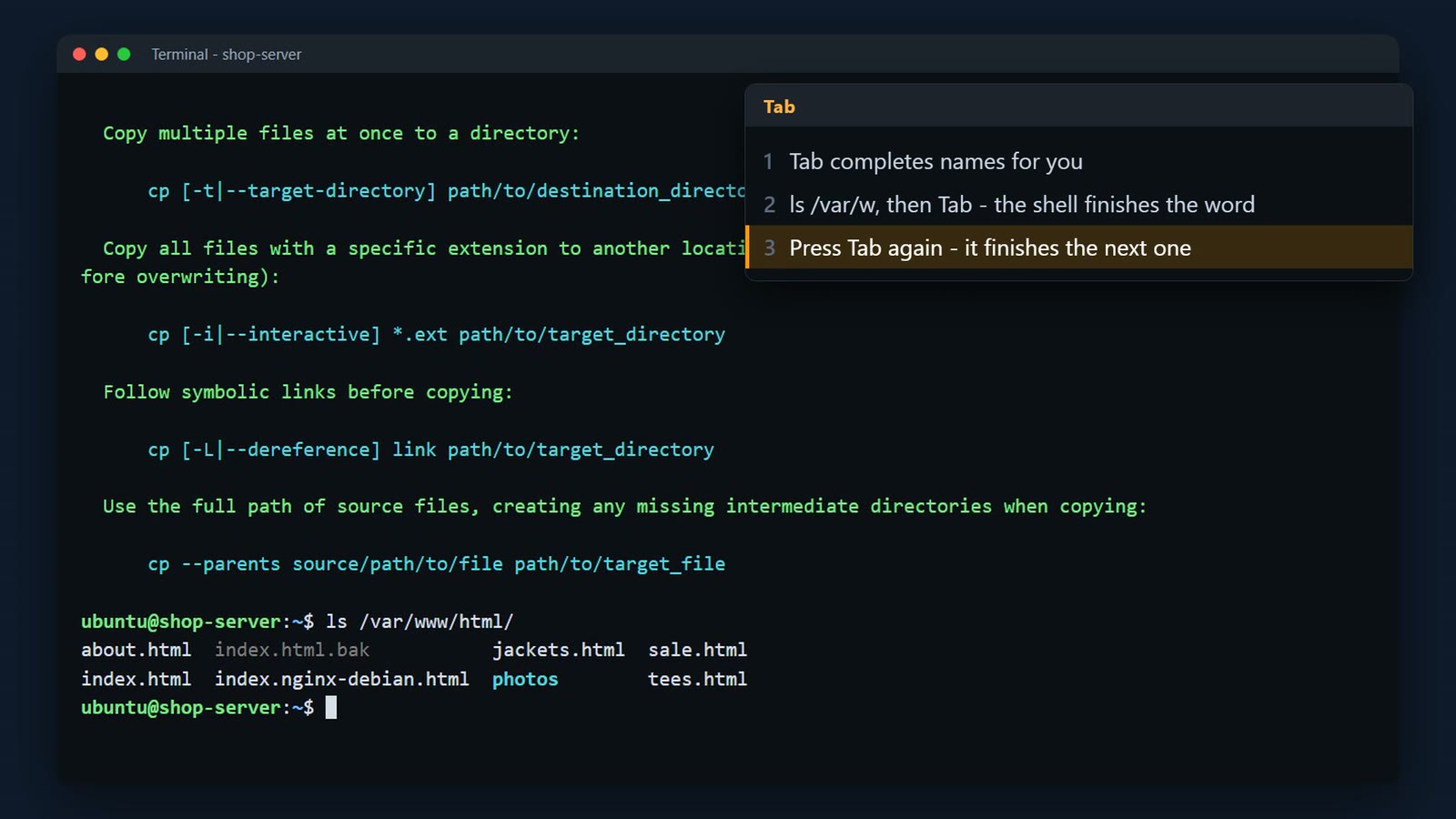
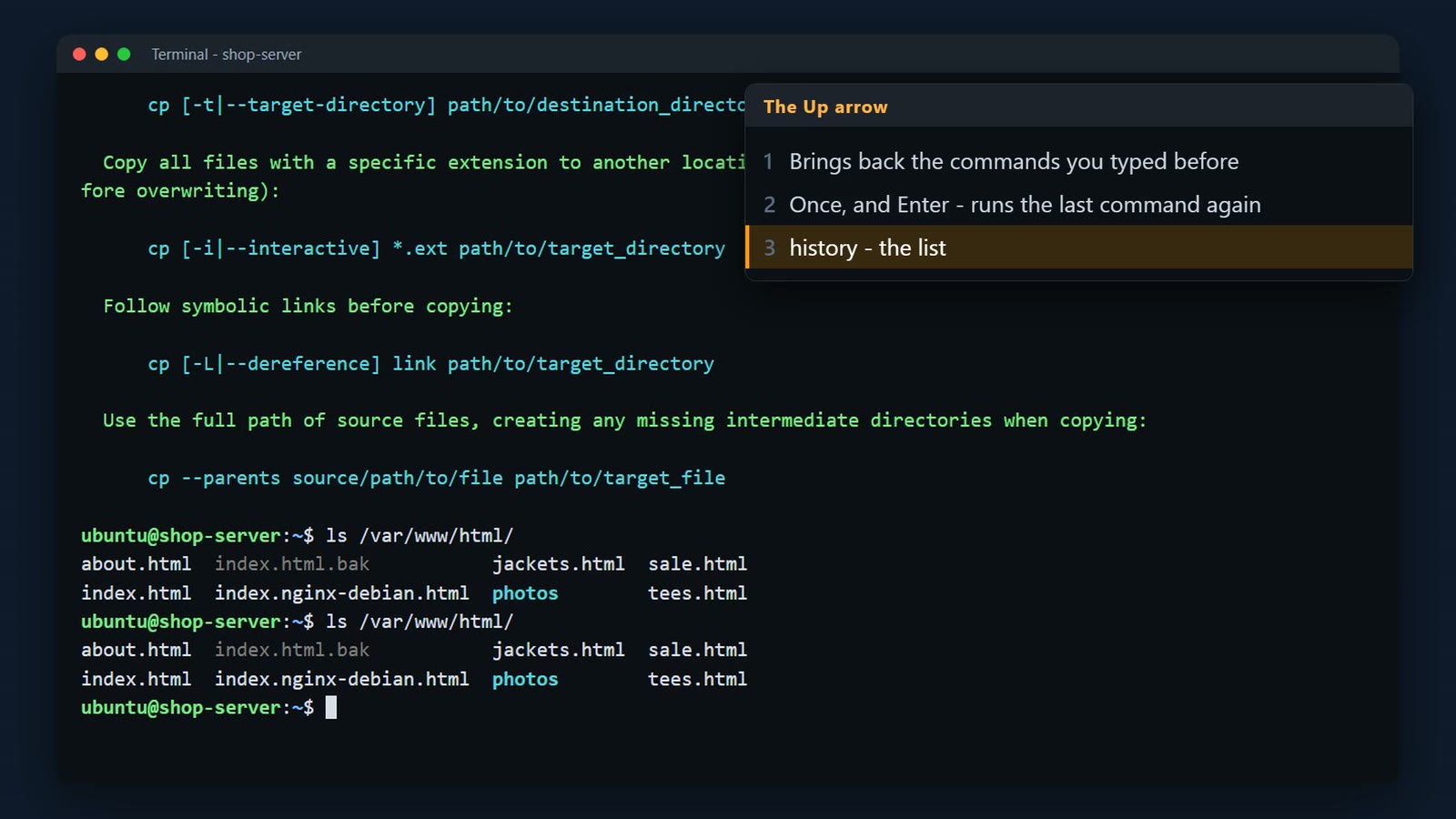
The Up arrow brings back earlier commands. history lists them.
history, pipe, tail minus 5.
history | tail -5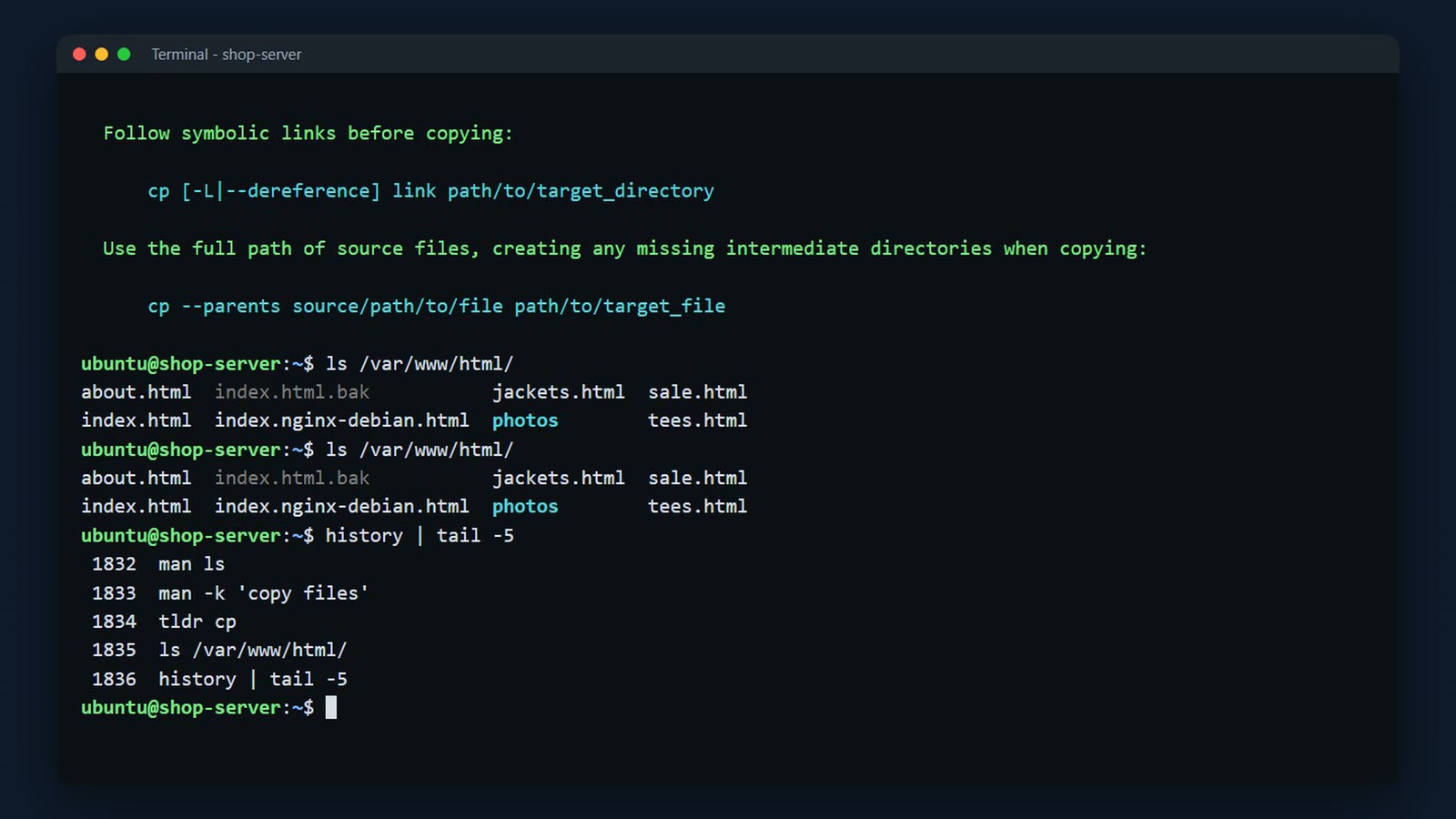
Some commands keep running until you stop them. Ctrl+C stops the command; Ctrl+L clears the screen.
ping localhost
Challenge
Here's your challenge: The manual is split into numbered sections. Which section number covers config file formats? If you're watching on YouTube or social media, drop your answer in the comments. If you're in the live class, put it in the chat. I'll show the answer at the start of the next lesson. And only post the command or the answer, never real IP addresses, account IDs, keys, or log output.
What's next
And now, the shop's question. Where is our website, anyway?
Summary
- ubuntu@shop-server:~$ – user @ server : folder, then $ (normal user) or # (root)
- A command is a name, options (-l, –all) and arguments (what to work on)
- command –help – a quick summary; man command – the full manual (q to quit, / to search)
- tldr command – short examples for common tasks
- Tab completes names, Up repeats commands, Ctrl+C stops a command, Ctrl+L clears the screen
What’s next
Now you can ask Linux for help. But where is everything? Where does the website live? Where are the logs? Next lesson, the map of the Linux filesystem.