Linux Files for Beginners: Create, Copy, Move and Delete Safely
What you’ll learn
- Create files and folders – touch, mkdir -p
- Copy and move – cp, cp -r, mv – and rename
- Delete safely – rm -i, rmdir, and why rm -r is dangerous
- Back up a folder before you change it
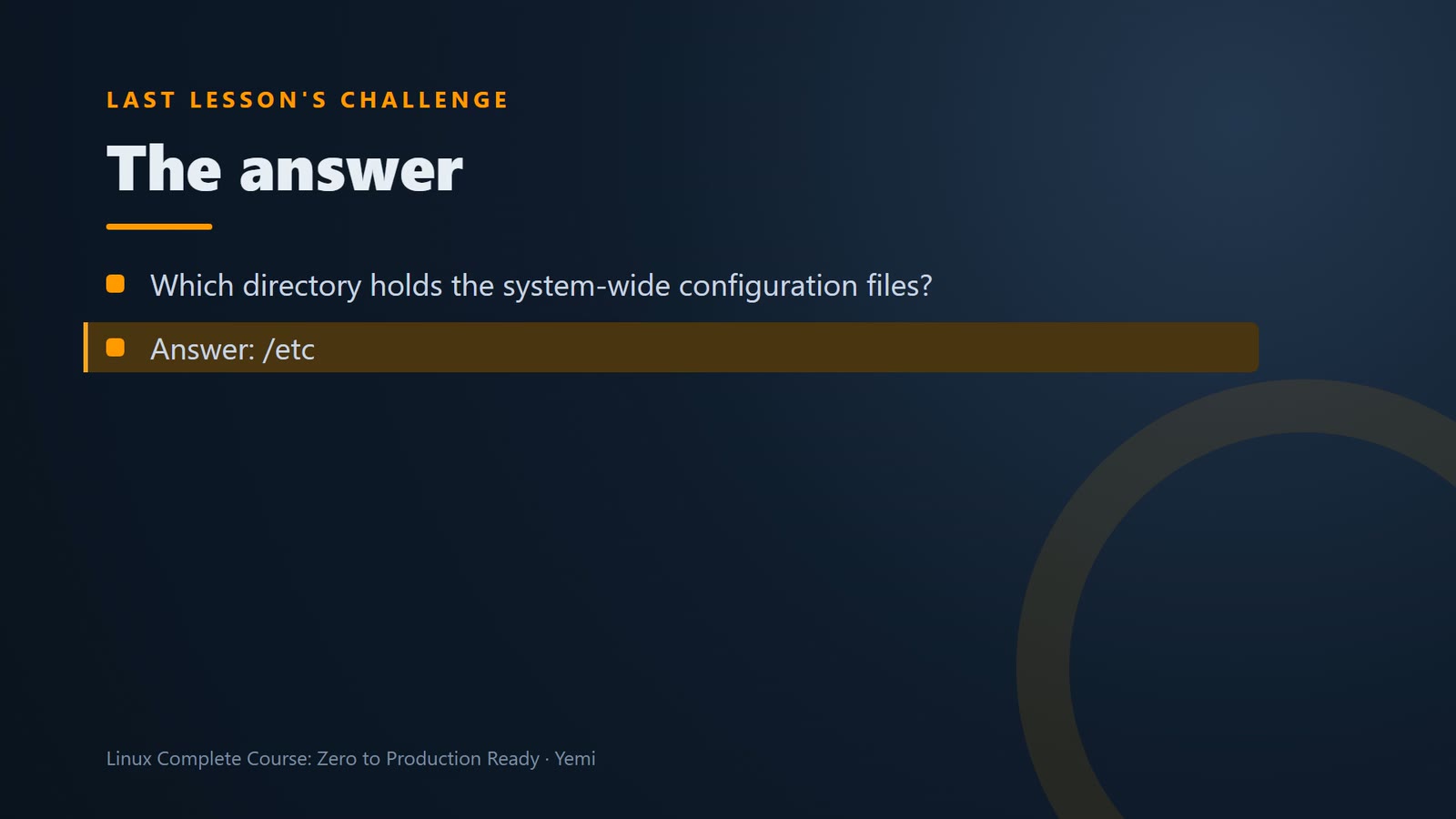
First, last lesson's challenge. Which directory holds the system-wide configuration files? The answer is: slash etc. Almost every program keeps its settings there.
The mess
Connect to the server, with ssh shop-server.
ssh shop-server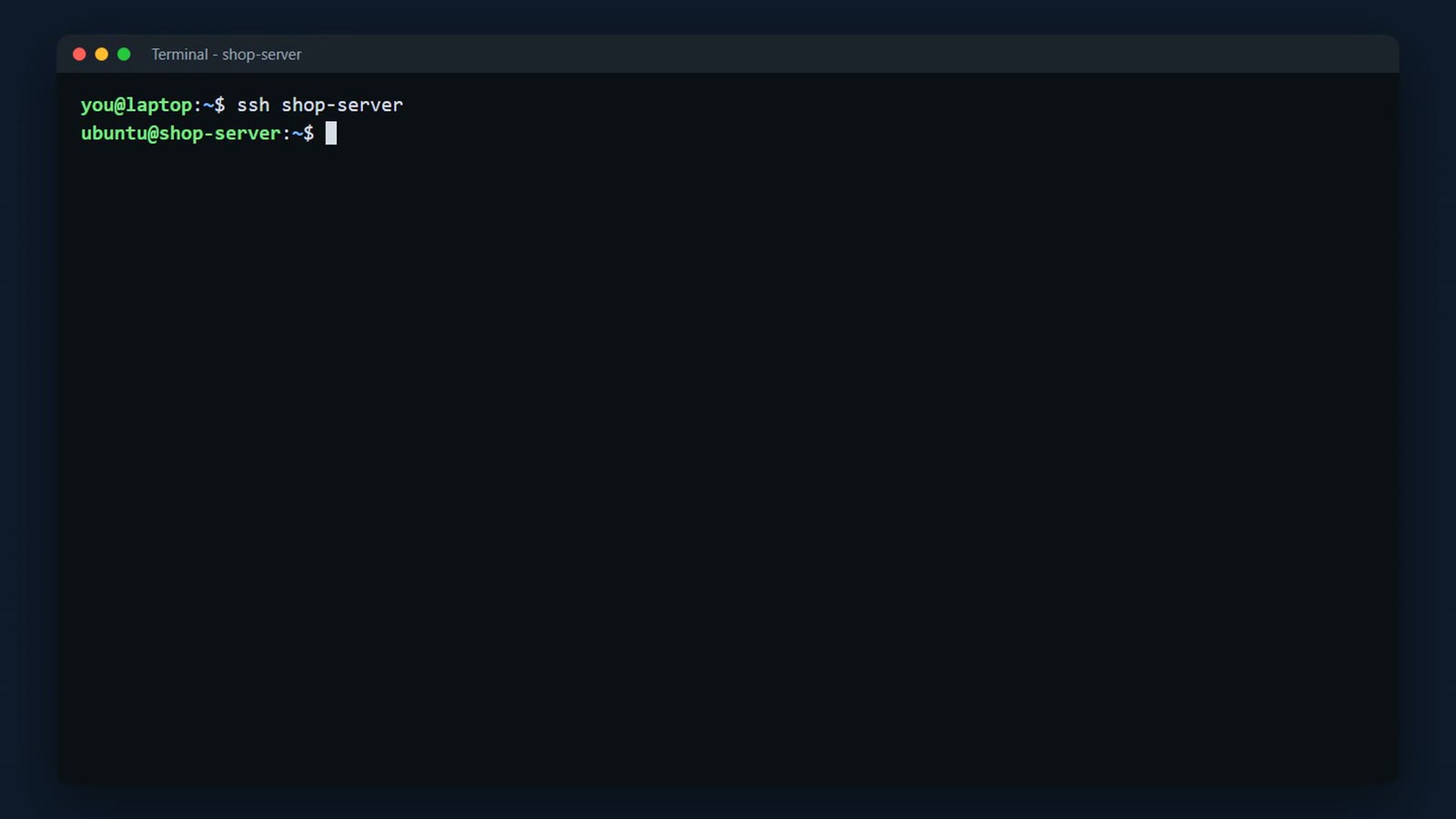
The shop uploaded its photos to a folder called incoming. cd tilde slash incoming, and ls. Jackets, tees, denim and hoodies, all in one folder. ls piped to wc minus l counts them. Forty. Let's sort them.
cd ~/incoming
ls
ls | wc -l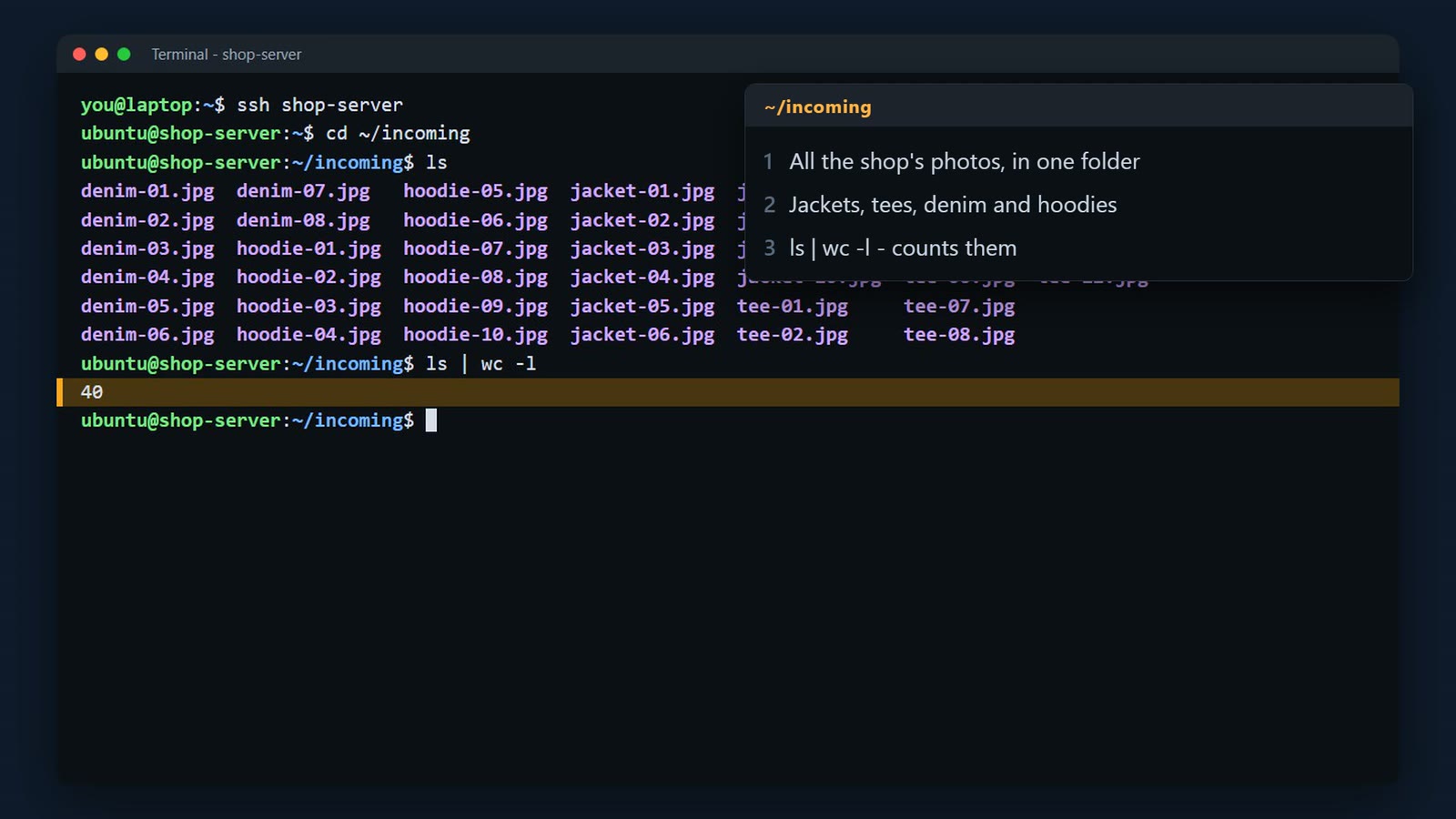
Create folders
mkdir makes a folder; -p also makes the folders above it if they don't exist yet (and doesn't complain if they do).
mkdir -p ~/shop/photos/jackets
ls -R ~/shop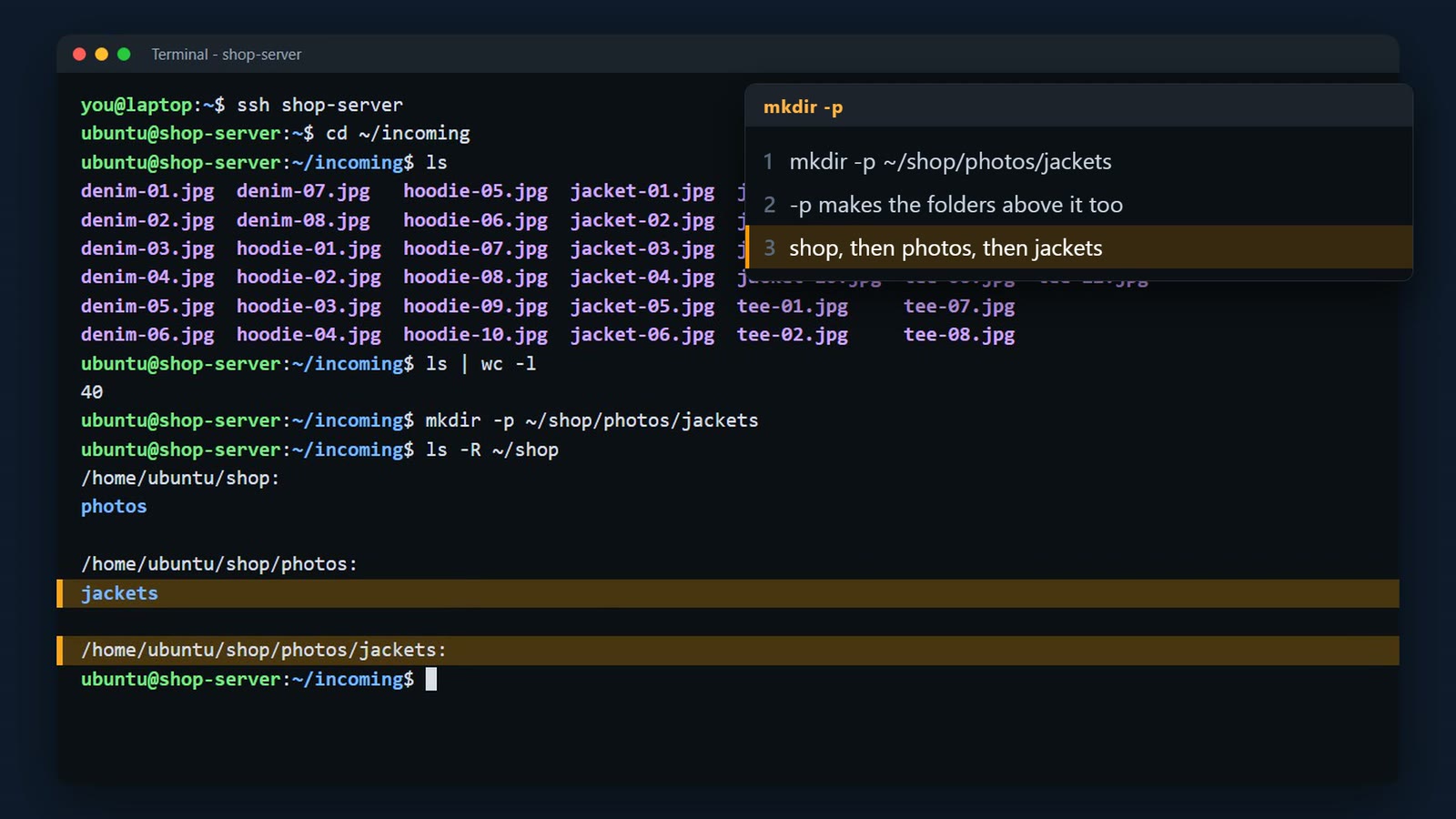
You can give mkdir several names at once. tees, denim, and hoodies. And ls shows all four.
mkdir ~/shop/photos/tees ~/shop/photos/denim ~/shop/photos/hoodies
ls ~/shop/photos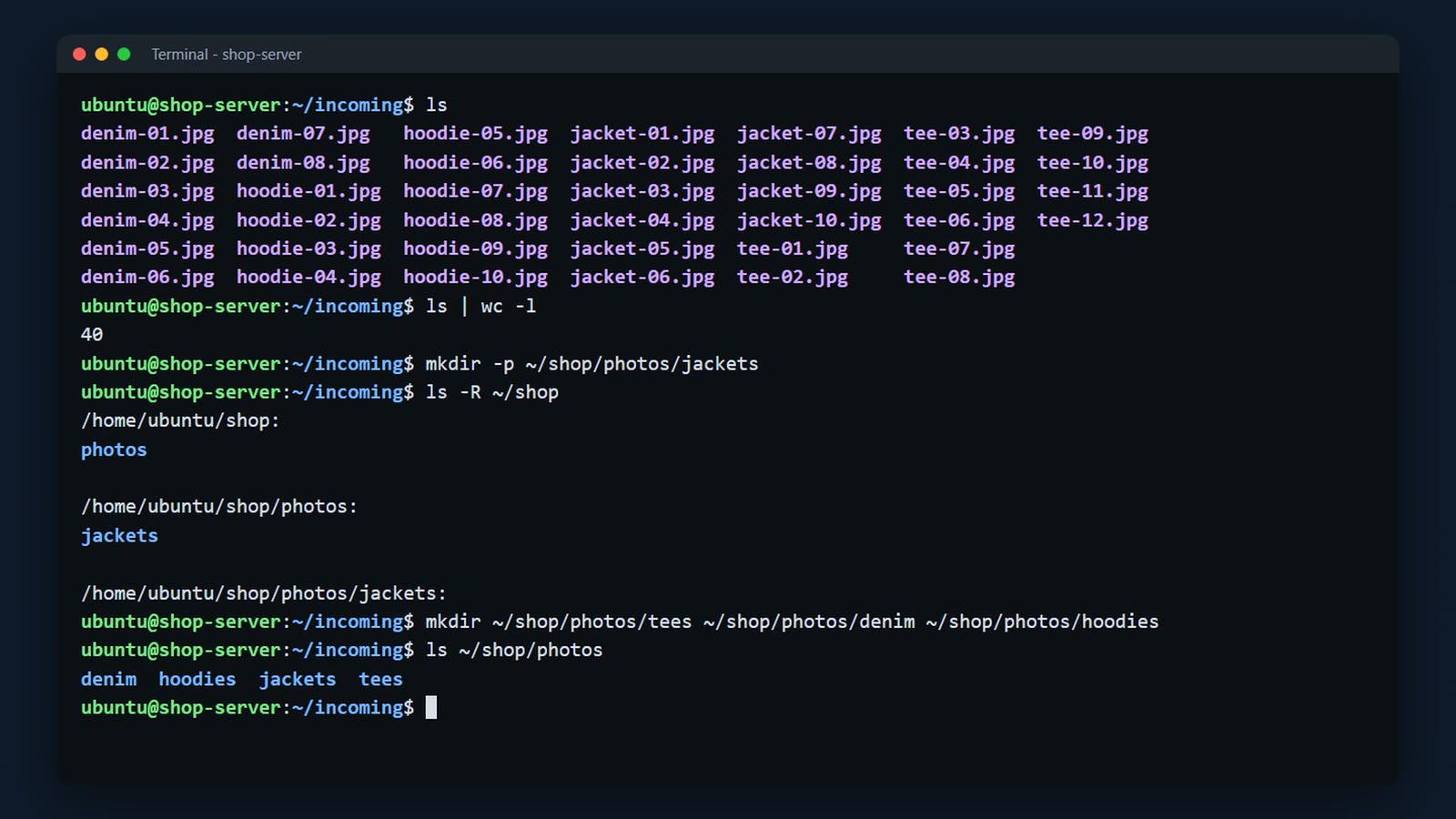
Move and rename
To move a file, use mv, the file, and where it goes. Let's move the first jacket. And ls shows it, in the jackets folder.
mv jacket-01.jpg ~/shop/photos/jackets/
ls ~/shop/photos/jackets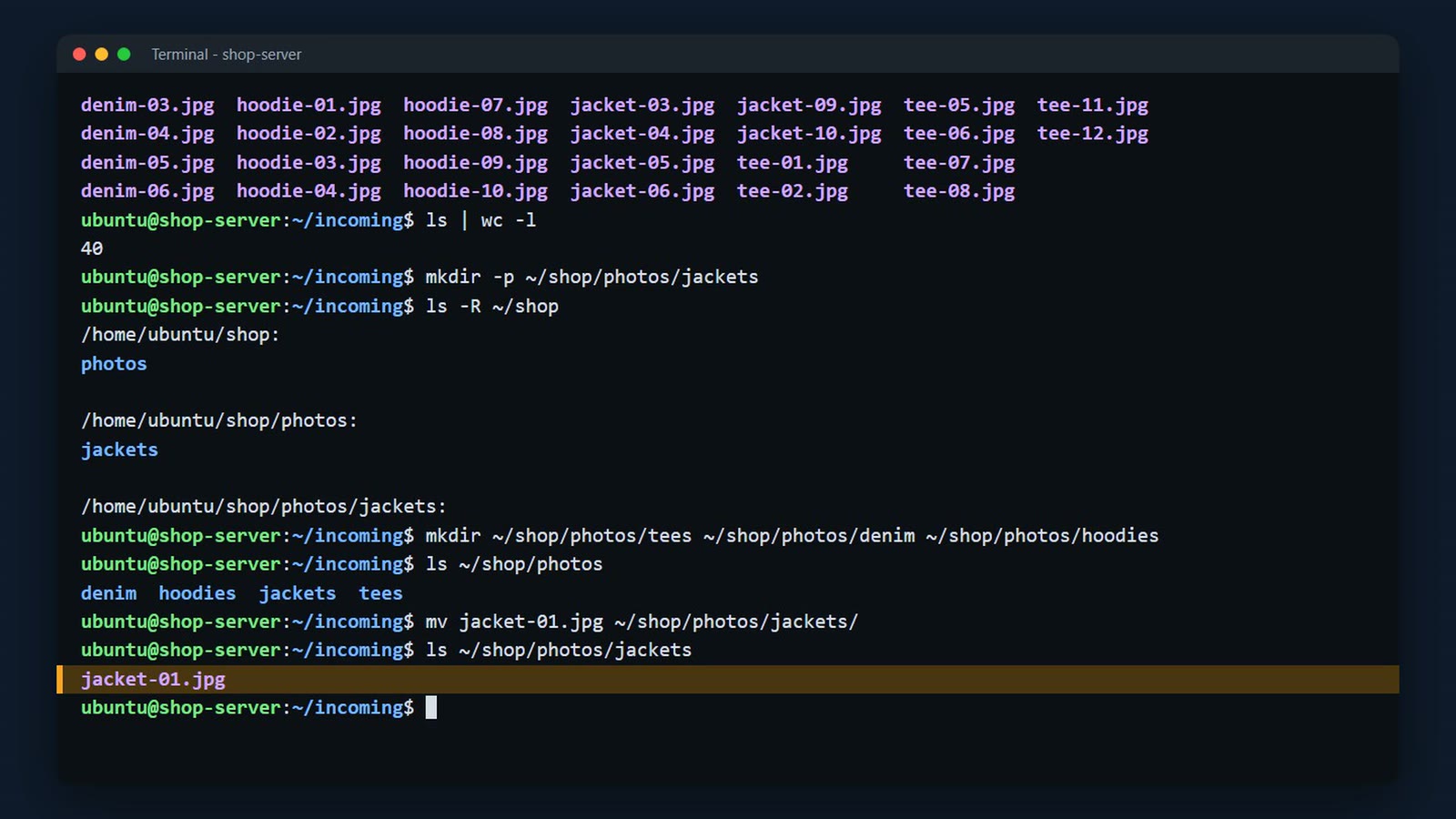
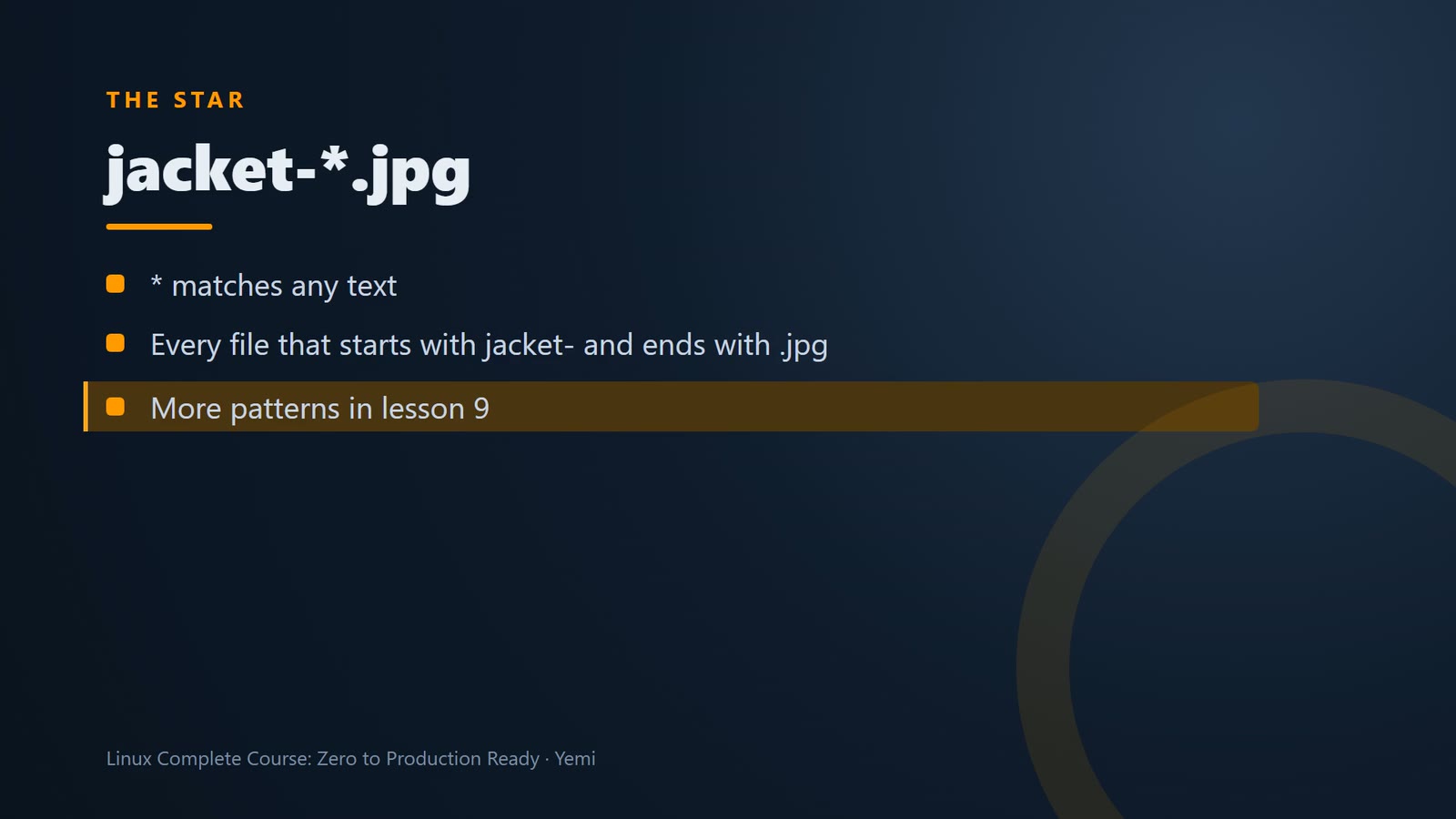
The * matches any text, so jacket-*.jpg means every file that starts with jacket- and ends with .jpg. More patterns in lesson 009.
mv jacket-*.jpg ~/shop/photos/jackets/
mv tee-*.jpg ~/shop/photos/tees/
mv denim-*.jpg ~/shop/photos/denim/
mv hoodie-*.jpg ~/shop/photos/hoodies/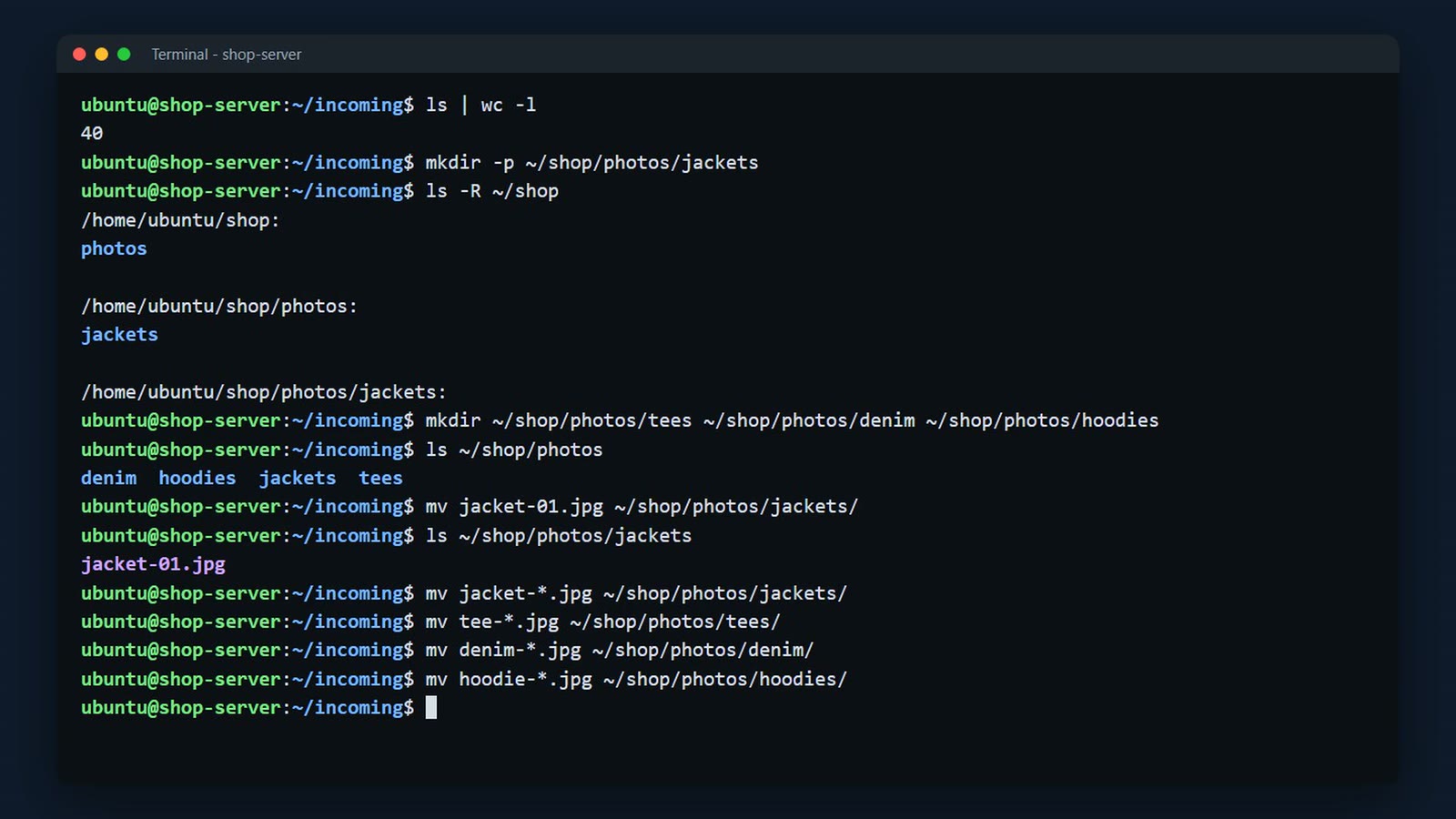
The star matches any text. So jacket dash star dot jpg means every file that starts with jacket dash, and ends with dot jpg. We'll learn more patterns like this in lesson 9.
mv also renames. There's no rename command, you just move the file to a new name, in the same folder. Let's give the first hoodie a clearer name.
cd ~/shop/photos/hoodies
mv hoodie-01.jpg hoodie-01-front.jpg
ls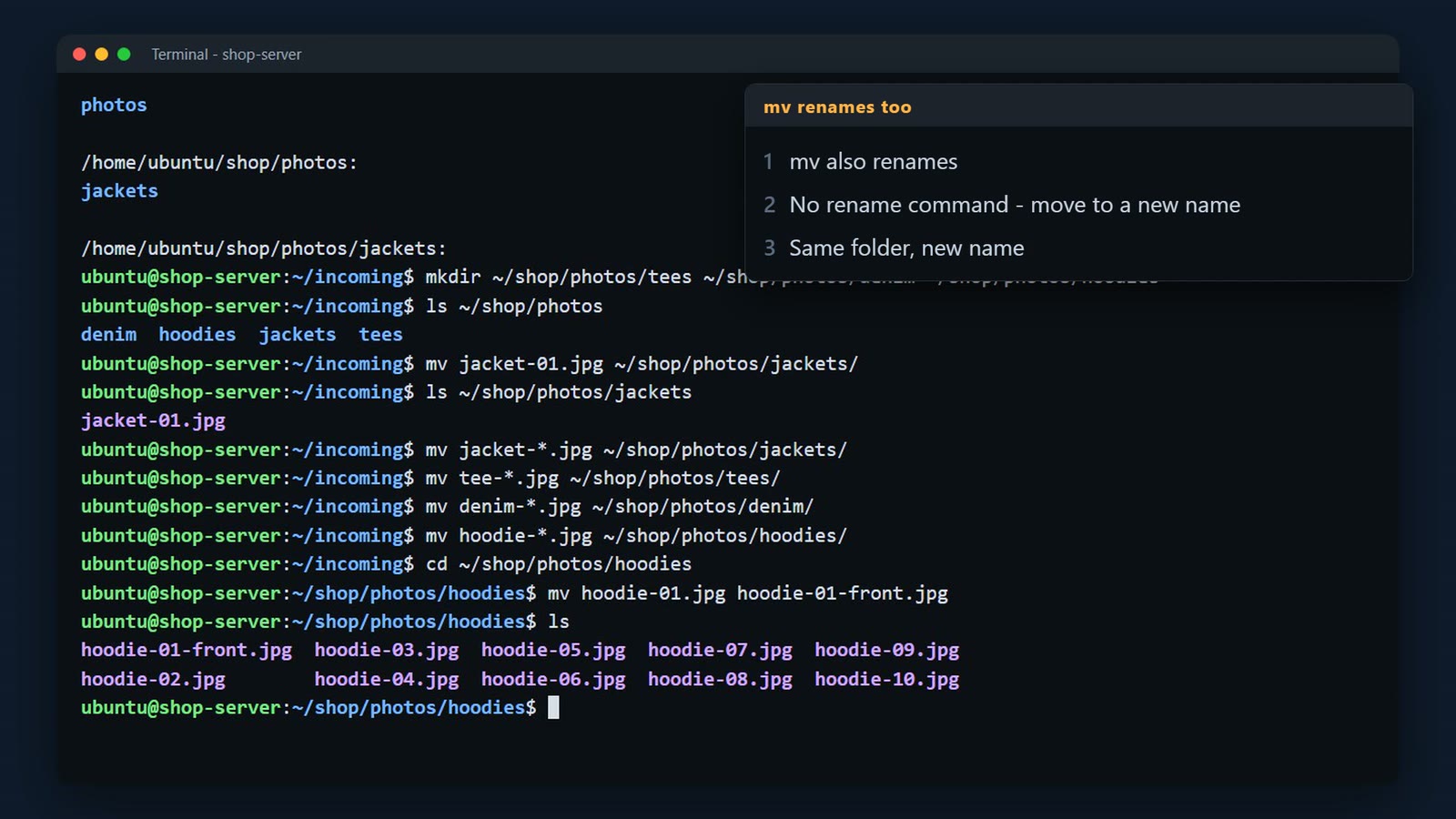
cp can give the copy a new name. mv renames folders as well as files.
cp ~/shop/photos/jackets/jacket-01.jpg ~/shop/photos/cover.jpg
mv ~/shop/photos/tees ~/shop/photos/t-shirts
ls ~/shop/photos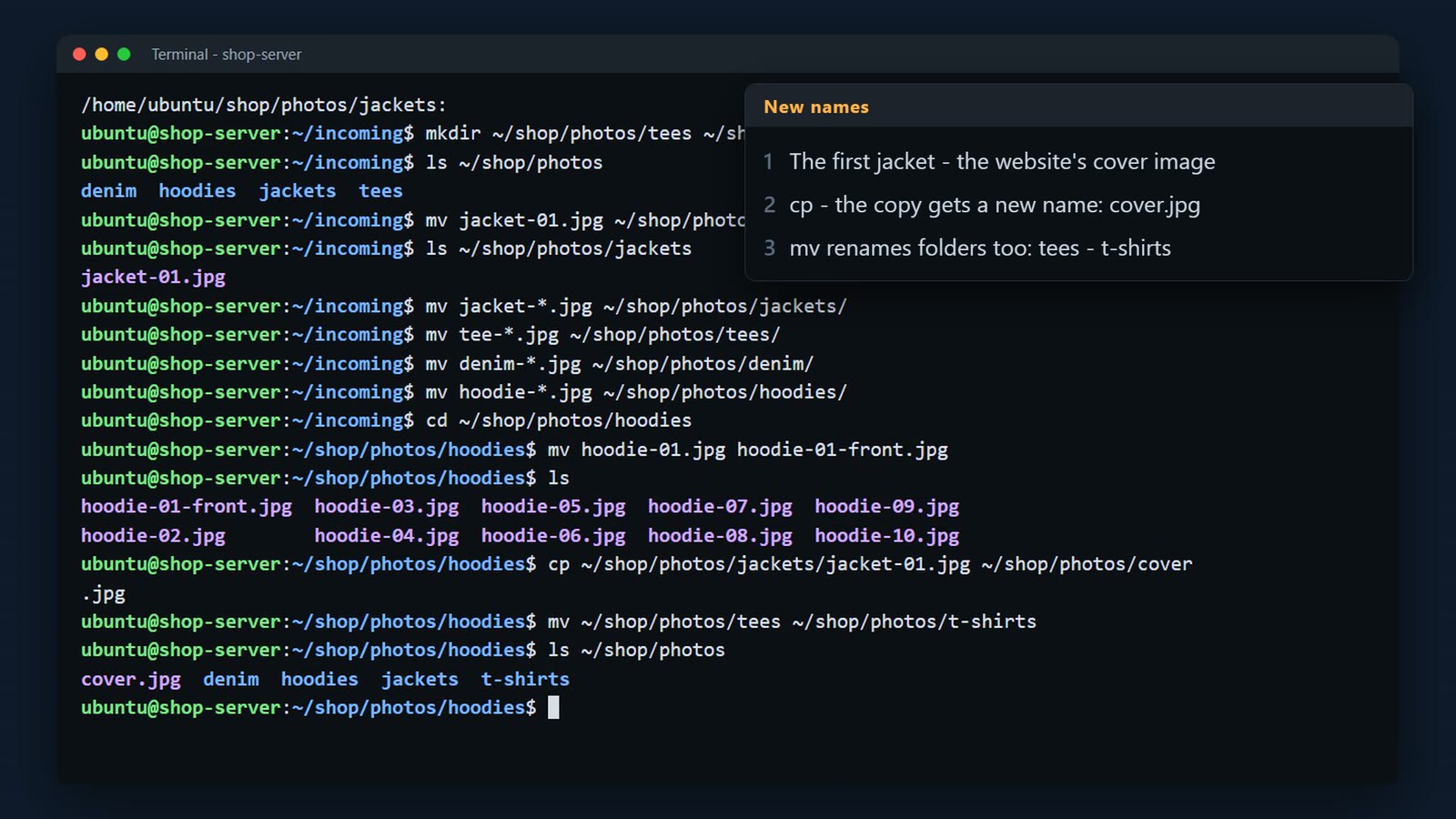
Check the result
Here's the result. ls minus R, recursive, lists every folder, and everything inside. Forty photos, in four folders. And ls tilde slash incoming. Empty.
ls -R ~/shop/photos | head -20
ls ~/incoming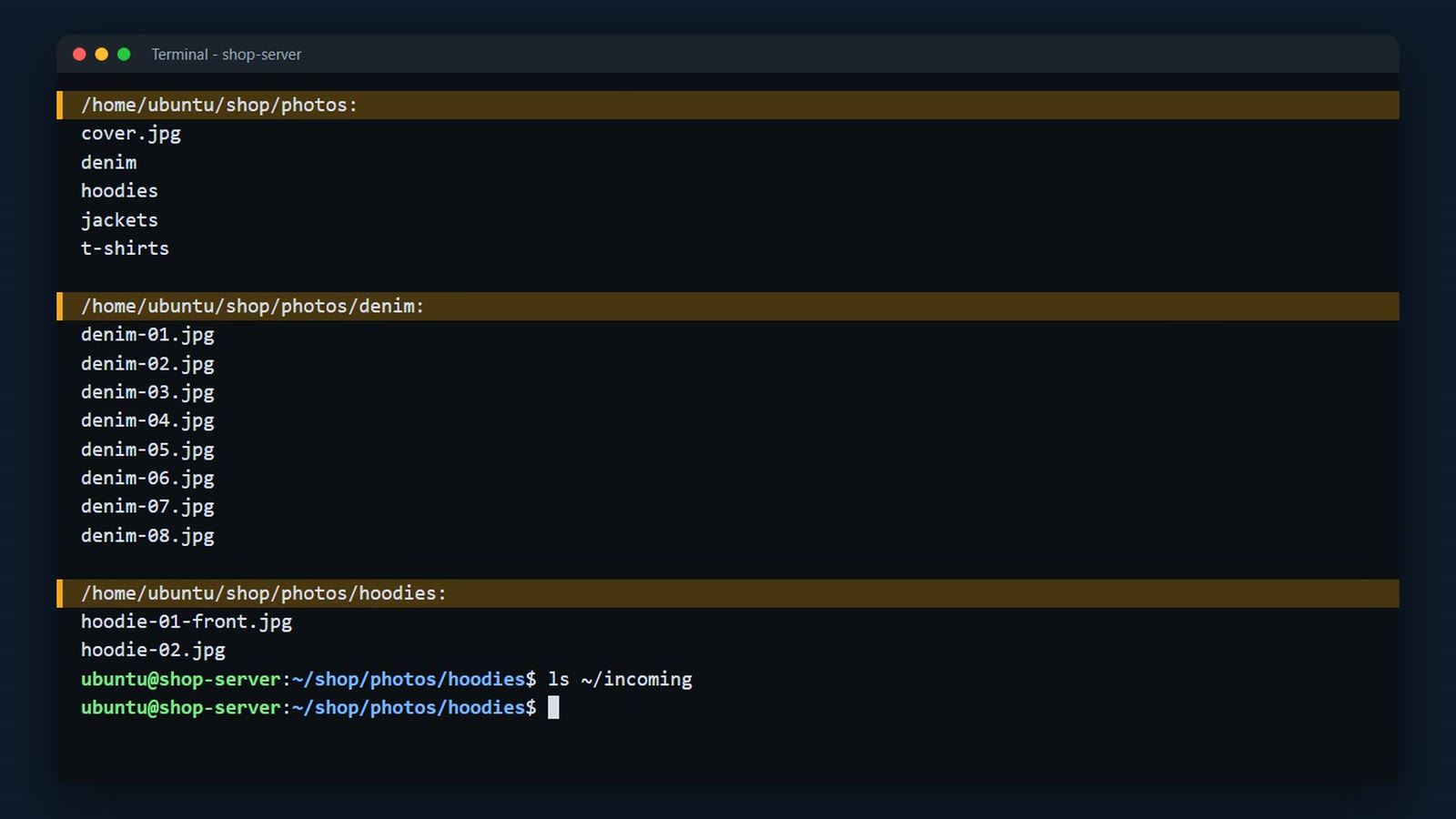
Back up first
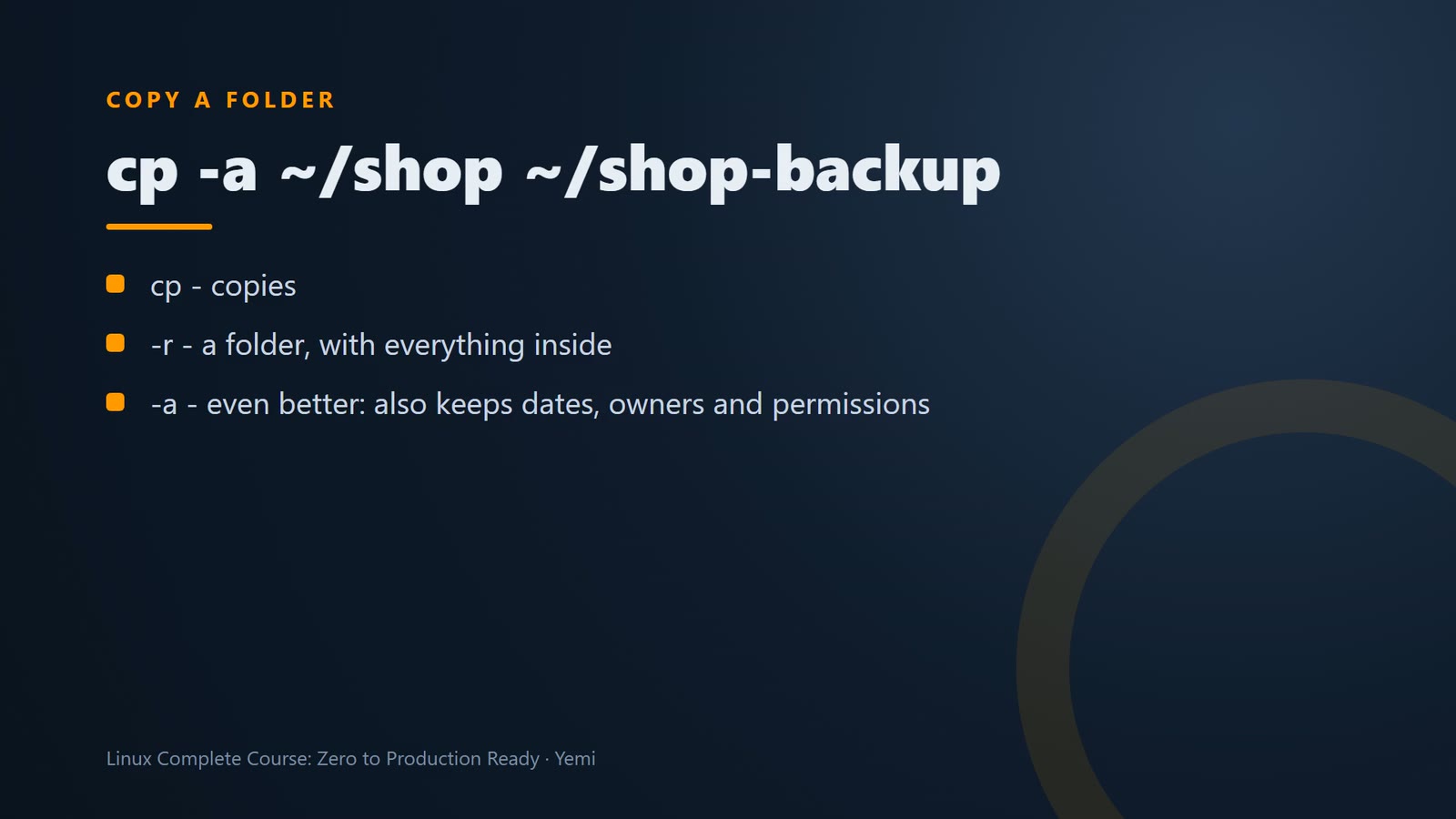
Before you delete or change things, make a backup. cp minus a, tilde slash shop, to shop dash backup. And ls shows the copy.
cp -a ~/shop ~/shop-backup
ls ~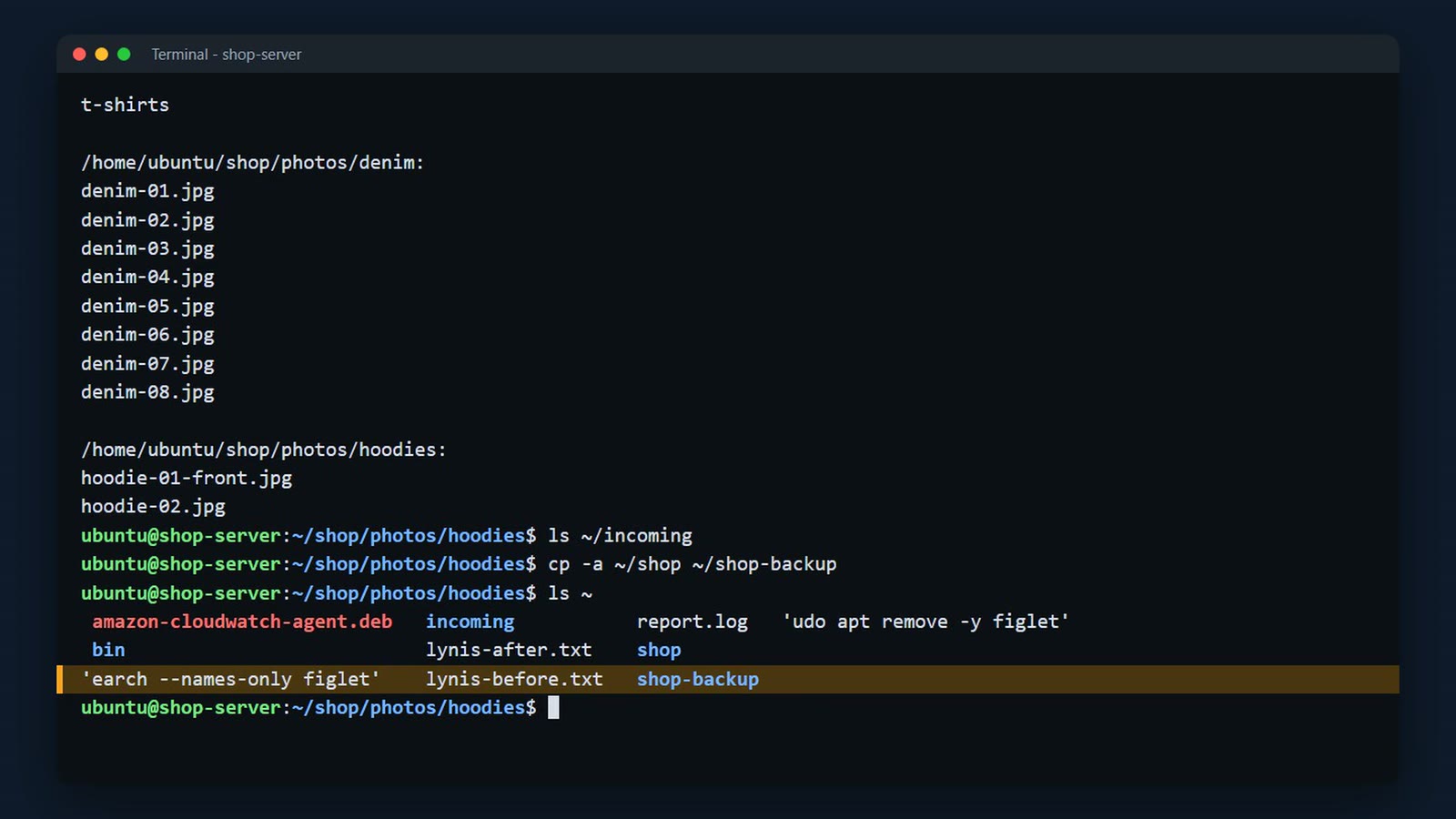
Before you delete or change things, back up. cp -r copies a folder with everything in it; cp -a also keeps dates, owners and permissions.
cp and mv overwrite a file with the same name without asking. -i (interactive) makes them ask first.
cp -i ~/shop/photos/jackets/jacket-02.jpg ~/shop/photos/jackets/jacket-03.jpg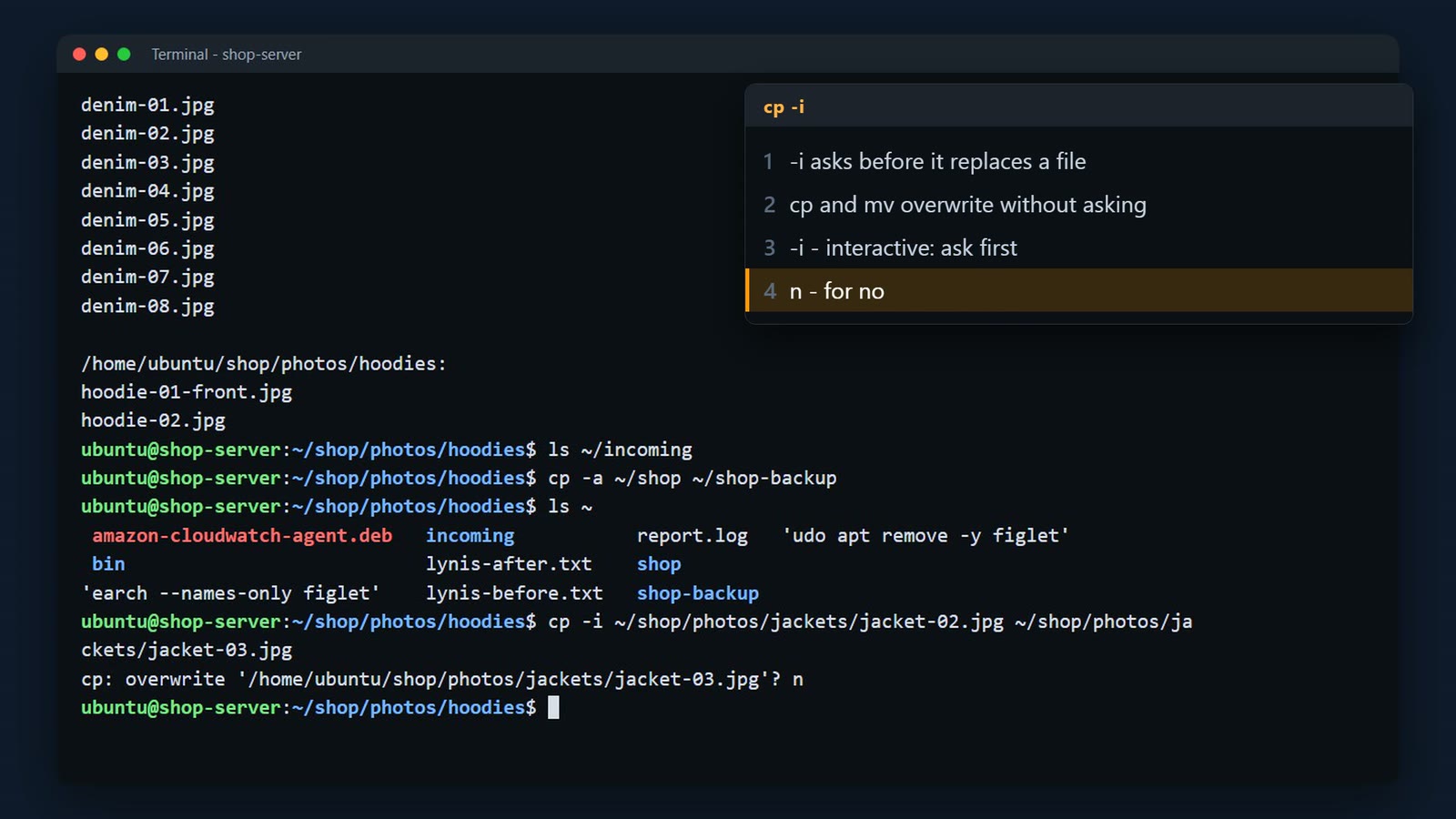
Delete safely
rm deletes a file – and there's no recycle bin. rm -i asks before each file.
rm -i ~/shop/photos/t-shirts/tee-12.jpg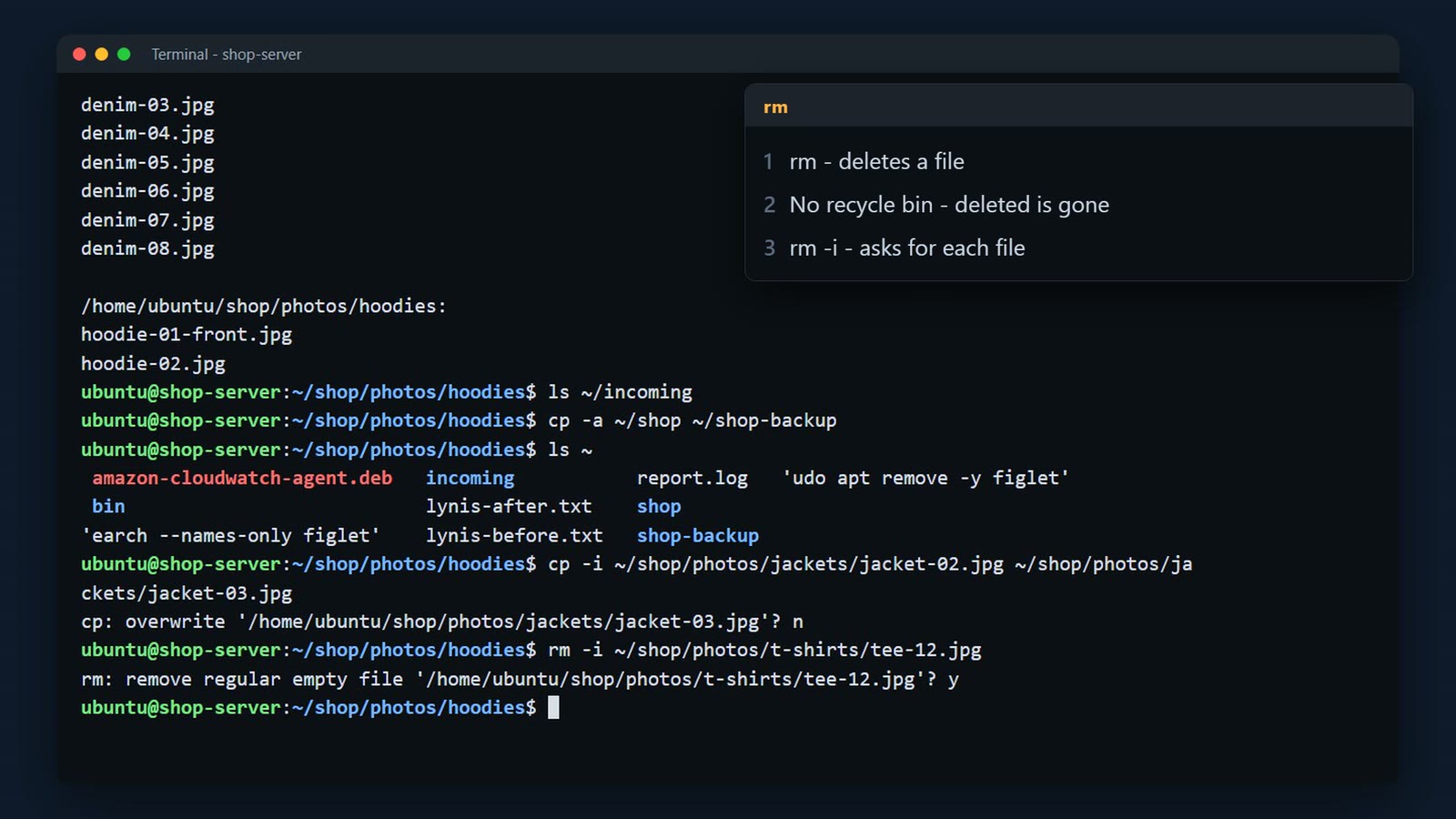
Before you delete with a pattern, run ls with the same pattern first, and check it lists exactly what you meant. Then press Up and change ls to rm.
ls ~/shop/photos/hoodies/hoodie-1*.jpg ~/shop/photos/hoodies/hoodie-09.jpg
rm ~/shop/photos/hoodies/hoodie-1*.jpg ~/shop/photos/hoodies/hoodie-09.jpg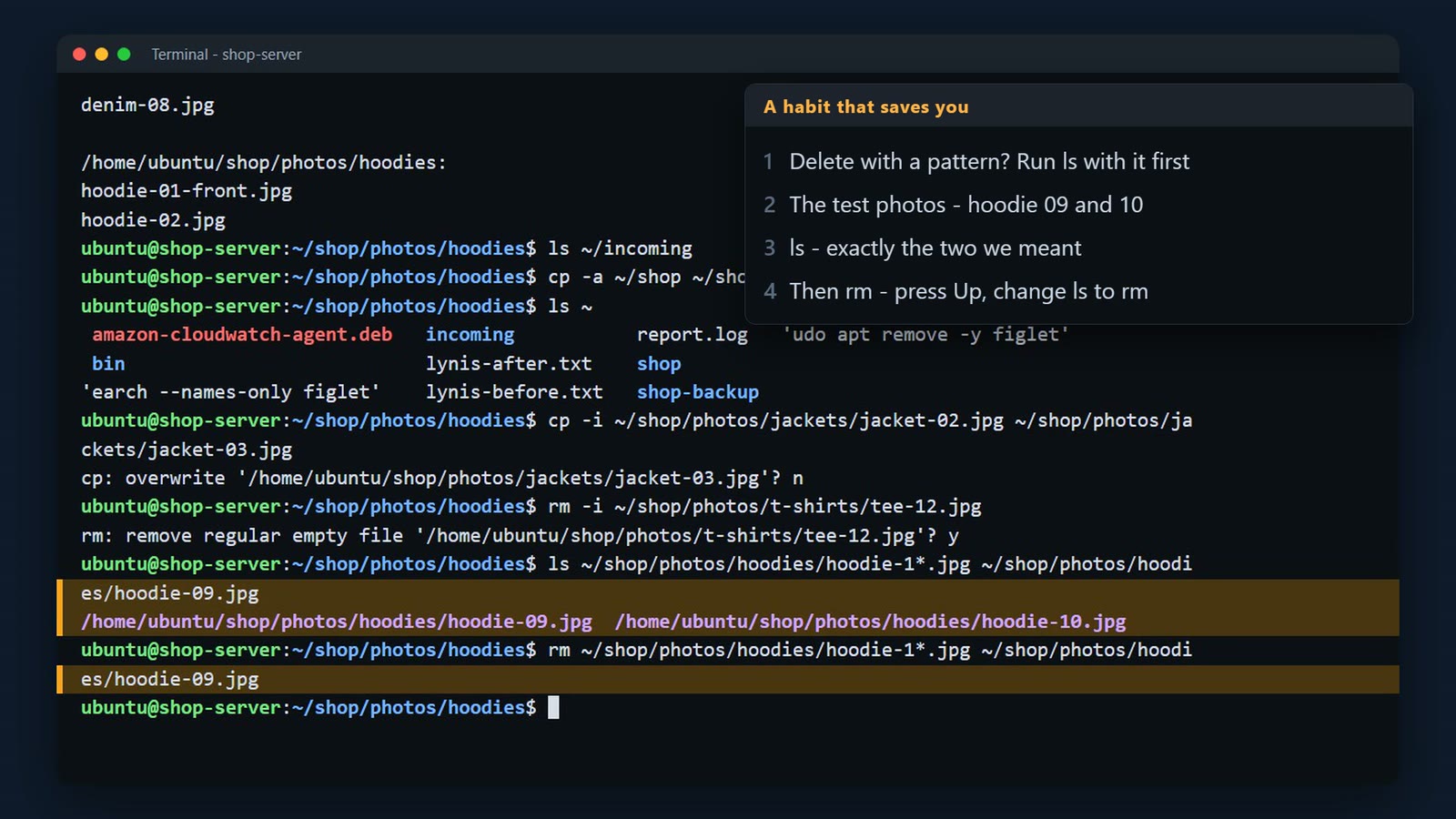
rmdir deletes an empty folder. The incoming folder is empty now, so it's safe.
rmdir ~/incoming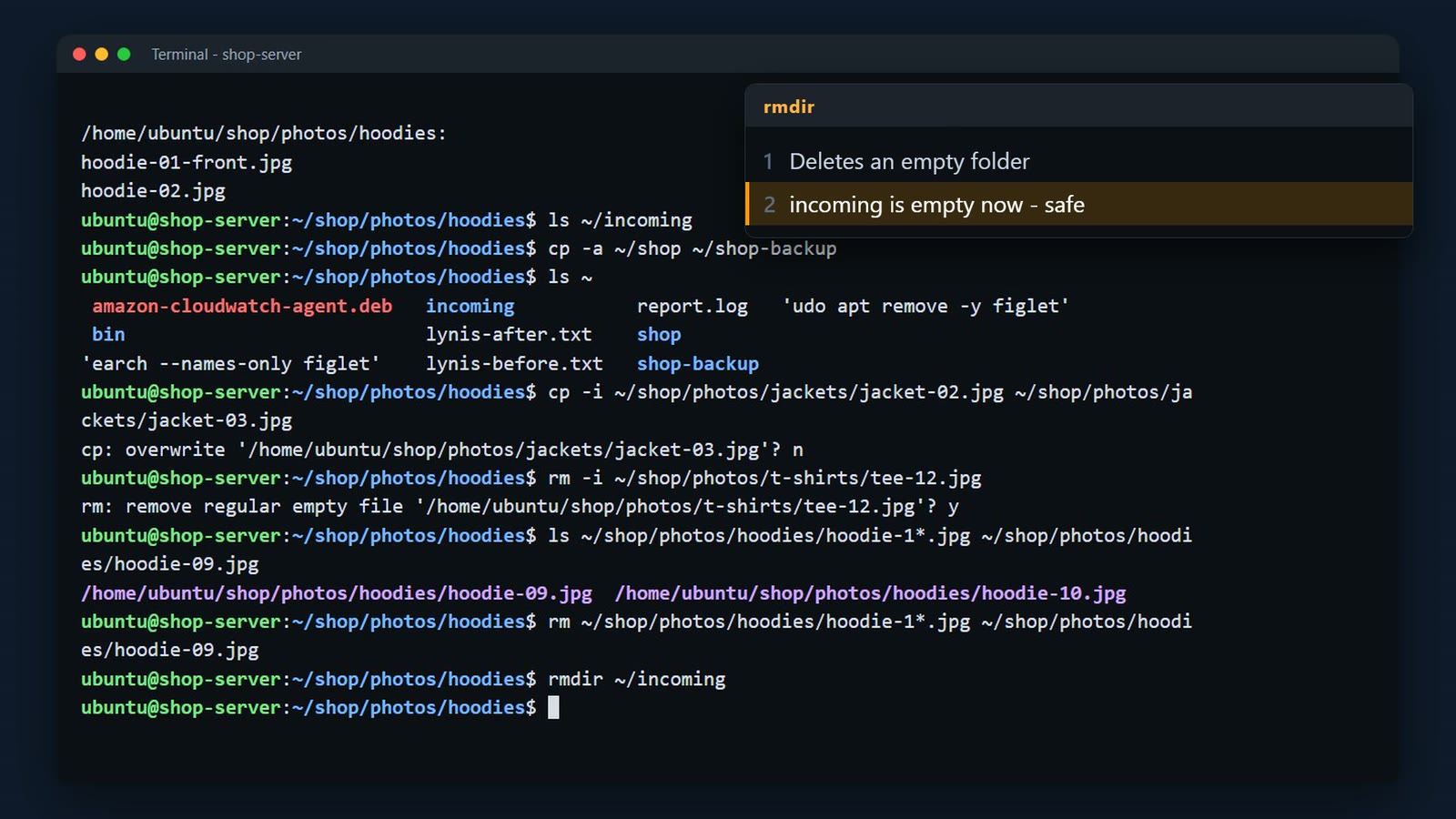
And rm minus r deletes a folder, and everything inside it. It's how you delete the backup when you no longer need it. Read a command with rm minus r twice before you press Enter. One space in the wrong place, and you delete far more than you meant to. Never run it as root on a path you haven't checked.
rm -ri ~/shop-backup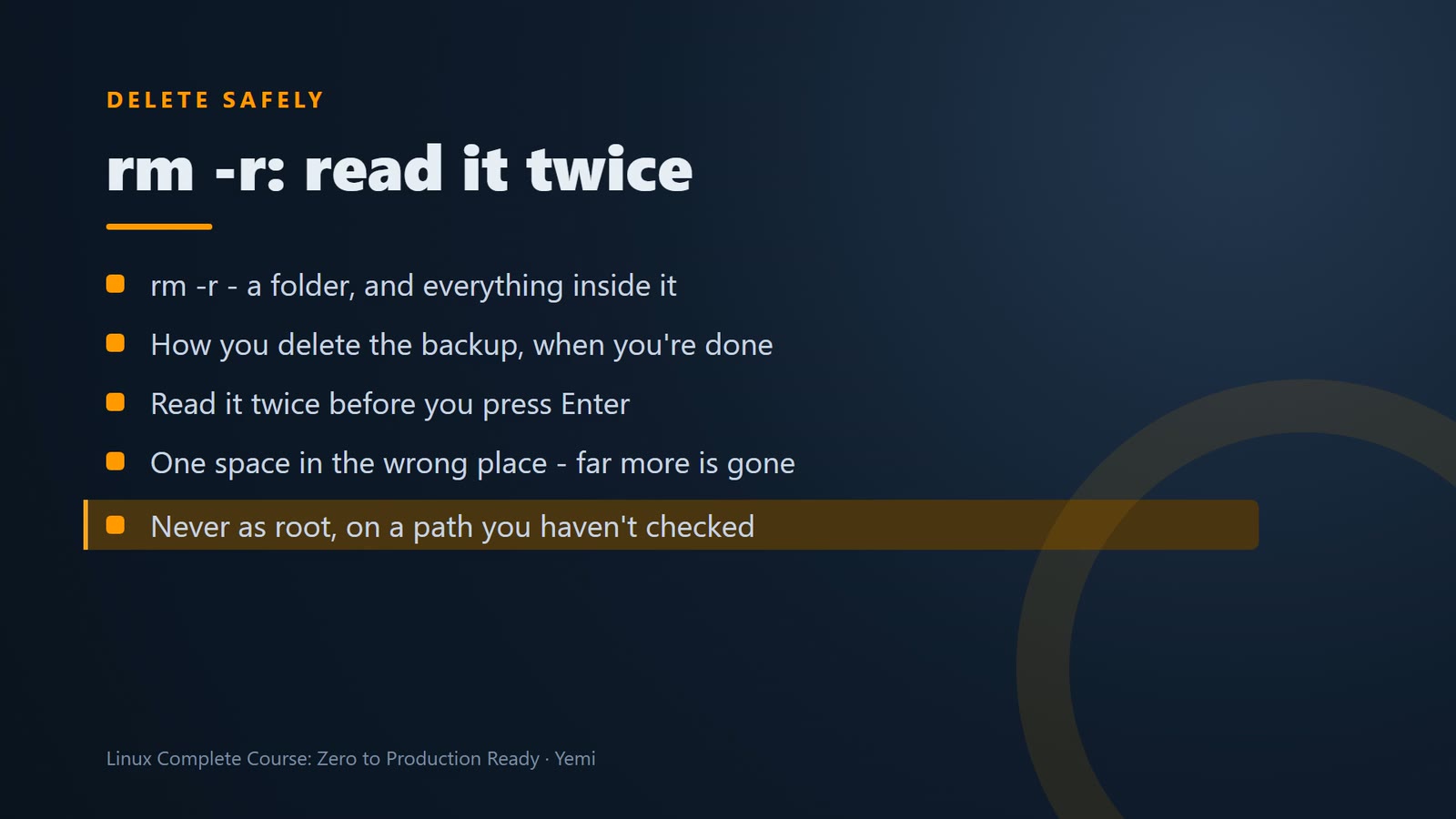
Empty files
One last command. touch makes an empty file, or updates the date on one that exists. Here, a file to note which photos still need retouching. We'll write in it next lesson.
touch ~/shop/retouch-list.txt
ls -l ~/shop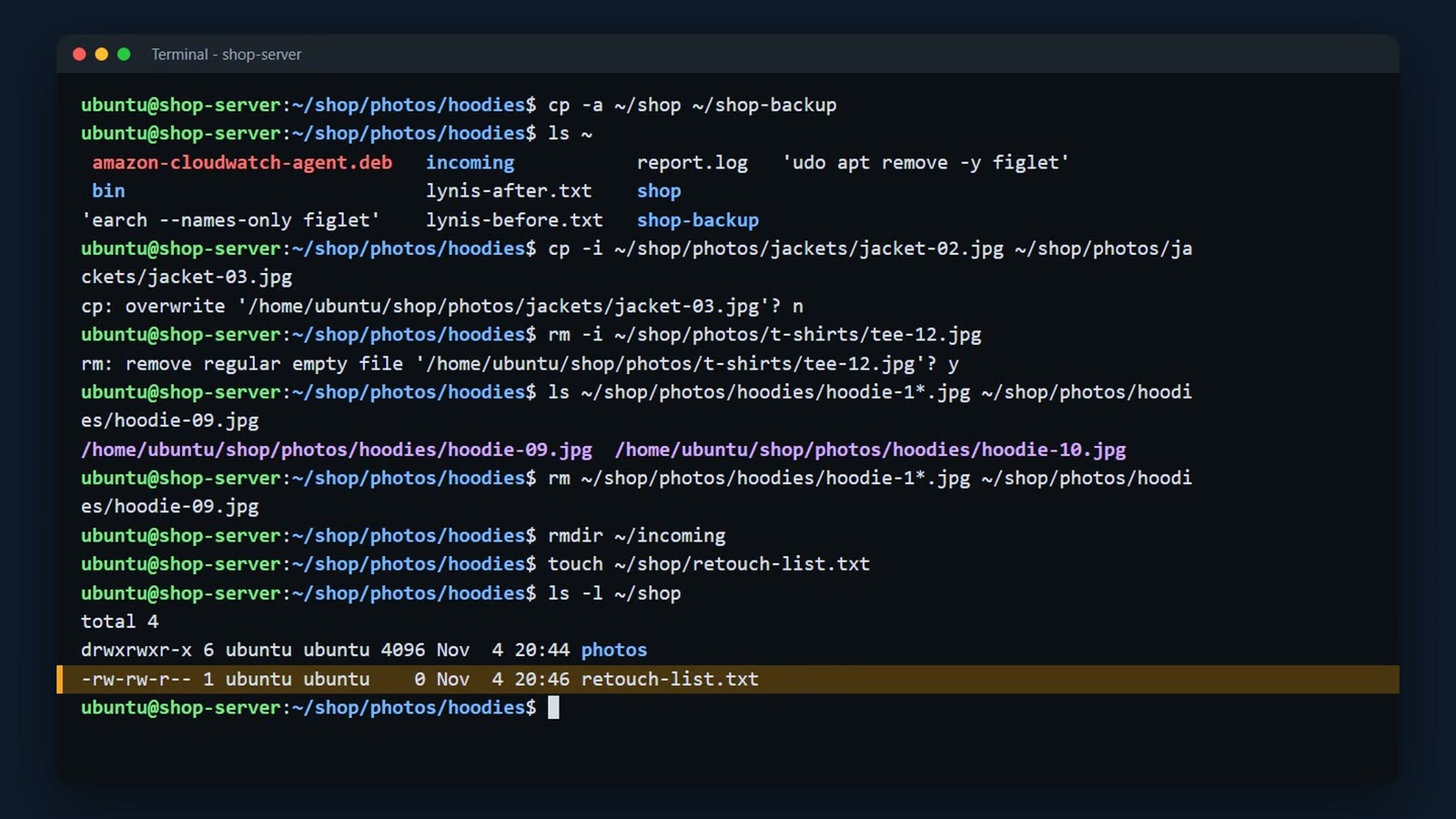
Challenge
Here's your challenge: Which option makes mv ask before it overwrites a file that's already there? If you're watching on YouTube or social media, drop your answer in the comments. If you're in the live class, put it in the chat. I'll show the answer at the start of the next lesson. And only post the command or the answer, never real IP addresses, account IDs, keys, or log output.
What's next
And the shop has another request.

Summary
- touch makes an empty file; mkdir -p makes folders, including the ones above
- cp copies, cp -r copies folders, cp -a keeps dates and permissions too
- mv moves – and renames
- * matches any name: mv jacket-*.jpg jackets/ (more on this in lesson 009)
- rm deletes for good – there's no recycle bin. Use rm -i when in doubt
- rm -r deletes a folder and everything in it. Read the command twice before Enter
What’s next
The photos are sorted. Now the shop wants new text on the homepage, which means editing a file on the server. Next lesson, nano, a first look at vim, and how to get out of vim.