Connect to a Linux Server with SSH Keys (No Passwords)
What you’ll learn
- Know why SSH keys are safer than passwords
- Protect a private key file, and connect with ssh -i
- Check a server's fingerprint the first time you connect
- Make a shortcut, so ssh shop-server is all you type
What you need
- shop-server and the key file shop-server-key.pem from lesson 002
- A terminal – Terminal on Mac and Linux, PowerShell or Windows Terminal on Windows
First, last lesson's challenge. Which AWS feature saves a copy of a whole disk, so you can roll back to it later? The answer is: a snapshot. An EBS snapshot, to be exact.

Why keys, not passwords
Every server on the internet gets attacked by bots, all day long. They try usernames and passwords, thousands of times a day. A password can be guessed. A key can't, in any human lifetime. So on this server, there are no passwords for SSH at all. Only keys.
Protect the key
Open a terminal on your own computer and move the key from lesson 002 into ~/.ssh, the folder where SSH keeps keys. mkdir -p creates the folder if it doesn't exist yet.
mkdir -p ~/.ssh
mv ~/Downloads/shop-server-key.pem ~/.ssh/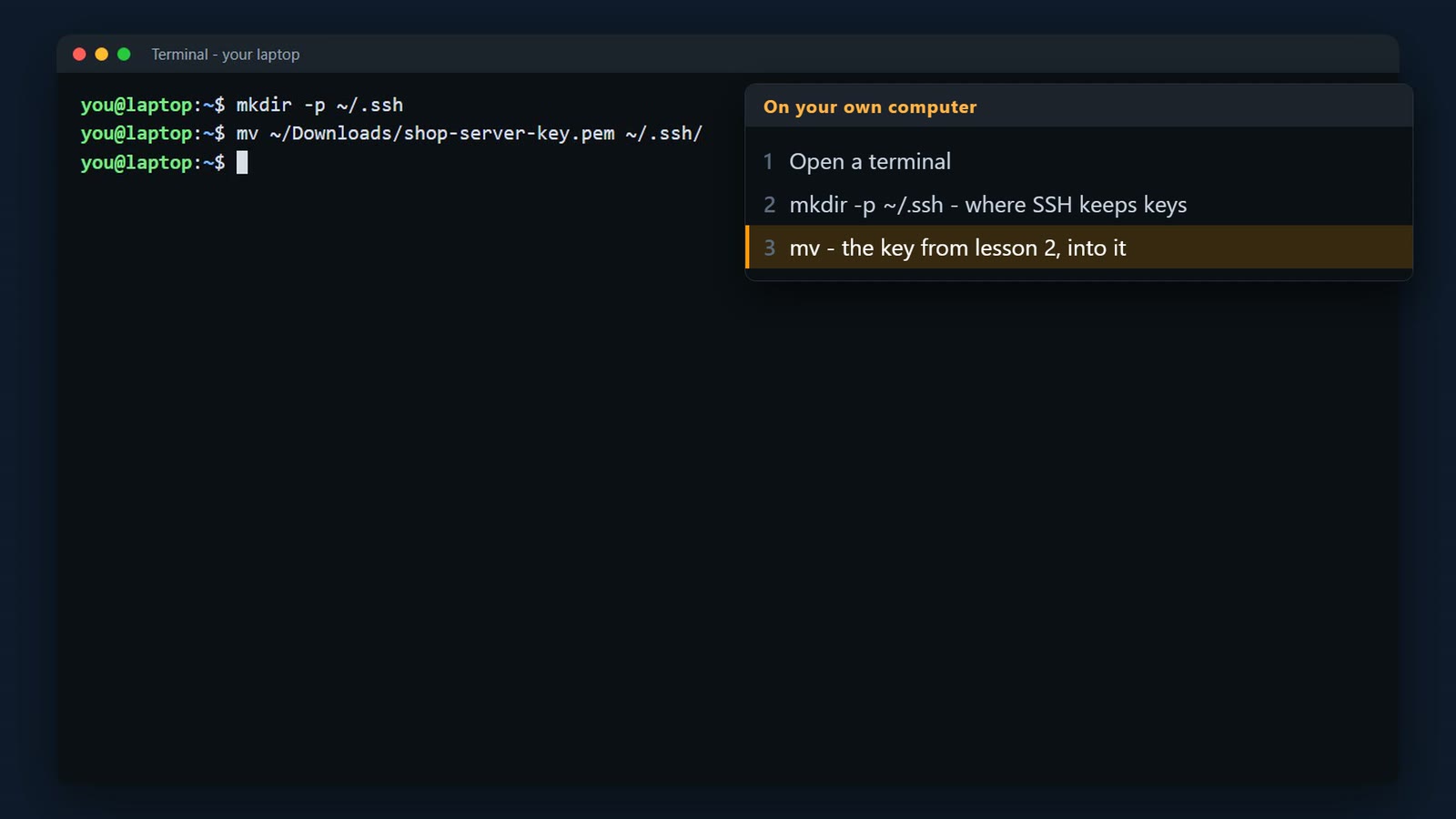
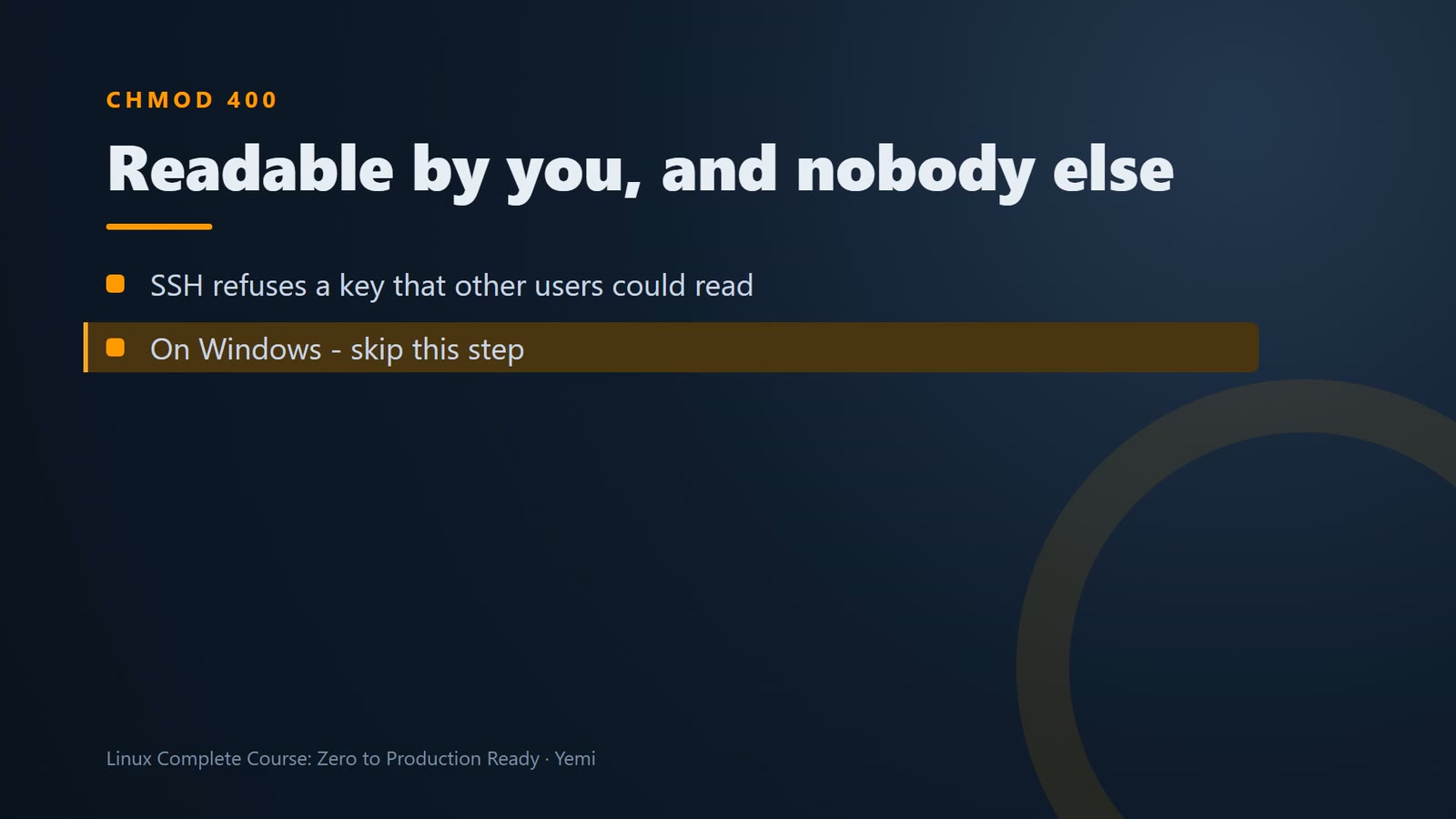
chmod 400 makes the key readable only by you. SSH refuses keys that other users could read. (Windows – skip this step.)
chmod 400 ~/.ssh/shop-server-key.pem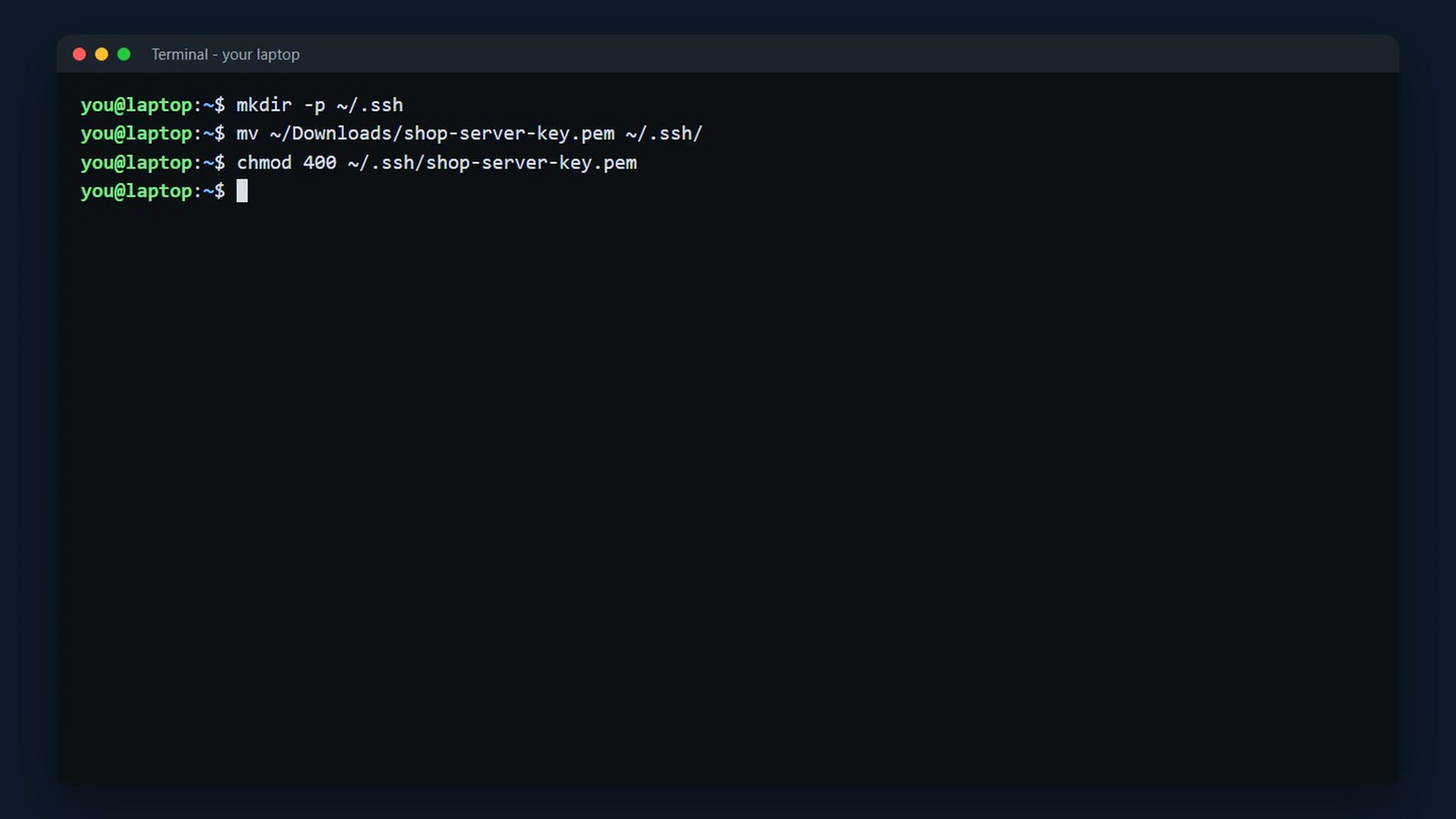
That makes the file readable by you, and nobody else. SSH refuses to use a key that other users on your computer could read. On Windows, you can skip this step.
Connect
Connect with ssh -i and the key file, as the user ubuntu, to your server's public IPv4 address (on the instance page in the EC2 console).
ssh -i ~/.ssh/shop-server-key.pem ubuntu@<your-server-ip>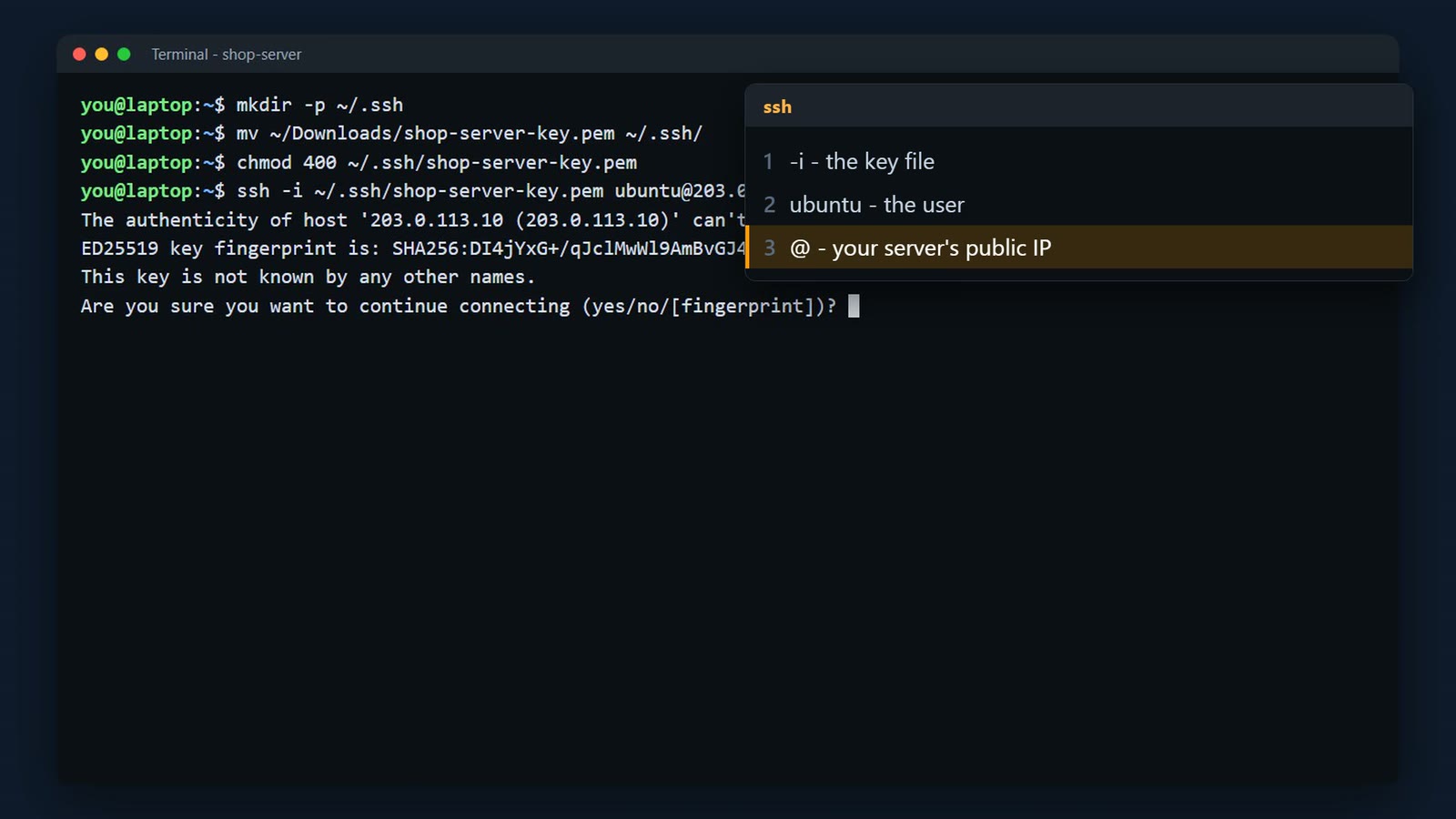
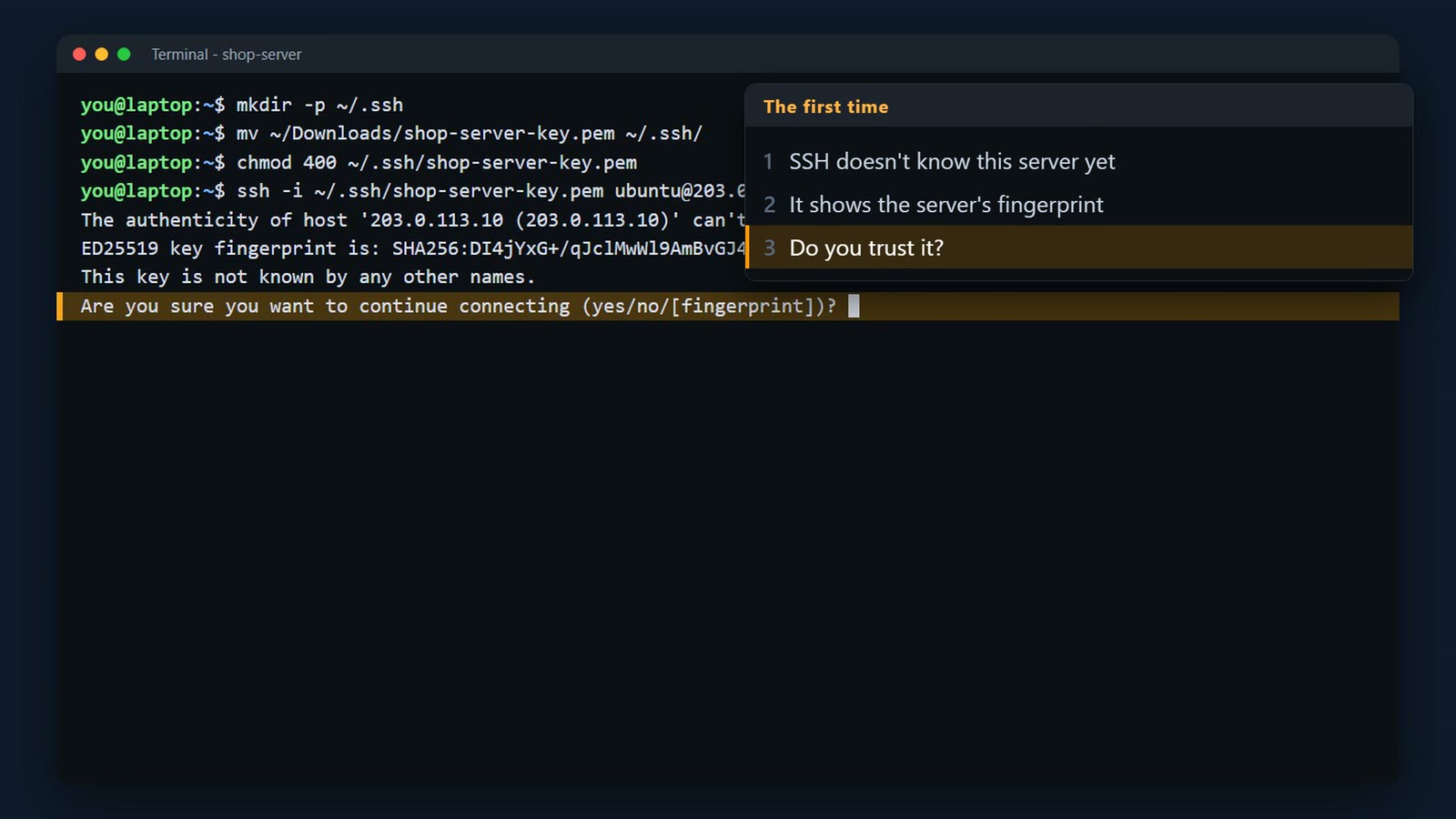
The first time, SSH doesn't know this server, so it shows its fingerprint, and asks if you trust it.
This protects you from someone pretending to be your server. You can compare the fingerprint with the one AWS shows under Actions, Monitor and troubleshoot, Get system log.
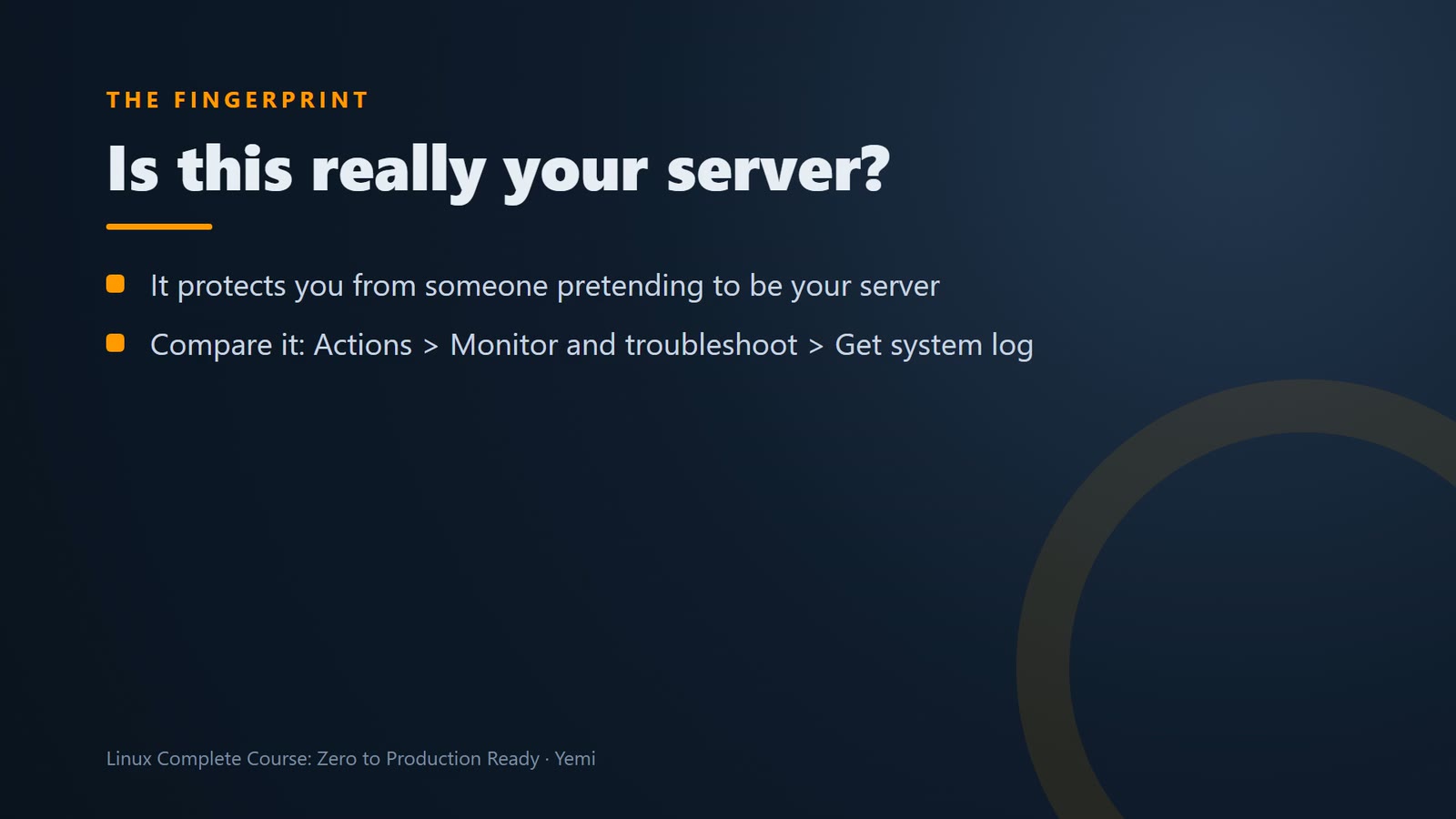
The first time, SSH shows the server's fingerprint and asks if you trust it. This protects you from a fake server. (You can compare it with the fingerprint in Actions > Monitor and troubleshoot > Get system log.) Type yes.
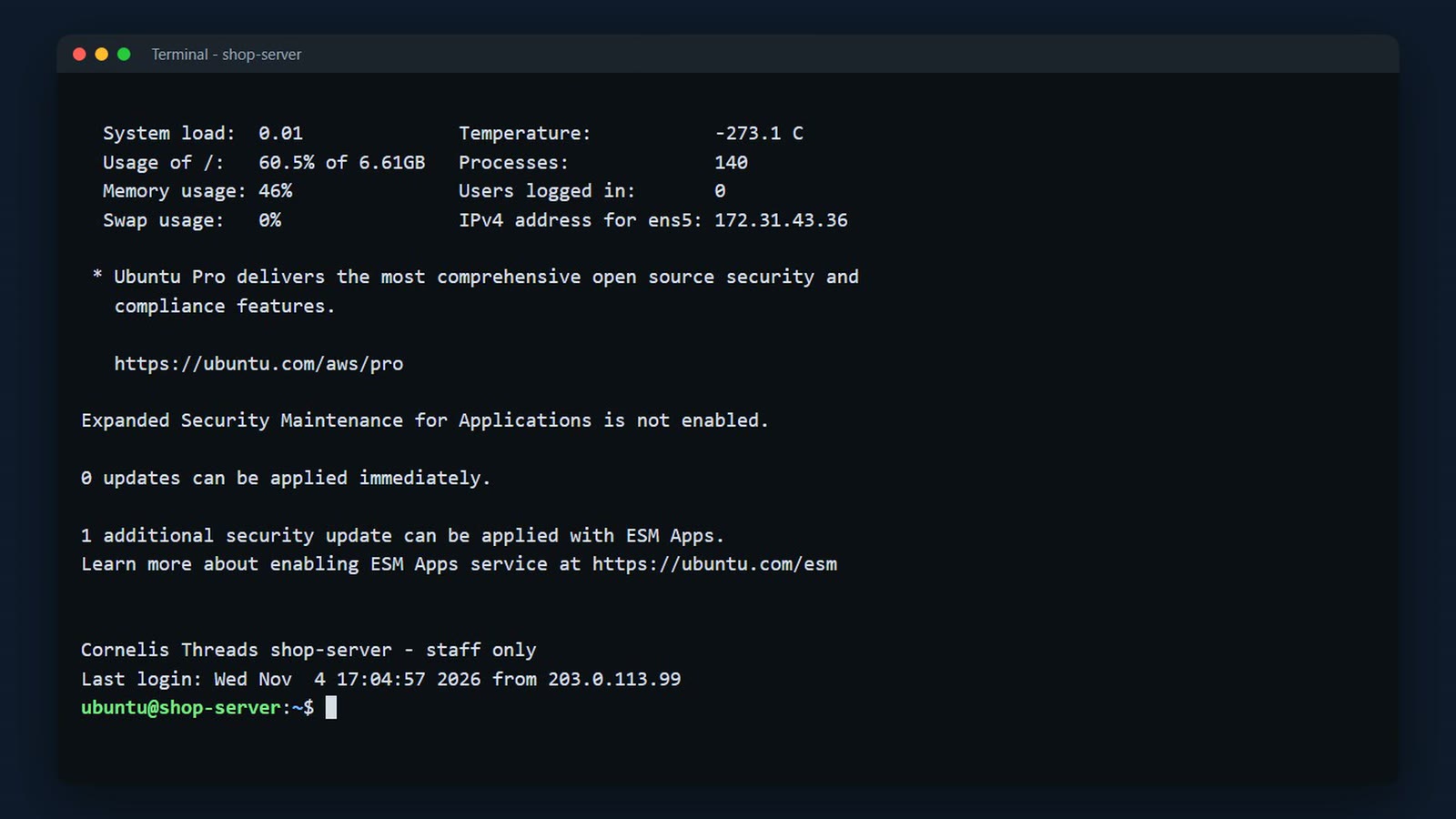
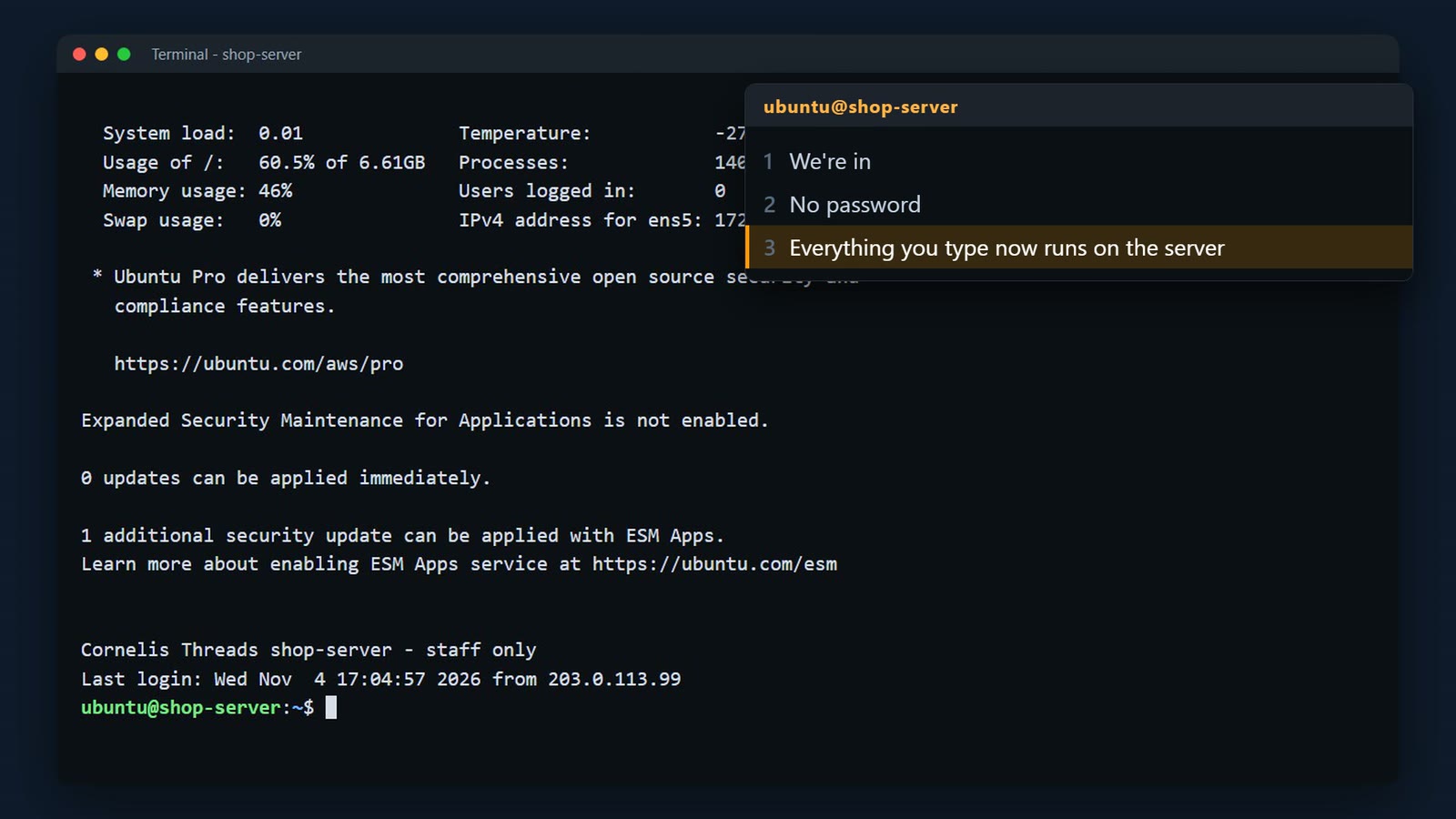
We're in. No password. Everything you type now runs on the server.
How the server knows you
At launch, AWS put your public key into a file in the ubuntu user's home folder. That file is the list of keys allowed to log in as this user; your private key proves you own one of them.
ls -l ~/.ssh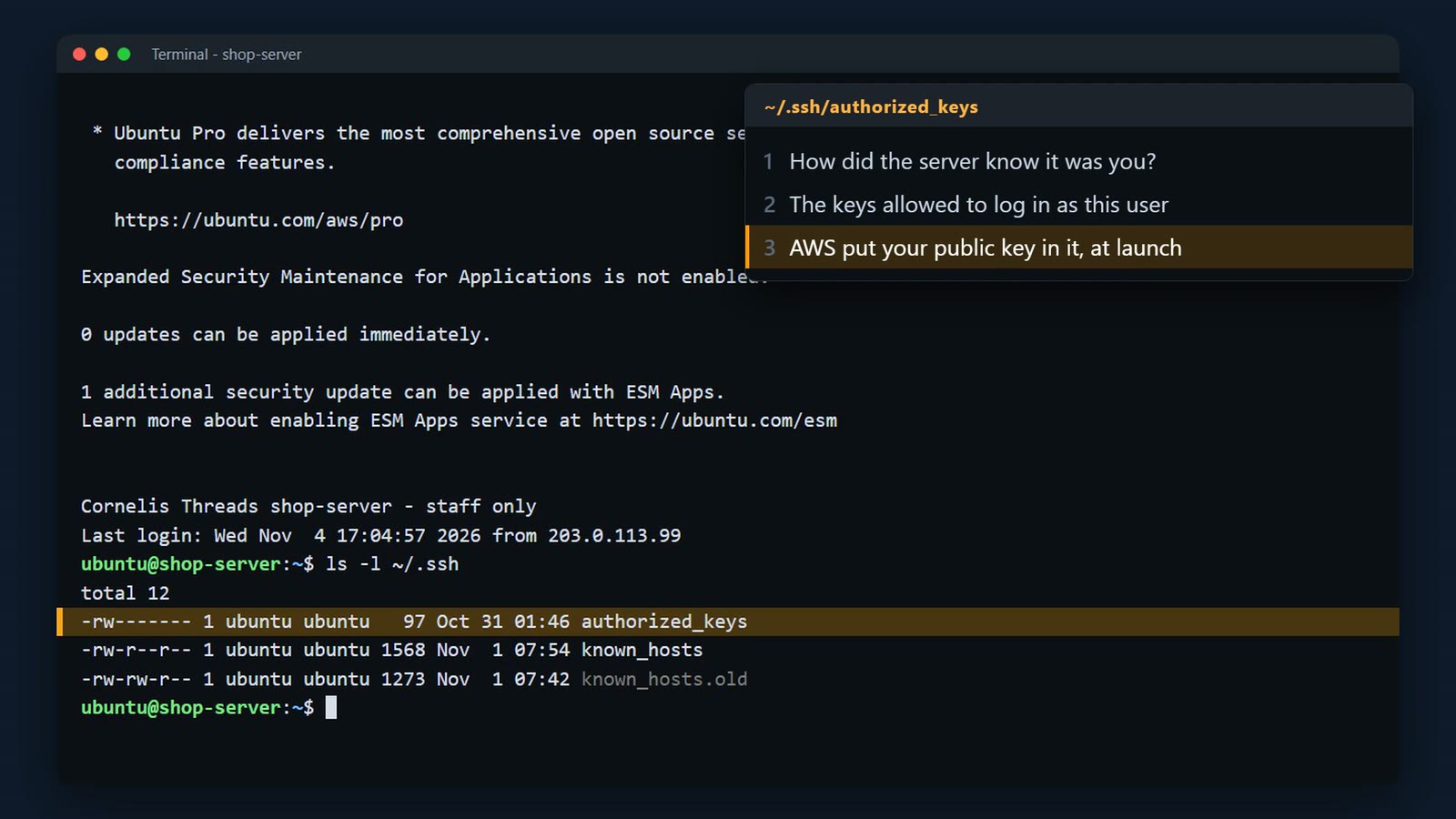
sshd -T prints the SSH server's settings; grep picks out one line. passwordauthentication no – password logins are off.
sudo sshd -T | grep -i '^passwordauthentication'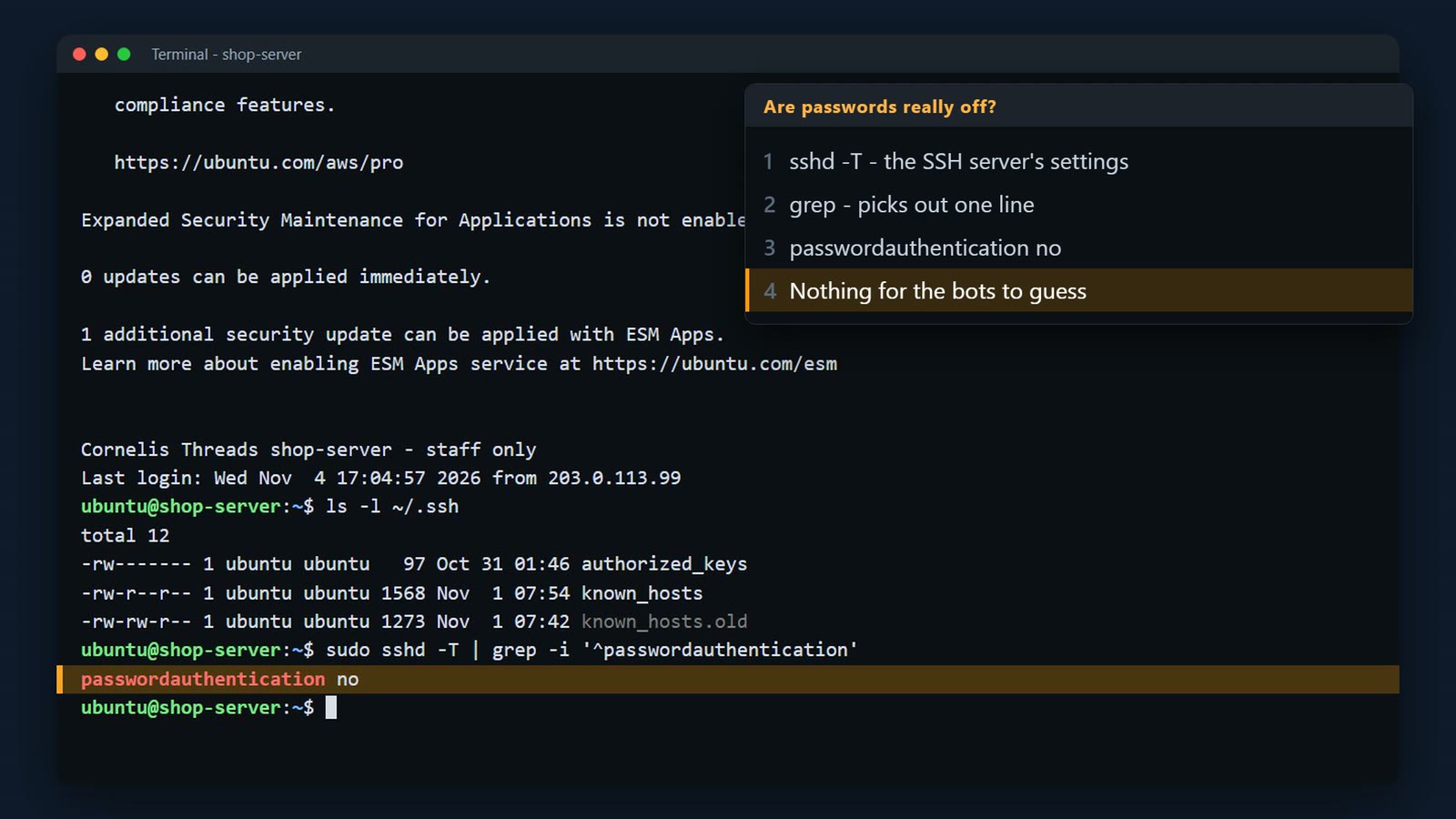
Type exit, to go back to your own computer. Control D does the same.
exit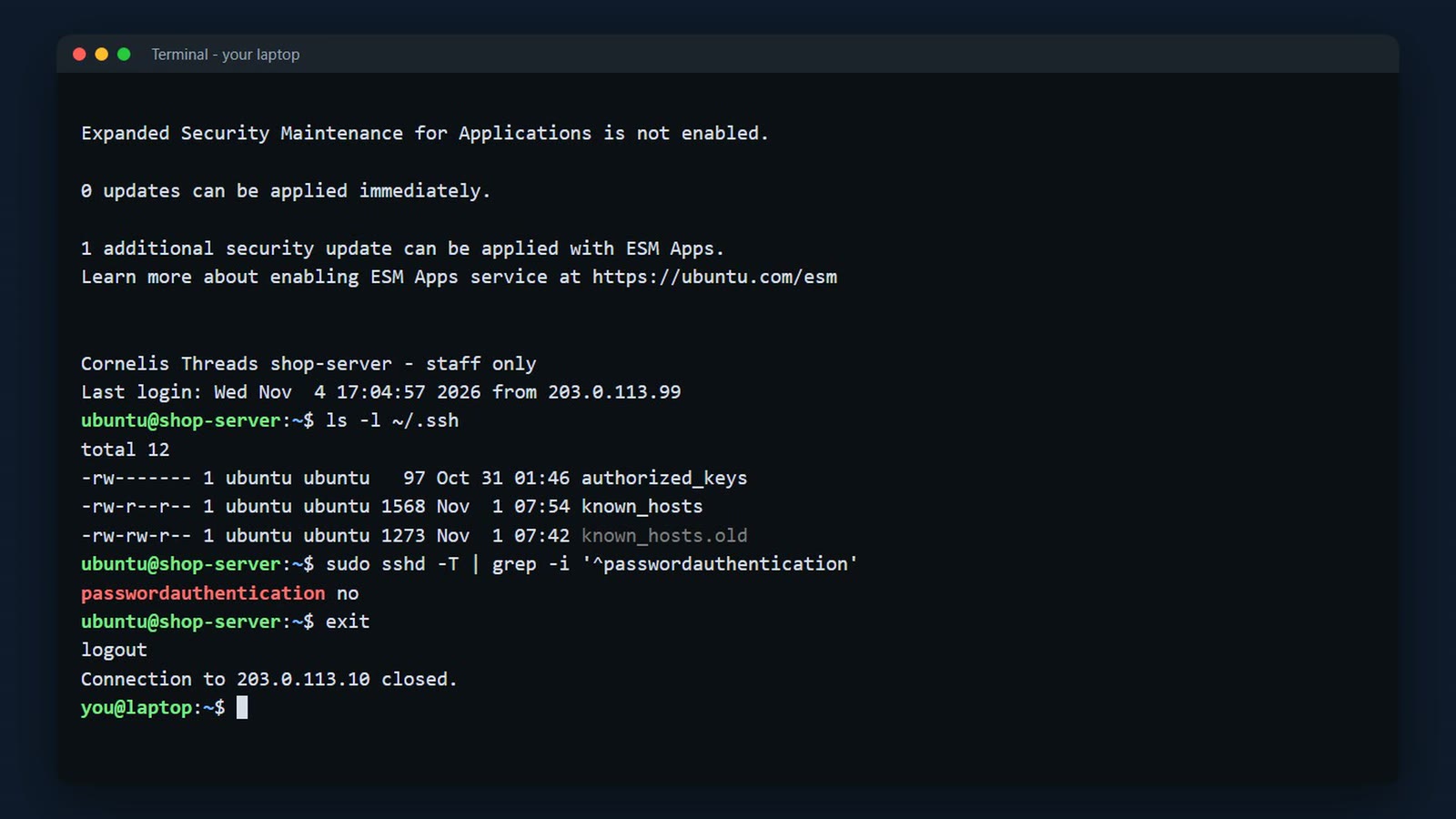
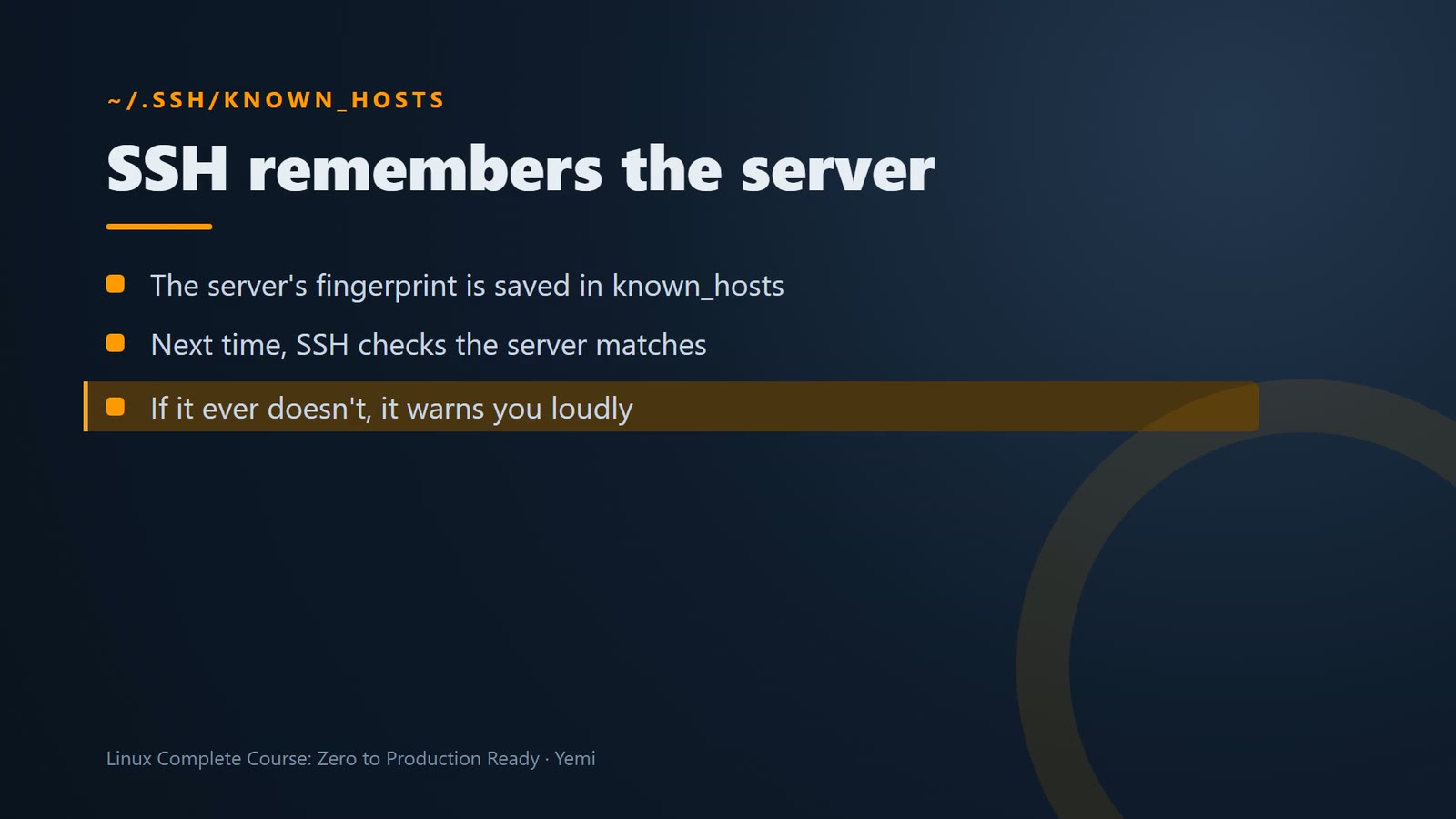
Back on your laptop, notice SSH saved the server's fingerprint in a file called known hosts. Next time, it checks the server matches, and warns you loudly if it ever doesn't.
A shortcut
That ssh command is long. Let's make a shortcut. SSH reads a settings file, dot ssh slash config. It needs four settings. The name of the shortcut, shop-server. The real address. The user. And the key to use.
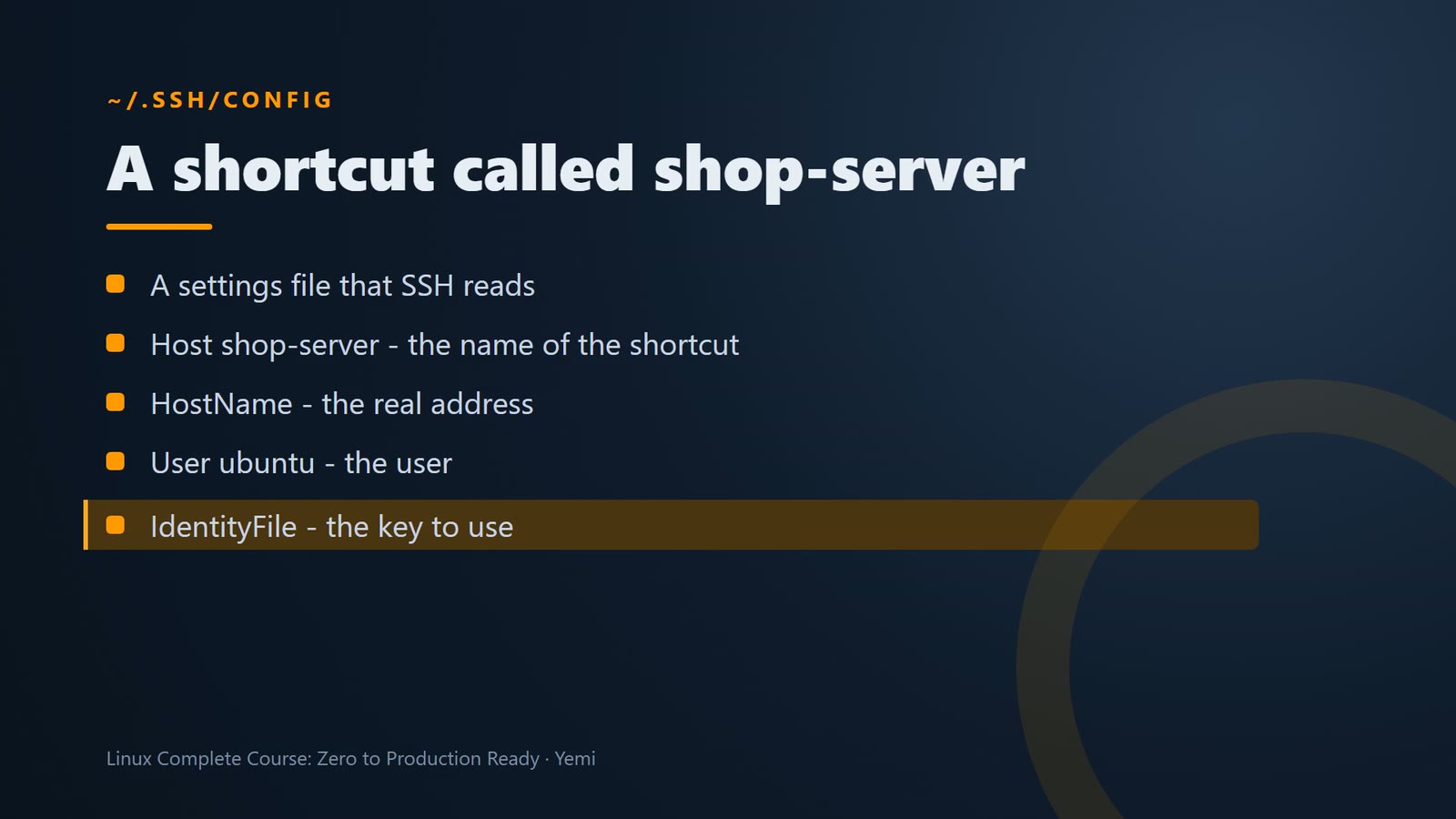
SSH reads its settings from ~/.ssh/config. Add a block with the name of the shortcut, the server's real address, the user, and the key file. On Mac and Linux, the printf line in the video does it; on Windows, open the file with notepad and paste the block.
# Add this to ~/.ssh/config (on Windows: notepad $HOME\.ssh\config)
Host shop-server
  HostName <your-server-ip>
  User ubuntu
  IdentityFile ~/.ssh/shop-server-key.pem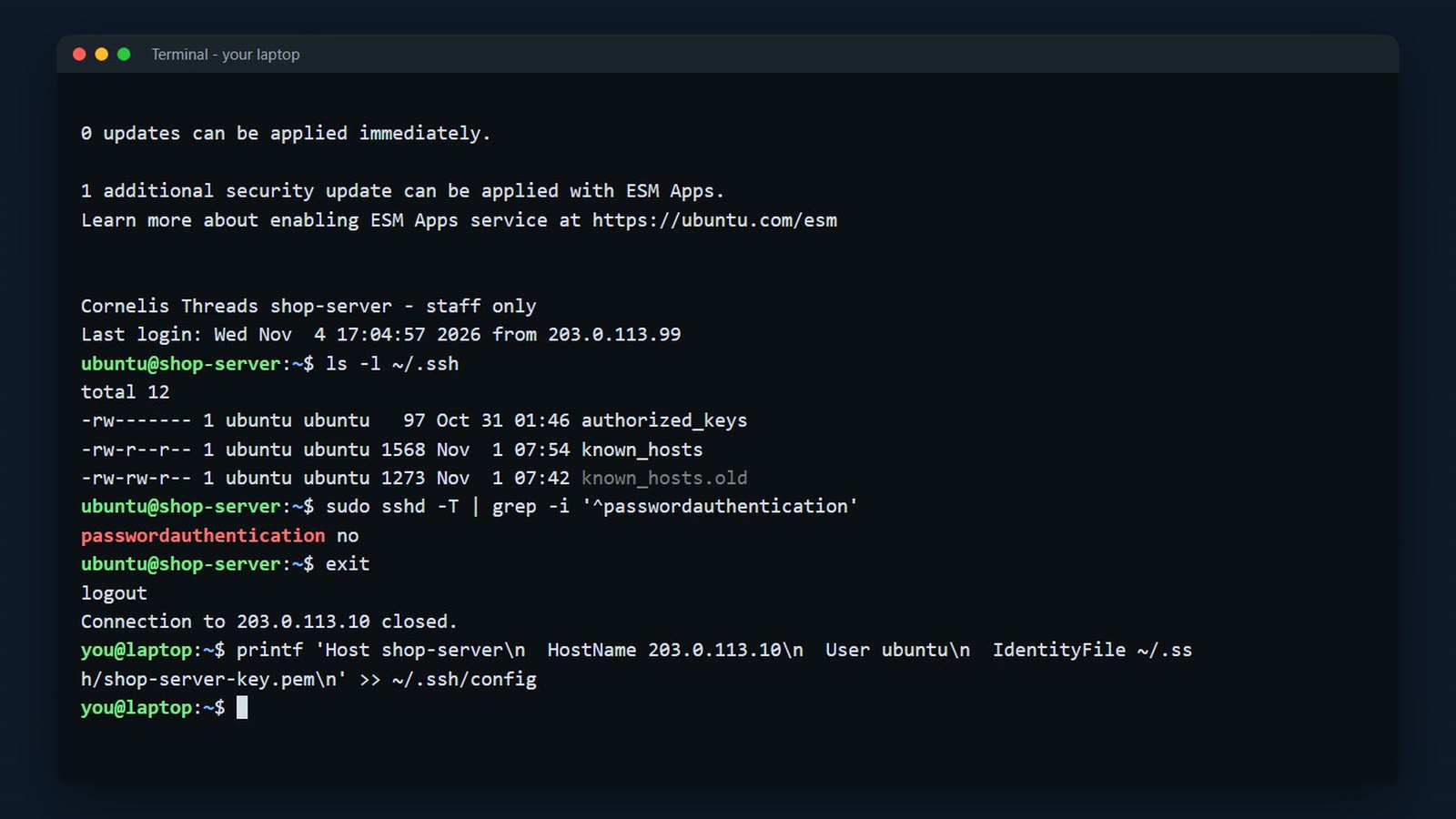
cat prints the file, so we can check it.
cat ~/.ssh/config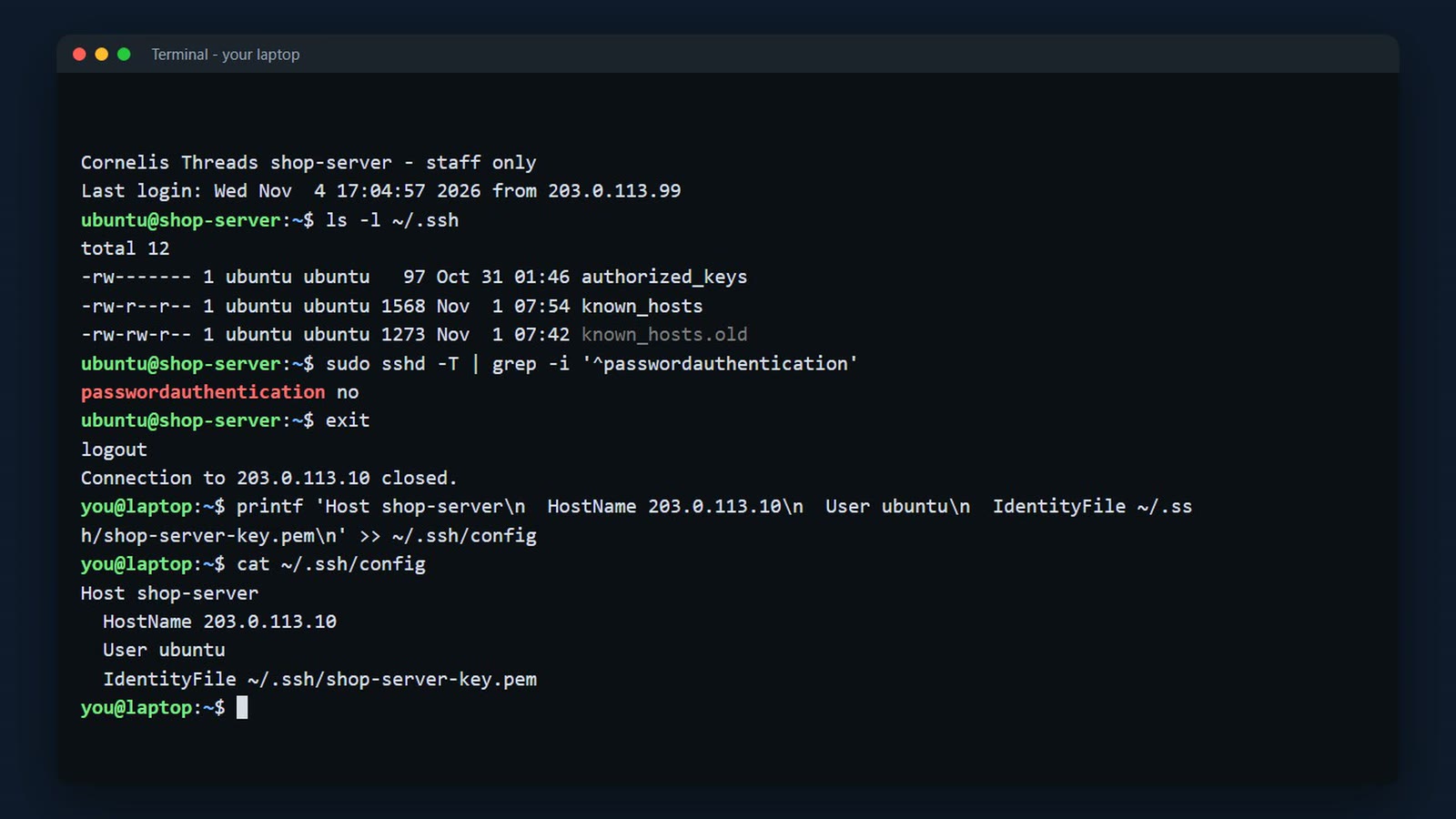
Now ssh shop-server is all you type. This is how we connect for the rest of the course.
ssh shop-server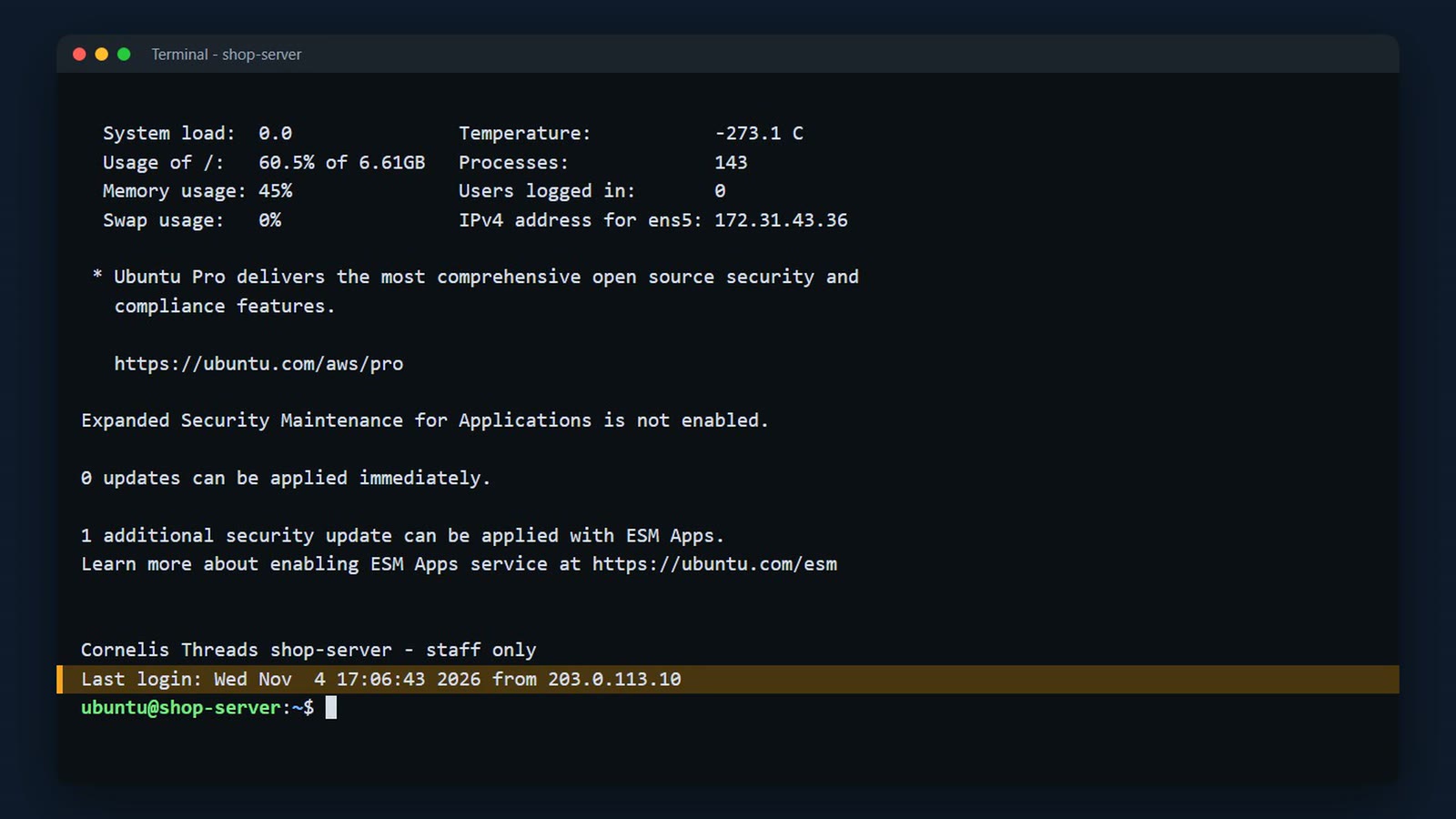
When it doesn't connect
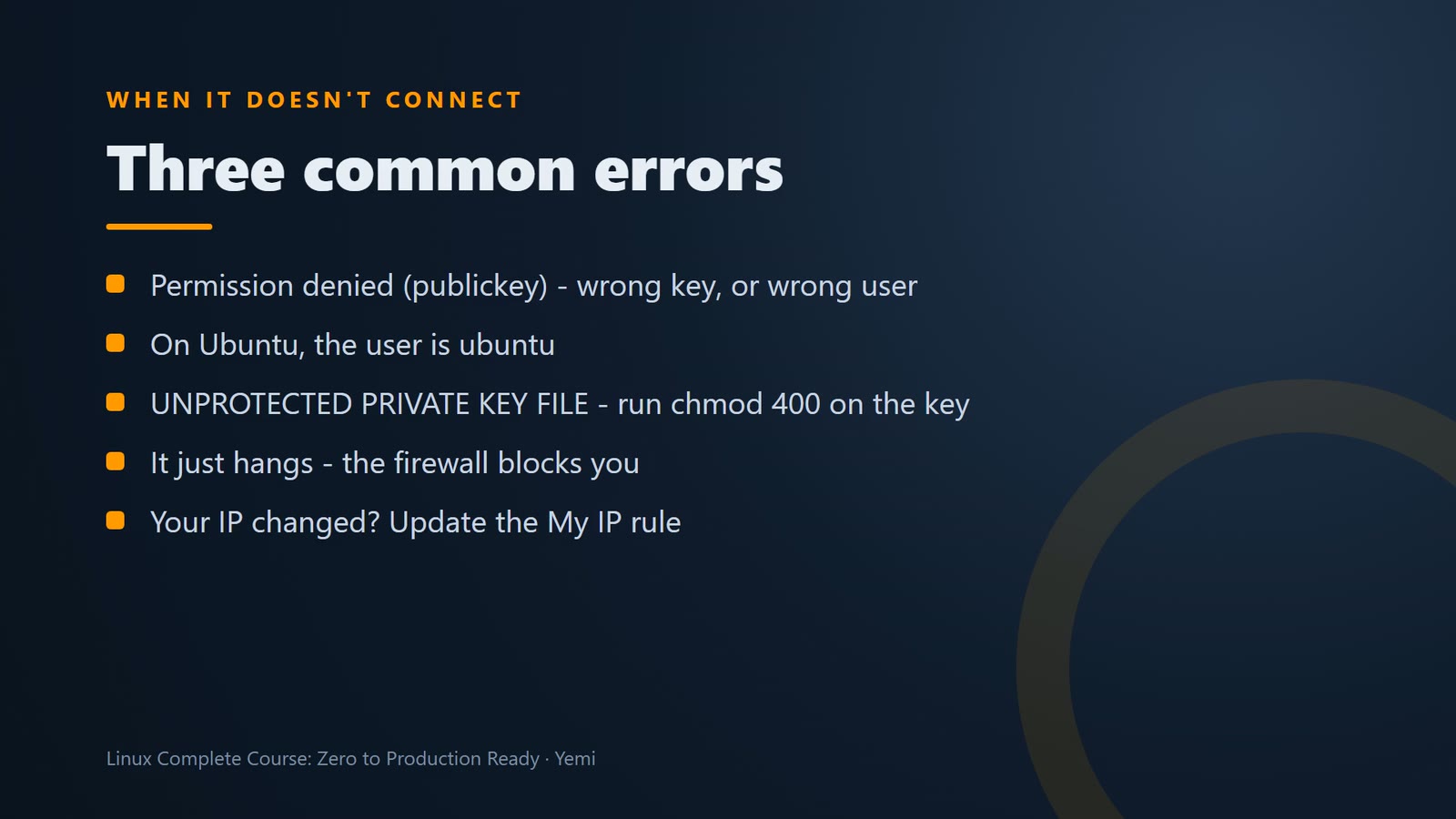
And if it doesn't connect, it's almost always one of three things. Permission denied, publickey, means the wrong key or the wrong user. On Ubuntu, the user is ubuntu. Unprotected private key file means you skipped chmod 400. And if it just hangs, the firewall is blocking you. Usually your IP address changed, so update the My IP rule in the security group.
Keys for your own machines
One more thing, for servers that aren't on AWS, like a Multipass server, or a server at work. There, you make the key pair yourself, with ssh-keygen, and copy the public key to the server with ssh-copy-id. Give the key a passphrase, so a stolen laptop doesn't mean a stolen key. The commands are in the written guide.
ssh-keygen -t ed25519 -C "you@laptop"
ssh-copy-id -i ~/.ssh/id_ed25519.pub <user>@<server>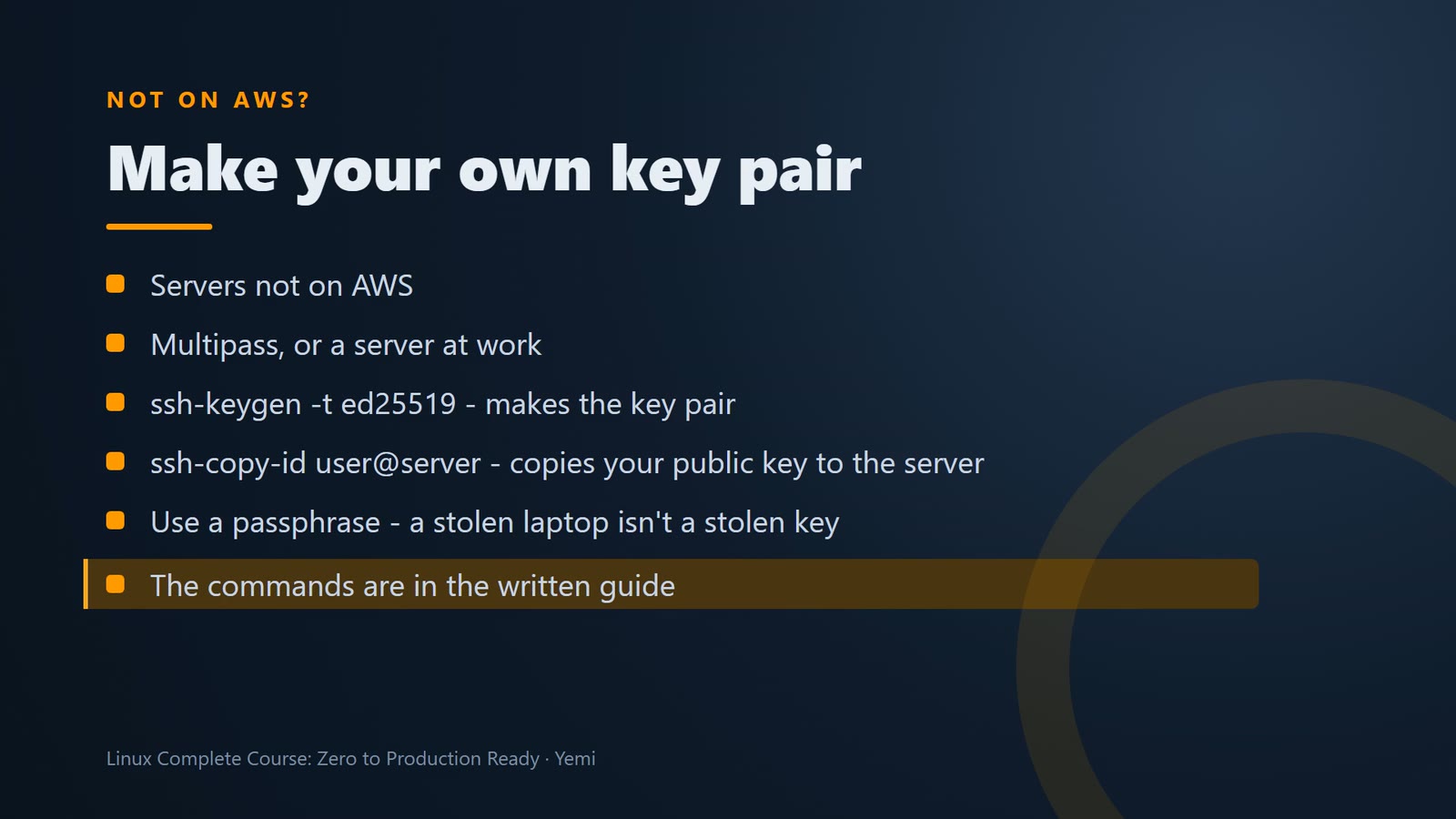
Challenge
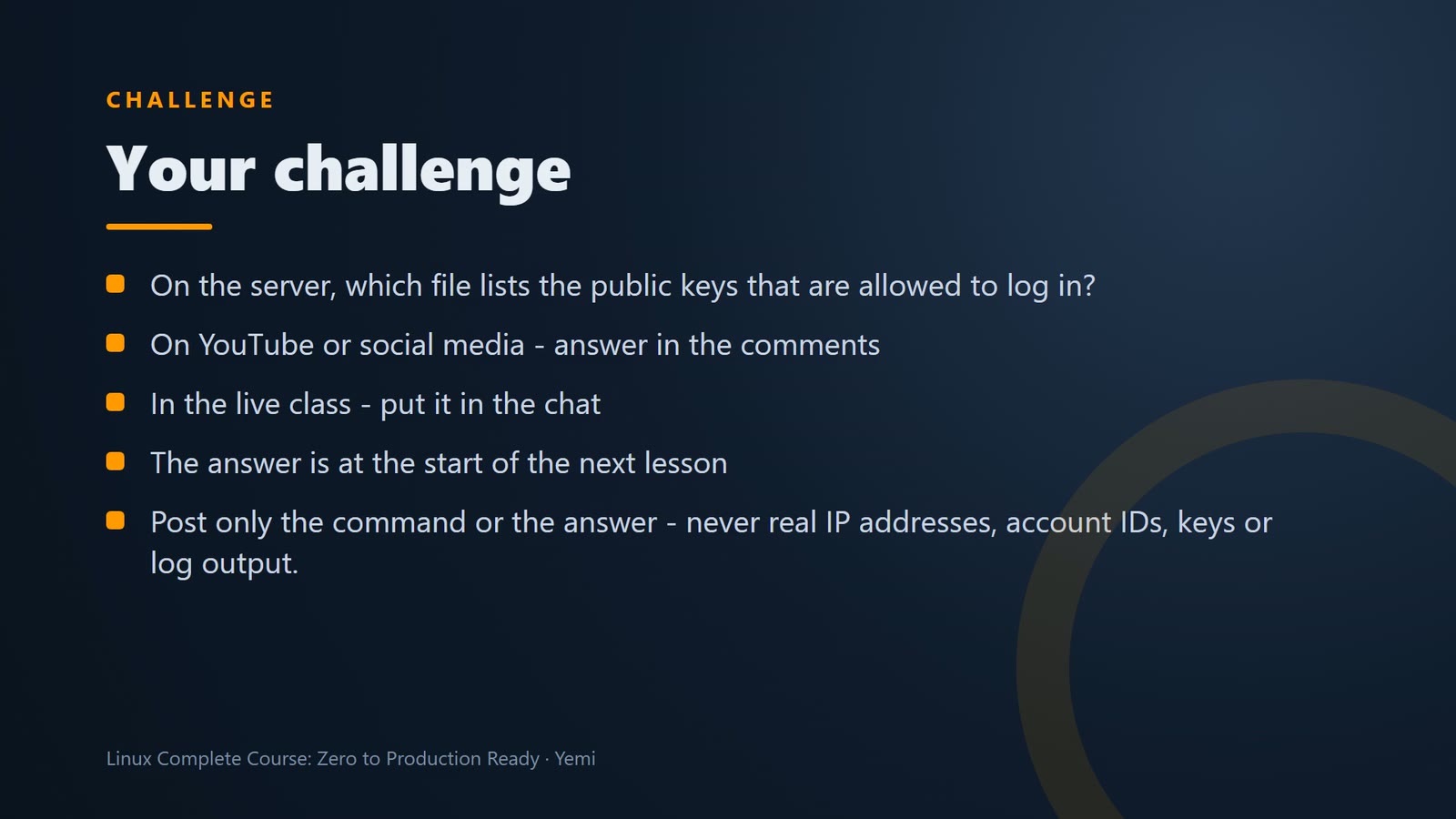
Here's your challenge: On the server, which file lists the public keys that are allowed to log in? If you're watching on YouTube or social media, drop your answer in the comments. If you're in the live class, put it in the chat. I'll show the answer at the start of the next lesson. And only post the command or the answer, never real IP addresses, account IDs, keys, or log output.
What's next
And here's a message from the shop.

Summary
- A key pair is a public key (on the server) and a private key (only on your computer)
- Keep private keys in ~/.ssh, readable only by you (chmod 400)
- Connect: ssh -i ~/.ssh/key.pem ubuntu@<server-ip>
- The first time, SSH shows the server's fingerprint – answer yes only for a server you know
- ~/.ssh/config turns that into ssh shop-server
- Password logins are off on this server – keys only
What’s next
You're in, with one command. And just in time, because the shop is asking where its website is. Next lesson, we put the first Cornelis Threads page on the internet.