Four EC2 Security Settings That Take Five Minutes Each
Most EC2 security problems are not clever attacks. They are defaults nobody changed: a firewall rule left wide open, an access key copied onto a server, a disk that was never encrypted. Here are four settings that close the most common gaps. Each one takes about five minutes.
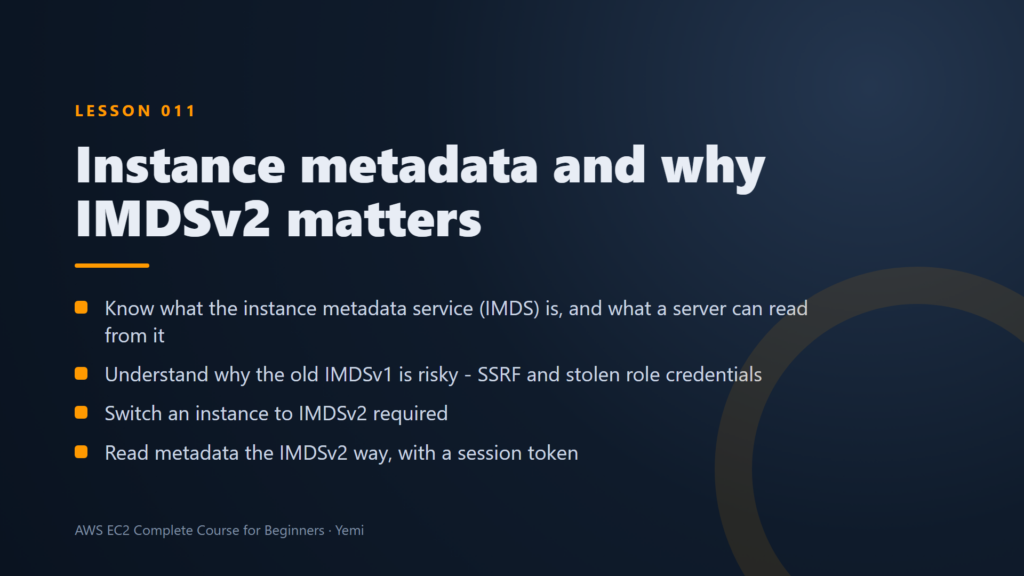
1. Require IMDSv2 on every instance
Every EC2 server can read facts about itself from an address only it can reach, 169.254.169.254: its ID, its Availability Zone and, if it has an IAM role, that role’s temporary keys.
The old version, IMDSv1, answers any simple request. So if your app has a bug that makes it fetch a URL for an attacker (called SSRF), that bug can leak the role’s keys. IMDSv2 first needs a session token from a PUT request, which those bugs almost never can send.
Set IMDSv2 to Required at launch, or later under Actions, Instance settings, Modify instance metadata options. From then on, a plain request gets 401 Unauthorized, and the token flow still works:
TOKEN=$(curl -s -X PUT http://169.254.169.254/latest/api/token -H 'X-aws-ec2-metadata-token-ttl-seconds: 300')
curl -H "X-aws-ec2-metadata-token: $TOKEN" http://169.254.169.254/latest/meta-data/instance-id; echo
2. Give servers IAM roles, never access keys
Access keys pasted onto a server never expire, and they leak through backups, images and code. An IAM role gives the server temporary credentials instead, rotated automatically. The AWS CLI and SDKs find them by themselves, with no configuration.
Give each role only what it needs, for example read-only access to the one bucket the app uses. You can attach, change or remove a role on a running server, no restart needed.
3. Turn on EBS encryption by default
EBS encryption protects data at rest, snapshots, and data moving between the server and its disk. Using the AWS managed key costs nothing and performance is the same. The catch: it is off until you switch it on, once per Region.
Check it, then turn it on:
aws ec2 get-ebs-encryption-by-default
aws ec2 enable-ebs-encryption-by-default
Every new volume and snapshot copy in that Region is now encrypted. Volumes you already have stay as they are: snapshot them, then create an encrypted volume from the snapshot.
4. Hunt down security groups open to the world
0.0.0.0/0 means the whole internet. That is fine for a website on ports 80 and 443, and dangerous for SSH (22), RDP (3389) and databases (3306, 5432, 1433, 27017). This command lists every security group with a rule open to the internet:
aws ec2 describe-security-groups --filters Name=ip-permission.cidr,Values=0.0.0.0/0 --query "SecurityGroups[].[GroupName,GroupId]" --output tableBefore you change a group, check what uses it, then remove or narrow the risky rules. To keep it that way, AWS Config rules, Security Hub or Trusted Advisor can run the same hunt for you, and Session Manager removes the need to open SSH at all.
Quick recap
- IMDSv2 set to Required on every instance
- IAM roles on servers, no access keys
- EBS encryption by default turned on in every Region you use
- No admin or database ports open to 0.0.0.0/0
Practise each one safely
Our free AWS EC2 Complete Course for Beginners has a full lesson on each of these settings: you turn it on, prove it works, then clean up.