AWS Region Migration: The client’s us-east-1 workload, part 1
What you’ll learn
- Set a 100 dollar budget alert for the course
- Build the client's standalone VPC with the VPC wizard
- Create a KMS key and an encrypted, versioned S3 bucket, and upload research data
- Launch the research app server with a separate EBS data volume
What you need
- An AWS account you can experiment in, Region us-east-1
- The AWS CLI signed in to that account (we use the profile "course")
A 100 dollar budget
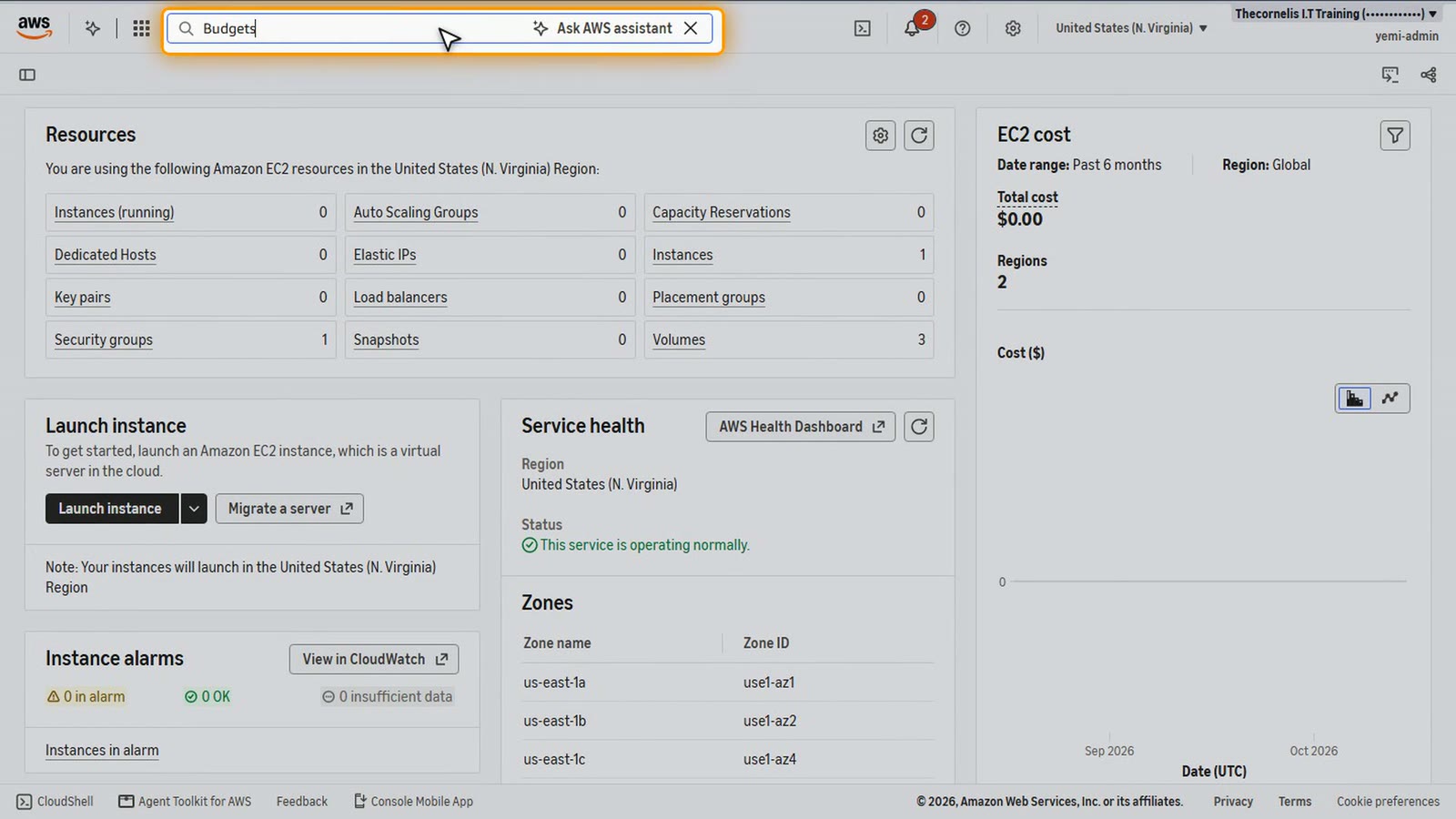
First, a budget alert, so the course never surprises us. Click the search bar at the top, type Budgets, and open it.
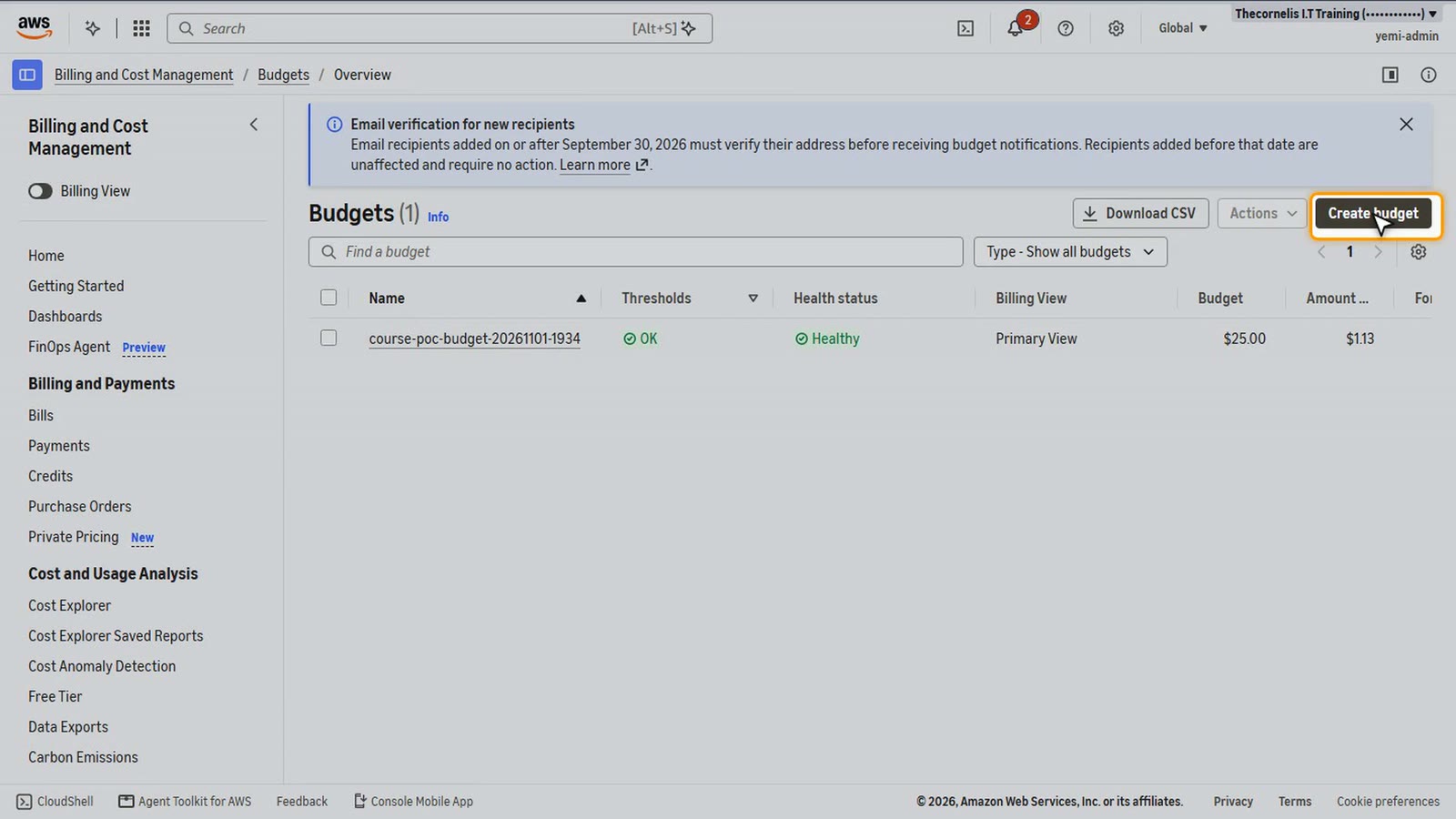
Choose Create budget.
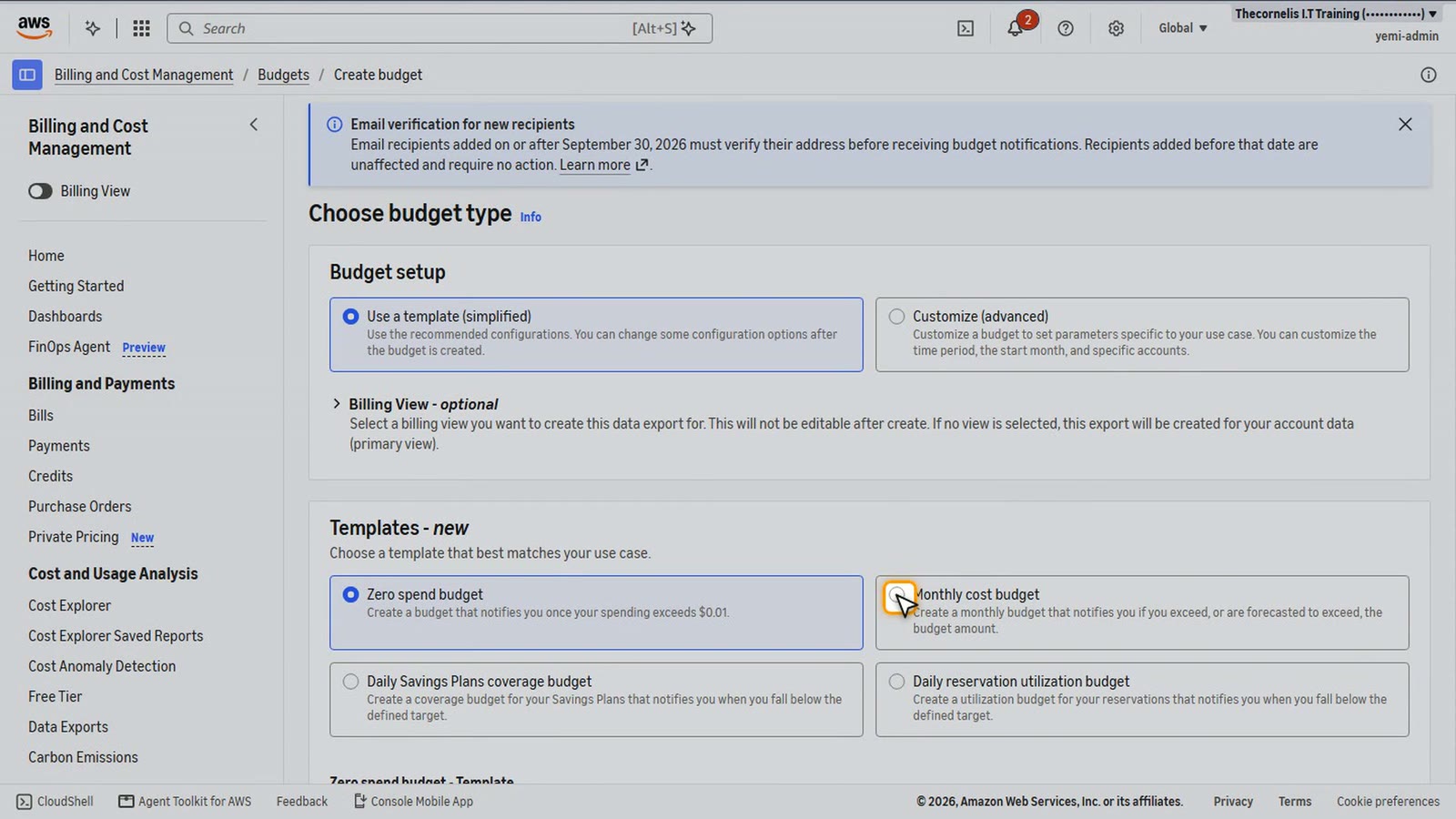
Keep Use a template, and choose Monthly cost budget.
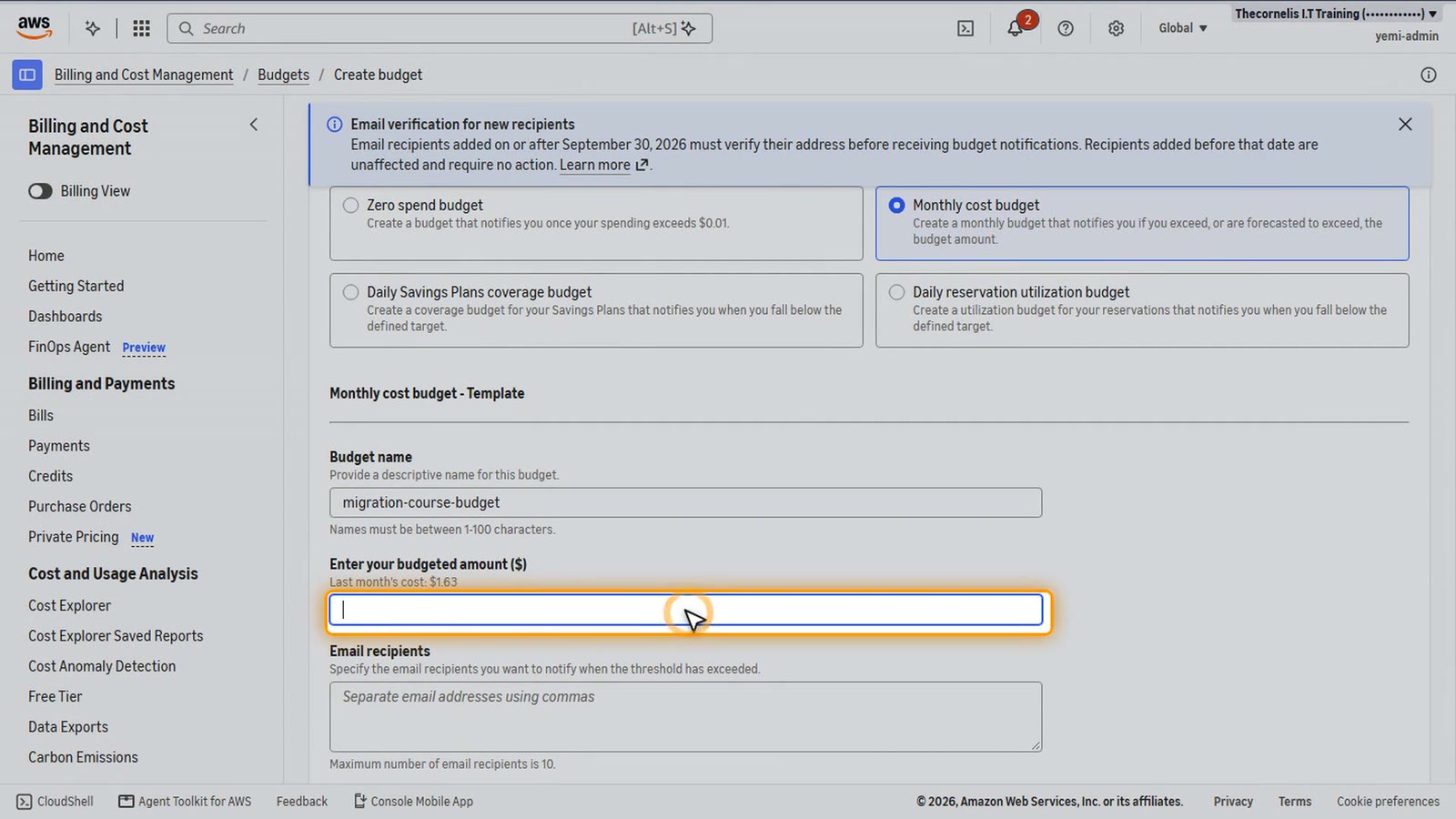
Name it, and enter one hundred dollars. That's our limit for the whole course.
Add the email address for the alerts. Use your own. We're using an example address on camera.
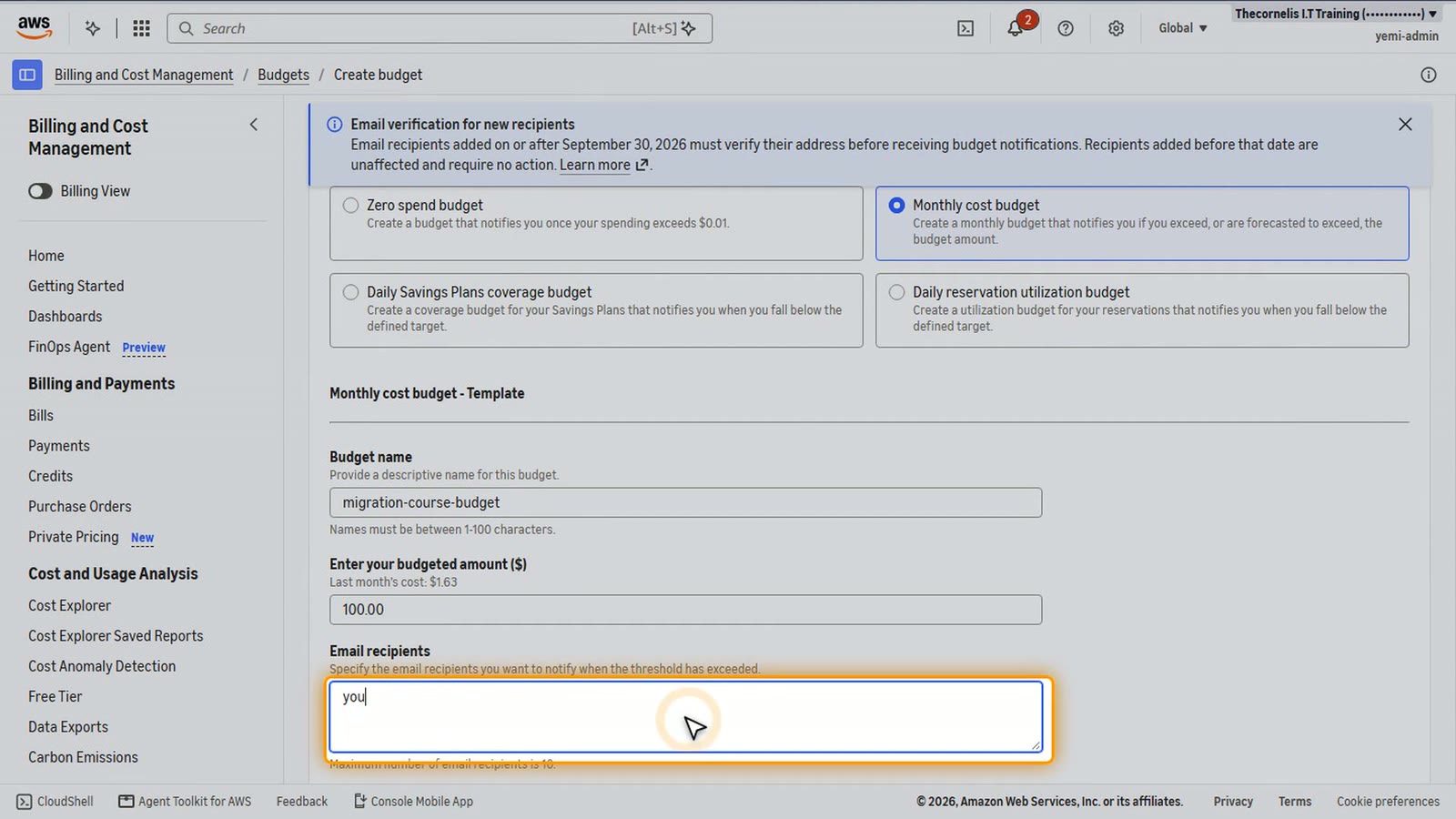
Choose Create budget. AWS emails us as the spending gets close to one hundred dollars, and if it's forecast to go over.
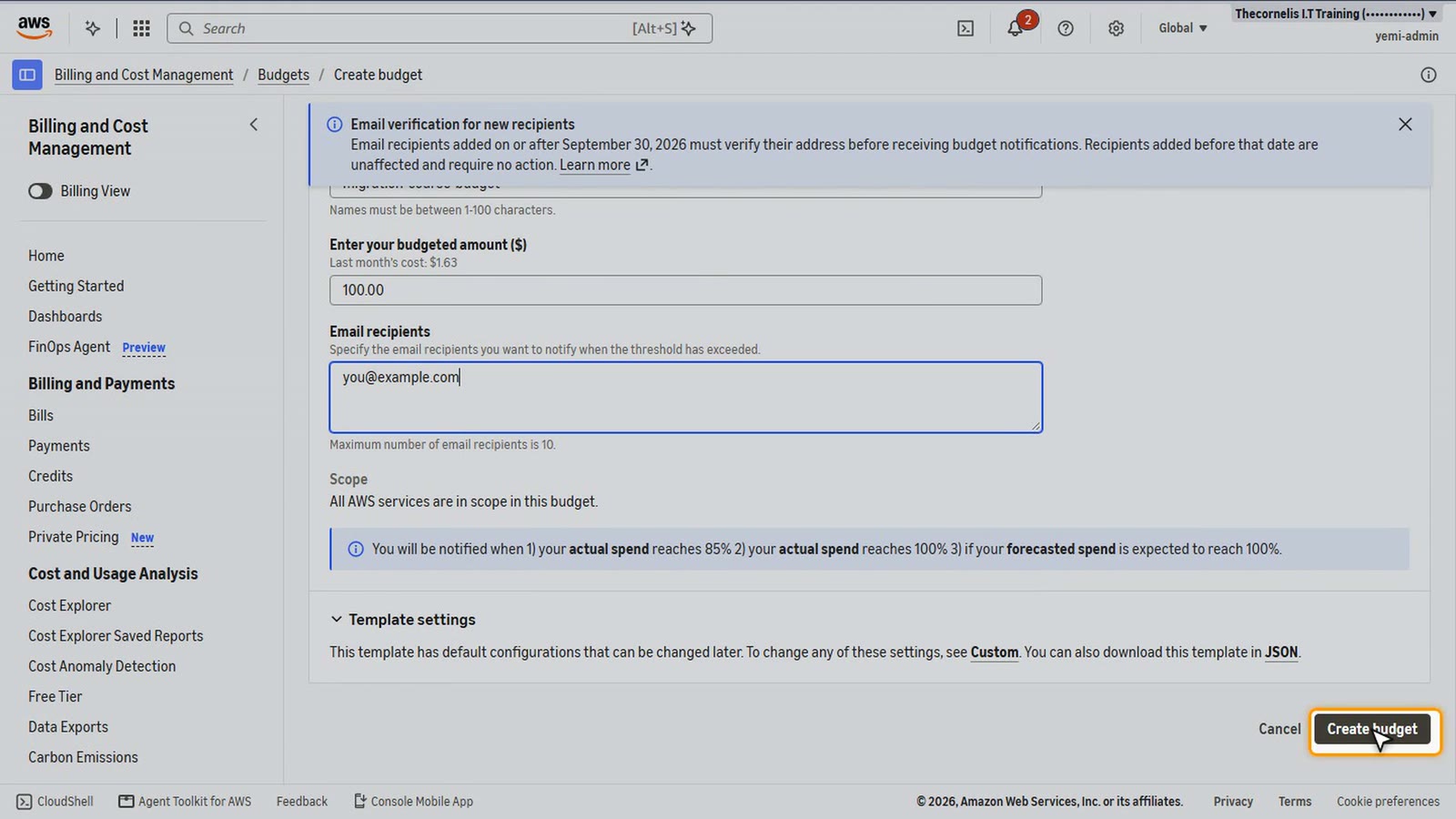
There it is. Now let's build the client's network.
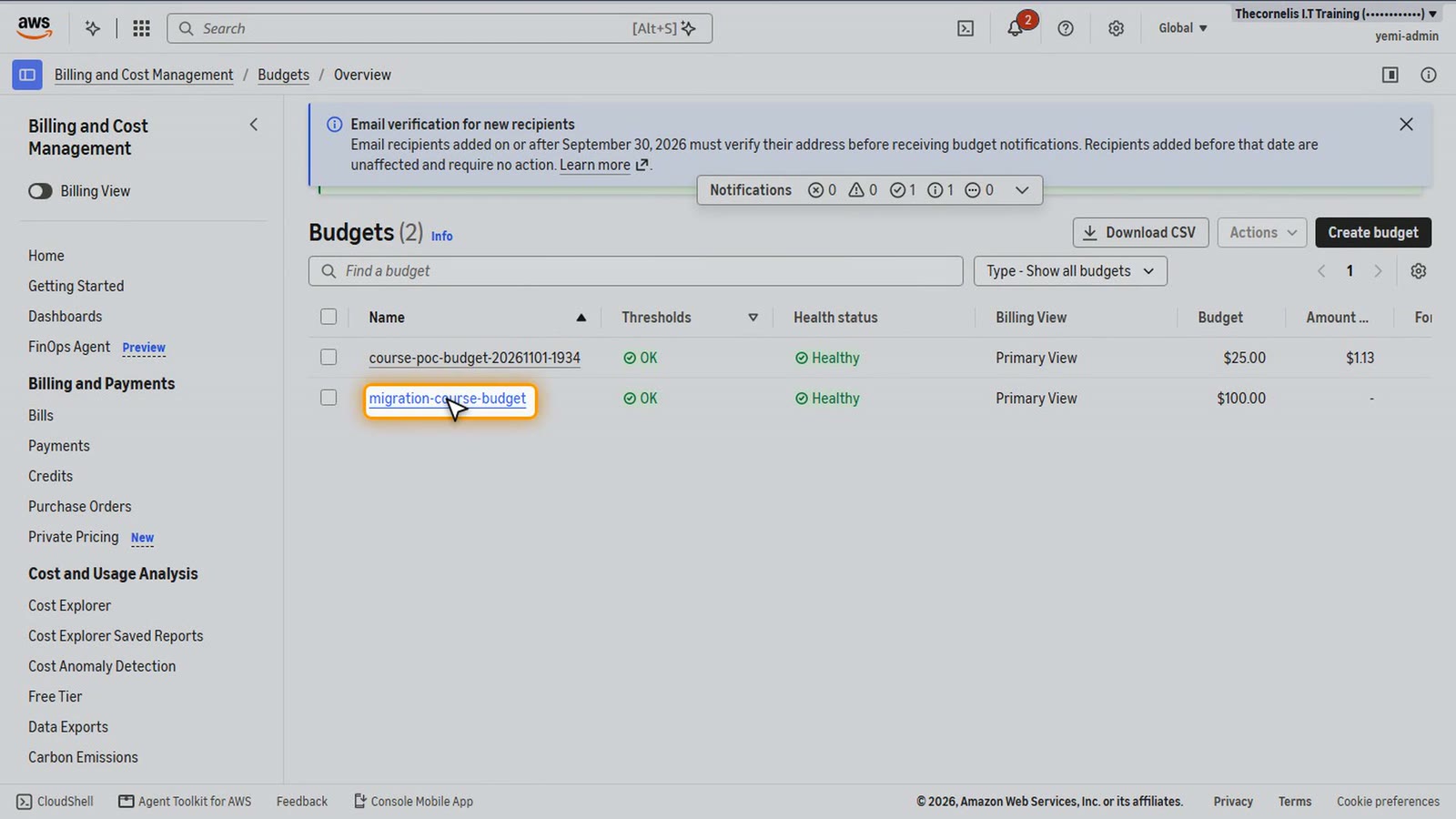
The standalone VPC
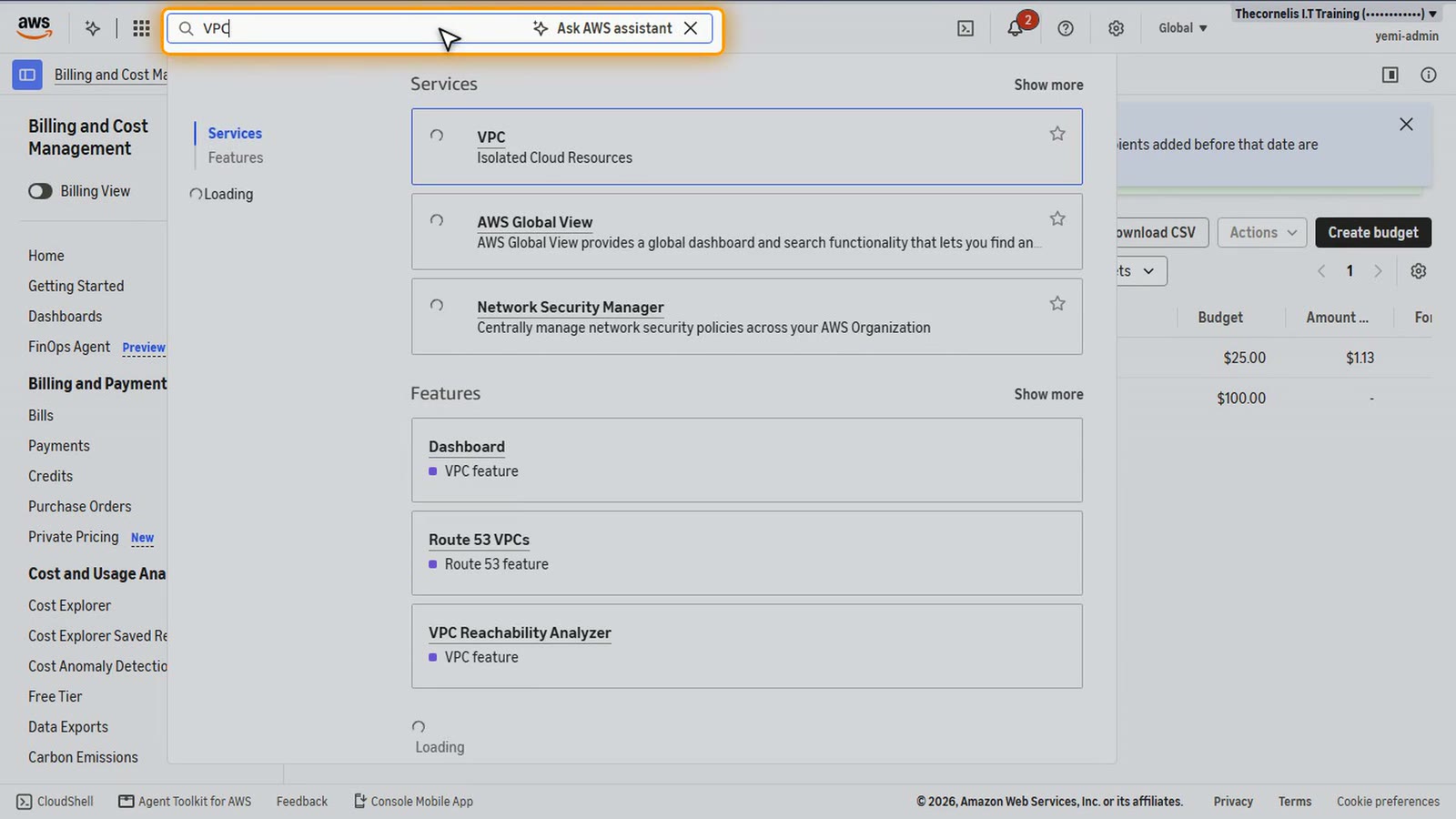
Search for VPC, and open it.
In the menu, choose Your VPCs, then Create VPC.
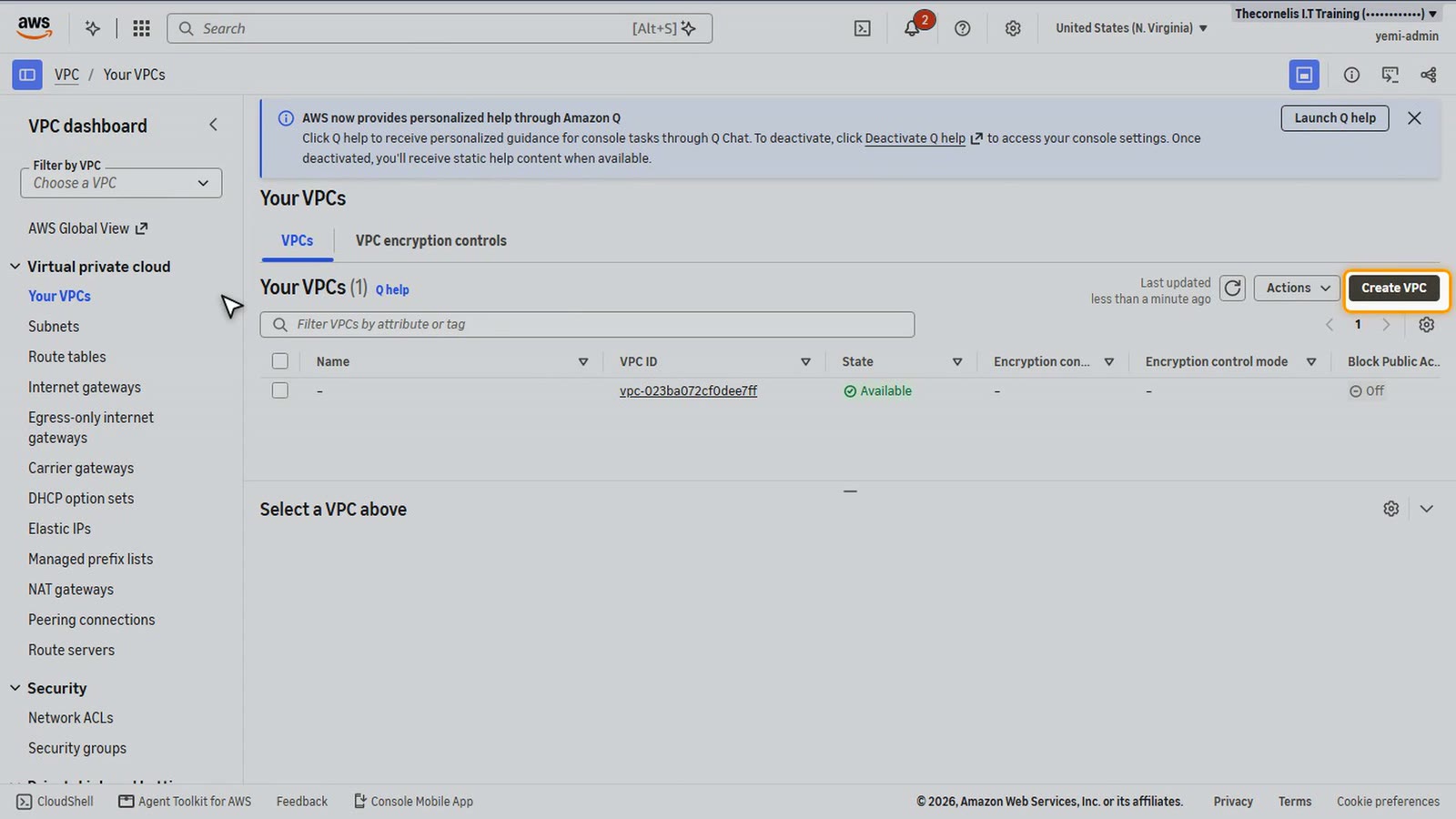
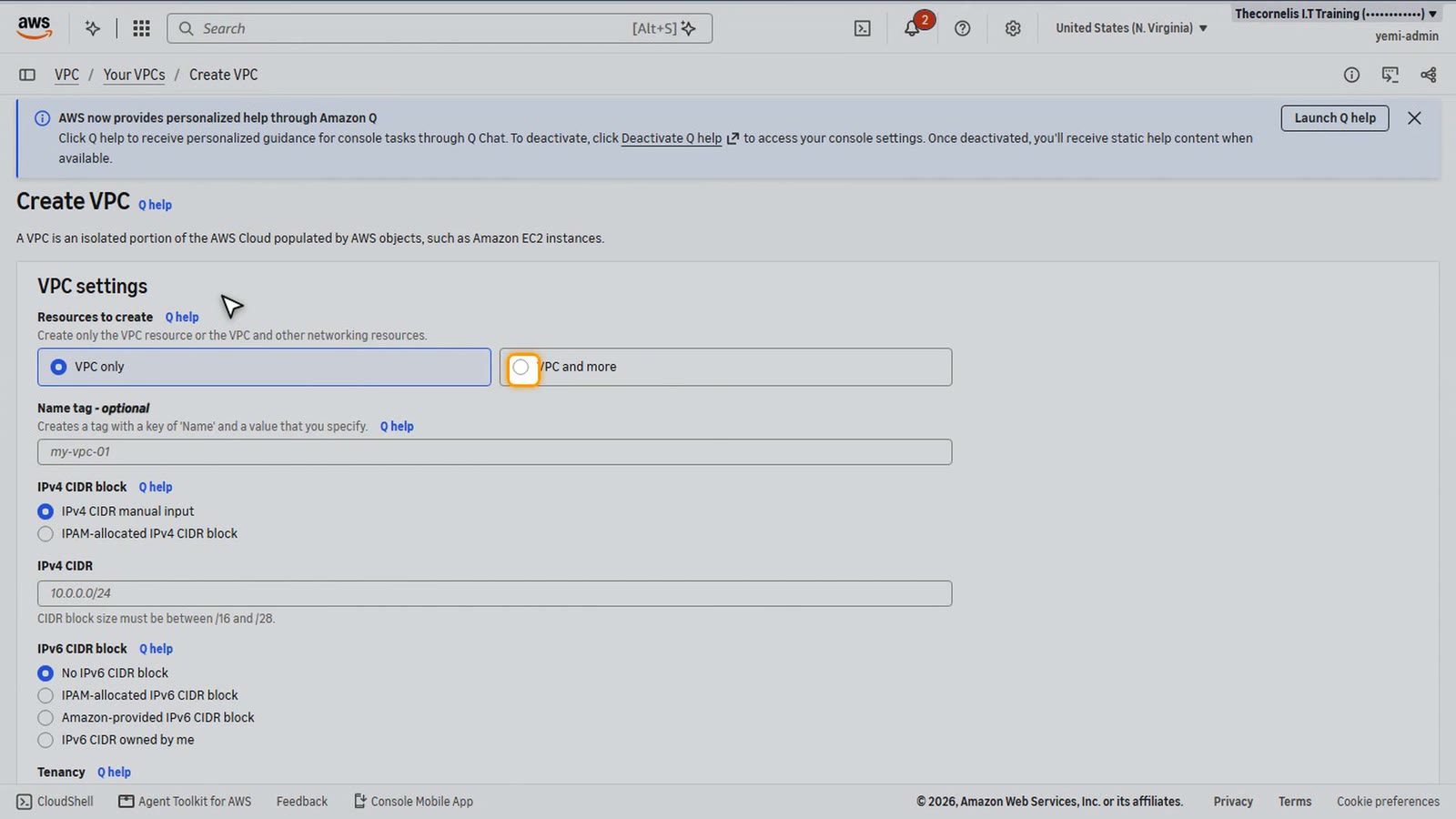
Choose VPC and more. The wizard builds the VPC, its subnets, route tables and gateways in one go.
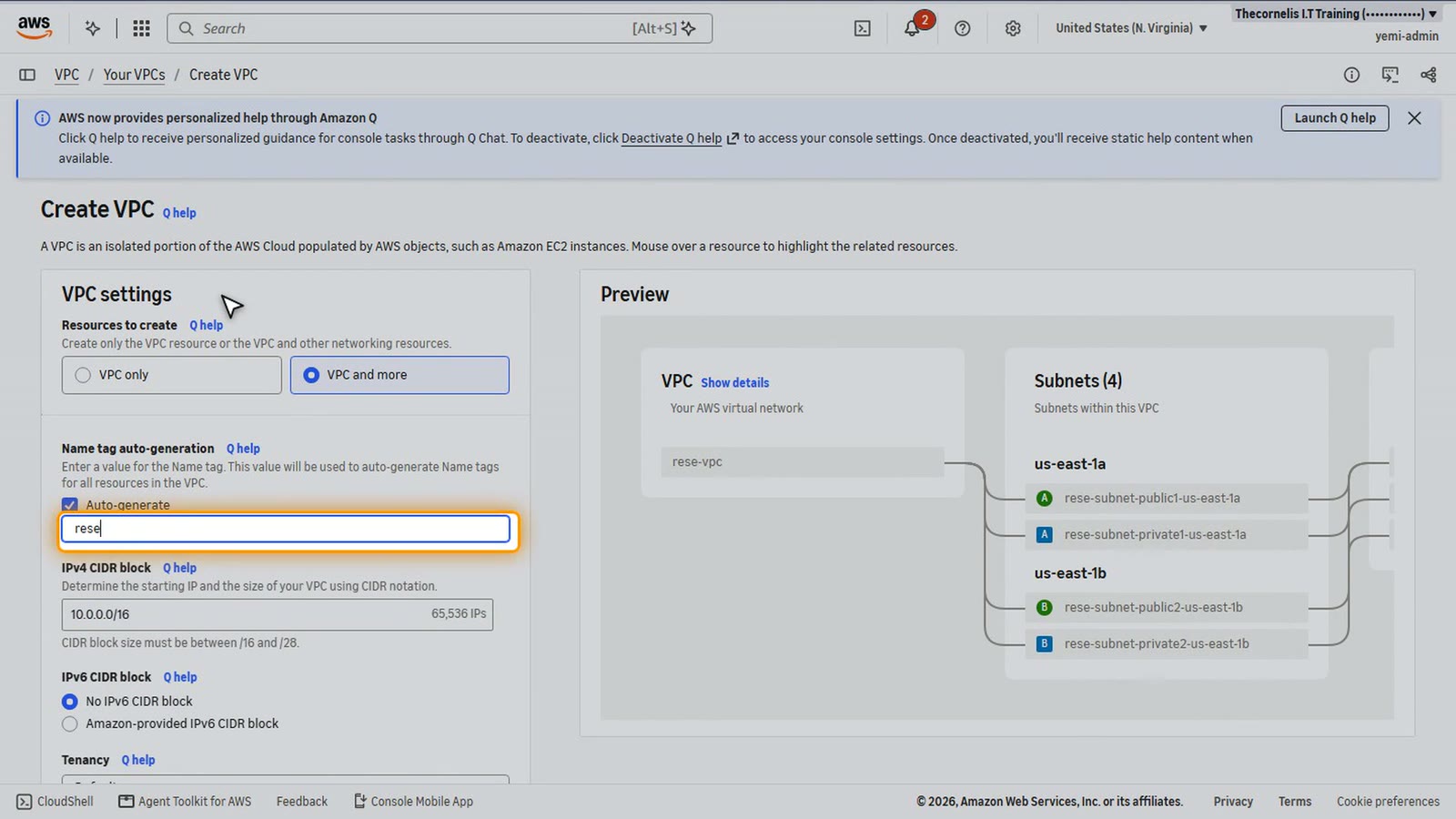
For the name, type research. Every resource gets a name that starts with it.
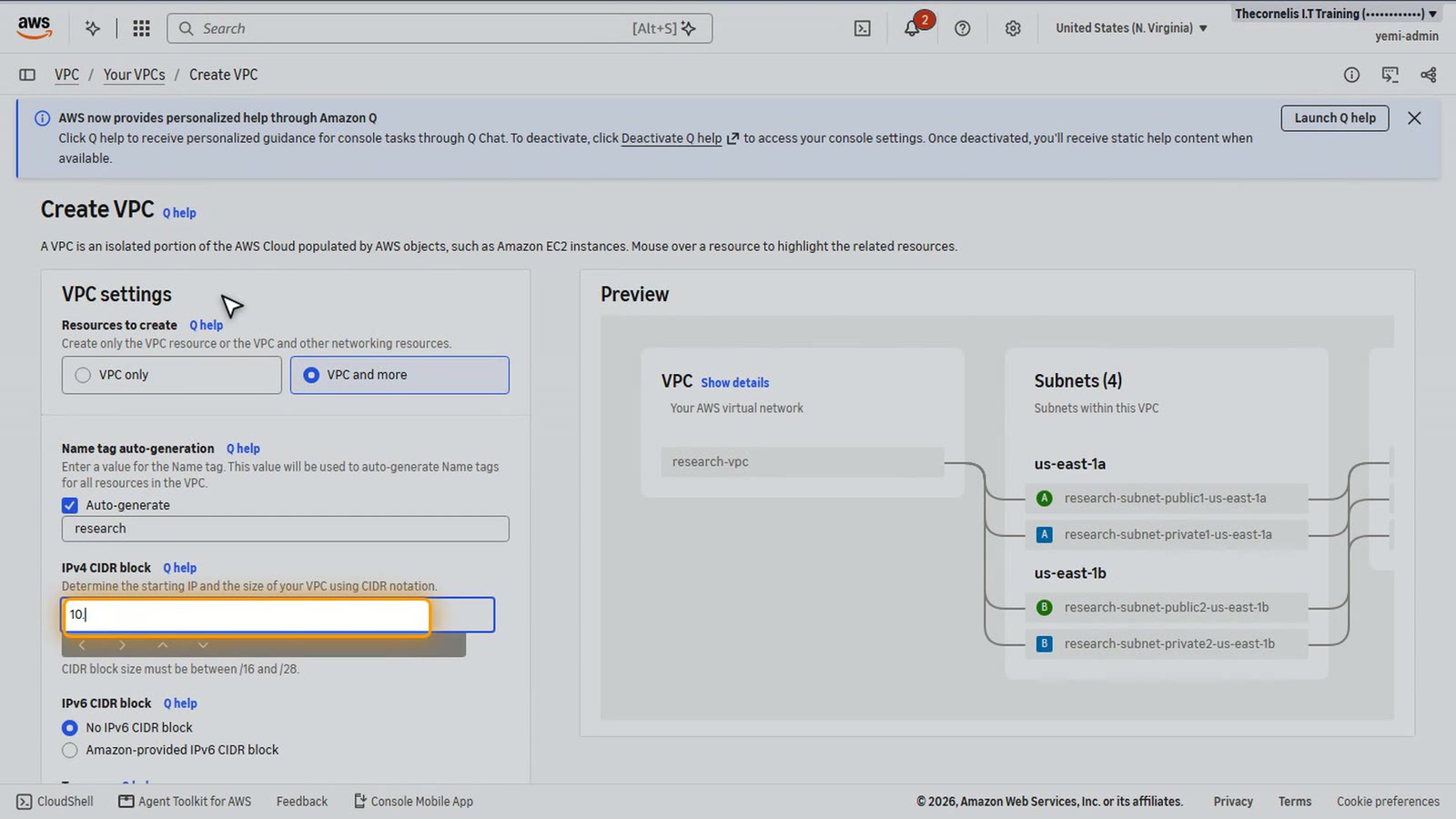
For the address range, ten dot ten dot zero dot zero slash sixteen. Pick a range that won't overlap the networks it will join later. That matters in a migration.
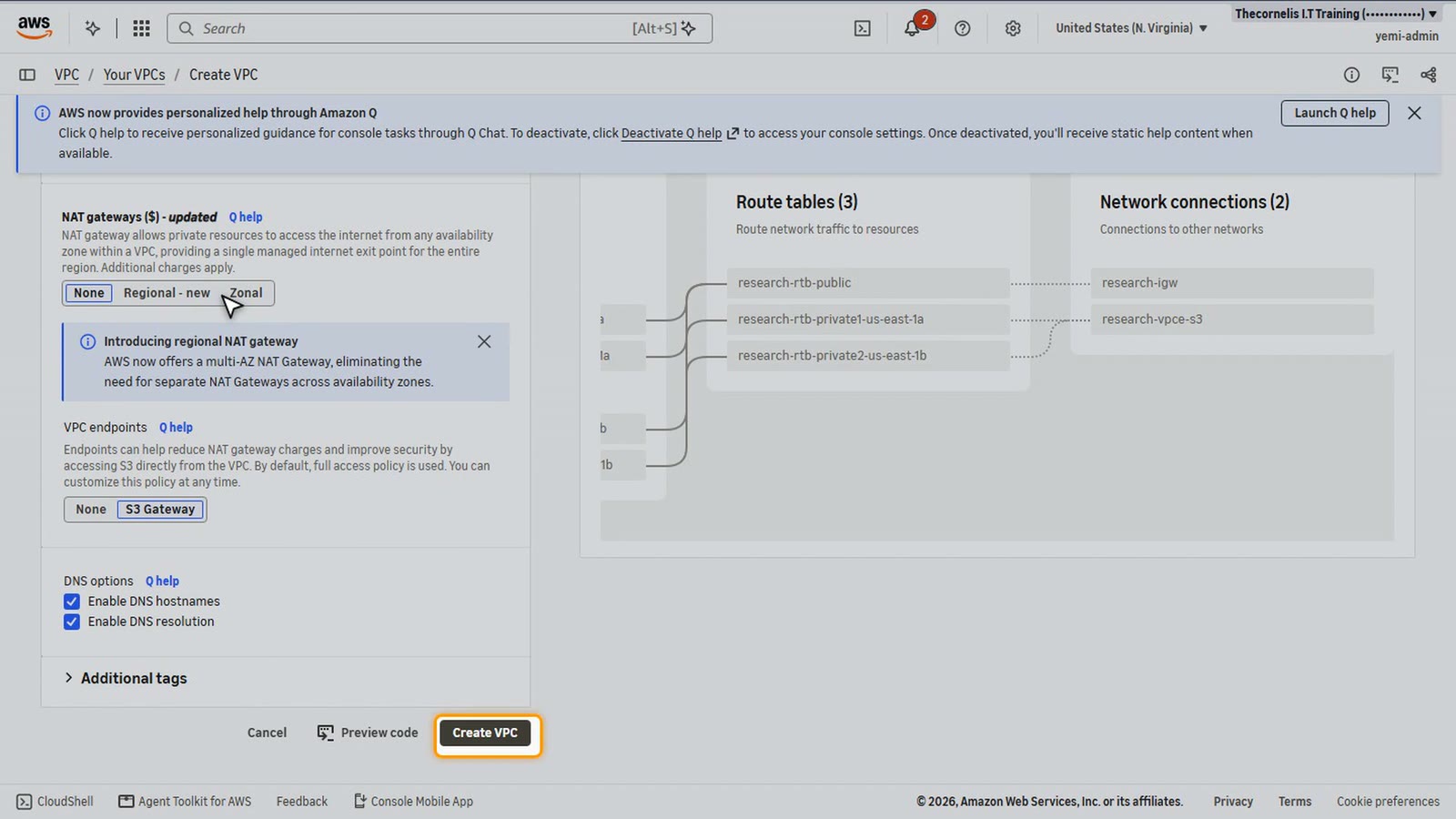
Keep two Availability Zones, two public subnets and two private subnets. No NAT gateway. And keep the S3 gateway endpoint, so the private subnets can reach S3 without the internet.
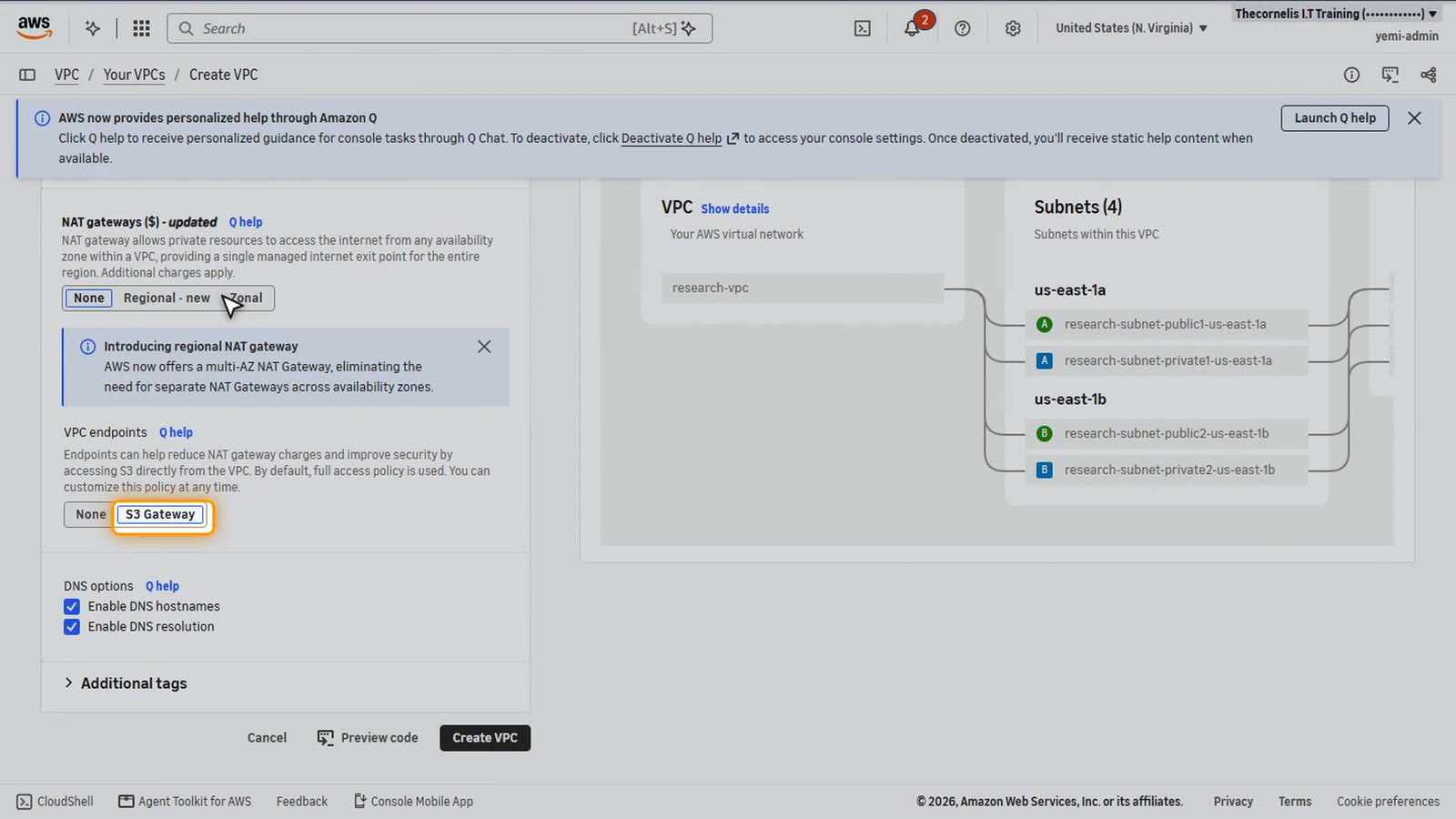
The preview shows everything the wizard will create. Notice the internet gateway. This VPC talks to the internet directly. That's the standalone design we're moving away from.
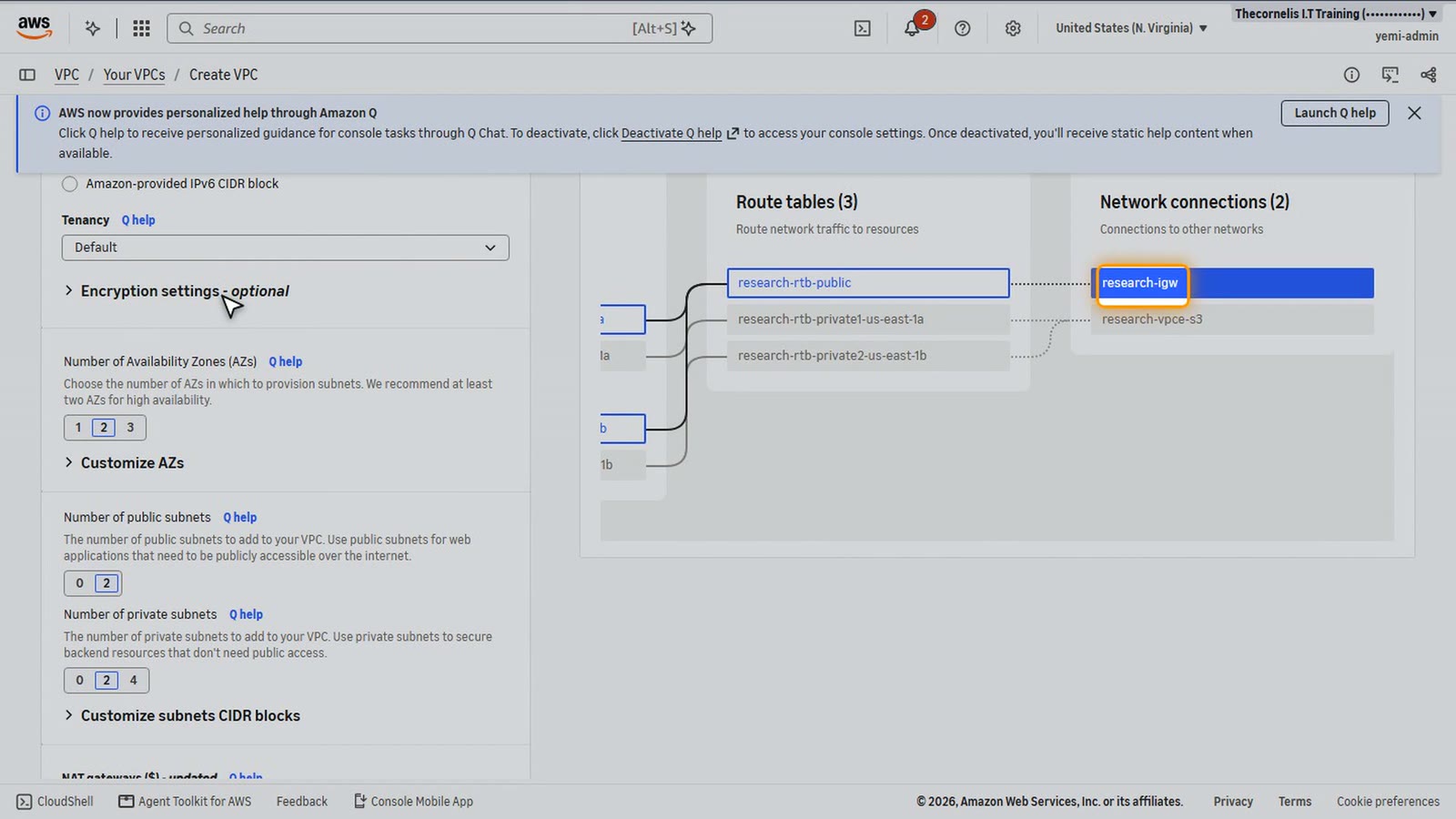
Choose Create VPC.
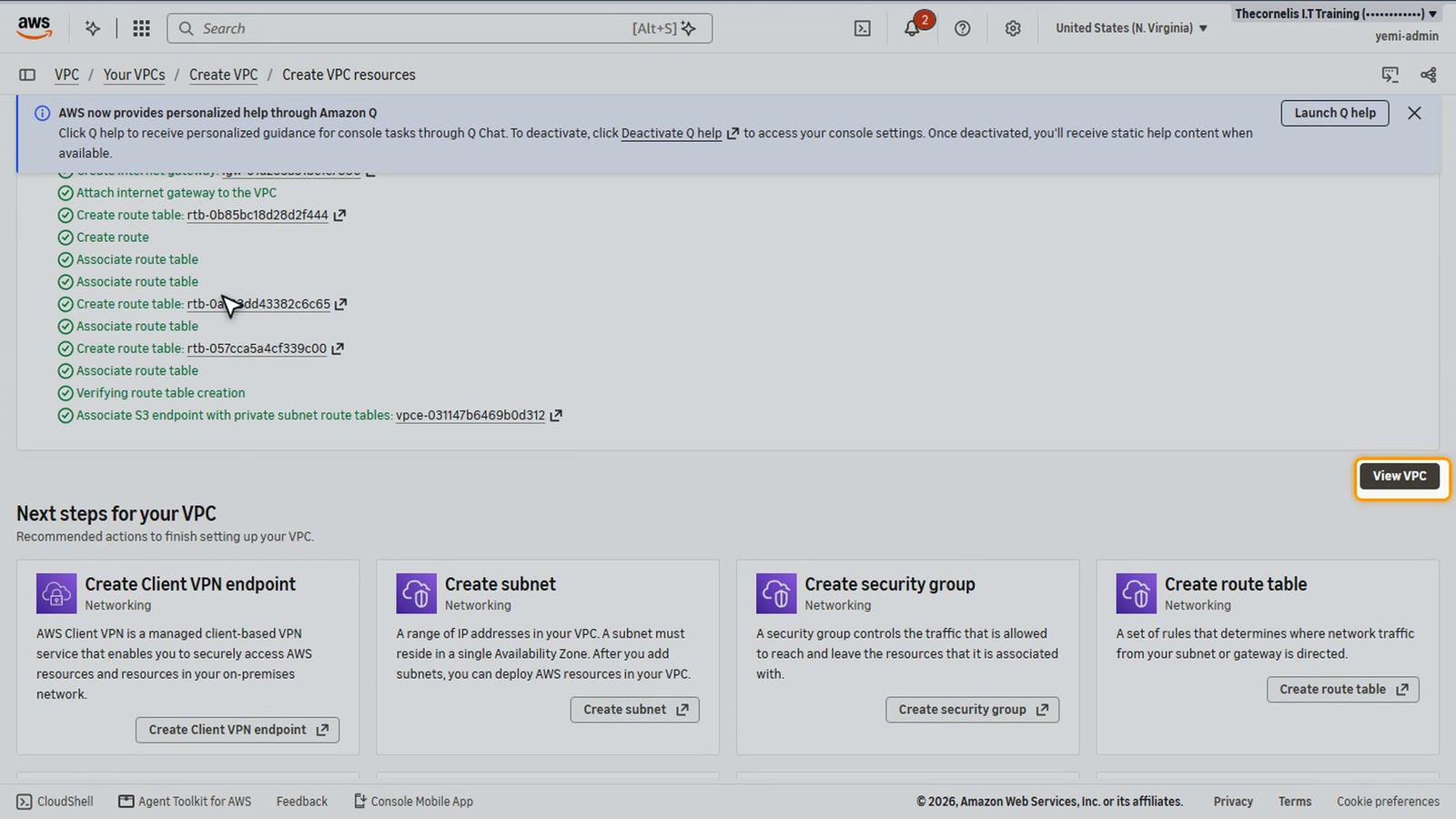
All created. Choose View VPC.
An encryption key for the research data
Next, a key to encrypt the research data. Search for KMS, and open Key Management Service.
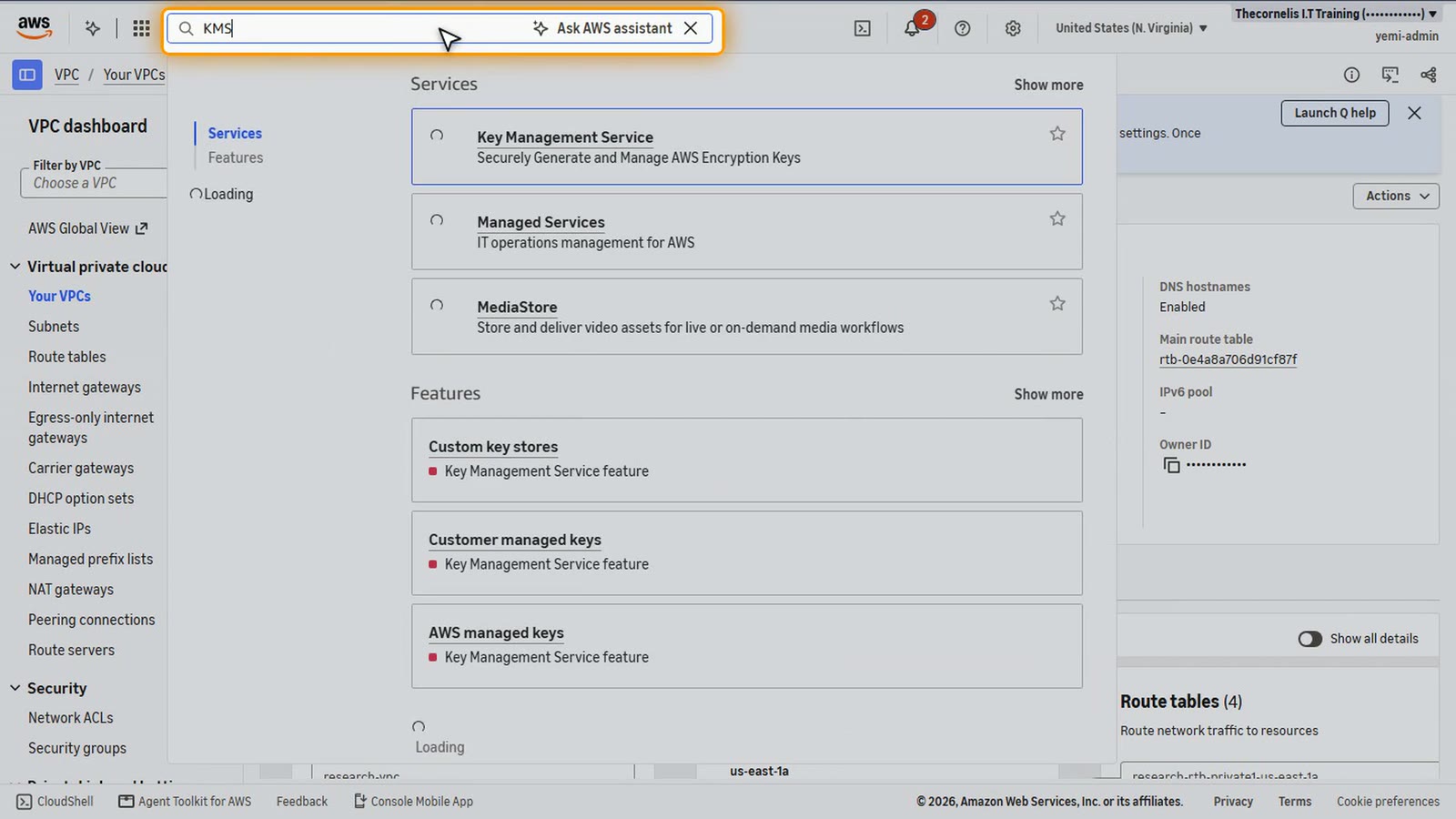
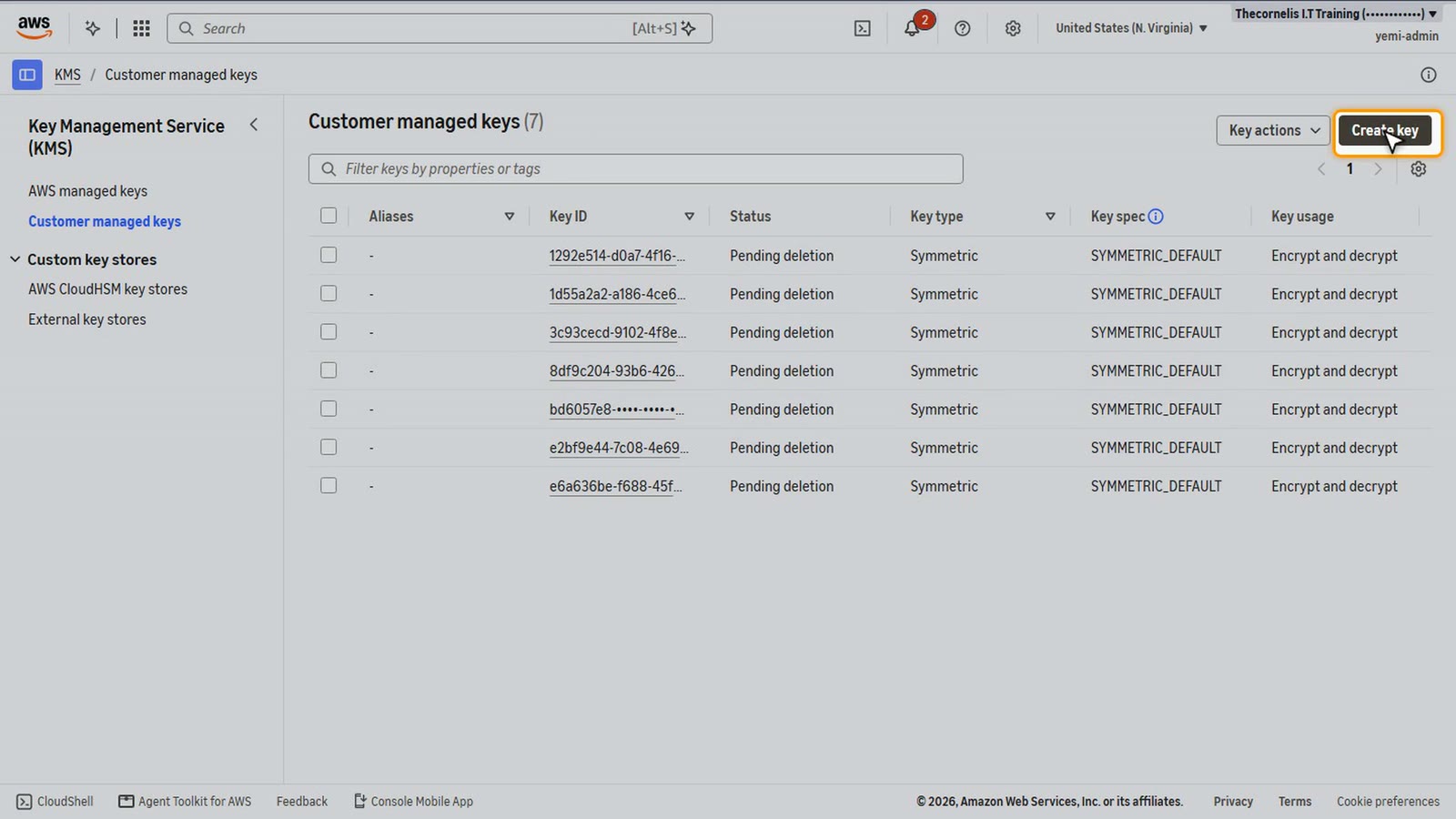
Choose Create a key.
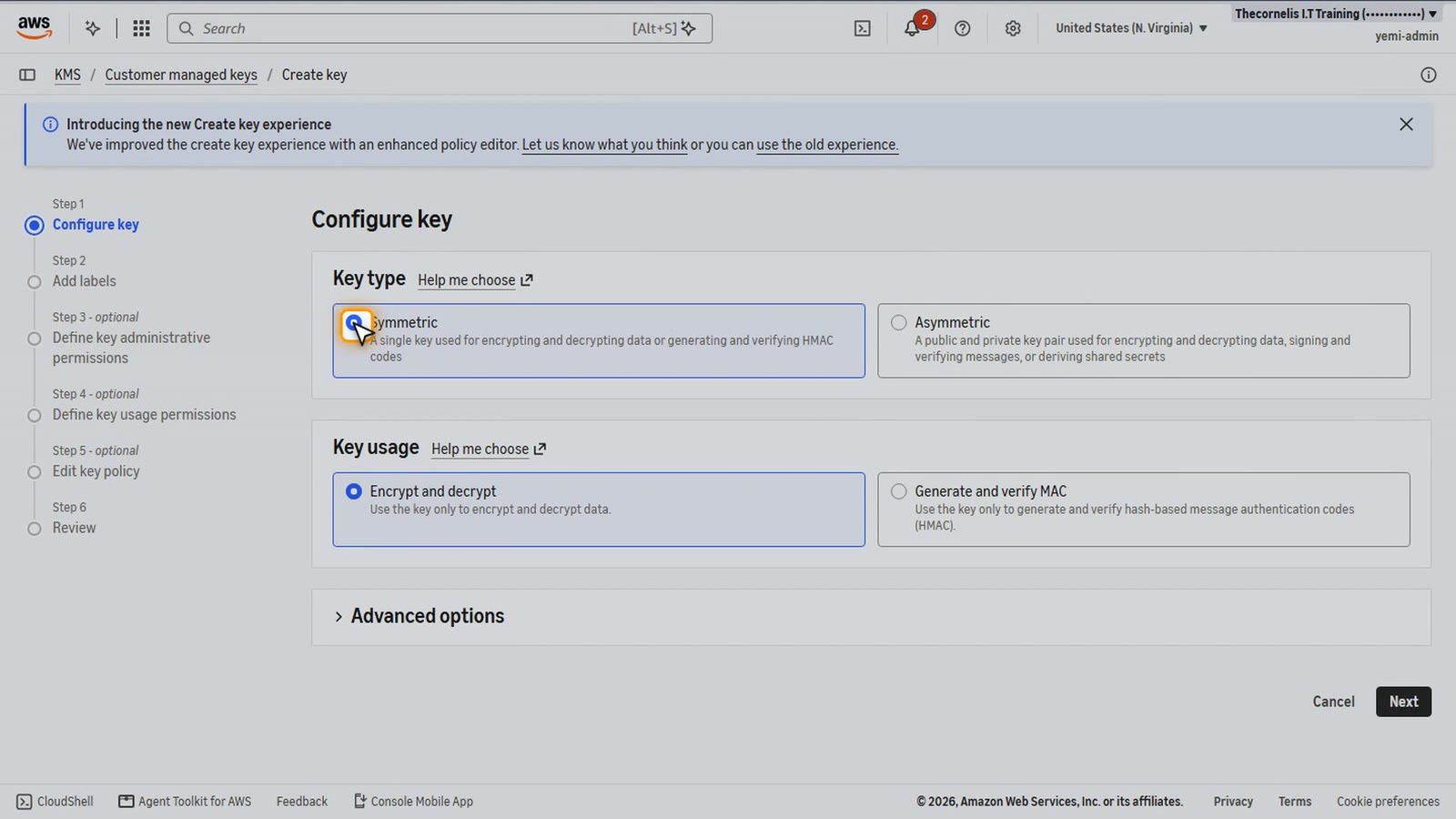
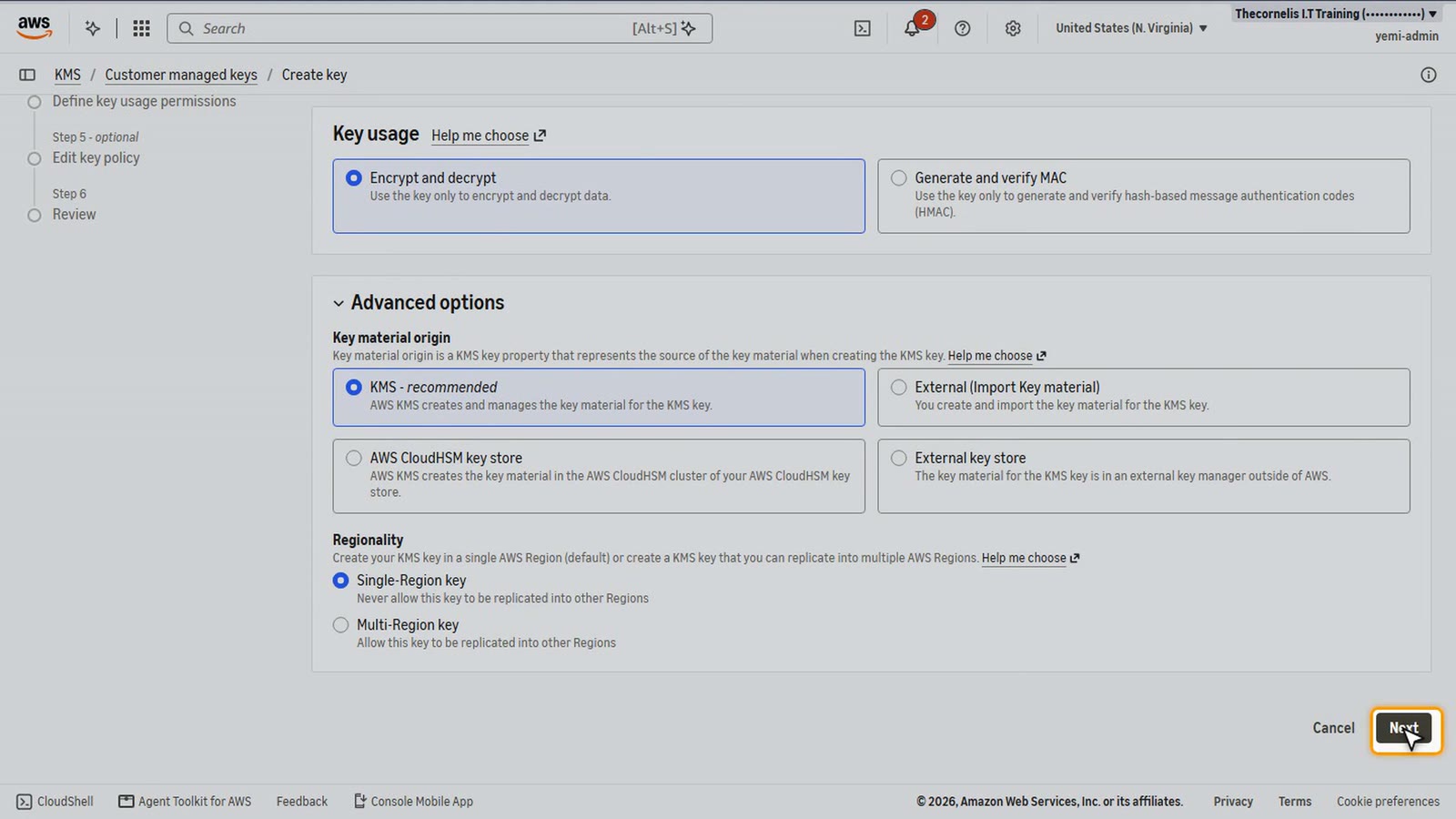
Keep Symmetric, for encrypt and decrypt.
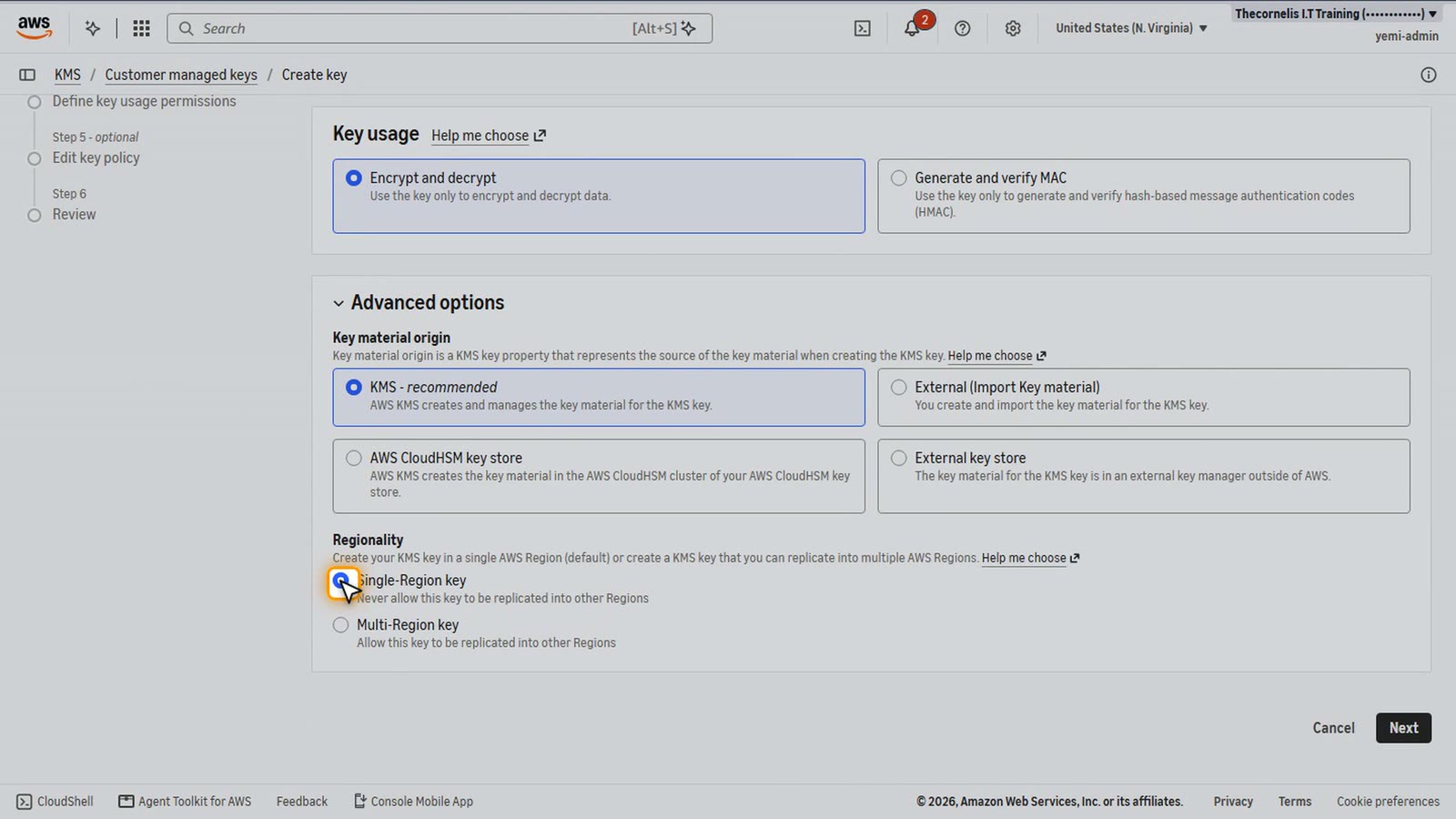
Under Advanced options, it's a Single-Region key. A single-Region key can't be used in another Region. Keep that in mind. It's exactly what a lot of real workloads have, and we'll deal with it in the migration.
Choose Next.
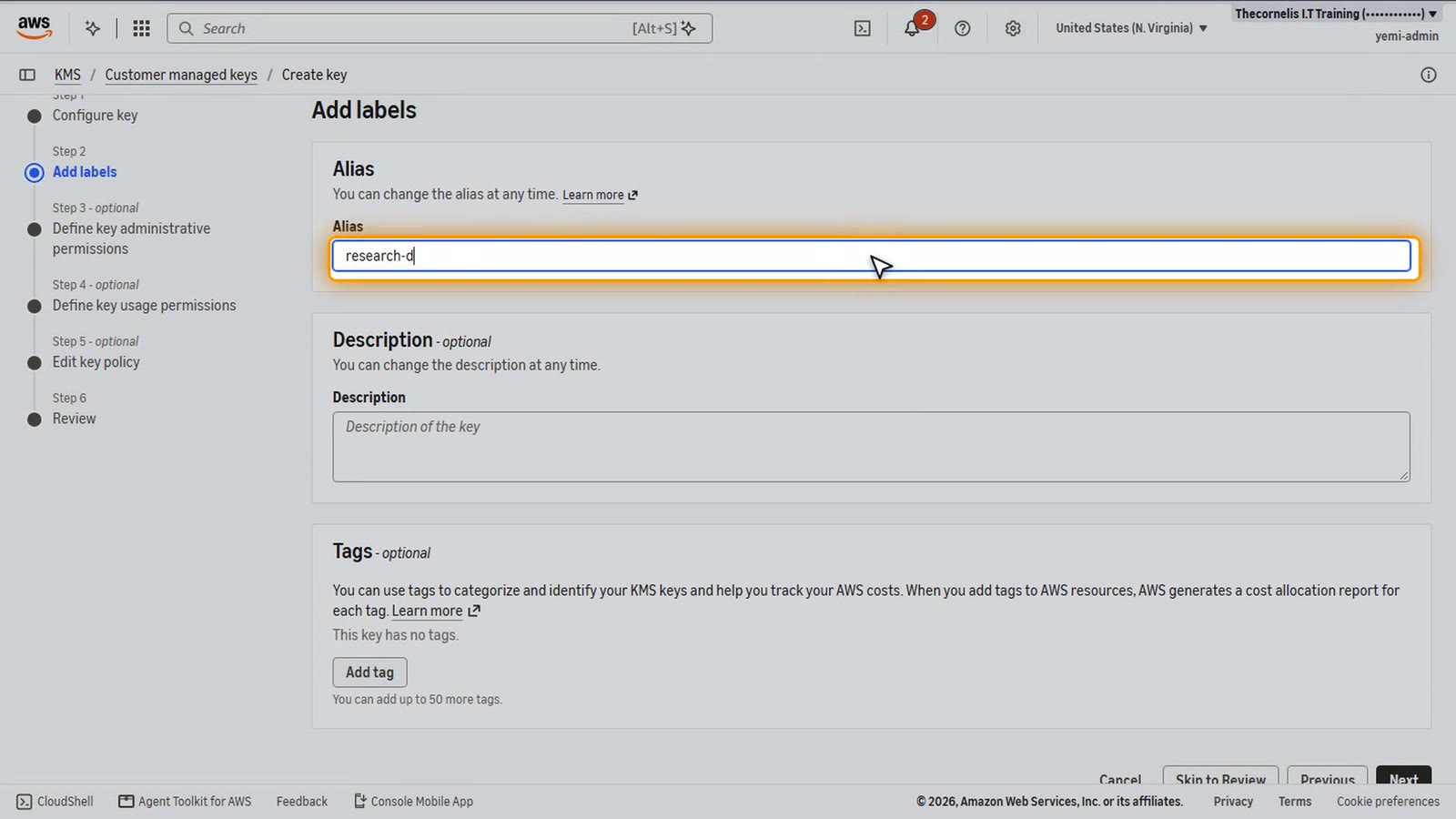
For the alias, type research data.
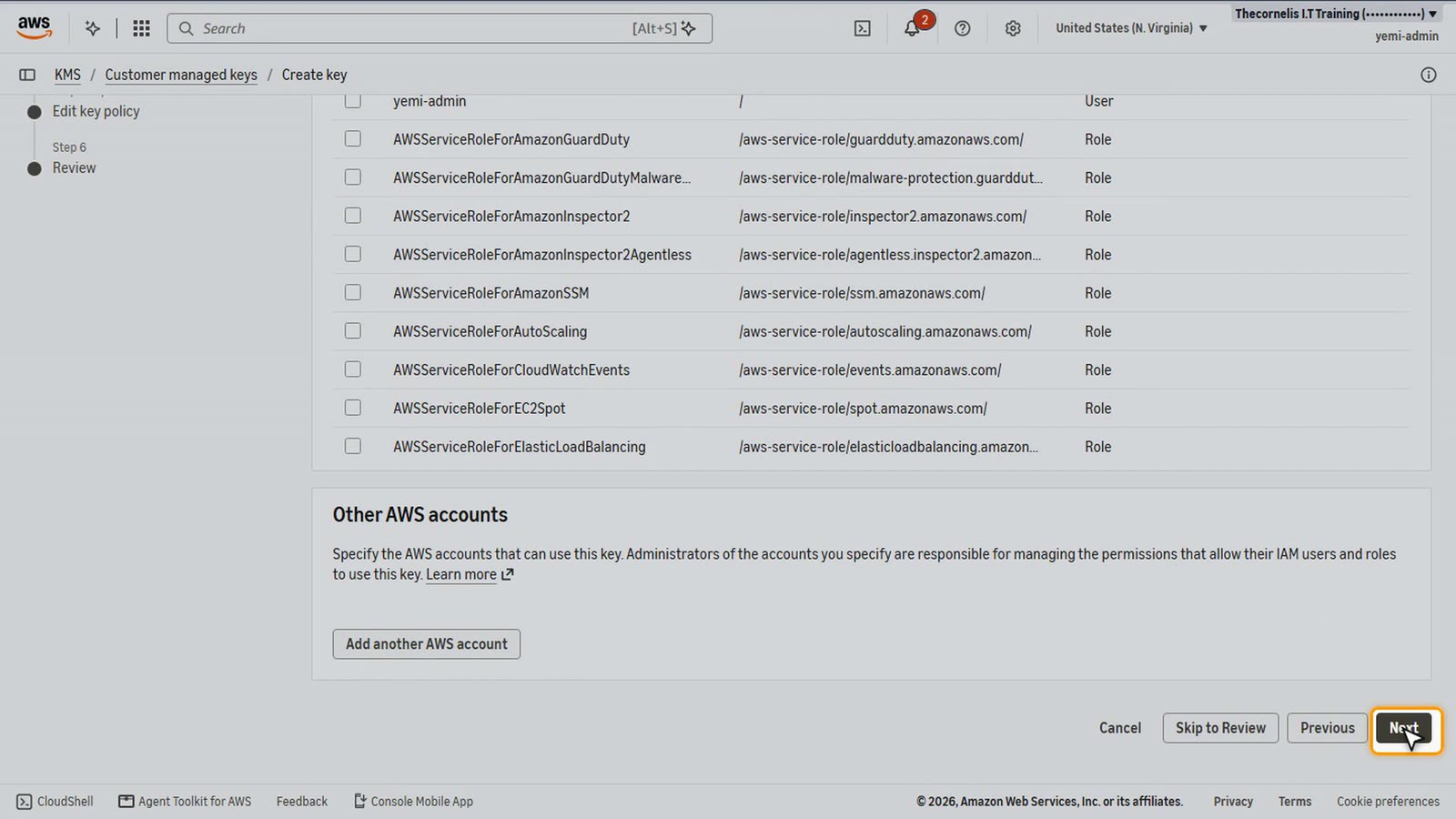
Then Next through the permission pages. Our admin user keeps control of the key.
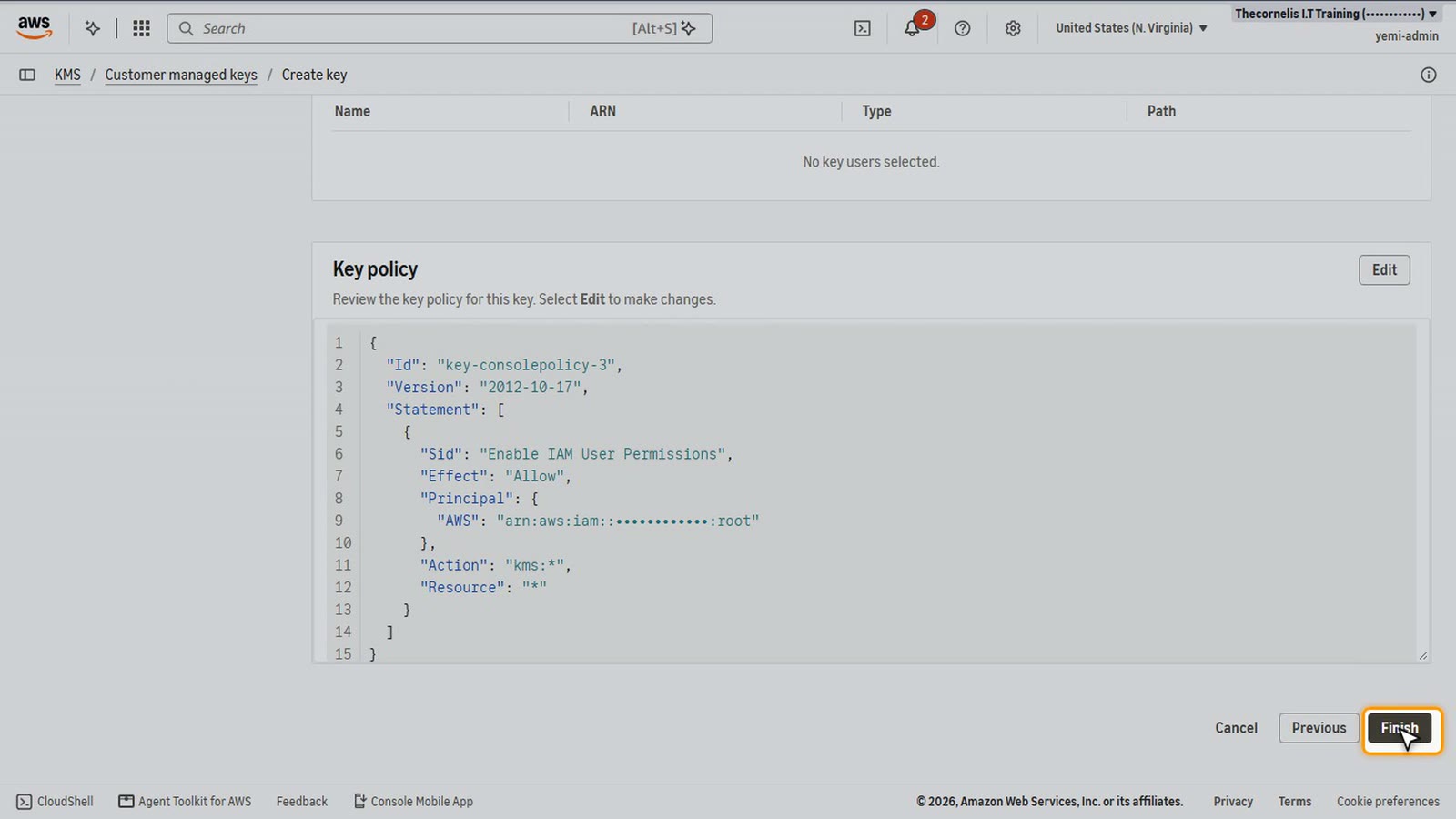
Review, and choose Finish.
The research data bucket
Now the bucket for the research data. Search for S3, and open it.
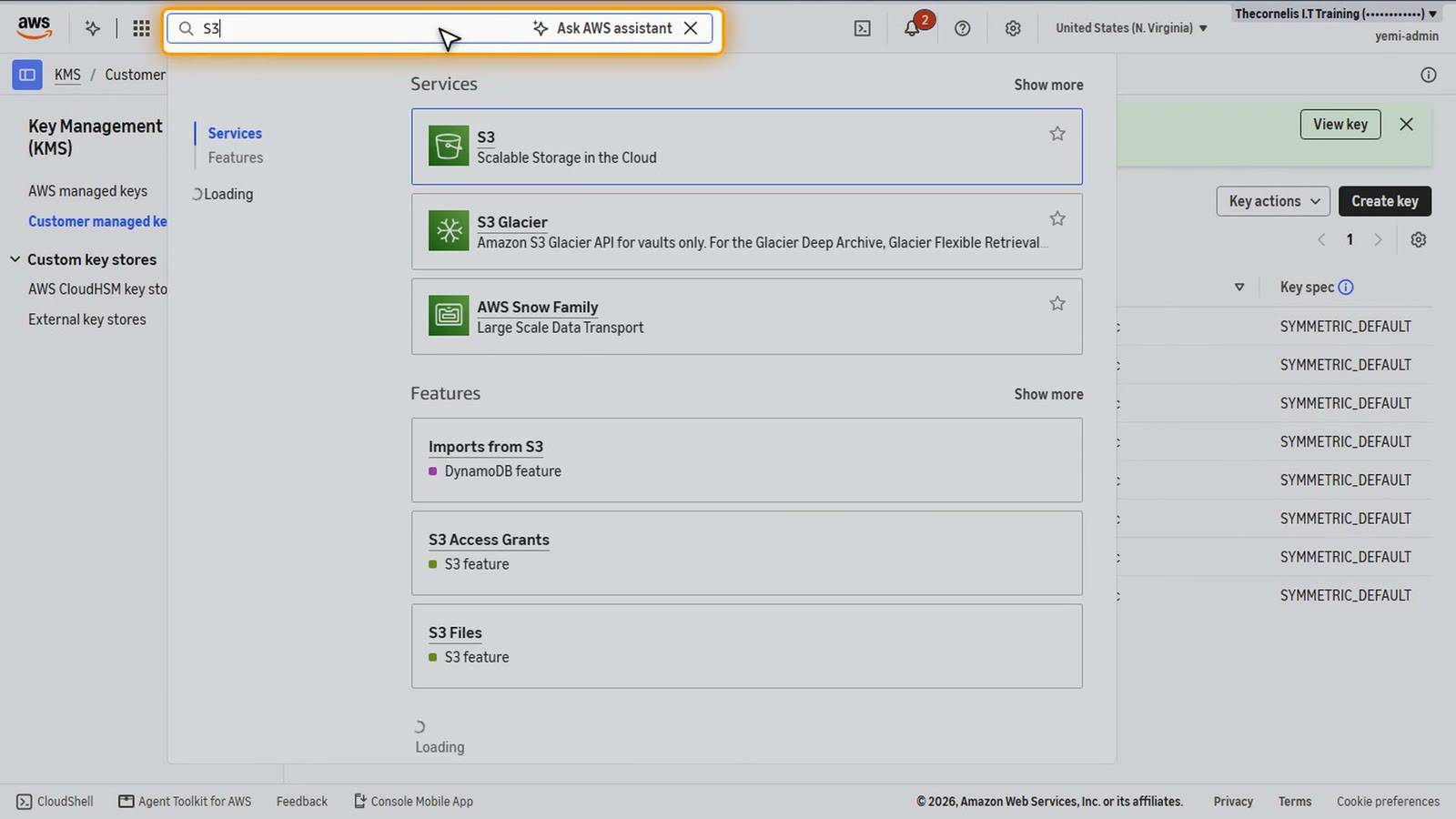
Choose Create bucket.
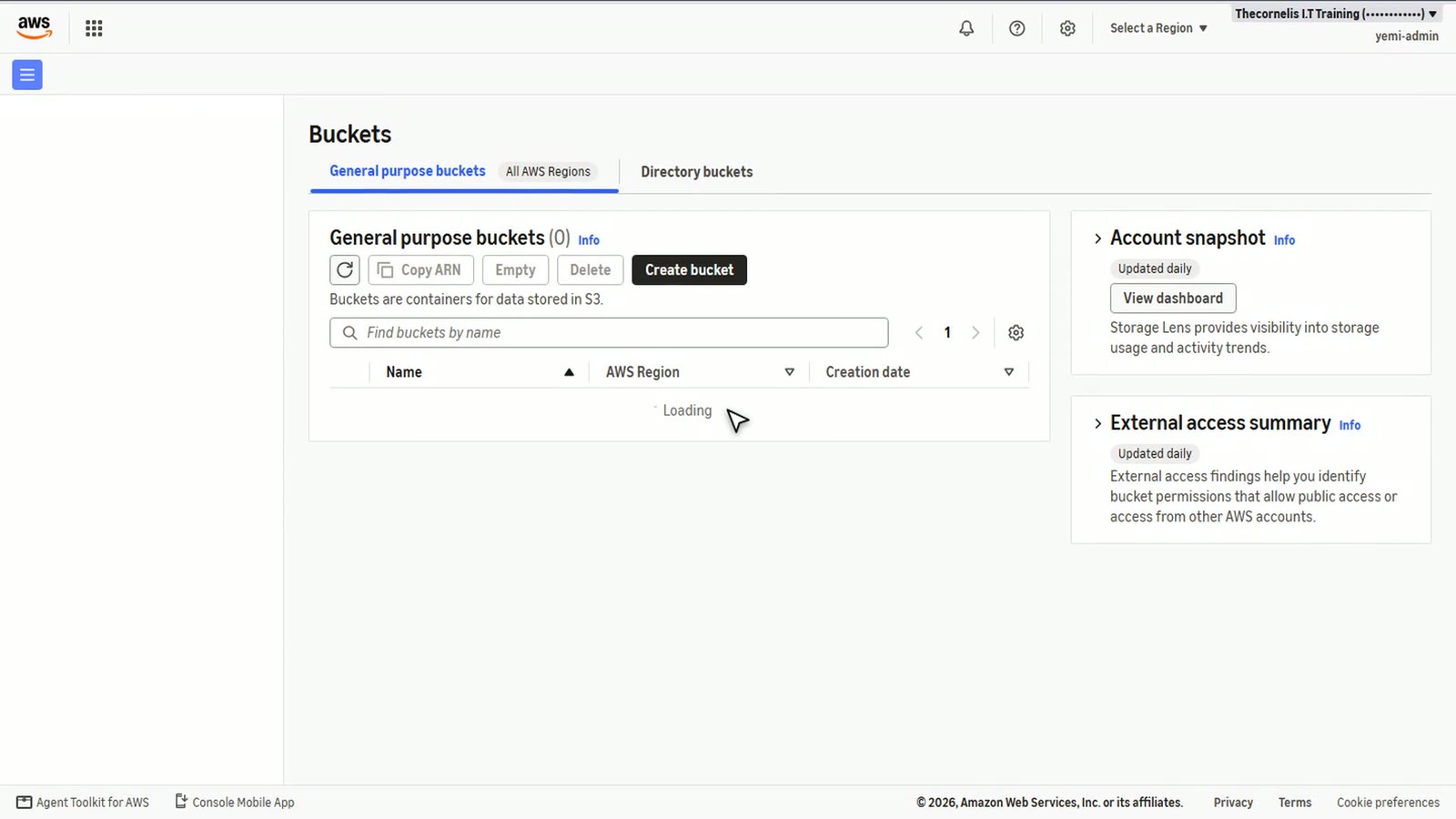
Give it a name. Bucket names are shared by everyone on AWS, so yours must be different.
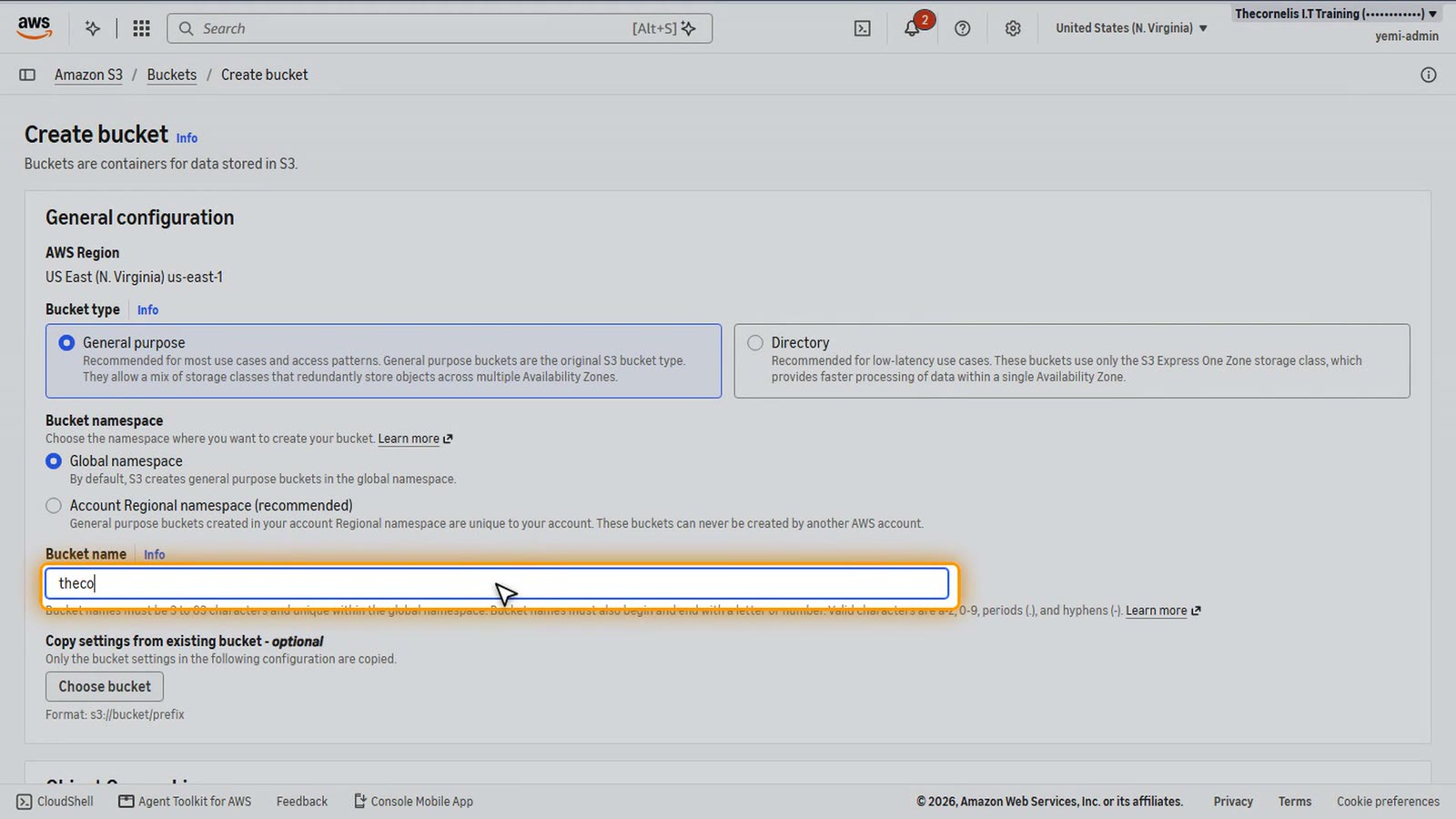
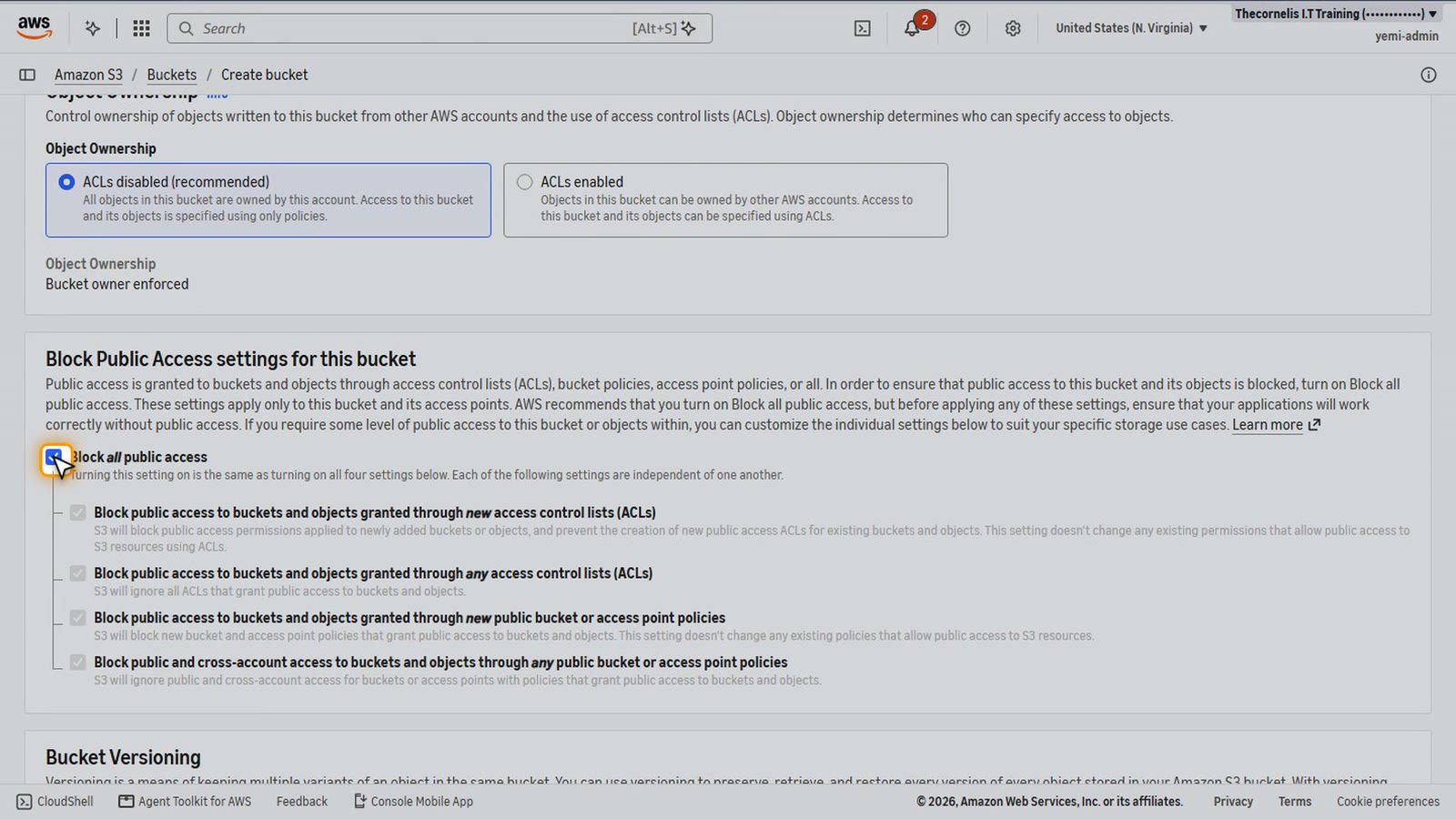
Keep Block all public access on. Research data is never public.
Turn on Bucket Versioning. It keeps old versions of every file, and S3 replication needs it. We'll use replication to move this data.
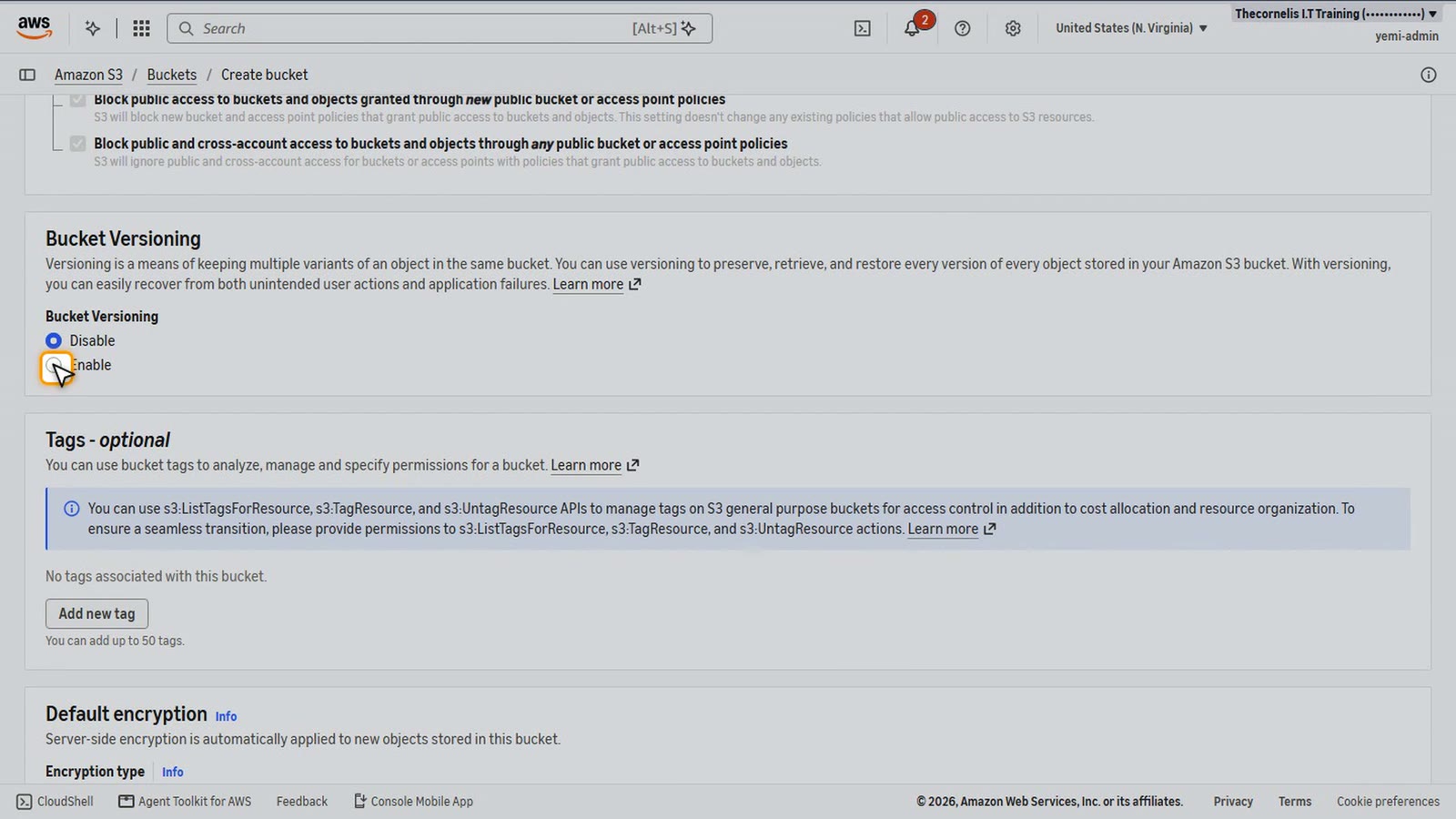
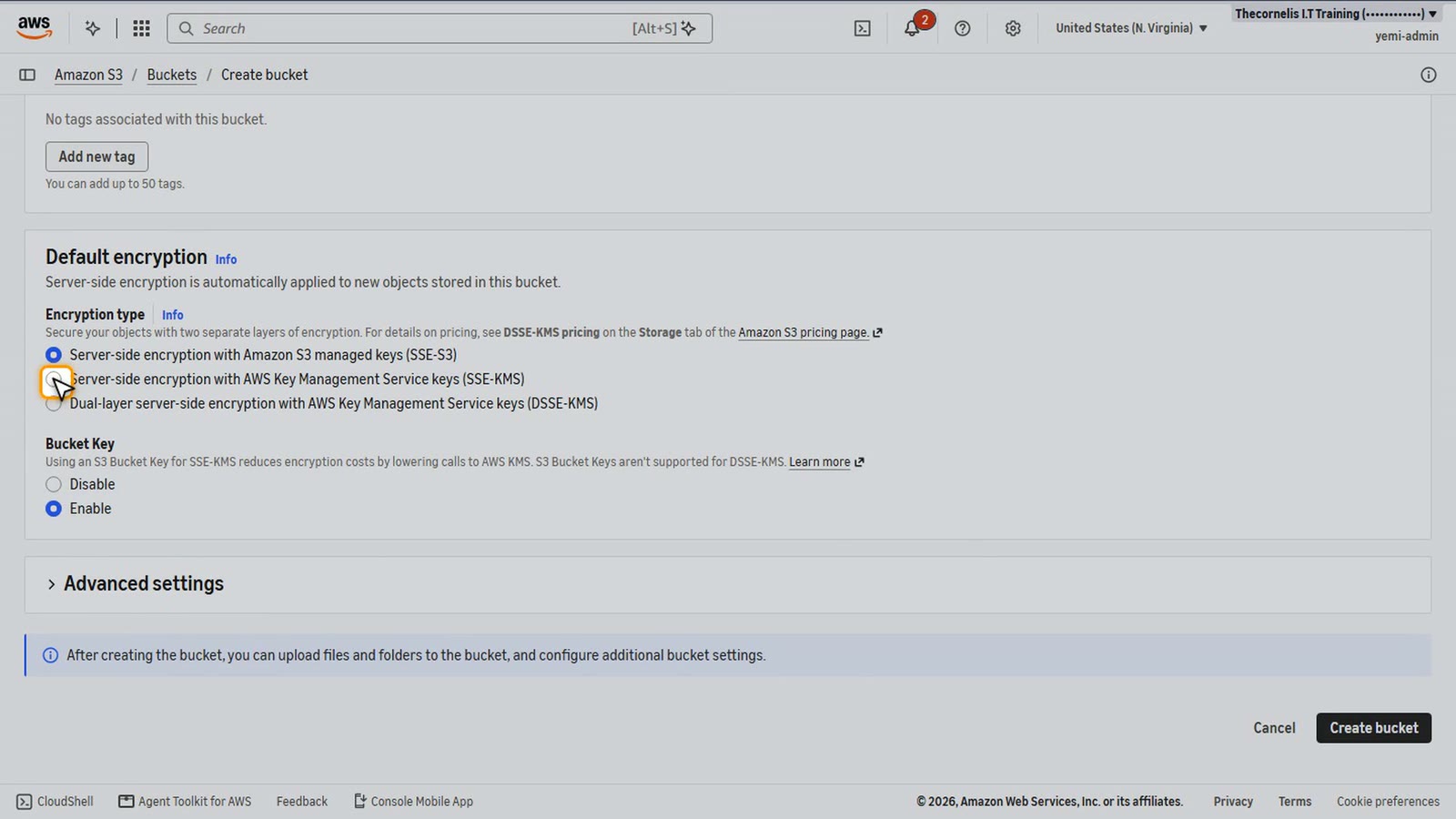
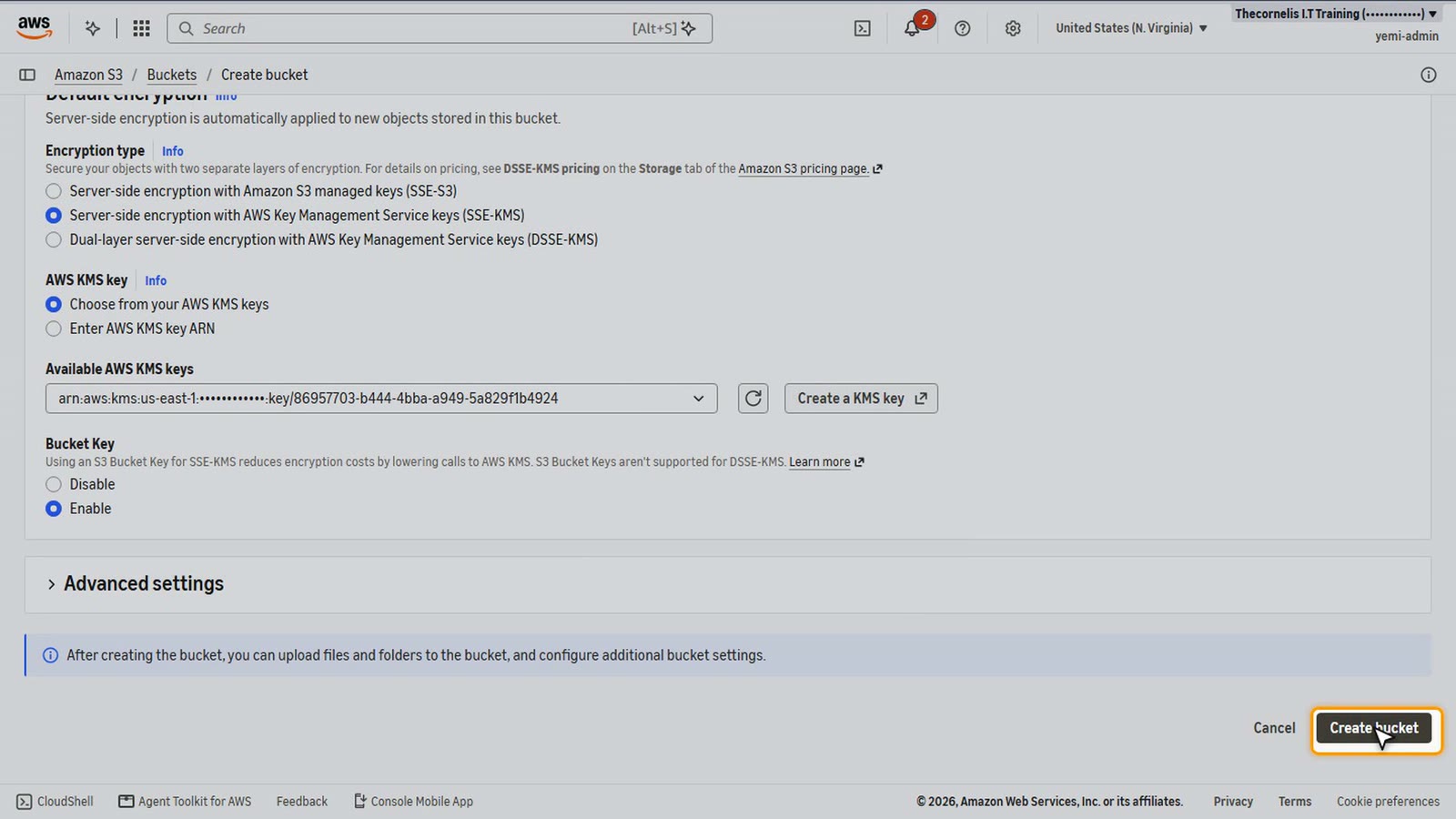
For Default encryption, choose server-side encryption with AWS KMS keys.
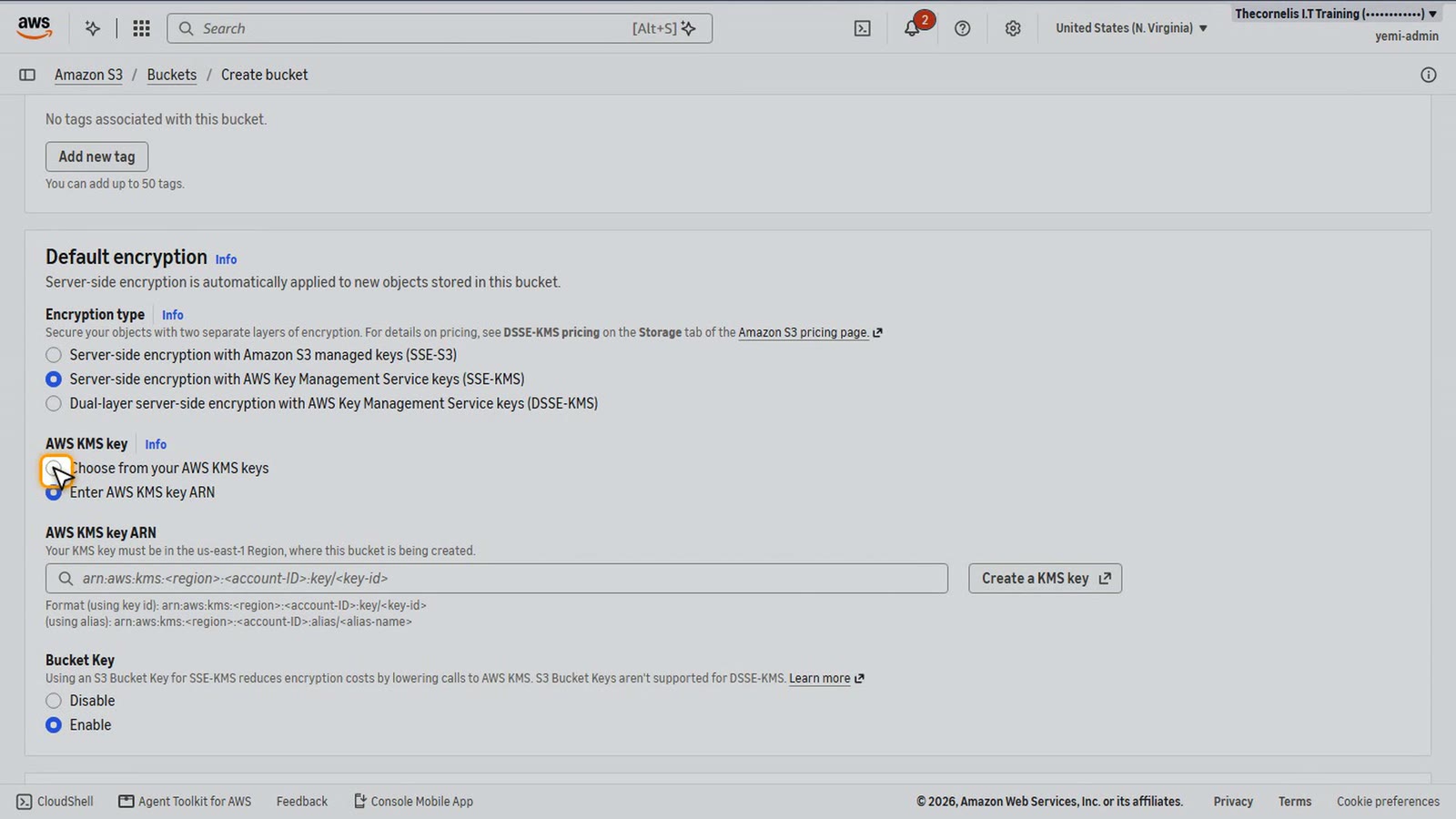
Choose from your KMS keys, and pick the research data key we just made.
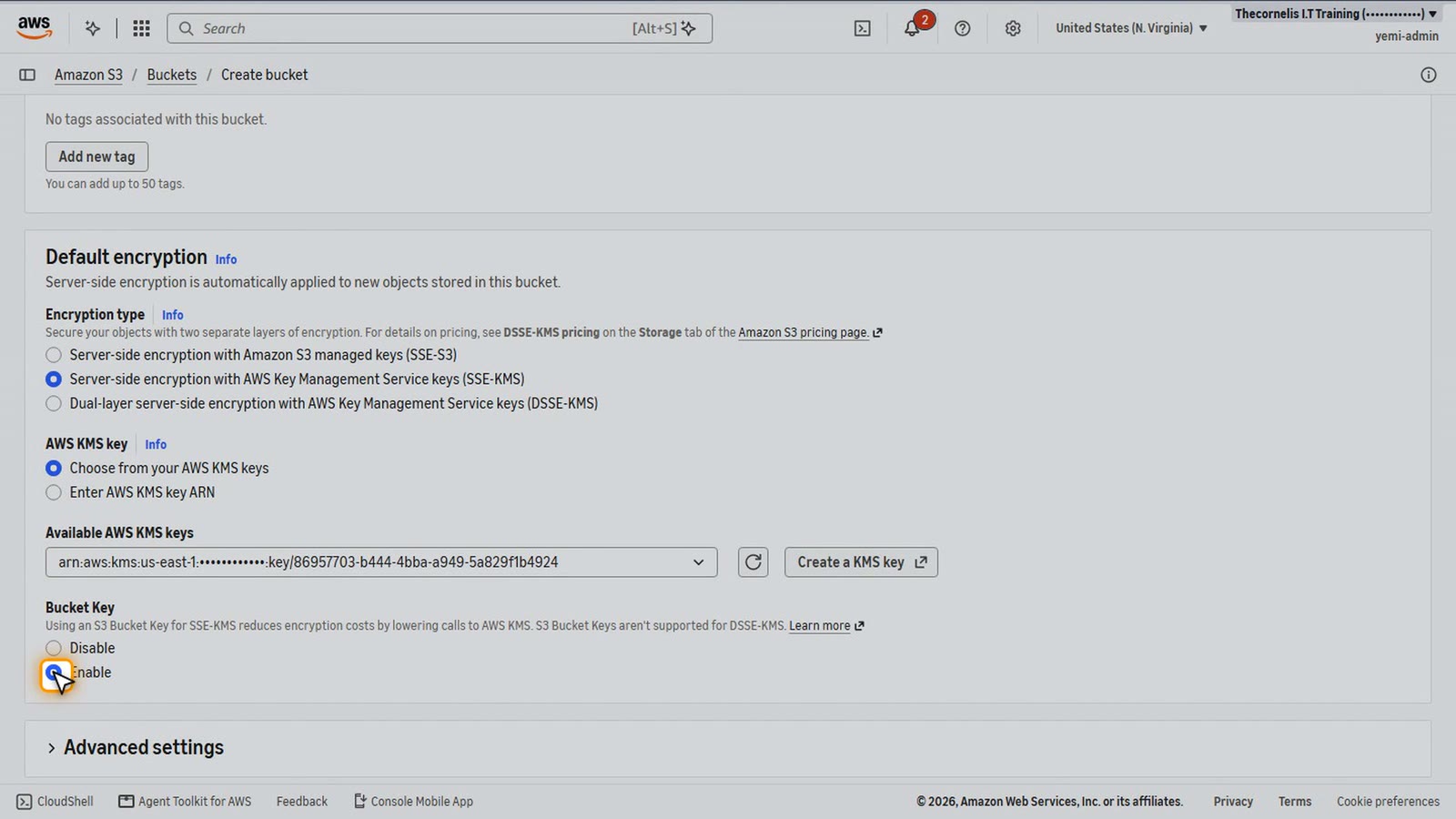
Keep the bucket key enabled. It cuts the number of KMS calls, and the cost.
Choose Create bucket.
Upload the research data
Now we upload the research data from the terminal. First, a look at the files. Three small sample files. Made-up data, for the course.
ls lessons/files/research-data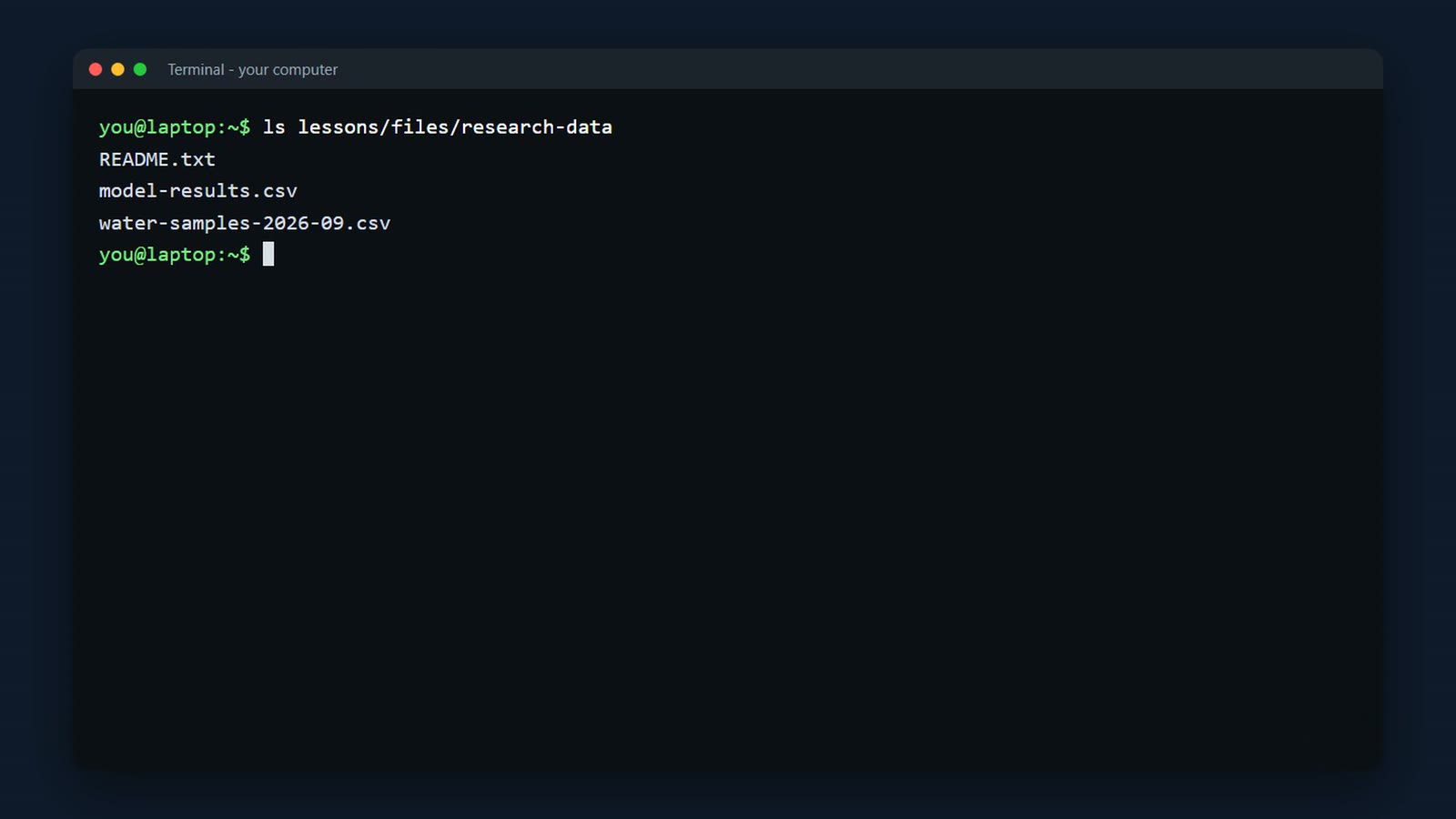
aws s3 cp copies them. The source folder, then the bucket, s3 colon slash slash and its name. Minus minus recursive copies the whole folder. And minus minus profile course uses our course account.
Change the highlighted parts to your own values (copy each ID from your console or from the output of the command before it). --profile course is our AWS CLI profile: use your own profile name, or leave it out.
aws s3 cp lessons/files/research-data s3://<your-bucket-use1>/ --recursive --profile course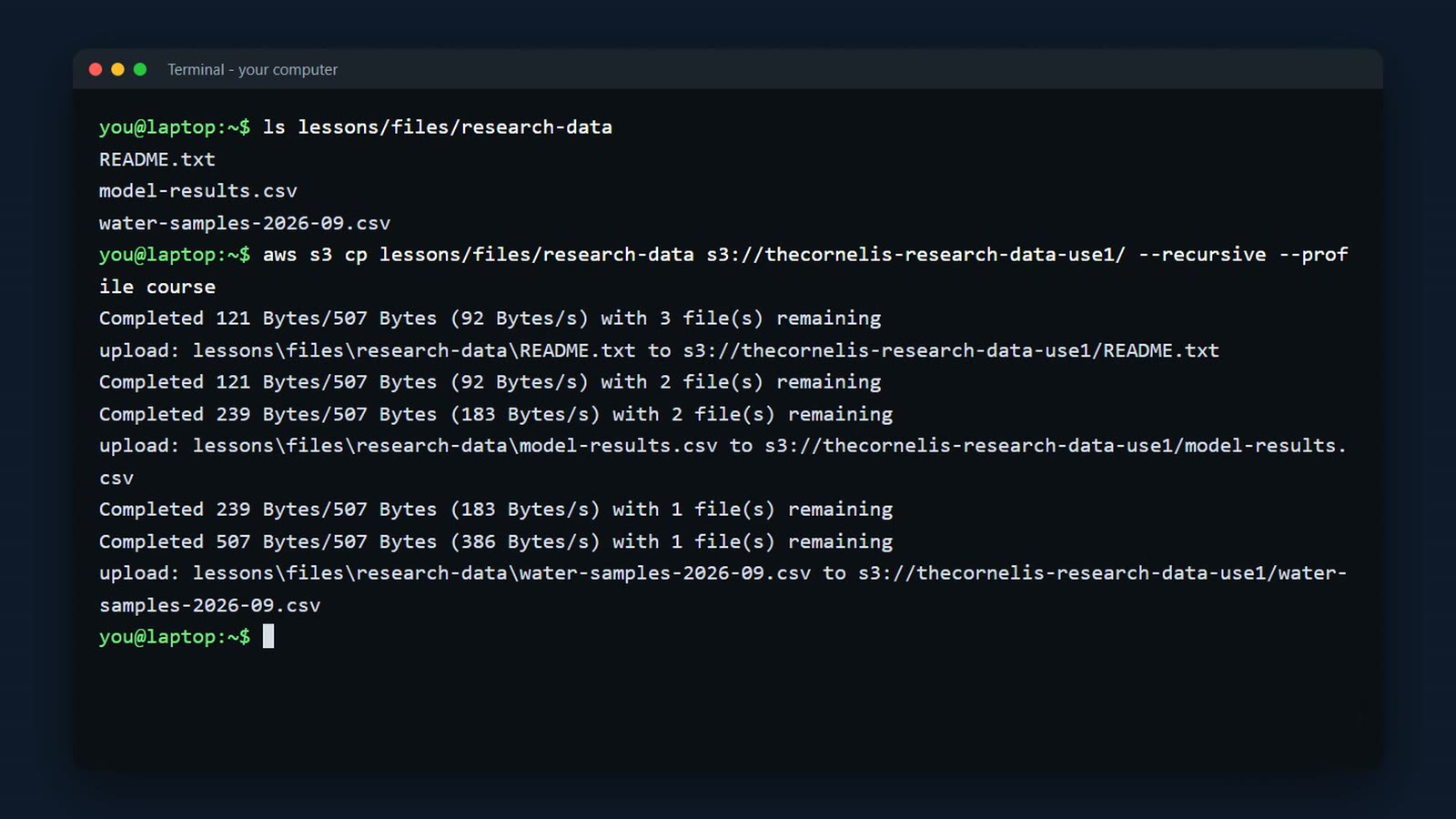
aws s3 ls lists what's in the bucket. All three files are there, and S3 encrypted each one with our key as it arrived.
aws s3 ls s3://<your-bucket-use1>/ --profile course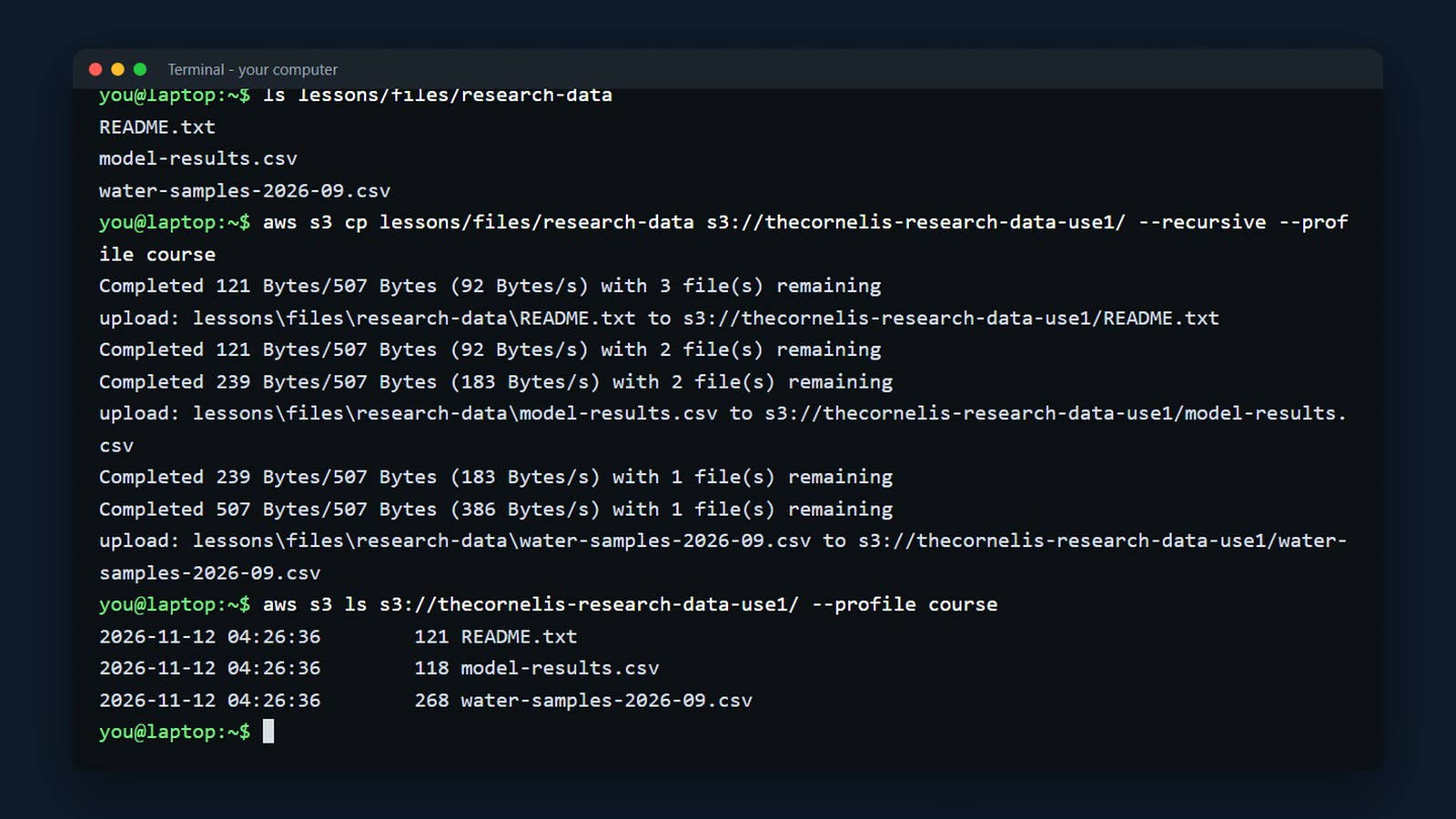
The app server
Next, the research app server. First its security group. In EC2, choose Security Groups.
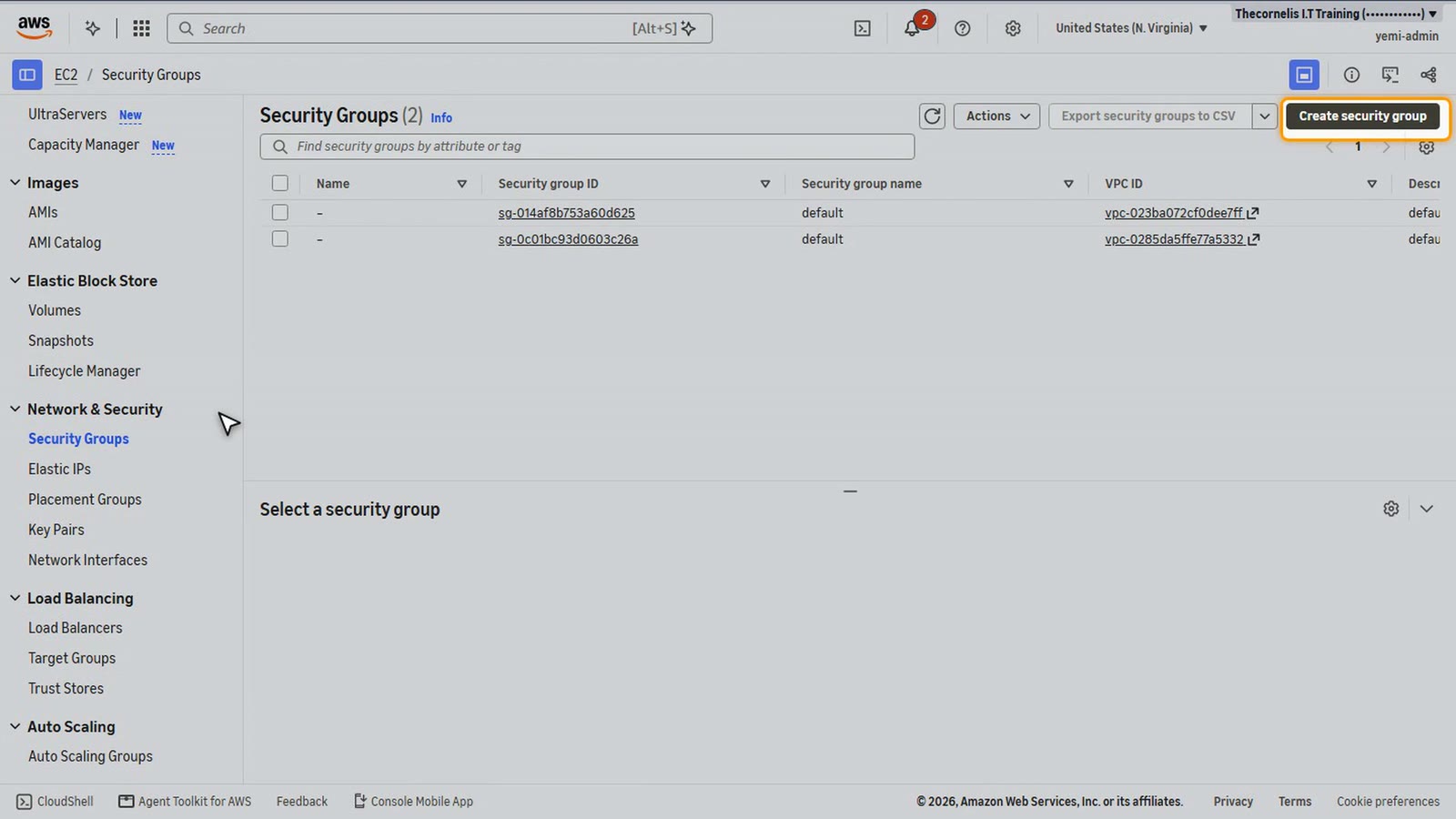
Name it research app S G, with a description.
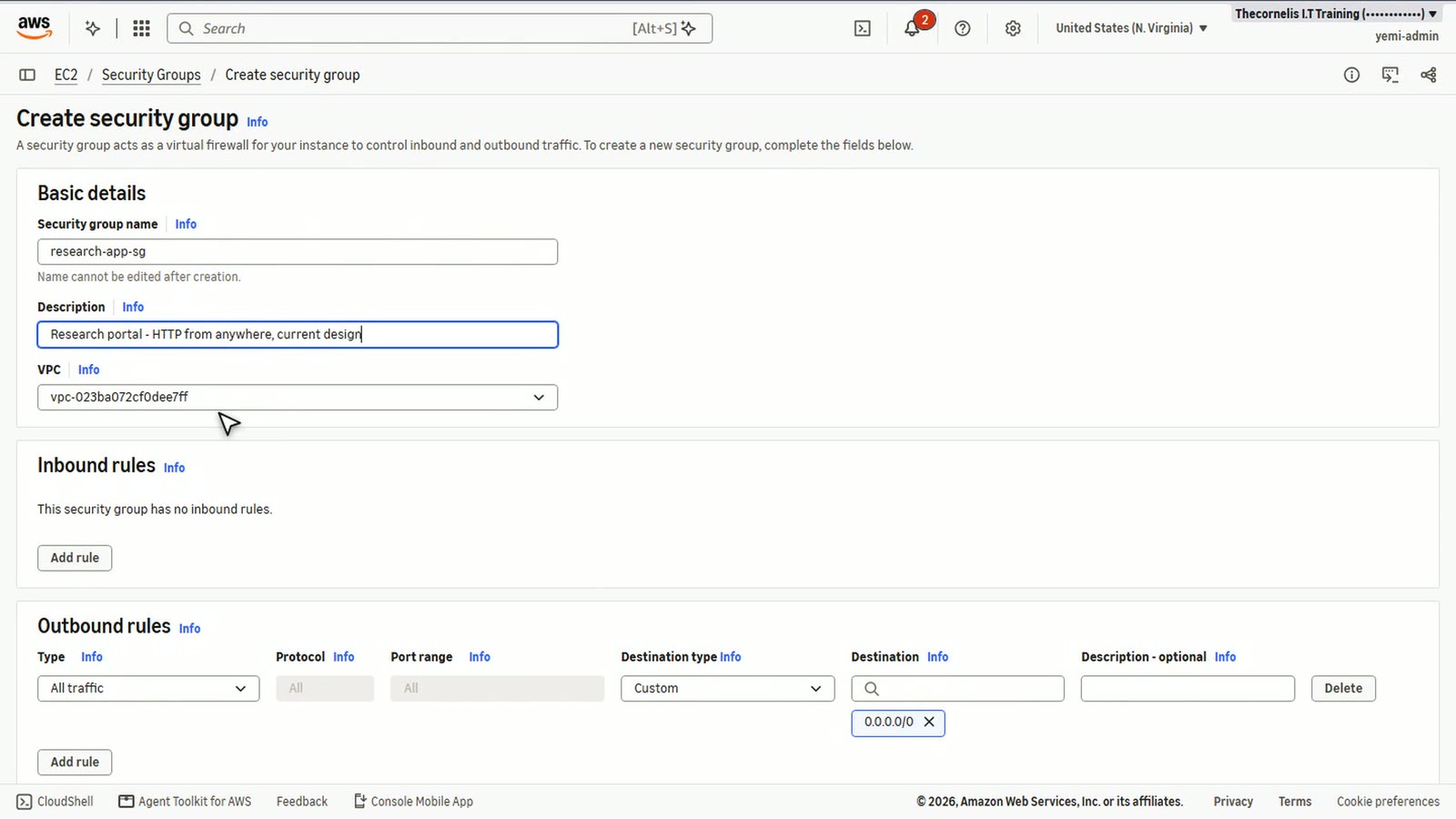
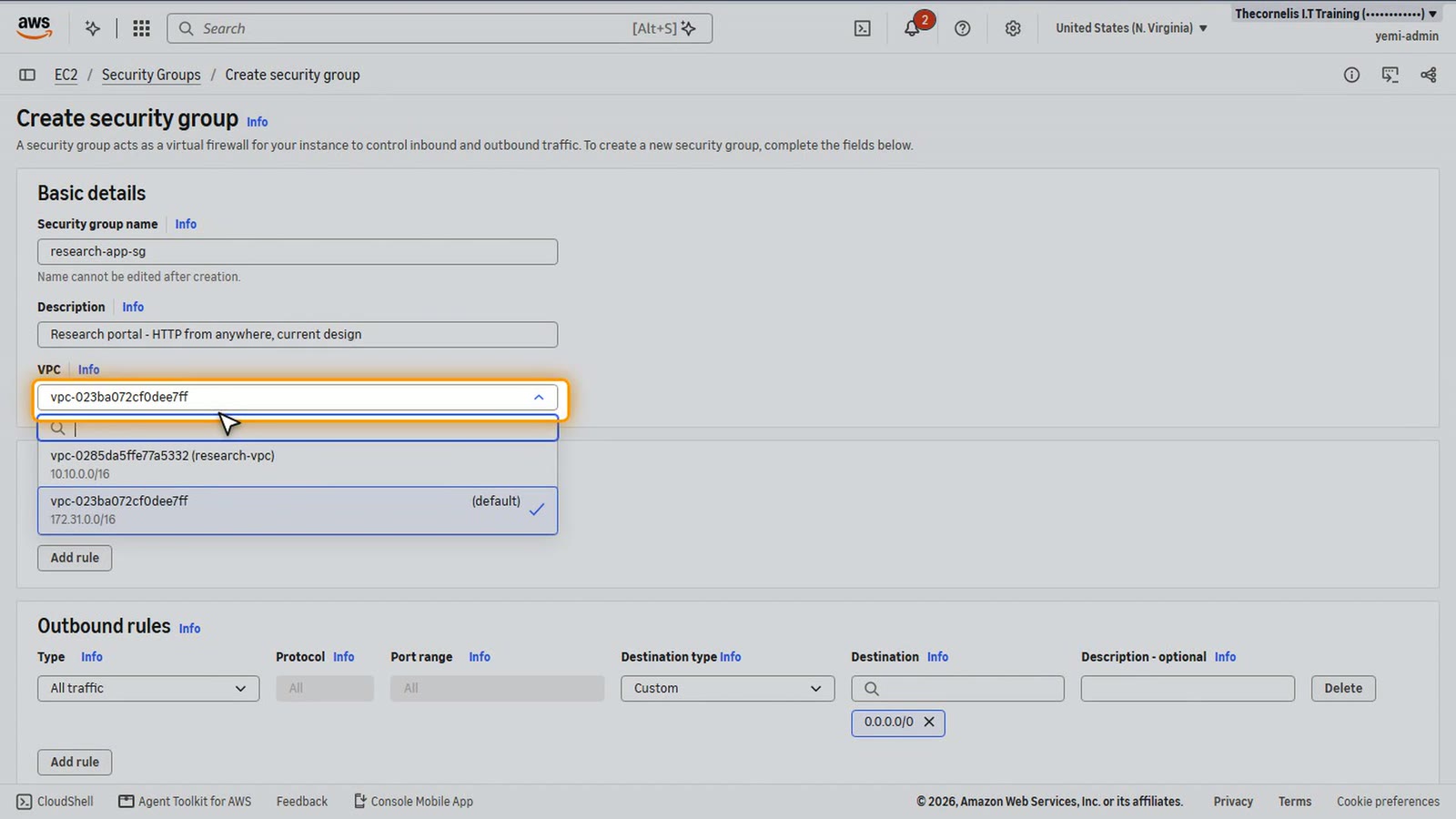
For the VPC, choose research V P C.
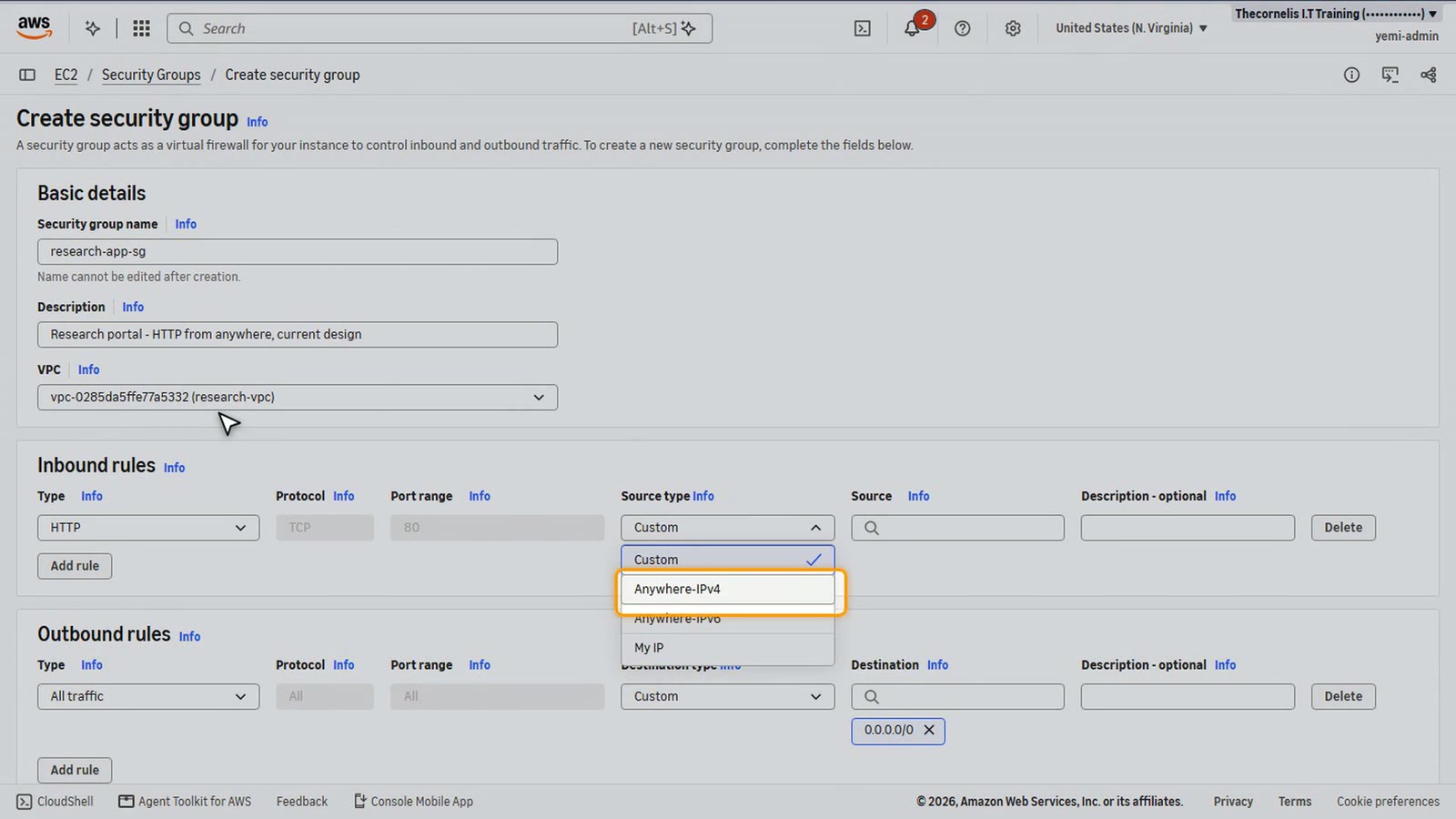
Add an inbound rule for HTTP, from anywhere. That's how the portal works today, open to the internet. In us-east-2, the firewall will decide who gets in.
Choose Create security group.
Now open Instances, and choose Launch instances.
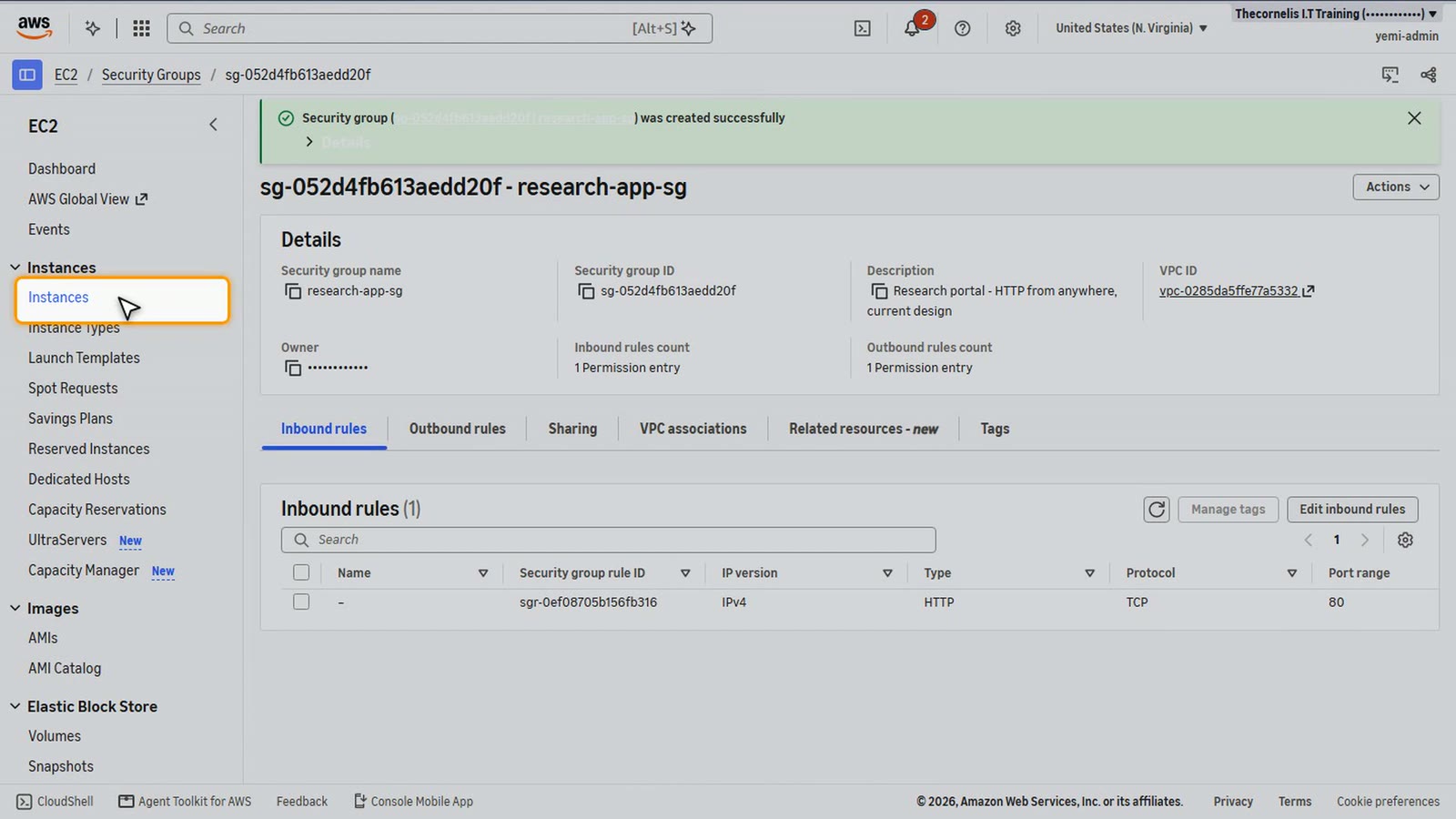
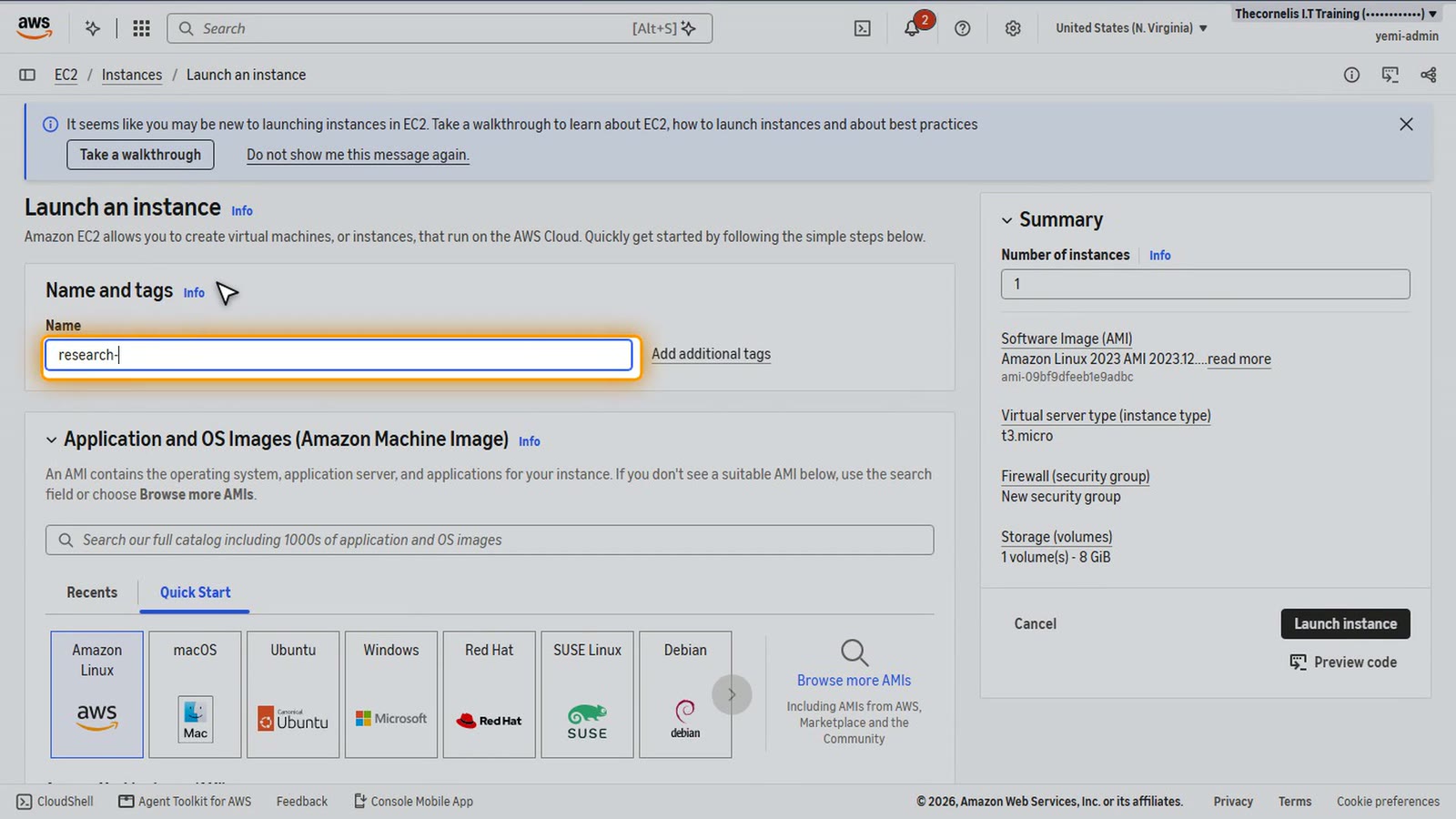
Name it research app. Keep Amazon Linux and the free tier instance type.
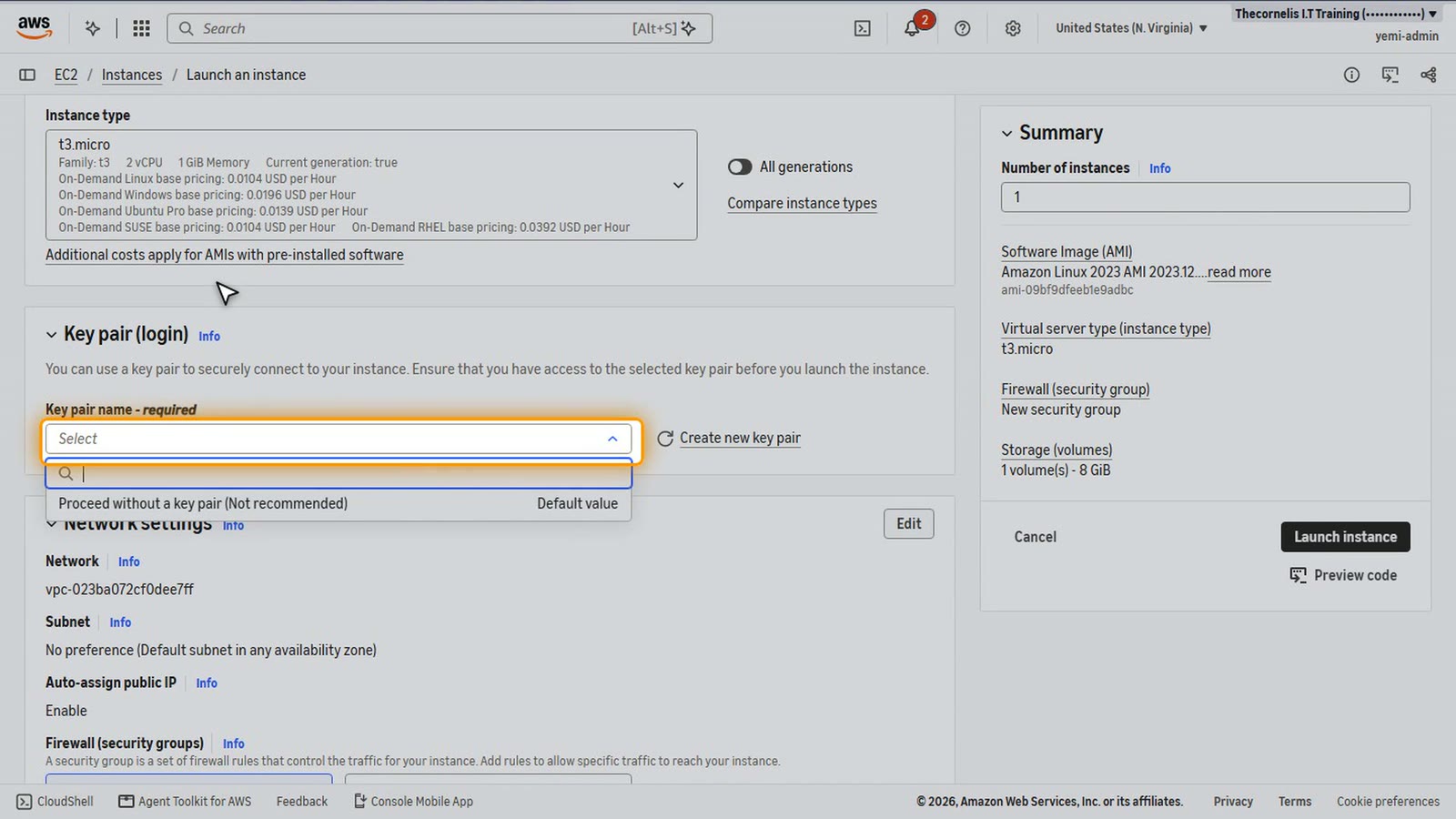
No key pair. Nobody logs in to this server with SSH.
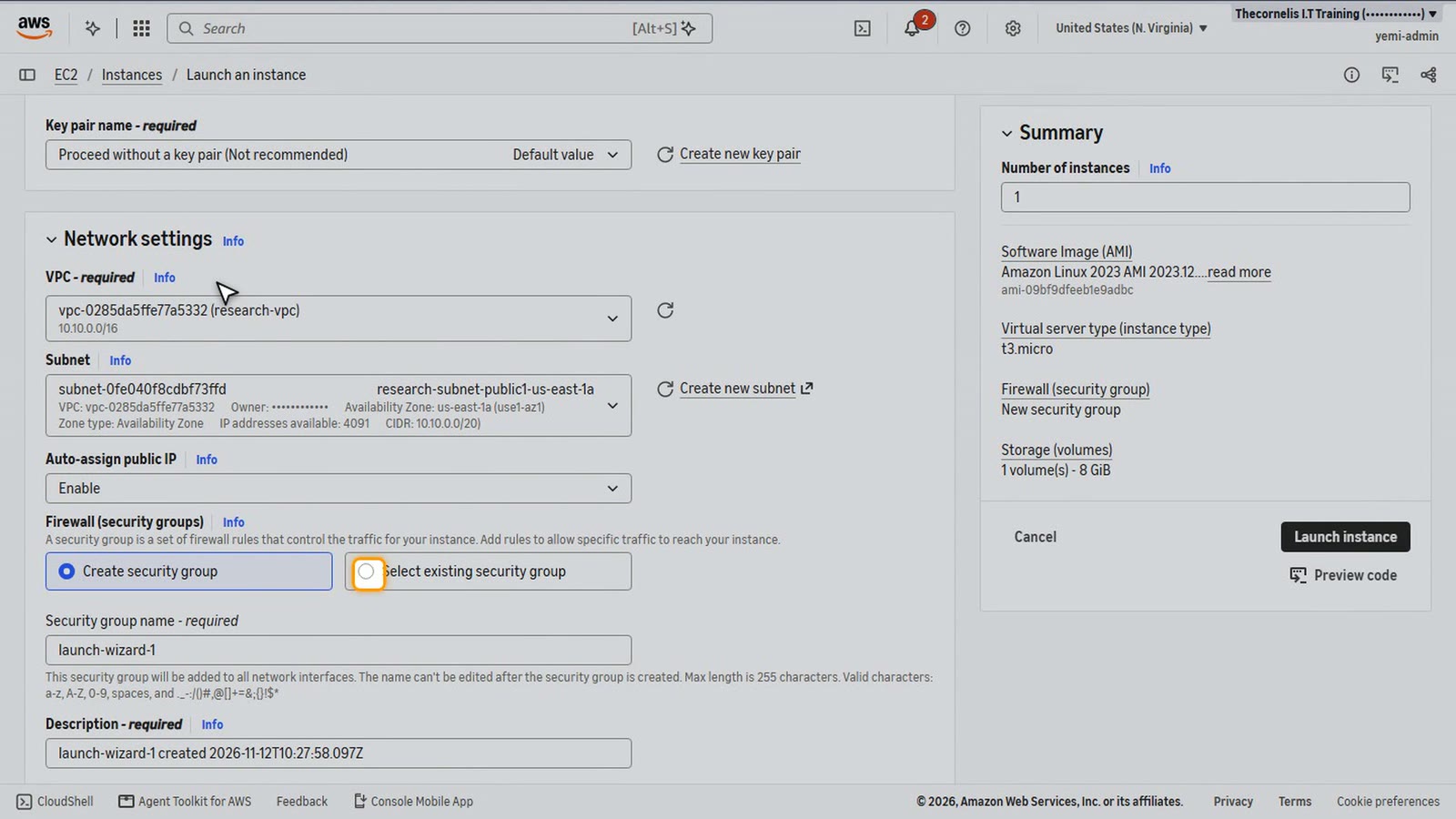
In Network settings, choose Edit. Pick research V P C, and its first public subnet. Turn on Auto-assign public IP, because today the portal is reached directly from the internet.
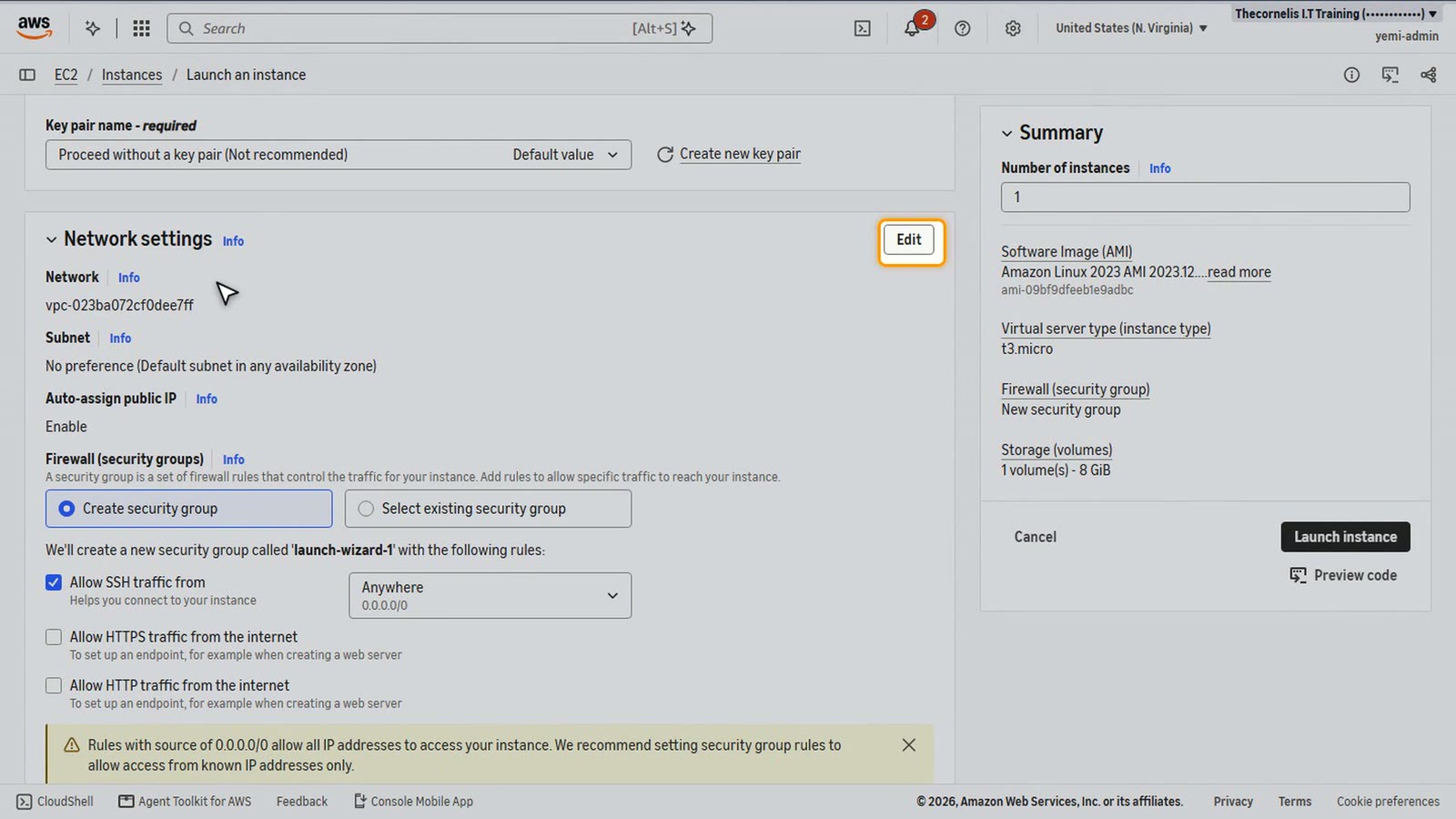
For the firewall, select the existing security group, research app S G.
A separate data volume
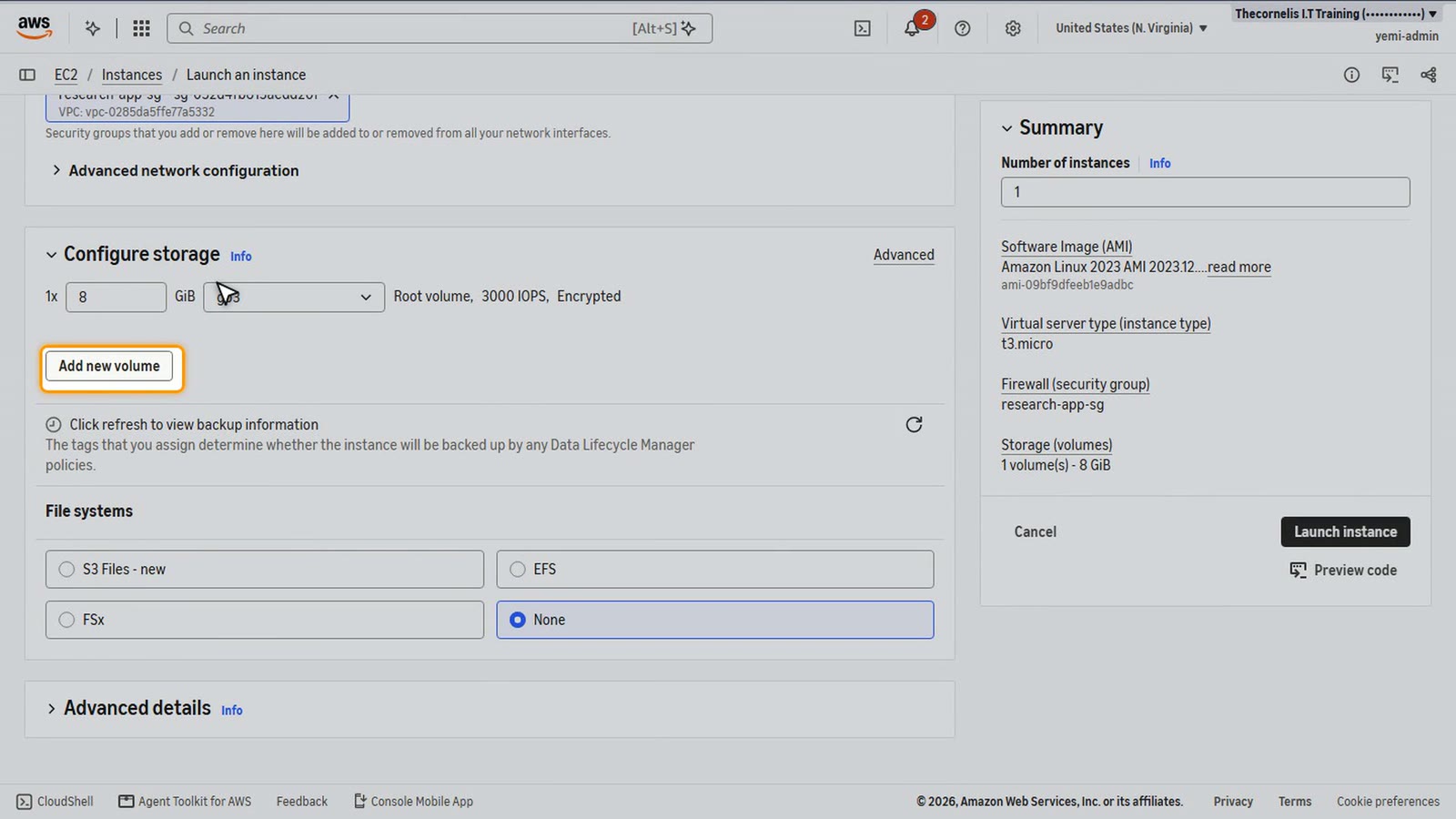
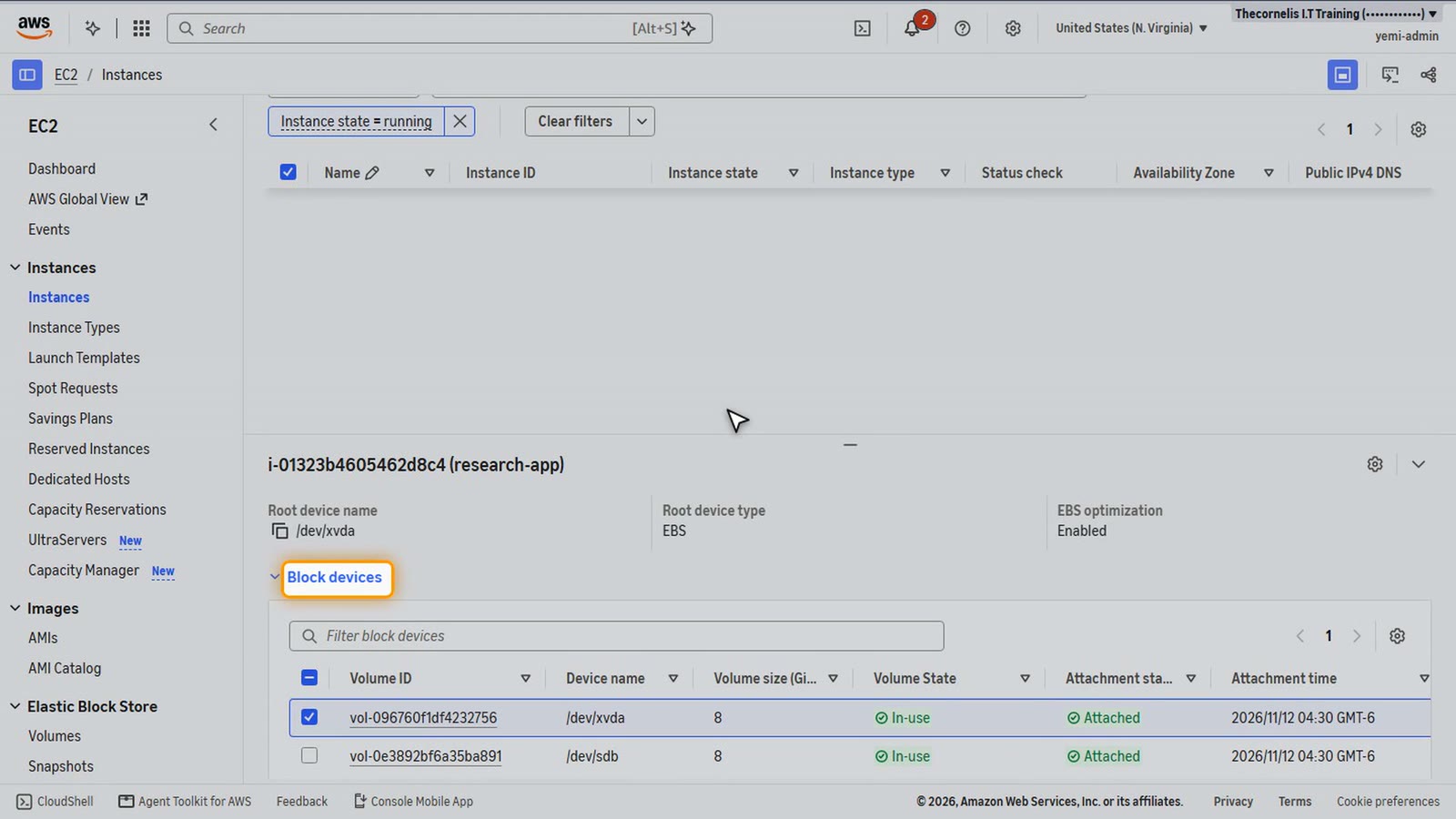
Under Configure storage, choose Add new volume. The research data lives on this second volume, apart from the operating system. That makes it easy to snapshot and move.
The user data script
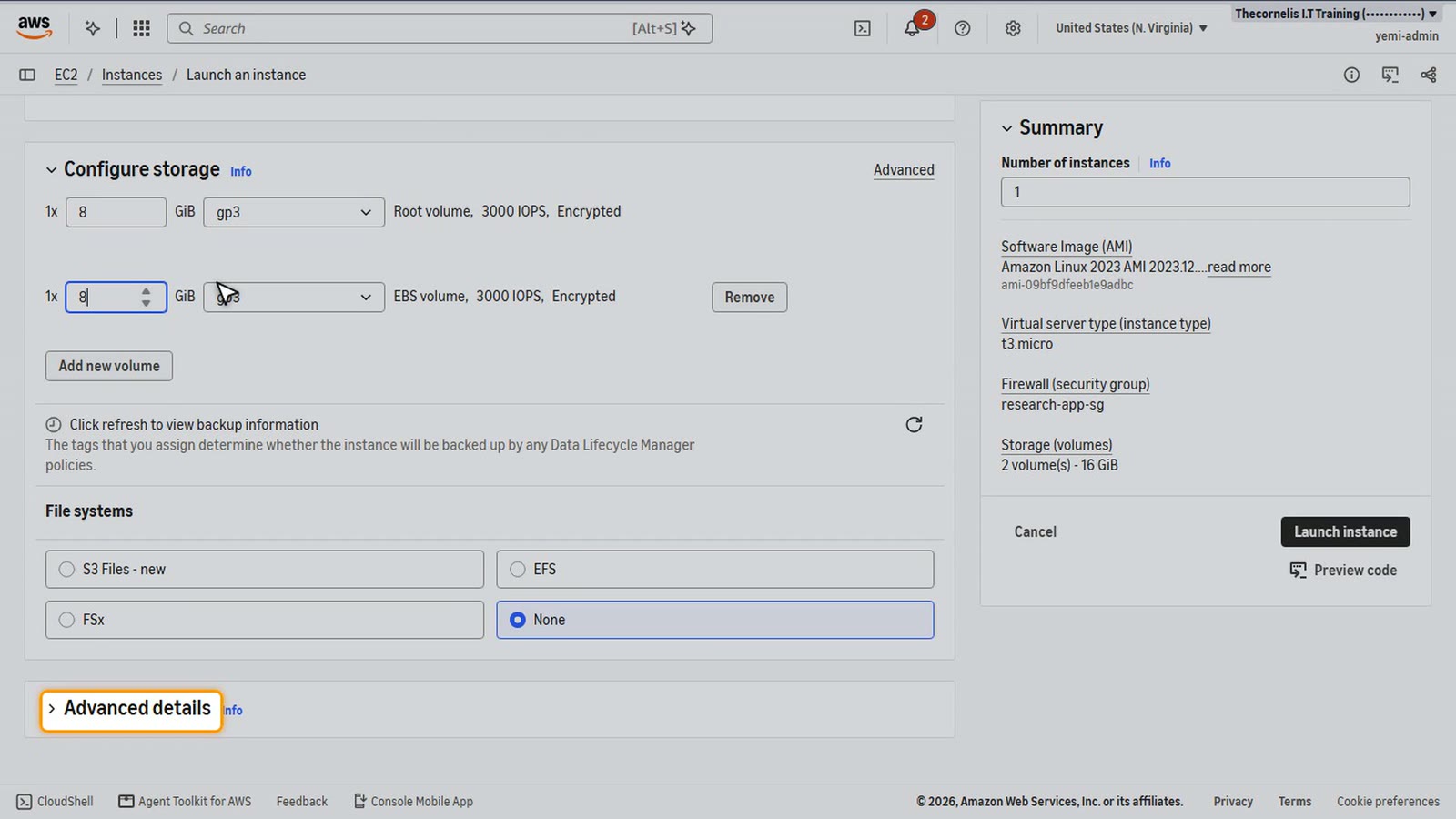
Open Advanced details, and scroll to User data at the bottom.
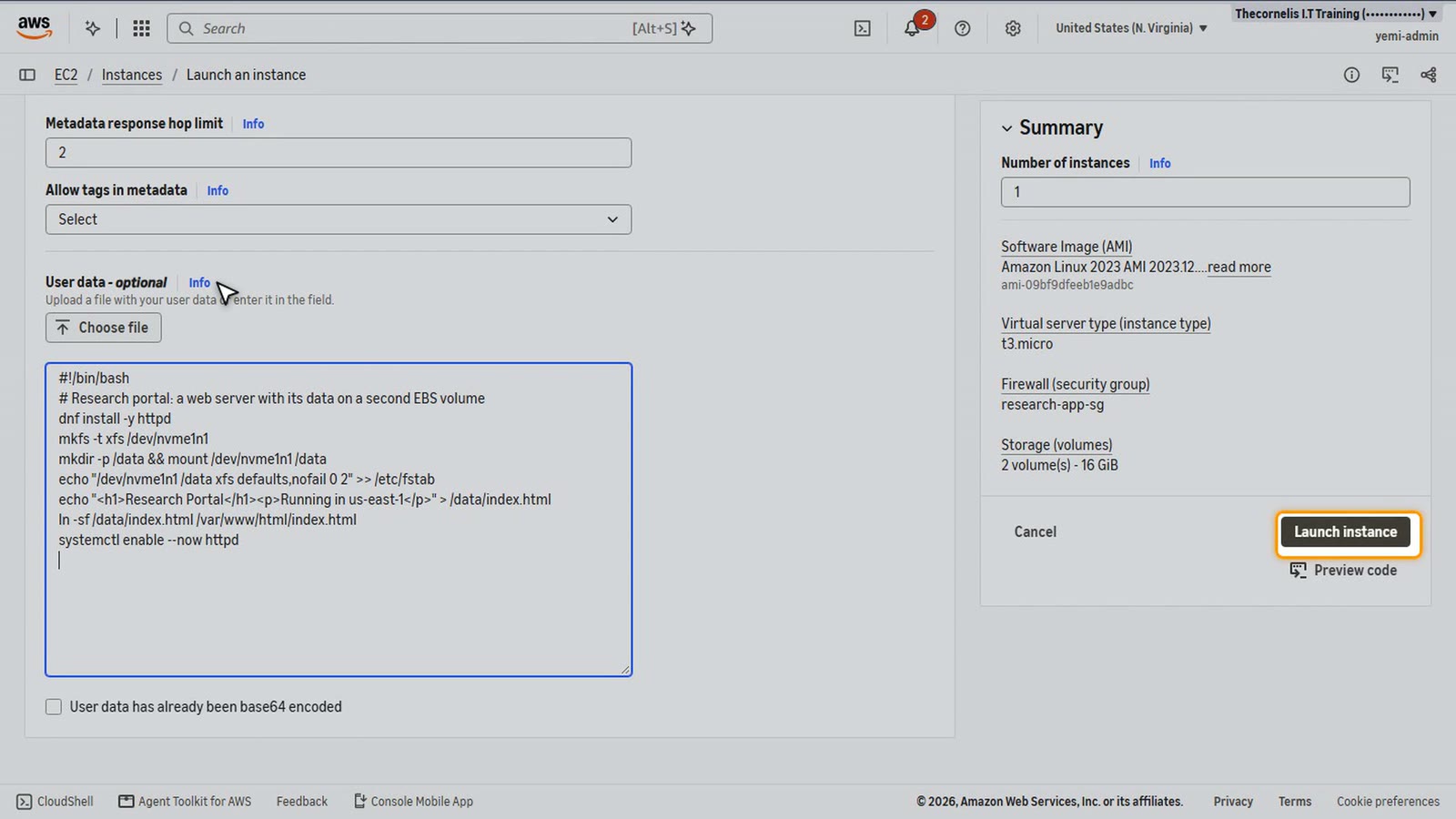
Paste this script. It runs once, as root, when the server first boots. Let's go through it line by line.
#!/bin/bash
# Research portal: a web server with its data on a second EBS volume
dnf install -y httpd
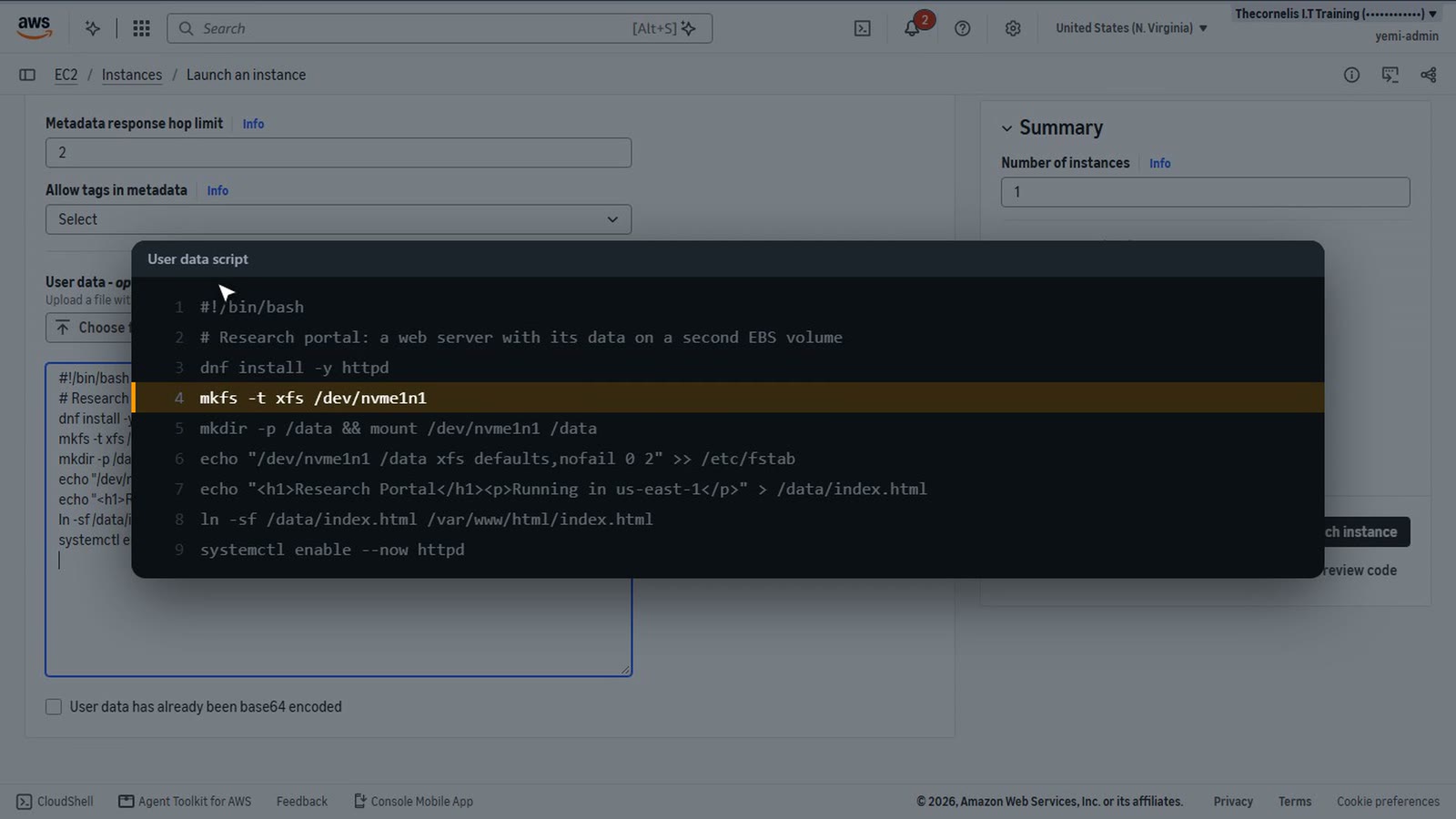
mkfs -t xfs /dev/nvme1n1
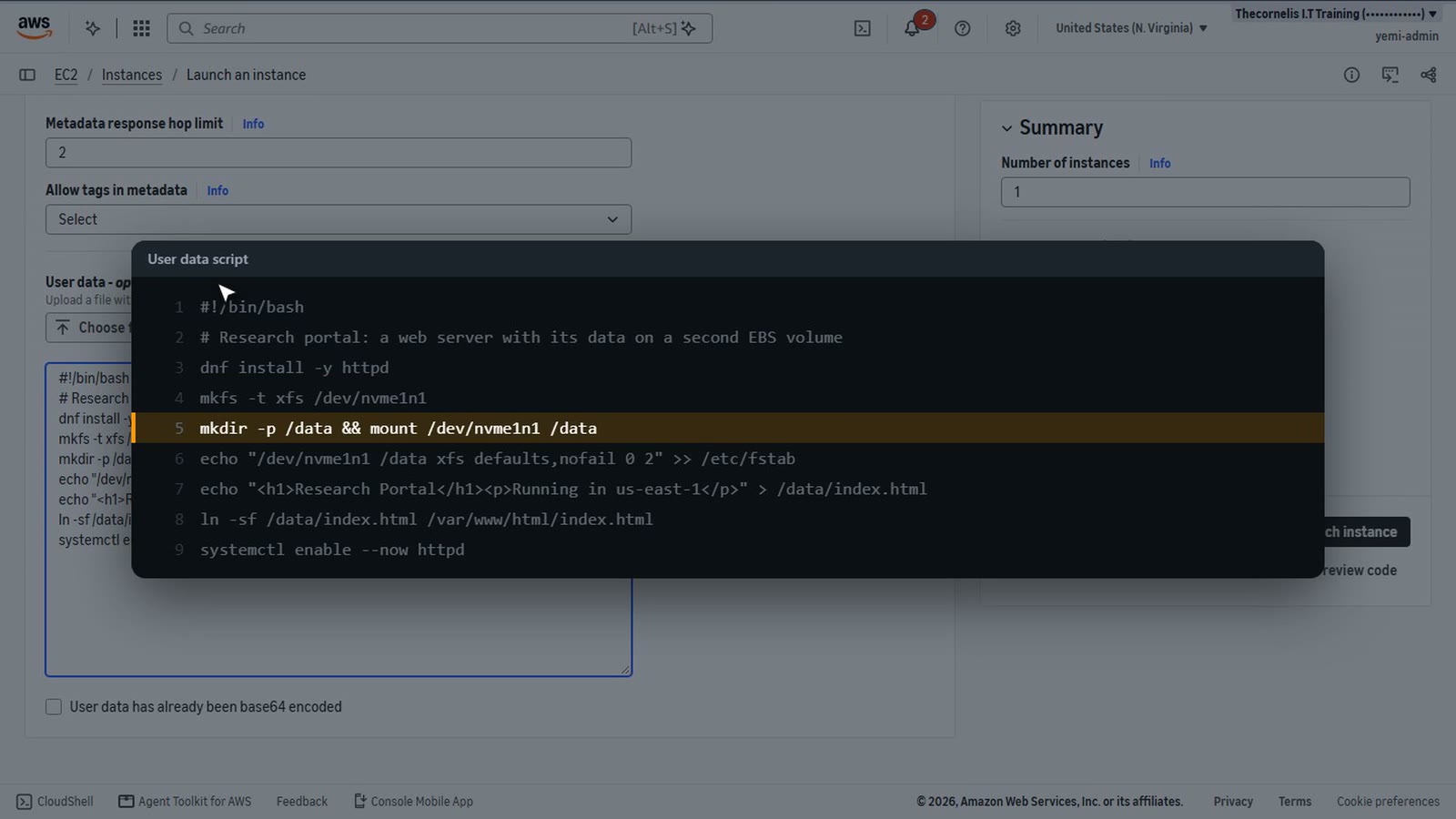
mkdir -p /data && mount /dev/nvme1n1 /data
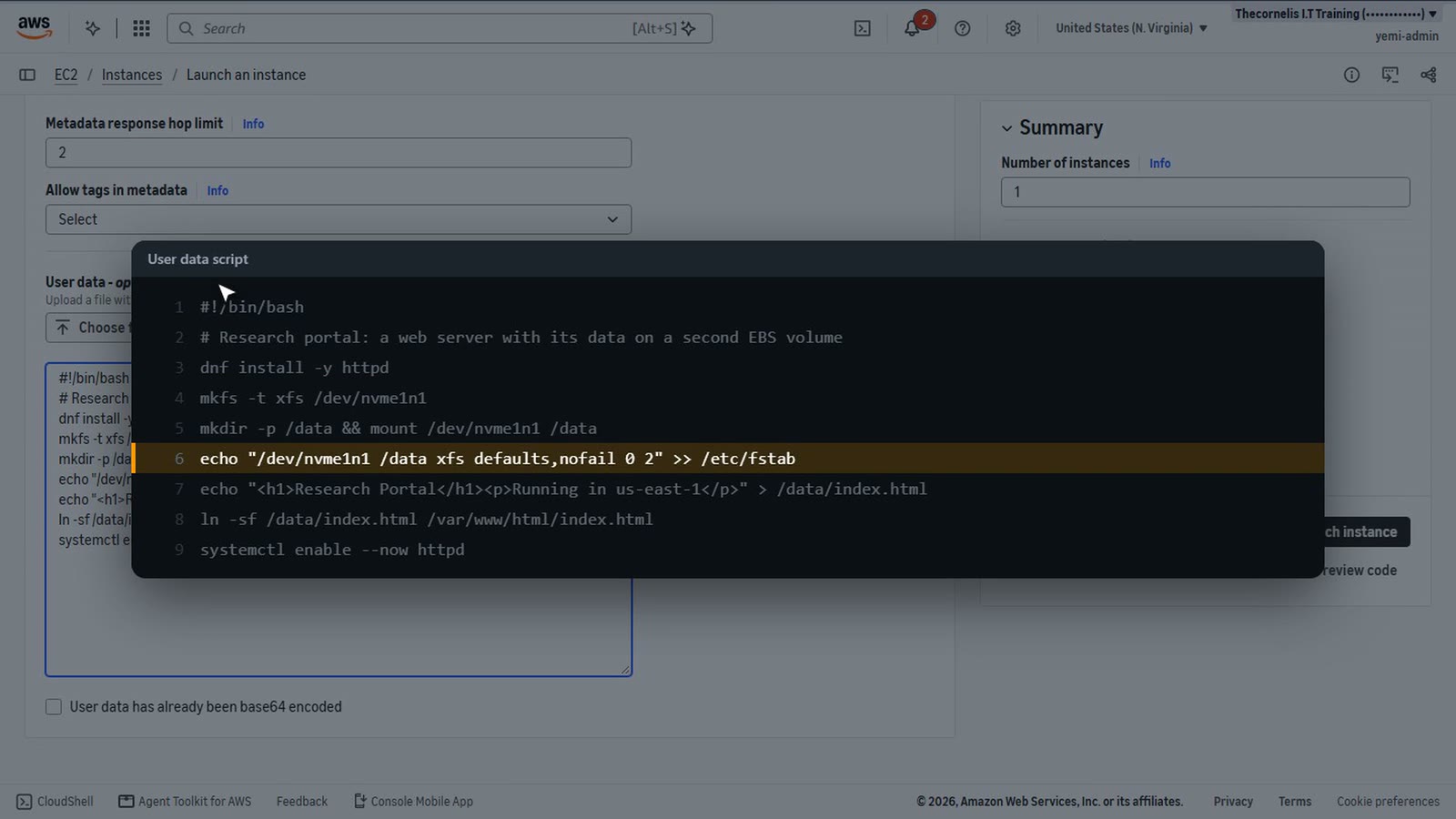
echo "/dev/nvme1n1 /data xfs defaults,nofail 0 2" >> /etc/fstab
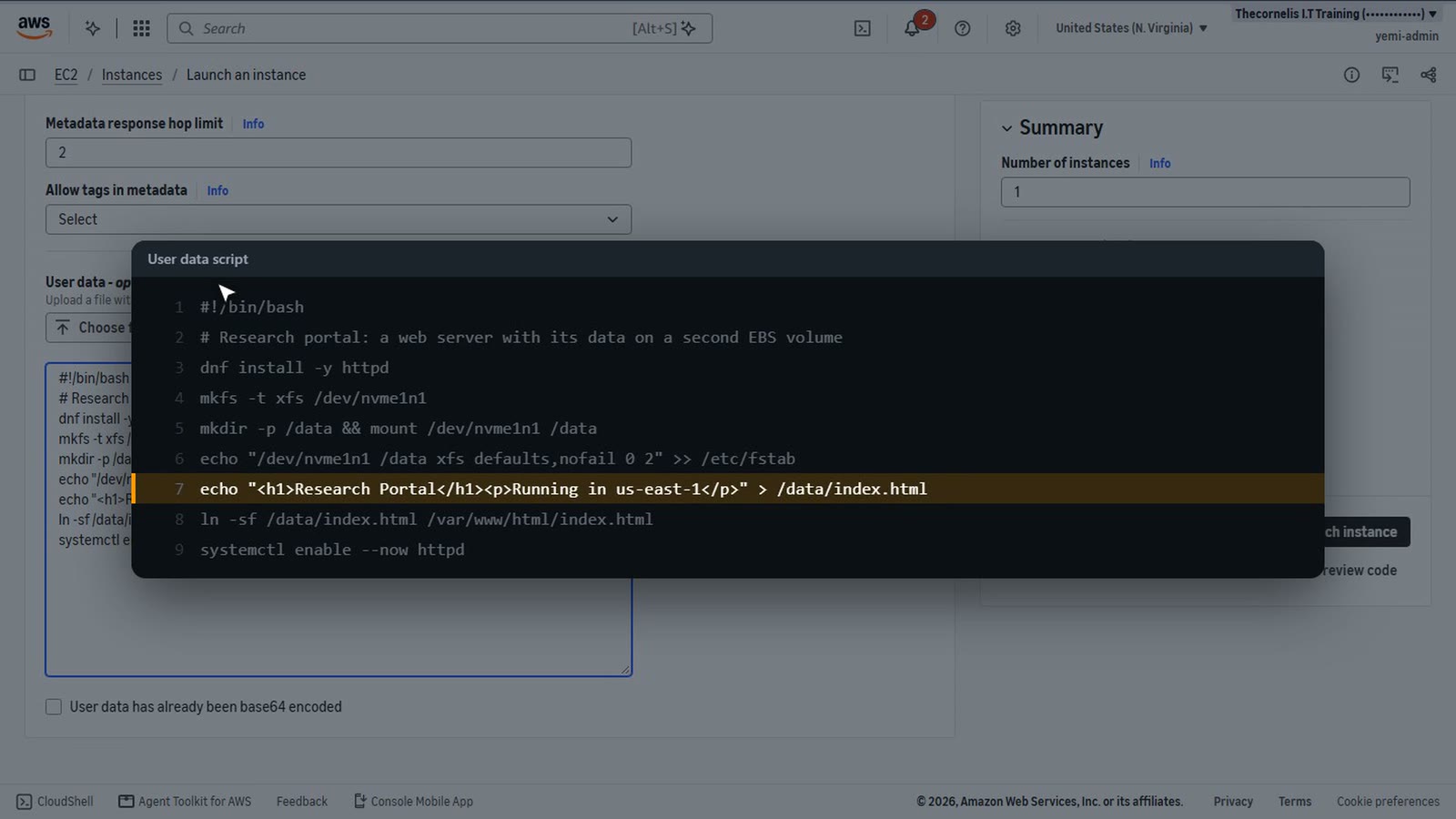
echo "<h1>Research Portal</h1><p>Running in us-east-1</p>" > /data/index.html
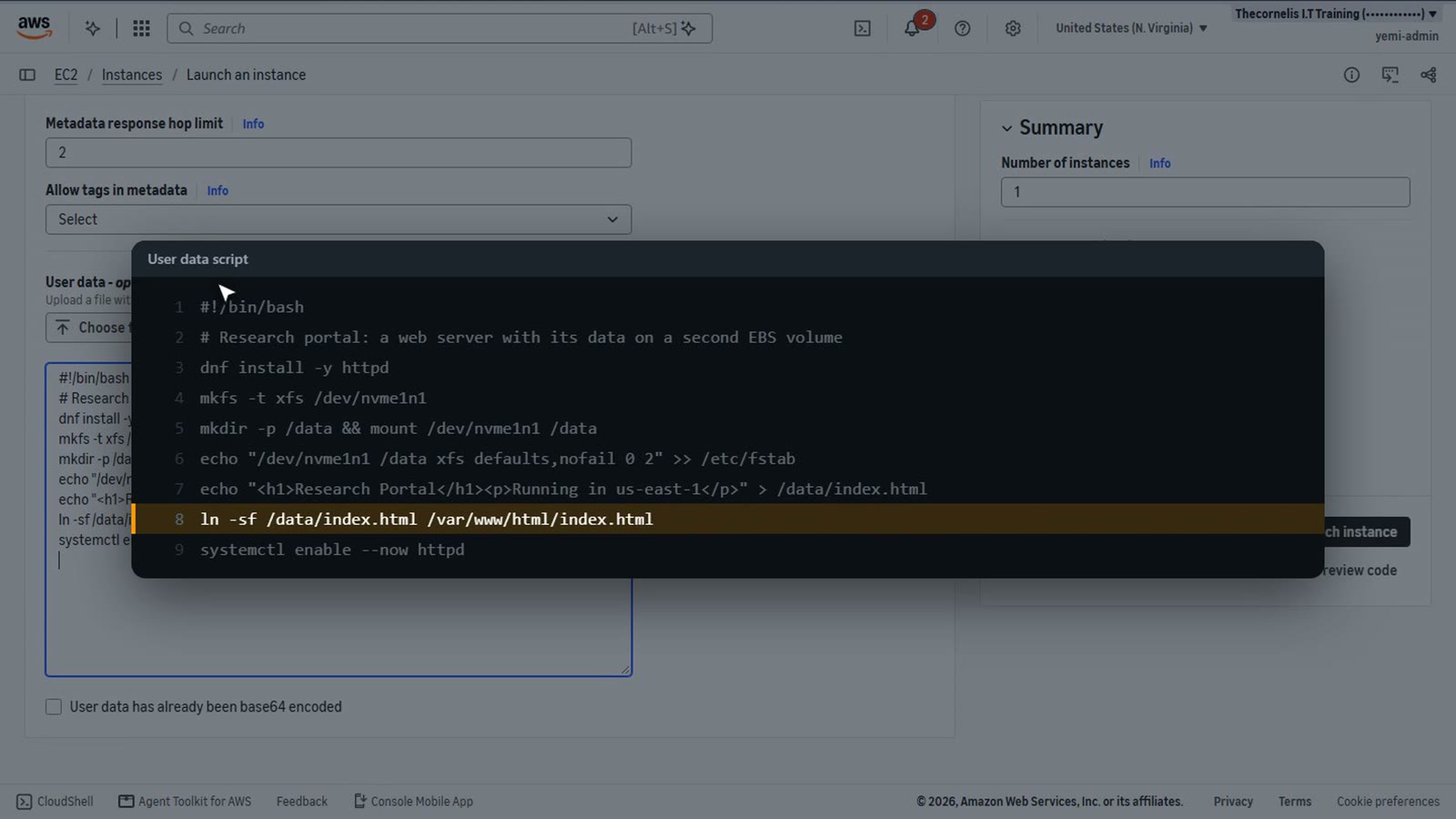
ln -sf /data/index.html /var/www/html/index.html
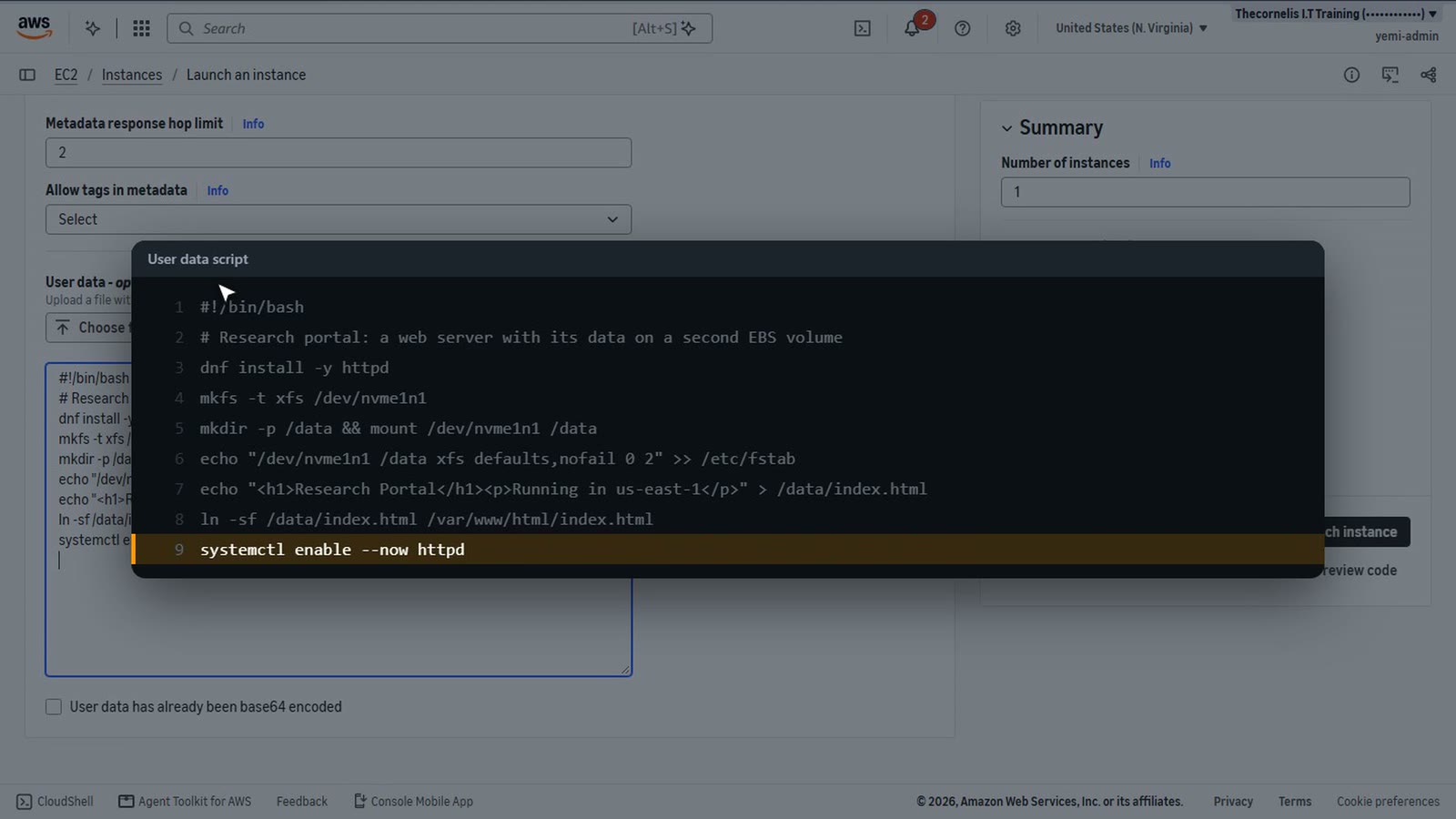
systemctl enable --now httpd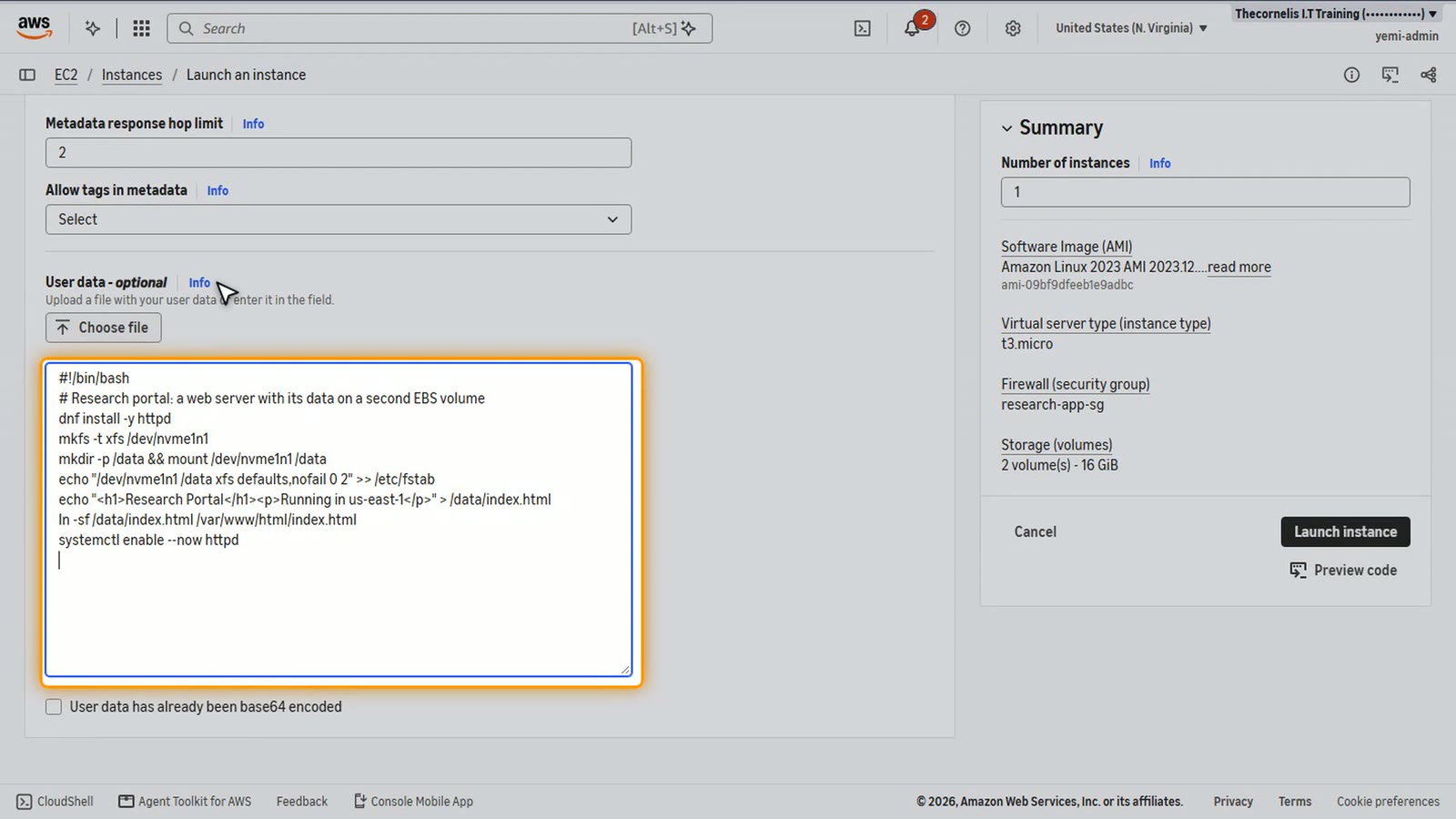
The first line tells Linux to run the script with bash. The second is a comment, a note for people.
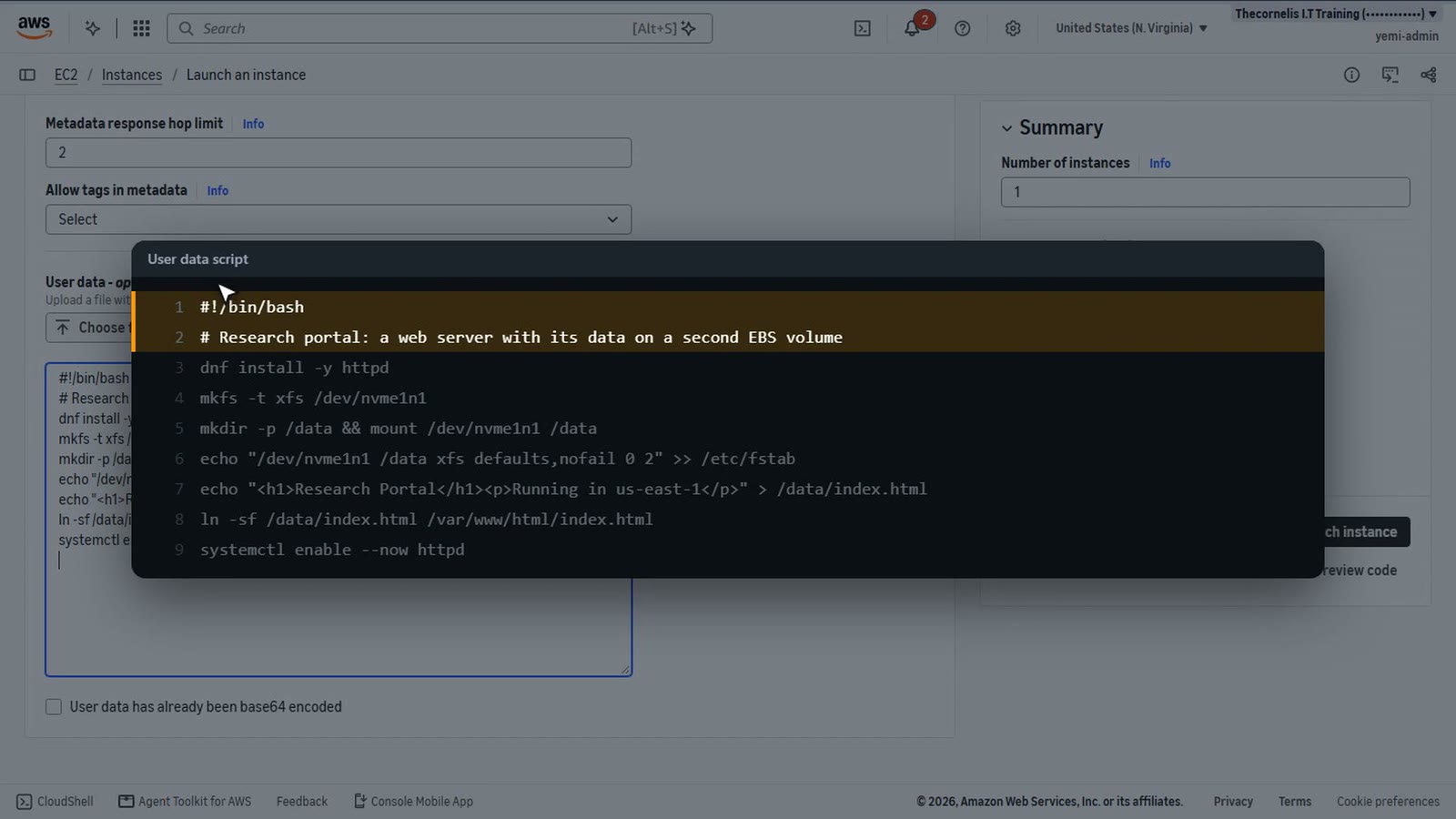
dnf install minus y httpd installs the Apache web server. Minus y answers yes, because nobody is there to type.
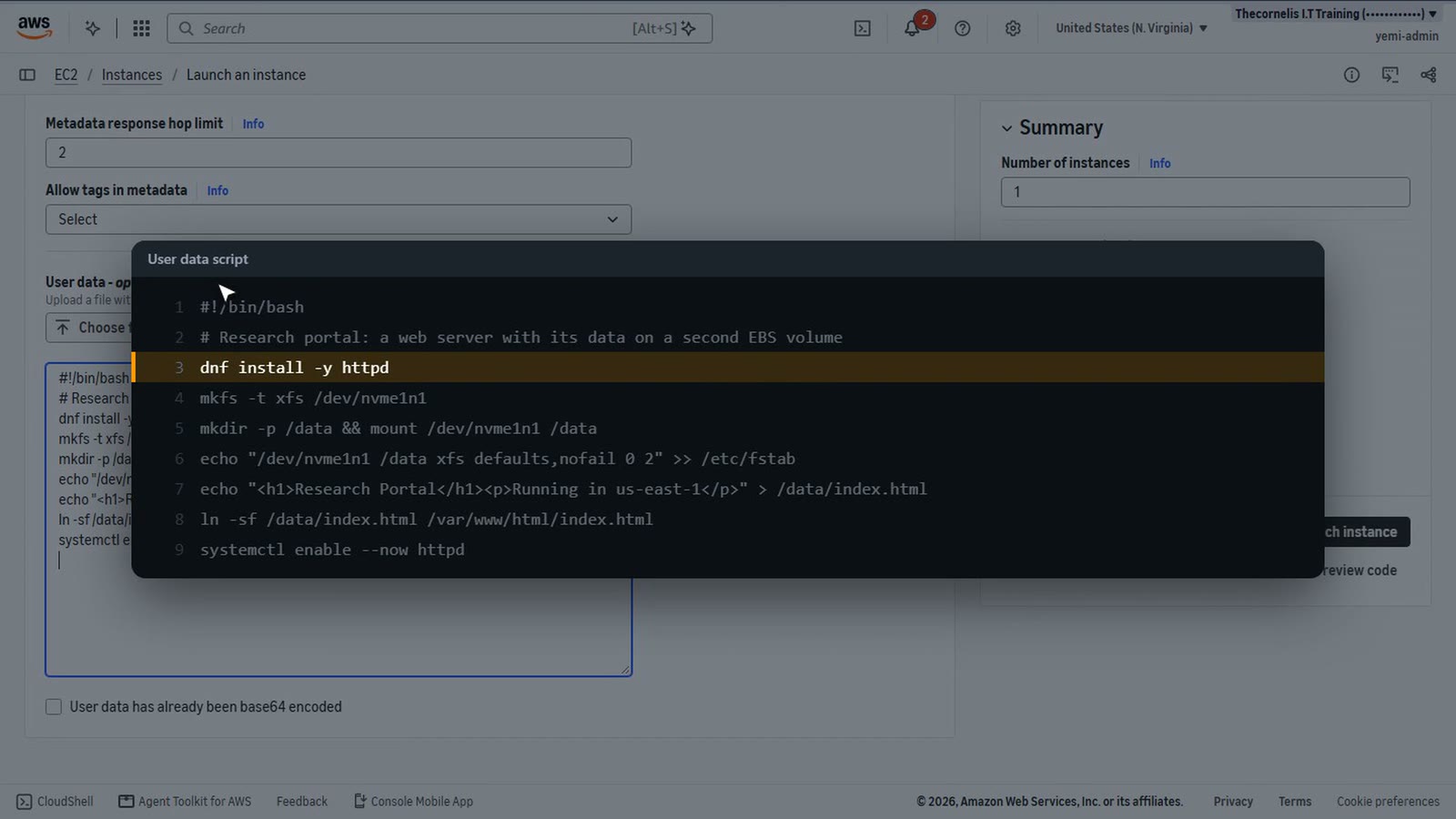
mkfs puts an X F S file system on the new volume. On this server type, the second volume appears as slash dev slash nvme one n one.
mkdir makes the folder slash data, and mount attaches the volume there.
This line adds the volume to slash etc slash fstab, so it's mounted again after every reboot. nofail lets the server boot even if the volume is missing.
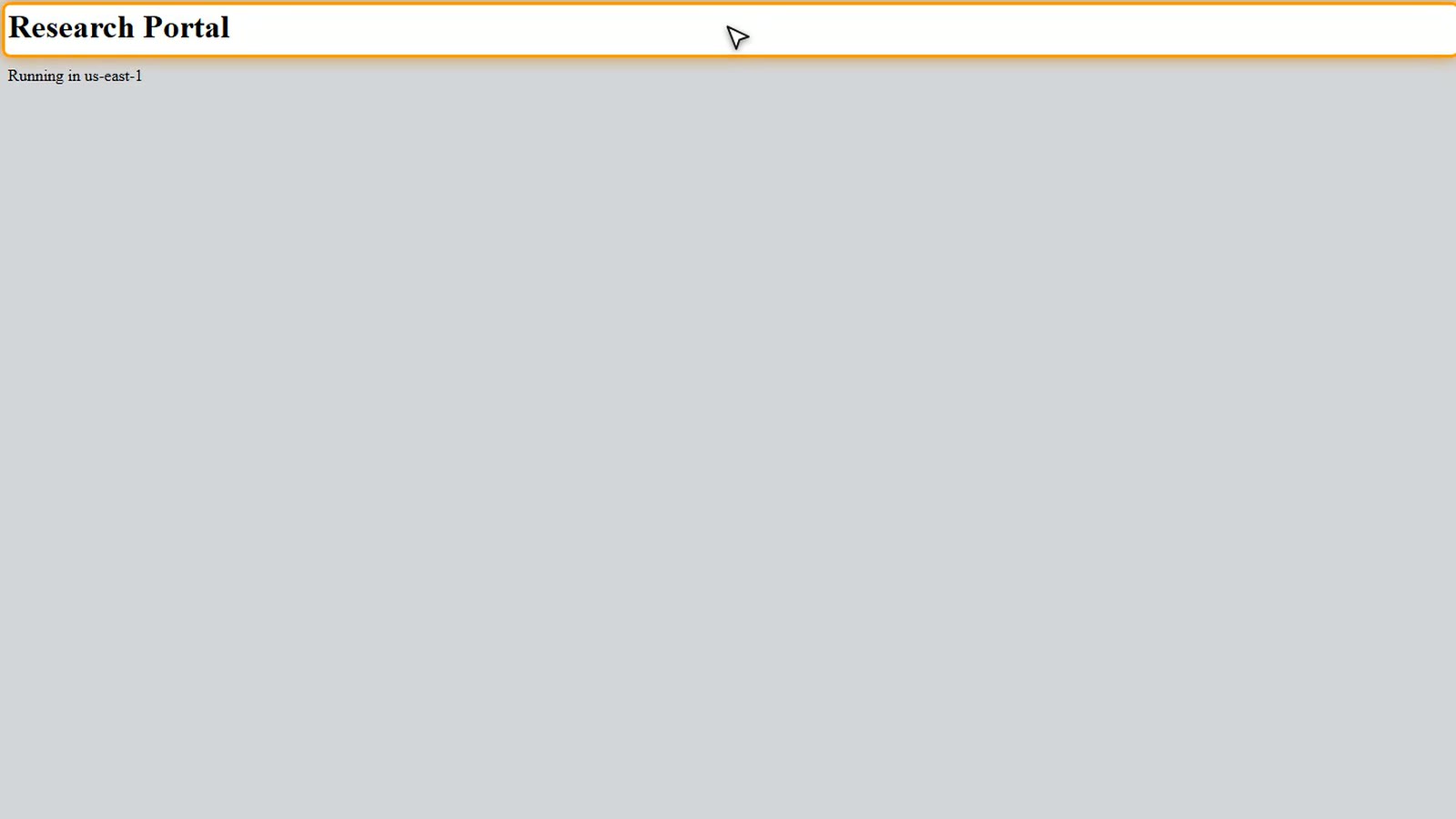
echo writes the portal's home page onto the data volume. It says the portal runs in us-east-1.
ln minus s f links the page into Apache's web folder, so Apache serves the file from the data volume.
Finally, systemctl enable minus minus now starts Apache, and starts it again after every reboot.
Choose Launch instance.
Test the portal
The server boots, installs Apache, and builds the page. This takes a minute or two.
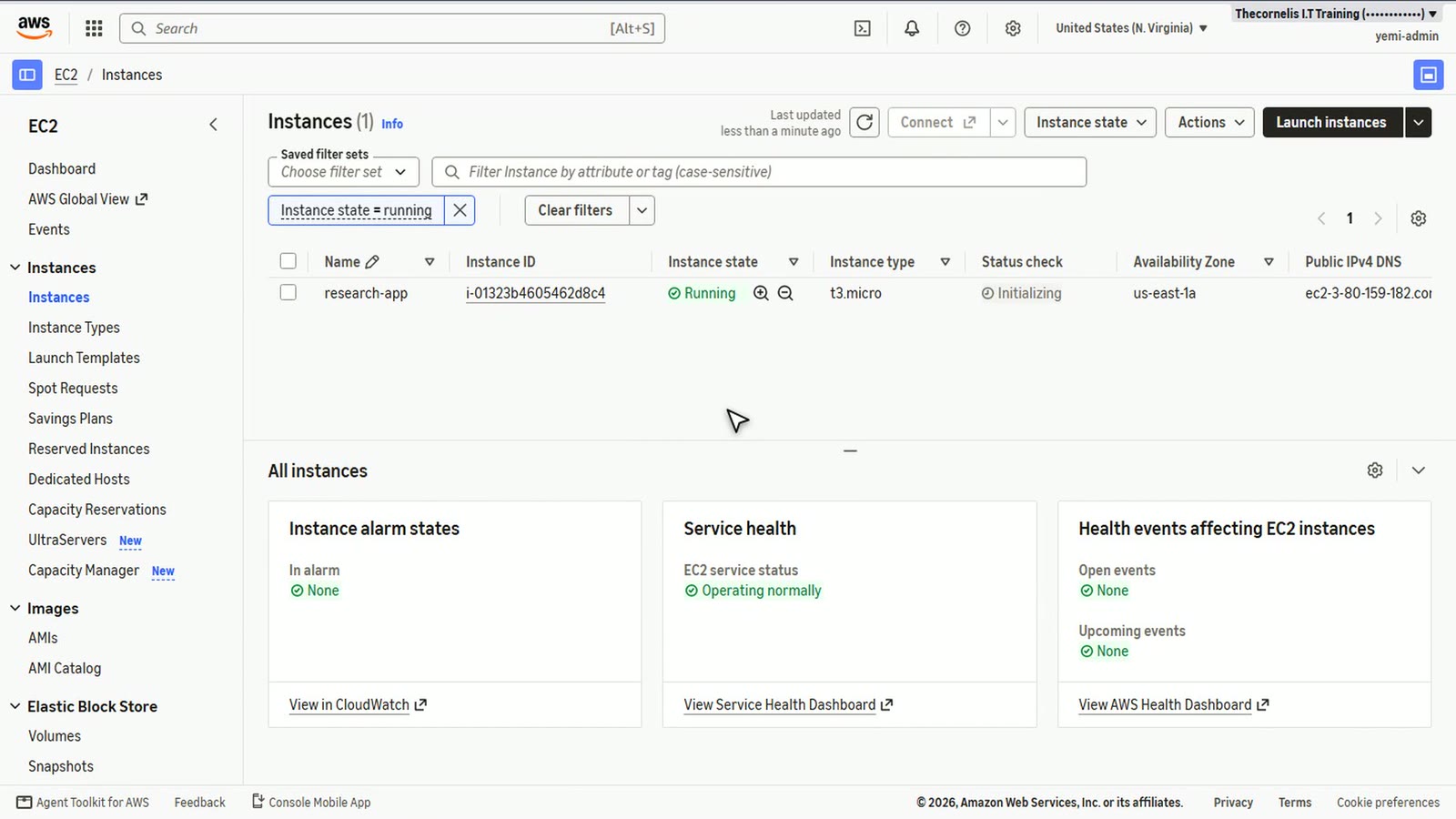
Select it, and open the Storage tab. Two volumes. The root volume, and our data volume.
Now open its public address in the browser, with http. There's the research portal, running in us-east-1, served from the data volume.
That's part one of the client's workload. A standalone VPC, encrypted research data in S3, and the portal on its own data volume.
Summary
- A budget alert emails you before the course costs surprise you
- VPC and more builds subnets, route tables, an internet gateway and an S3 endpoint in one step
- The research data is encrypted with our own KMS key – a single-Region key, which matters for the migration
- The app keeps its data on its own EBS volume, so it can be moved separately
What’s next
In part two, we add the PostgreSQL database and the SageMaker notebook for the data scientists, and we take a full inventory of what has to move.